> ## Documentation Index
> Fetch the complete documentation index at: https://gcore.com/docs/llms.txt
> Use this file to discover all available pages before exploring further.
# Be aware of the service status, scheduled and emergency maintenance
Status Page is a communication tool that displays information about service status, outages, and planned maintenance.
## Subscription methods
To receive notifications about scheduled works and incidents, subscribe to the Status Page: go to [Status Page of Gcore](https://status.gcore.com) and click on the **Subscribe to updates** button in the upper-right corner.
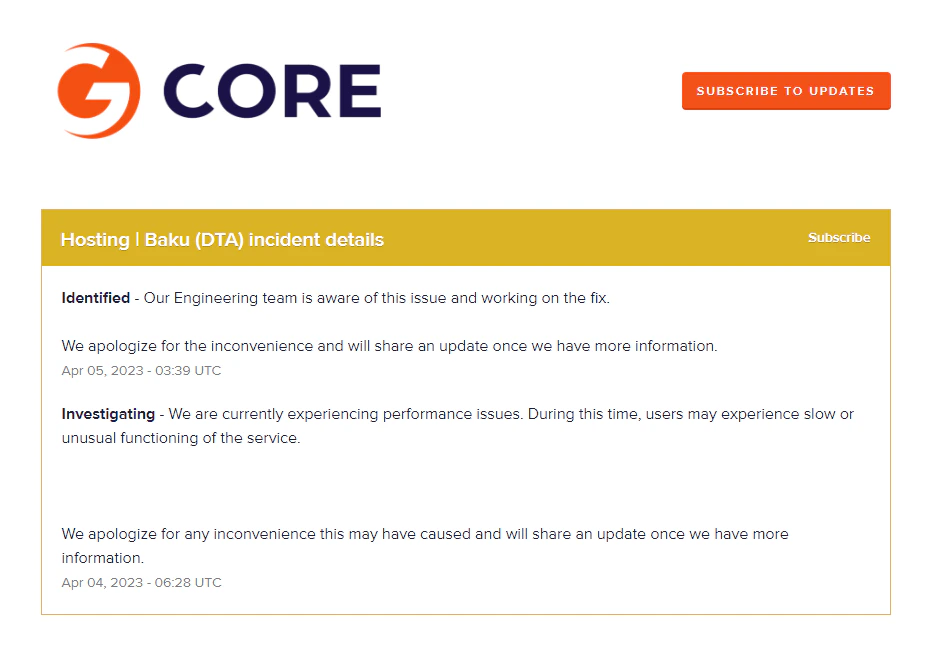 Then select the appropriate subscription method (email, slack, webhook).
### Email
1\. Enter your email address in the Email Address field and click Subscribe via email.
2\. You will be redirected to the subscription management page.
3\. Select the components which status information you would like to receive and click the Save button.
Then select the appropriate subscription method (email, slack, webhook).
### Email
1\. Enter your email address in the Email Address field and click Subscribe via email.
2\. You will be redirected to the subscription management page.
3\. Select the components which status information you would like to receive and click the Save button.
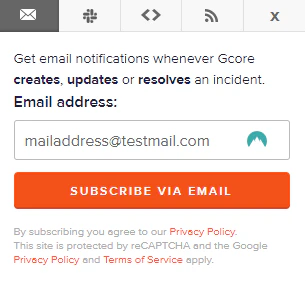 4\. Confirm your subscription to get notifications about the status of incidents and scheduled works. To do this, click Confirm subscription in the email sent to the specified email address.
### Slack
#### How to unsubscribe from the old version of status page
To correctly configure notifications from the new [Status Page of Gcore](https://status.gcore.com), disable the notifications from the old Status Page:
1\. Open your workspace in Slack.
2\. On the left side of the workspace, click More, select Apps
4\. Confirm your subscription to get notifications about the status of incidents and scheduled works. To do this, click Confirm subscription in the email sent to the specified email address.
### Slack
#### How to unsubscribe from the old version of status page
To correctly configure notifications from the new [Status Page of Gcore](https://status.gcore.com), disable the notifications from the old Status Page:
1\. Open your workspace in Slack.
2\. On the left side of the workspace, click More, select Apps
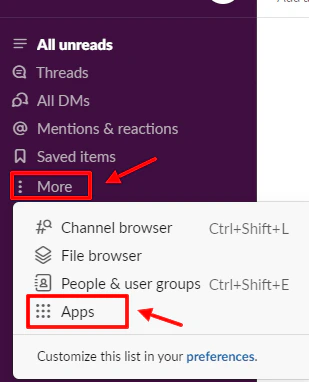 3\. Enter **Incoming WebHooks** in the search bar.
4\. Click the app to open its settings.
3\. Enter **Incoming WebHooks** in the search bar.
4\. Click the app to open its settings.
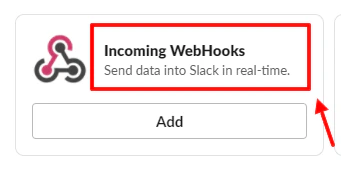 5\. Go to the Configuration section.
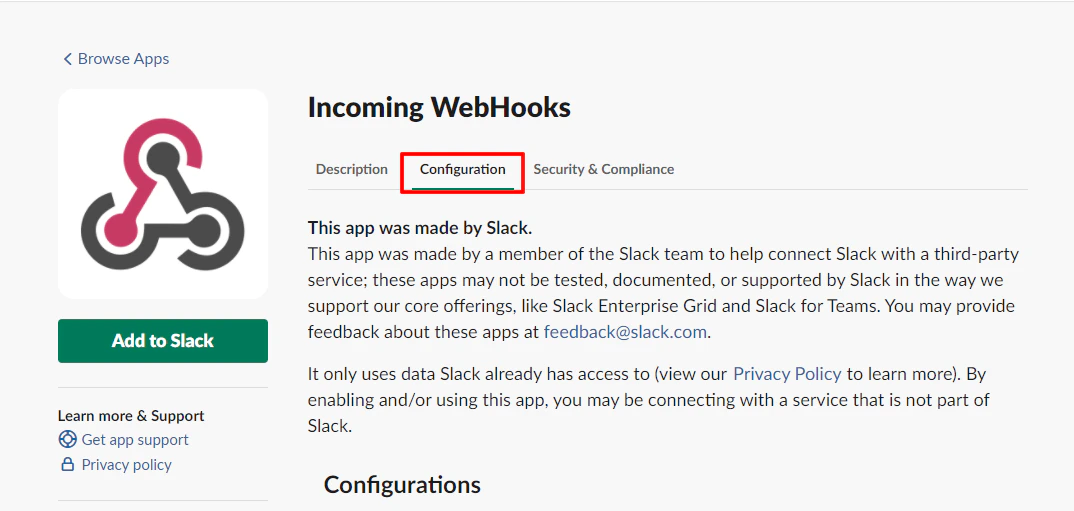 6\. Find the channel for which the notifications are configured.
7\. Click on the pencil sign to go to the integration settings.
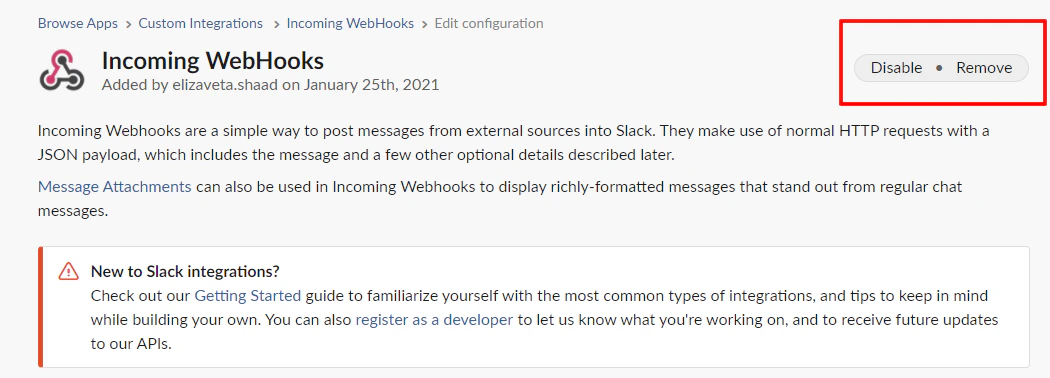
8\. In the upper-right corner, click **Disable** to switch off the integration and Remove to delete the integration.
6\. Find the channel for which the notifications are configured.
7\. Click on the pencil sign to go to the integration settings.
8\. In the upper-right corner, click **Disable** to switch off the integration and Remove to delete the integration.
 9\. Confirm the action.
10\. Use the next paragraph to integrate this channel with the new Status Page.
#### Subscribe via Slack
9\. Confirm the action.
10\. Use the next paragraph to integrate this channel with the new Status Page.
#### Subscribe via Slack
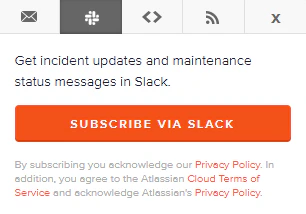 1\. Click **Subscribe via Slack**.
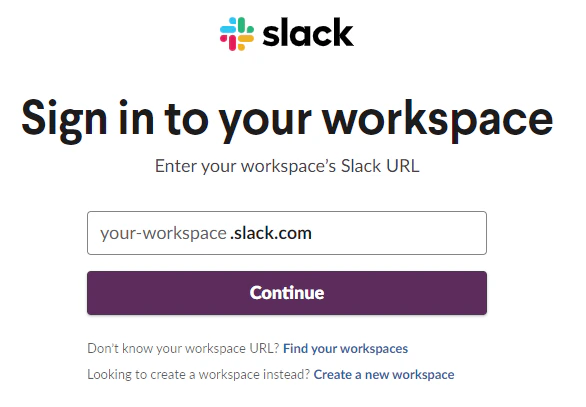
2\. Enter your Slack workspace URL.
3\. Click Continue.
1\. Click **Subscribe via Slack**.
2\. Enter your Slack workspace URL.
3\. Click Continue.
 4\. Log in using your email address and password for the selected workspace in Slack.
5\. Read the channel information that will be provided for Status page.
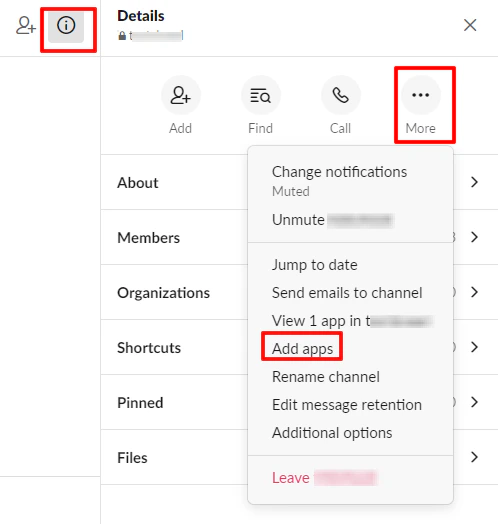
**Important**: If you want to use a private channel to send notifications, first add the Status Page app to the channel. To do this, open the channel details and click More > Add Apps.
4\. Log in using your email address and password for the selected workspace in Slack.
5\. Read the channel information that will be provided for Status page.
**Important**: If you want to use a private channel to send notifications, first add the Status Page app to the channel. To do this, open the channel details and click More > Add Apps.
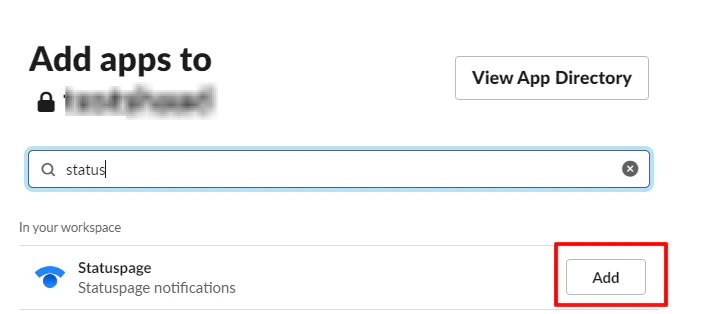
 6\. Enter **Status page** and click on the **Add** button next to the Status page app.
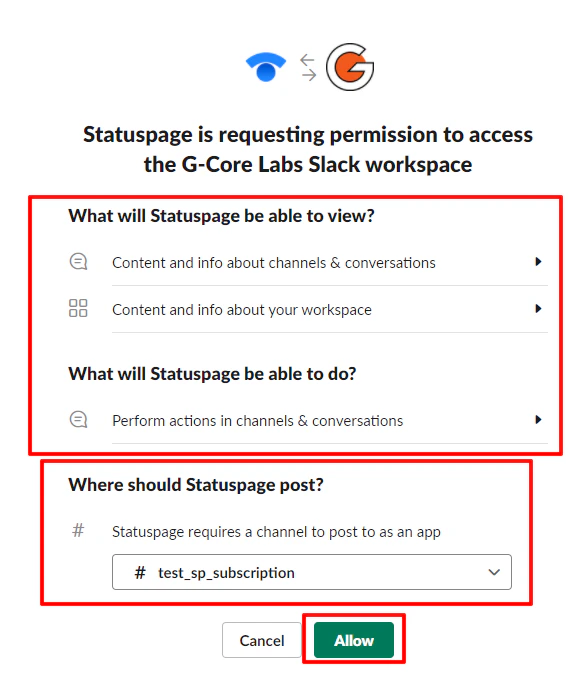
 7\. On the page of integration, in the section Where should Status page post specify the channel that will be used to publish notifications. Click Allow.
 Next, you will receive a notification from Slack that notifications have been successfully configured, and you will also be automatically redirected to the subscription management page.
Select the components which status information you would like to receive and click the Save button.
### Webhook
Next, you will receive a notification from Slack that notifications have been successfully configured, and you will also be automatically redirected to the subscription management page.
Select the components which status information you would like to receive and click the Save button.
### Webhook
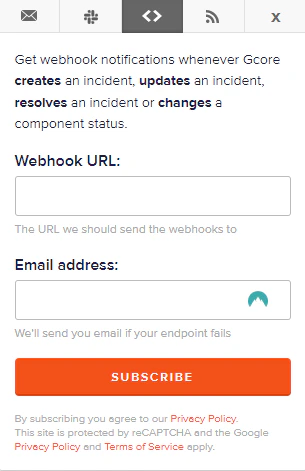 1\. In the first field, enter the URL for sending notifications.
2\. In the second field, specify the email address for sending notifications if the above URL is unavailable.
3\. Click Subscribe.
4\. You will see a message that webhook notifications have been successfully configured.
5\. You will also receive a notification email about the configuration to the specified email.
6\. You can open documentation about how webhooks work by clicking **View documentation**.
7\. You can manage the subscription by clicking Manage your subscription. Select the components which status information you would like to receive and click the Save button.
## Subscription management
### Email management
You can change the subscription from any notification sent by the system to your email address.
1\. Open such a notification.
2\. At the bottom of the notification, find and click Manage your subscription.
1\. In the first field, enter the URL for sending notifications.
2\. In the second field, specify the email address for sending notifications if the above URL is unavailable.
3\. Click Subscribe.
4\. You will see a message that webhook notifications have been successfully configured.
5\. You will also receive a notification email about the configuration to the specified email.
6\. You can open documentation about how webhooks work by clicking **View documentation**.
7\. You can manage the subscription by clicking Manage your subscription. Select the components which status information you would like to receive and click the Save button.
## Subscription management
### Email management
You can change the subscription from any notification sent by the system to your email address.
1\. Open such a notification.
2\. At the bottom of the notification, find and click Manage your subscription.
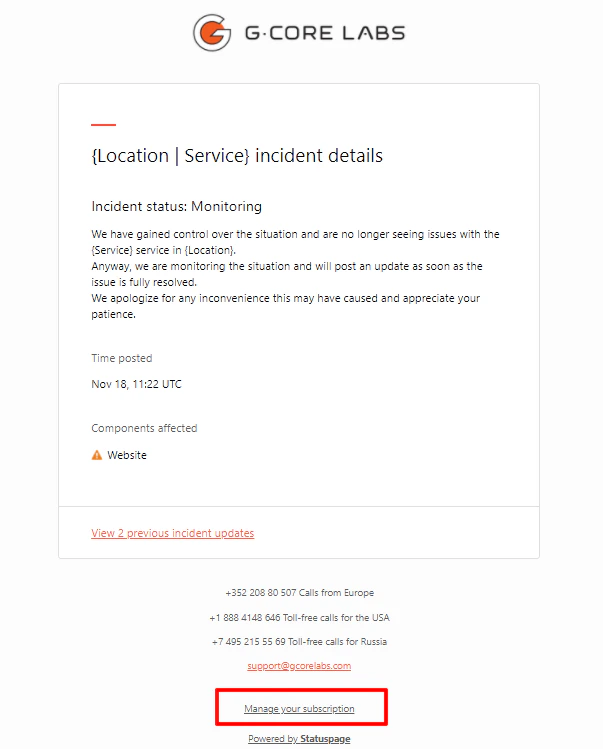 3\. Edit the component subscription and click **Save**.
### Slack management
You can change your subscription from any notification sent by the system to Slack.
1\. Find such notification in Slack.
2\. At the bottom of the notification, find and click Manage your subscription.
3\. Edit the component subscription and click **Save**.
### Webhook management
You can change your subscription from any notification sent by the system to the URL specified during configuration.
1\. Open such a notification.
2\. At the bottom of the notification, find and click Manage your subscription.
3\. Edit the component subscription and click **Save**.
### How to unsubscribe from the updates
1\. To unsubscribe from the notifications, open the management subscription page and click Unsubscribe from the updates.
2\. Confirm the action.
## Components
Components are grouped by services (the Edge Cloud service is grouped by the option+location).
Each service (or service+location) can also be divided by a geographical or functional basis.
We use the Updates component (in Releases) to inform you about our releases biweekly. The Website component shows the company website status, and the Knowledge Base informs you about the knowledge base operating.
### Components statuses
3\. Edit the component subscription and click **Save**.
### Slack management
You can change your subscription from any notification sent by the system to Slack.
1\. Find such notification in Slack.
2\. At the bottom of the notification, find and click Manage your subscription.
3\. Edit the component subscription and click **Save**.
### Webhook management
You can change your subscription from any notification sent by the system to the URL specified during configuration.
1\. Open such a notification.
2\. At the bottom of the notification, find and click Manage your subscription.
3\. Edit the component subscription and click **Save**.
### How to unsubscribe from the updates
1\. To unsubscribe from the notifications, open the management subscription page and click Unsubscribe from the updates.
2\. Confirm the action.
## Components
Components are grouped by services (the Edge Cloud service is grouped by the option+location).
Each service (or service+location) can also be divided by a geographical or functional basis.
We use the Updates component (in Releases) to inform you about our releases biweekly. The Website component shows the company website status, and the Knowledge Base informs you about the knowledge base operating.
### Components statuses
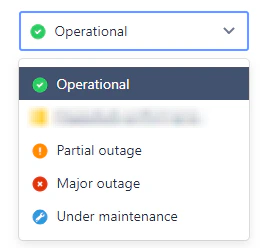 **Operational**: the component is operating normally.
**Partial Outage**: the component is partially unavailable.
**Major Outage**: the component is completely unavailable.
**Under Maintenance**: the component is in the process of maintenance.
### Notification types
**Incident | Investigating**: a notification about the component partial or complete outage, the incident is under investigation.
**Incident | Identified**: the details of the incident have been detected; we are taking steps to resolve it.
**Incident | Monitoring**: the incident has been resolved, and the component is under monitoring.
**Incident | Resolved**: the incident has been completely resolved.
**Incident | Retrospective**: notification of the incident that has already occurred.
**Maintenance | Scheduled**: notification of upcoming scheduled works.
**Maintenance | In progress**: scheduled works have been started.
**Maintenance |Completed**: scheduled works have been completed.
**Operational**: the component is operating normally.
**Partial Outage**: the component is partially unavailable.
**Major Outage**: the component is completely unavailable.
**Under Maintenance**: the component is in the process of maintenance.
### Notification types
**Incident | Investigating**: a notification about the component partial or complete outage, the incident is under investigation.
**Incident | Identified**: the details of the incident have been detected; we are taking steps to resolve it.
**Incident | Monitoring**: the incident has been resolved, and the component is under monitoring.
**Incident | Resolved**: the incident has been completely resolved.
**Incident | Retrospective**: notification of the incident that has already occurred.
**Maintenance | Scheduled**: notification of upcoming scheduled works.
**Maintenance | In progress**: scheduled works have been started.
**Maintenance |Completed**: scheduled works have been completed.