> ## Documentation Index
> Fetch the complete documentation index at: https://gcore.com/docs/llms.txt
> Use this file to discover all available pages before exploring further.
# Set up two-factor authentication
Two-factor authentication (2FA) provides an extra layer of security by requiring both a password and a single-use verification code at login, protecting accounts from unauthorized access.
## Configure two-factor authentication
1. In the Customer Portal, click the avatar in the top-right corner and select **Profile**.
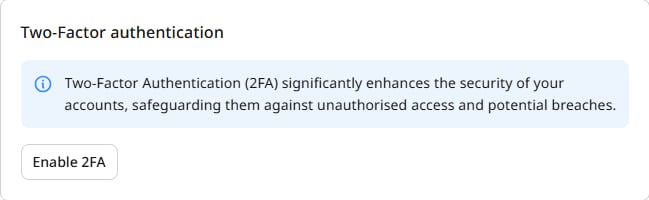
2. Click **Enable 2FA**.
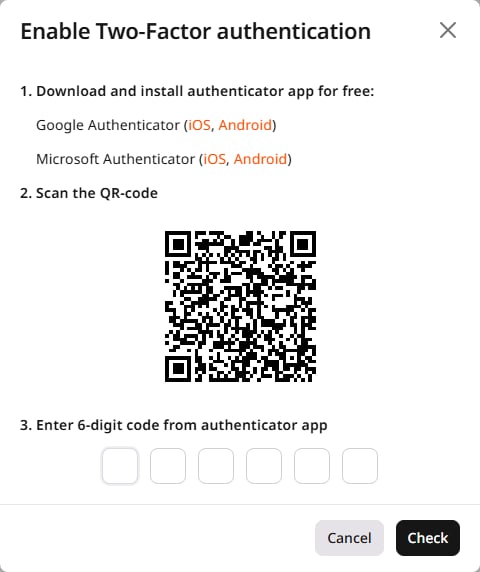
 3. In the configuration dialog that opens, download an authenticator app on a mobile device. Recommended apps:
* [Google Authenticator](https://support.google.com/accounts/answer/1066447?hl=en) (for [Android](https://play.google.com/store/apps/details?id=com.google.android.apps.authenticator2\&hl=ru) / [iOS](https://apps.apple.com/us/app/google-authenticator/id388497605))
* [Microsoft Authenticator](https://support.microsoft.com/en-us/account-billing/download-microsoft-authenticator-351498fc-850a-45da-b7b6-27e523b8702a) (for [iOS](https://apps.apple.com/us/app/microsoft-authenticator/id983156458) / [Android](https://play.google.com/store/apps/details?id=com.azure.authenticator\&hl=en))
* [Authy](https://authy.com/download) (for [Android](https://play.google.com/store/apps/details?id=com.authy.authy) / [iOS](https://apps.apple.com/us/app/authy/id494168017))
If the authenticator app is not working, check the following.
### Check time synchronization
2FA requires synchronized time between the authenticator app and the login device. If an invalid code error appears despite entering the correct code, the issue may be time synchronization. Verify that the date and time are correct and enable network time synchronization on the login device.
### Use a backup verification code
Use one of the one-time backup codes that were generated during 2FA setup.
### Check device configuration
If the authenticator app was recently moved to a new device, verify that it is configured correctly on the new device.
4. Scan the QR code shown in the dialog using the authenticator app.
5. Enter the six-digit code generated by the app and click **Check**.
3. In the configuration dialog that opens, download an authenticator app on a mobile device. Recommended apps:
* [Google Authenticator](https://support.google.com/accounts/answer/1066447?hl=en) (for [Android](https://play.google.com/store/apps/details?id=com.google.android.apps.authenticator2\&hl=ru) / [iOS](https://apps.apple.com/us/app/google-authenticator/id388497605))
* [Microsoft Authenticator](https://support.microsoft.com/en-us/account-billing/download-microsoft-authenticator-351498fc-850a-45da-b7b6-27e523b8702a) (for [iOS](https://apps.apple.com/us/app/microsoft-authenticator/id983156458) / [Android](https://play.google.com/store/apps/details?id=com.azure.authenticator\&hl=en))
* [Authy](https://authy.com/download) (for [Android](https://play.google.com/store/apps/details?id=com.authy.authy) / [iOS](https://apps.apple.com/us/app/authy/id494168017))
If the authenticator app is not working, check the following.
### Check time synchronization
2FA requires synchronized time between the authenticator app and the login device. If an invalid code error appears despite entering the correct code, the issue may be time synchronization. Verify that the date and time are correct and enable network time synchronization on the login device.
### Use a backup verification code
Use one of the one-time backup codes that were generated during 2FA setup.
### Check device configuration
If the authenticator app was recently moved to a new device, verify that it is configured correctly on the new device.
4. Scan the QR code shown in the dialog using the authenticator app.
5. Enter the six-digit code generated by the app and click **Check**.
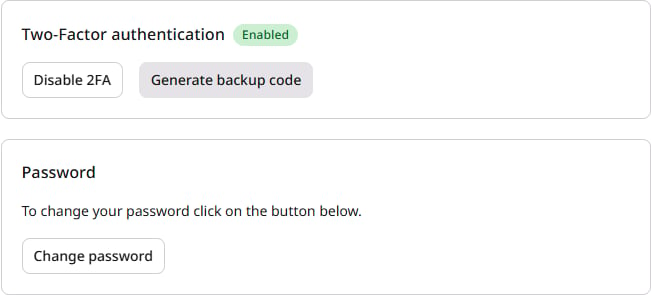
 Two-factor authentication is now active on the account.
### Generate backup verification codes
Backup verification codes allow access to the account if the authenticator app becomes unavailable. To generate codes, click **Generate backup code** on the My profile page.
Two-factor authentication is now active on the account.
### Generate backup verification codes
Backup verification codes allow access to the account if the authenticator app becomes unavailable. To generate codes, click **Generate backup code** on the My profile page.
 **Warning**
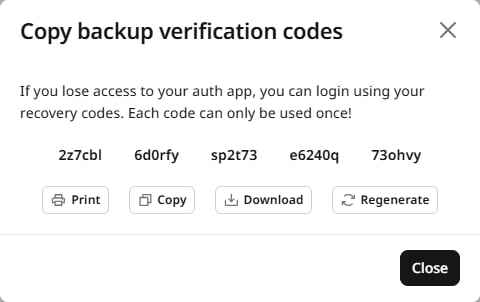
Each backup code can be used only once. When all codes have been used, generate a new set — clicking **Generate backup code** invalidates the previous codes.
Copy, print, or download the five codes and store them securely before closing the dialog.
**Warning**
Each backup code can be used only once. When all codes have been used, generate a new set — clicking **Generate backup code** invalidates the previous codes.
Copy, print, or download the five codes and store them securely before closing the dialog.
 ## Log in with two-factor authentication
1. Enter an email address and password on the [login page](https://auth.gcore.com/login/signin).
## Log in with two-factor authentication
1. Enter an email address and password on the [login page](https://auth.gcore.com/login/signin).
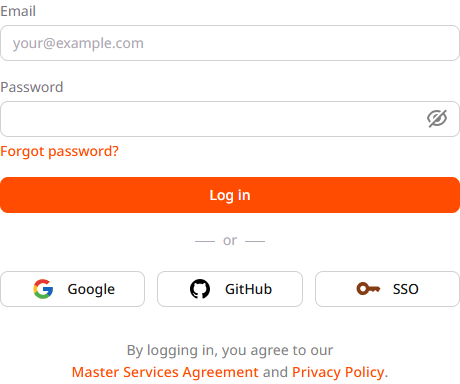 2. Click **Log in**.
3. Enter the verification code from the authenticator app, or use a [backup code](/account-settings/my-profile/two-factor-authentication#generate-backup-verification-codes).
2. Click **Log in**.
3. Enter the verification code from the authenticator app, or use a [backup code](/account-settings/my-profile/two-factor-authentication#generate-backup-verification-codes).
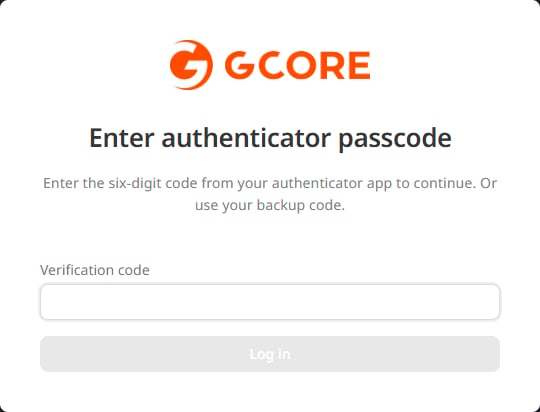 4. Click **Log in**.
## Disable two-factor authentication
1. Go to the [**My profile**](https://portal.gcore.com/accounts/settings/user-profile) page and in the **Two-Factor authentication** section, click **Disable 2FA**.
4. Click **Log in**.
## Disable two-factor authentication
1. Go to the [**My profile**](https://portal.gcore.com/accounts/settings/user-profile) page and in the **Two-Factor authentication** section, click **Disable 2FA**.
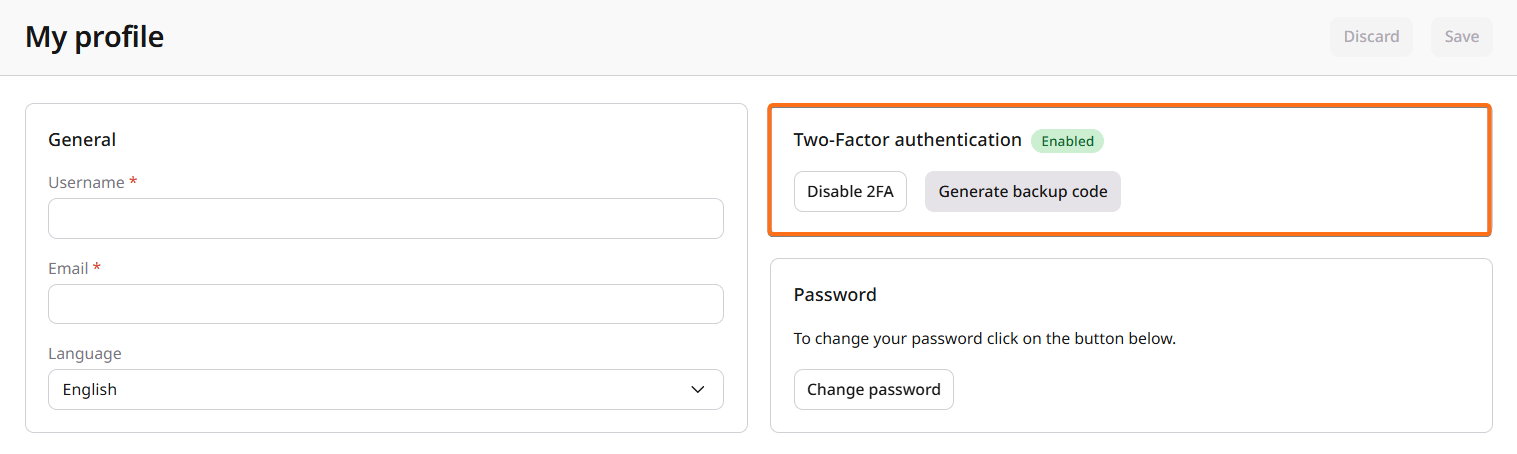 2. In the confirmation dialog that opens, review the message and click **Confirm**.
A confirmation link will be sent to the email address associated with the account. The link is masked in the dialog for security.
3. Open the email and click the confirmation link.
Two-factor authentication is now disabled. The portal redirects to the **My profile** page where 2FA is shown as inactive.
**Warning**
The confirmation link is single-use and expires after a short period. If the link has expired or was already used, an error page appears — return to the **My profile** page and click **Disable 2FA** again to request a new link.
## View users with enabled two-factor authentication
The [All users](https://portal.gcore.com/accounts/settings/users) section in the **Profile** settings shows the 2FA status for each user. Filter by **Two-Factor authentication** using the values **Activated** or **Not activated**.
2. In the confirmation dialog that opens, review the message and click **Confirm**.
A confirmation link will be sent to the email address associated with the account. The link is masked in the dialog for security.
3. Open the email and click the confirmation link.
Two-factor authentication is now disabled. The portal redirects to the **My profile** page where 2FA is shown as inactive.
**Warning**
The confirmation link is single-use and expires after a short period. If the link has expired or was already used, an error page appears — return to the **My profile** page and click **Disable 2FA** again to request a new link.
## View users with enabled two-factor authentication
The [All users](https://portal.gcore.com/accounts/settings/users) section in the **Profile** settings shows the 2FA status for each user. Filter by **Two-Factor authentication** using the values **Activated** or **Not activated**.