> ## Documentation Index
> Fetch the complete documentation index at: https://gcore.com/docs/llms.txt
> Use this file to discover all available pages before exploring further.
# About CDN resources interface: how it is arranged
## CDN resources tab overview
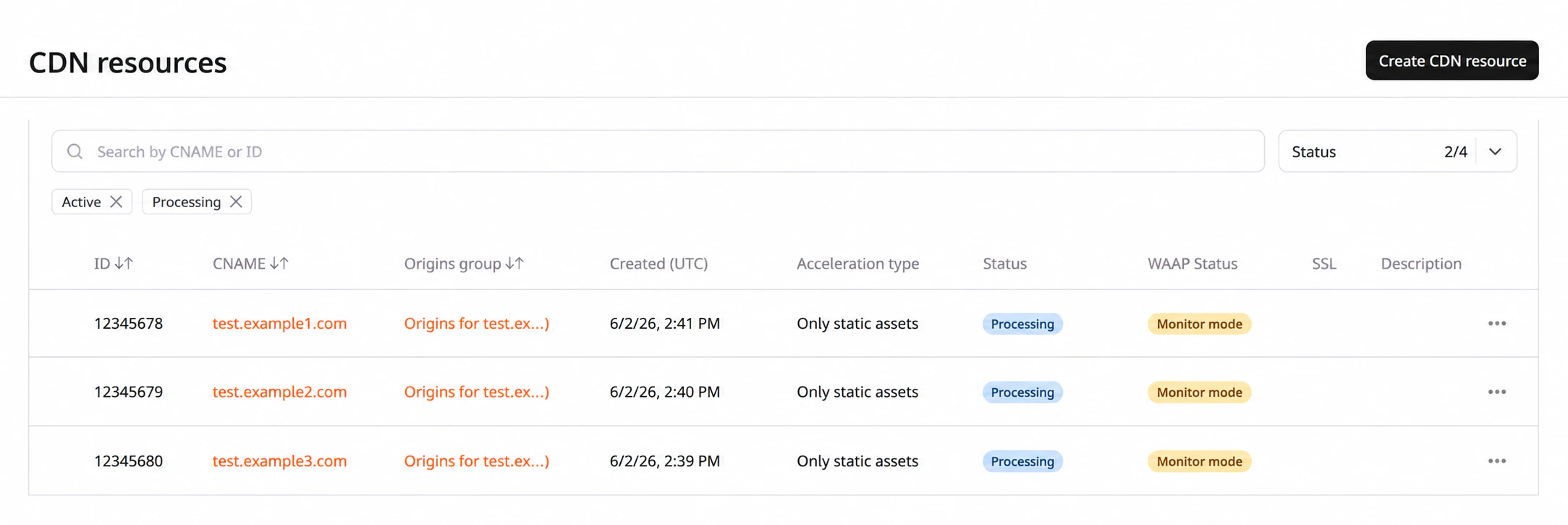
[CDN resources](https://portal.gcore.com/cdn/resources/list) is a page in the Gcore Customer Portal where CDN resources are created and managed.
 ## Create a CDN resource
Click the **Create CDN resource** button in the upper-right corner of the page.
The [creation guide](/cdn/getting-started/create-a-cdn-resource/create-a-cdn-resource) covers the full configuration process.
## Manage CDN resources
The resource list provides filtering, search, and per-resource management actions.
### Filter and search
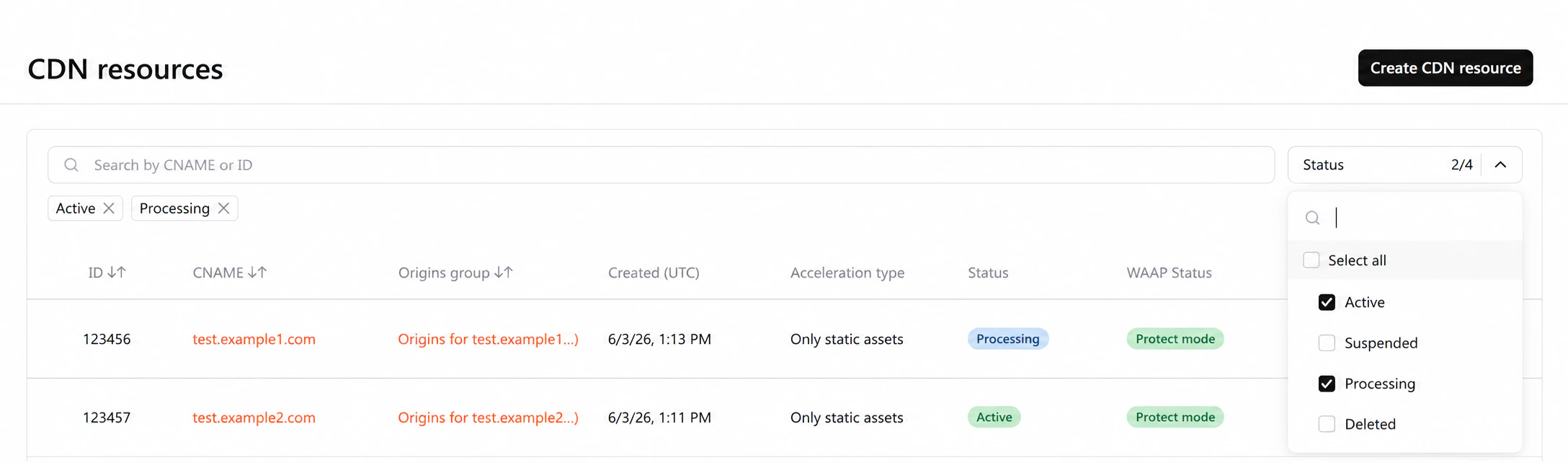
There are four resource statuses:
1. Active: the resource is ready to use. Content is available to users.
2. Suspended: the resource is not available. Content is also unavailable to users.
3. Processing: the resource was recently created and its settings are still being propagated to all servers. This takes about 15 minutes.
4. Deleted: the resource has been deleted. Content is not distributed. Only statistics on the resource remain viewable.
By default, the CDN resources page displays only resources with the Active and Processing statuses.
To filter and search for resources, use:
* **Search bar**: enter the main or additional CNAME of the required resource, or its ID.
* **Status** filter: select the required status or **Select all**.
## Create a CDN resource
Click the **Create CDN resource** button in the upper-right corner of the page.
The [creation guide](/cdn/getting-started/create-a-cdn-resource/create-a-cdn-resource) covers the full configuration process.
## Manage CDN resources
The resource list provides filtering, search, and per-resource management actions.
### Filter and search
There are four resource statuses:
1. Active: the resource is ready to use. Content is available to users.
2. Suspended: the resource is not available. Content is also unavailable to users.
3. Processing: the resource was recently created and its settings are still being propagated to all servers. This takes about 15 minutes.
4. Deleted: the resource has been deleted. Content is not distributed. Only statistics on the resource remain viewable.
By default, the CDN resources page displays only resources with the Active and Processing statuses.
To filter and search for resources, use:
* **Search bar**: enter the main or additional CNAME of the required resource, or its ID.
* **Status** filter: select the required status or **Select all**.
 ### Manage options
Each CDN resource in the list has a three-dot icon that opens a menu of management options.
### Manage options
Each CDN resource in the list has a three-dot icon that opens a menu of management options.
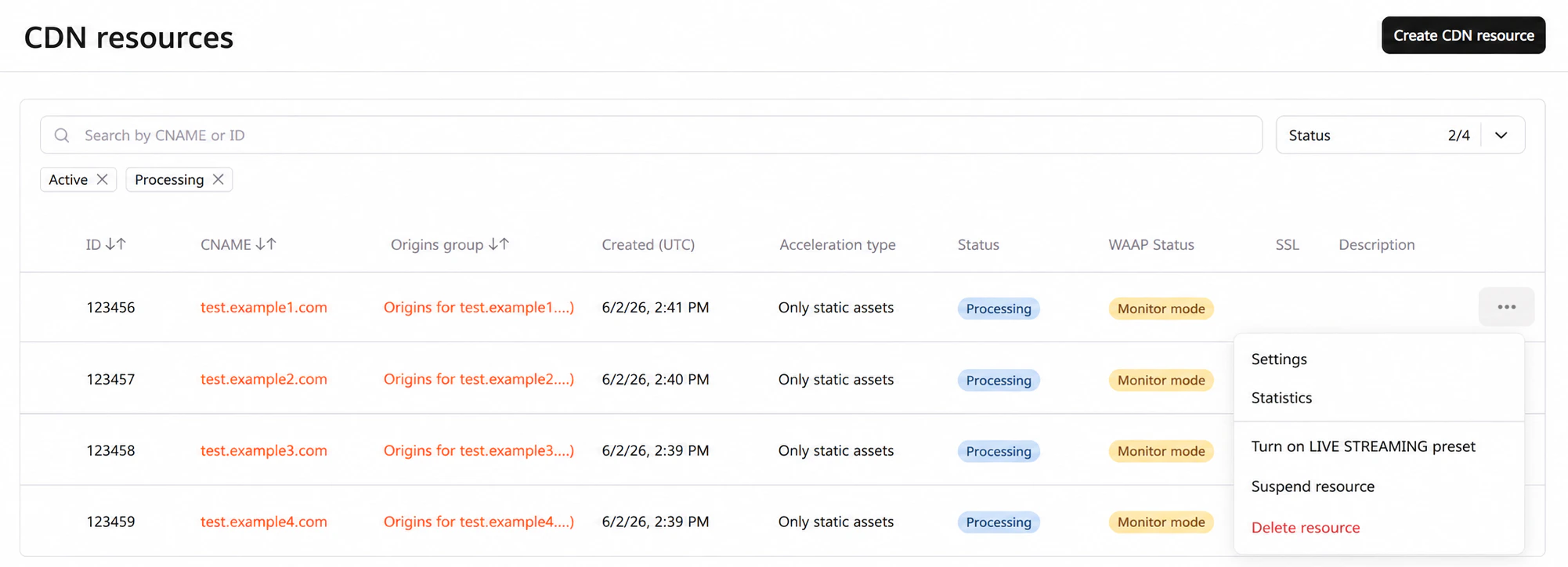 * **Settings**: opens the resource settings. Resource settings are also accessible by clicking the CNAME of the resource.
* **Statistics**: opens the [reports](/cdn/view-statistics-of-a-cdn-resource) for a resource.
* **Turn on LIVE STREAMING preset**: adds settings for [HLS caching](/cdn/video-cdn/hls) through RAM instead of hard drives.
* **Suspend resource**: suspends the resource and stops content delivery to users.
* **Delete resource**: deletes the resource.
[Purge](/cdn/clear-cdn-resource-cache-by-url-pattern-or-all) and [Prefetch](/cdn/load-the-content-to-cdn-before-users-request-it) are accessible from the CDN navigation menu on the left.
### Delete a resource
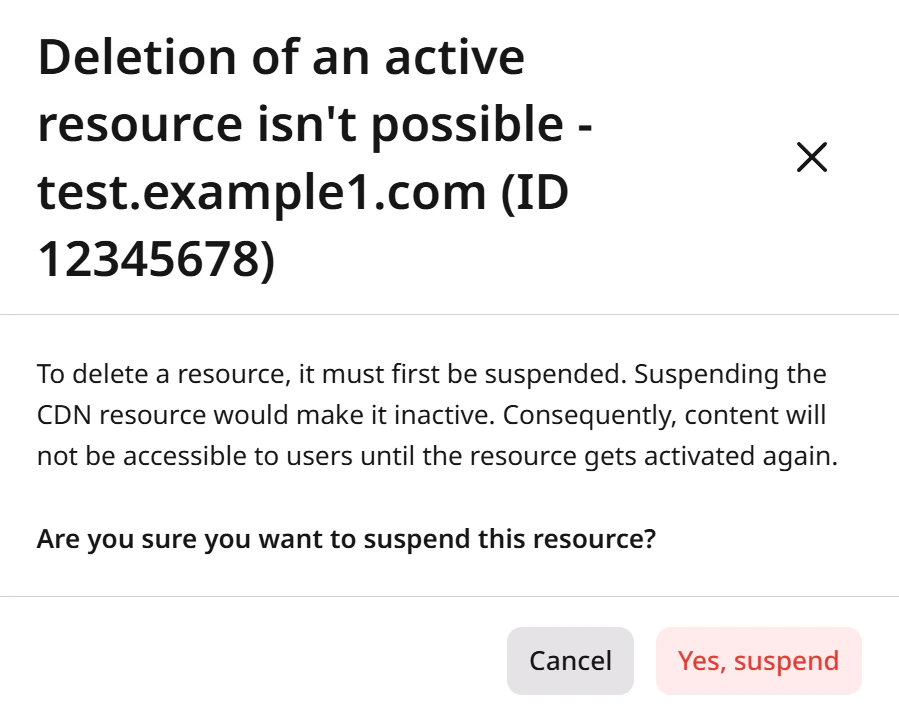
Active resources must be suspended before deletion.
**Info**
Deleting a resource requires the Administrator or Engineer [user role](/account-settings/users/about-users#about-users).
To delete a resource:
1. In the [Gcore Customer Portal](https://portal.gcore.com/), navigate to **CDN**.
2. Locate the resource to delete and click the three-dot icon next to it.
3. Select **Delete resource**.
4. If the resource is active, suspend it first by clicking **Yes, suspend**.
After the resource is [suspended](/cdn/cdn-resource-options/general/suspend-a-cdn-resource-automatically-or-manually), it won't deliver any traffic to users. All settings are retained for suspended resources, and the resource can be reactivated within 90 days of suspension. After this period, the resource is deleted.
* **Settings**: opens the resource settings. Resource settings are also accessible by clicking the CNAME of the resource.
* **Statistics**: opens the [reports](/cdn/view-statistics-of-a-cdn-resource) for a resource.
* **Turn on LIVE STREAMING preset**: adds settings for [HLS caching](/cdn/video-cdn/hls) through RAM instead of hard drives.
* **Suspend resource**: suspends the resource and stops content delivery to users.
* **Delete resource**: deletes the resource.
[Purge](/cdn/clear-cdn-resource-cache-by-url-pattern-or-all) and [Prefetch](/cdn/load-the-content-to-cdn-before-users-request-it) are accessible from the CDN navigation menu on the left.
### Delete a resource
Active resources must be suspended before deletion.
**Info**
Deleting a resource requires the Administrator or Engineer [user role](/account-settings/users/about-users#about-users).
To delete a resource:
1. In the [Gcore Customer Portal](https://portal.gcore.com/), navigate to **CDN**.
2. Locate the resource to delete and click the three-dot icon next to it.
3. Select **Delete resource**.
4. If the resource is active, suspend it first by clicking **Yes, suspend**.
After the resource is [suspended](/cdn/cdn-resource-options/general/suspend-a-cdn-resource-automatically-or-manually), it won't deliver any traffic to users. All settings are retained for suspended resources, and the resource can be reactivated within 90 days of suspension. After this period, the resource is deleted.
 5. Proceed with the resource deletion by clicking **Yes, delete**.
**Info**
CDN resources used for the [Streaming service](/streaming) cannot be deleted.
By default, deleted resources are not displayed in the resource list. Use [the filter](/cdn/about-cdn-resources-interface-how-it-is-arranged#filter-and-search) to display them. Deleted resources are shown in the list for three months. Statistics for deleted resources are also available in the Reports section during this time.
After resource deletion, the CNAME is no longer associated with any resource and can be reused for a new one.
5. Proceed with the resource deletion by clicking **Yes, delete**.
**Info**
CDN resources used for the [Streaming service](/streaming) cannot be deleted.
By default, deleted resources are not displayed in the resource list. Use [the filter](/cdn/about-cdn-resources-interface-how-it-is-arranged#filter-and-search) to display them. Deleted resources are shown in the list for three months. Statistics for deleted resources are also available in the Reports section during this time.
After resource deletion, the CNAME is no longer associated with any resource and can be reused for a new one.