> ## Documentation Index
> Fetch the complete documentation index at: https://gcore.com/docs/llms.txt
> Use this file to discover all available pages before exploring further.
# Protect CDN resources with Gcore WAAP
[Gcore Web Application and API Protection](/waap/overview) (WAAP) combines all aspects of website security and traffic management, including Layer 7 DDoS protection, web app security, and API protection.
With built-in security rules, advanced behavioral analytics, and a range of available customization options, Gcore WAAP protects your domains against known vulnerabilities and common exploits.
## Enable WAAP for a resource
1. In the [Gcore Customer Portal](https://portal.gcore.com/cdn/resources/list), navigate to **CDN** > **CDN resources**.
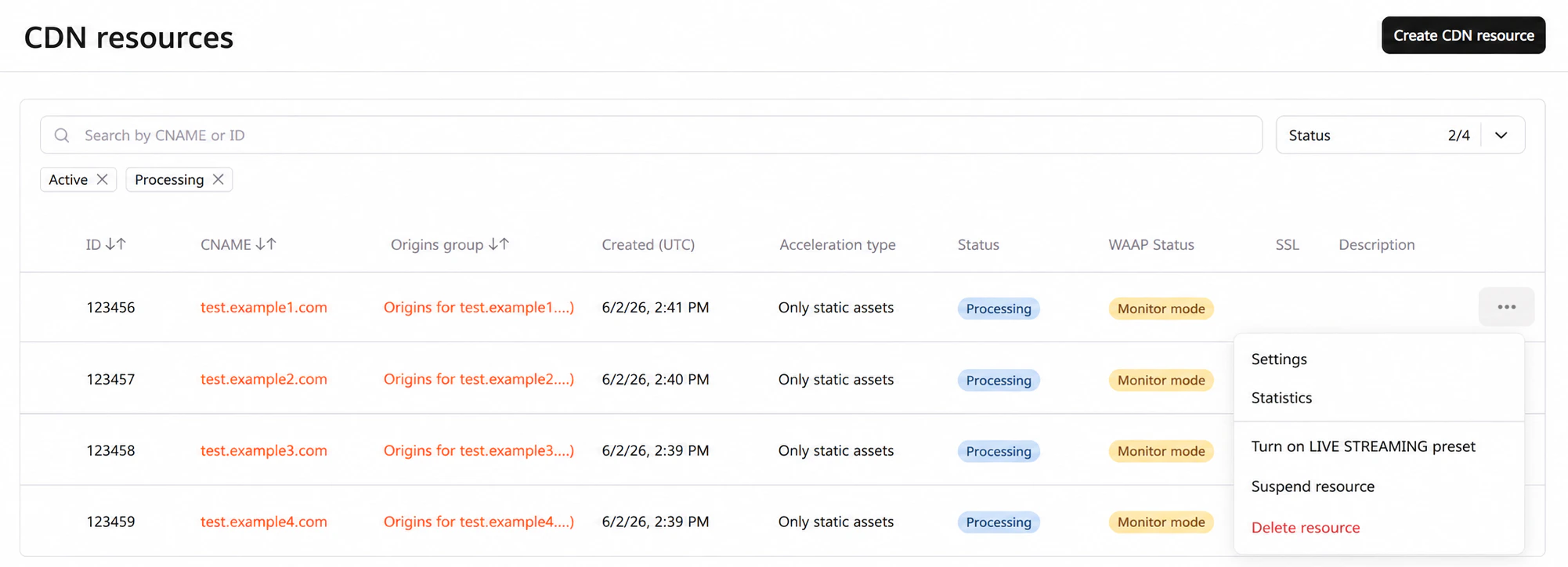
2. Next to the resource that you want to protect with WAAP, click the three-dot icon and select **Settings**.
 3. Scroll down the page and find the **Security** section.
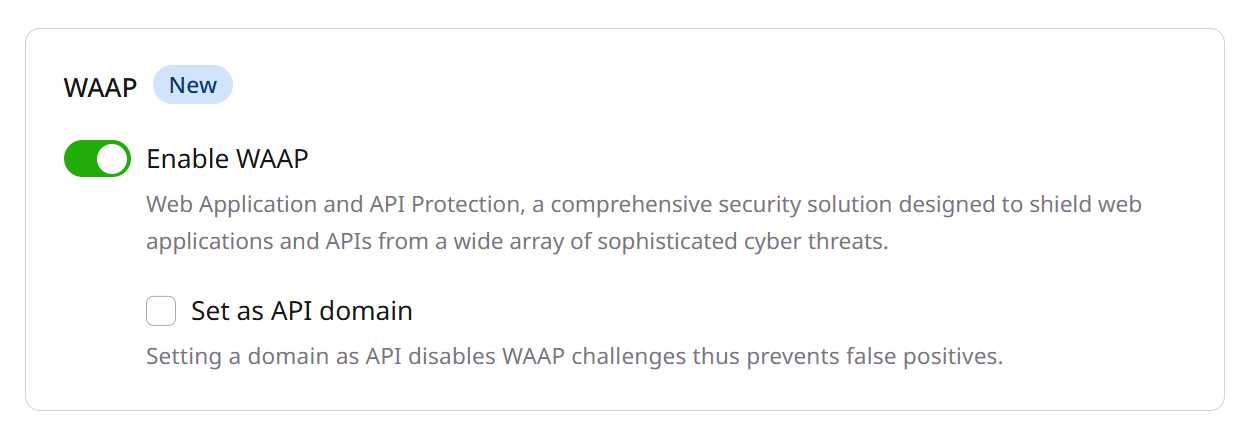
4. Enable the **WAAP** toggle to activate Web Application and API Protection for your CDN resource.
3. Scroll down the page and find the **Security** section.
4. Enable the **WAAP** toggle to activate Web Application and API Protection for your CDN resource.
 5. Click **Save** to apply the changes.
Consider that it might take up to 20 minutes for the HTTP traffic to start passing through our WAAP after the activation.
### What to do if WAAP blocks content that shouldn't be blocked?
Instead of disabling WAAP protection for the whole resource, you can create a rule with an exception:
1. In the CDN resource settings, open the **Rules** tab.
2. Click **Create rule** > **Create blank rule**.
3. Give your rule a name.
4. In the **Match criteria** section, specify the URLs or a regular expression of files blocked by WAAP.
5. Set the origin pull protocol to **Inherit from resource**.
5. Click **Save** to apply the changes.
Consider that it might take up to 20 minutes for the HTTP traffic to start passing through our WAAP after the activation.
### What to do if WAAP blocks content that shouldn't be blocked?
Instead of disabling WAAP protection for the whole resource, you can create a rule with an exception:
1. In the CDN resource settings, open the **Rules** tab.
2. Click **Create rule** > **Create blank rule**.
3. Give your rule a name.
4. In the **Match criteria** section, specify the URLs or a regular expression of files blocked by WAAP.
5. Set the origin pull protocol to **Inherit from resource**.
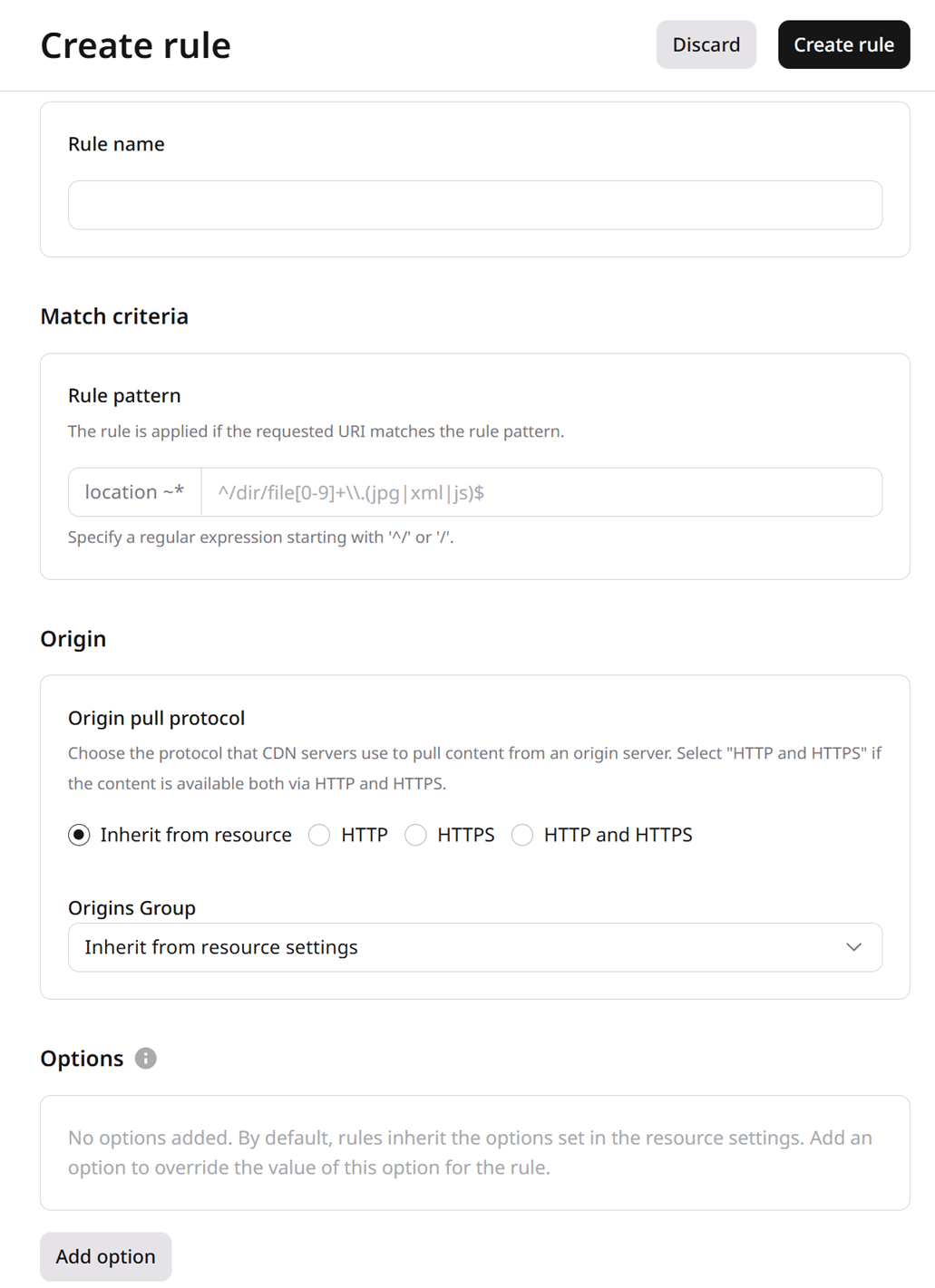 6. In the **Options** section, click **Add option**.
7. Find WAAP and then turn it off for the selected URL rule pattern.
8. Click **Create rule**.
Your content should no longer be blocked by WAAP.
6. In the **Options** section, click **Add option**.
7. Find WAAP and then turn it off for the selected URL rule pattern.
8. Click **Create rule**.
Your content should no longer be blocked by WAAP.