> ## Documentation Index
> Fetch the complete documentation index at: https://gcore.com/docs/llms.txt
> Use this file to discover all available pages before exploring further.
# Integrate CDN resource with Typo3
Before you take any steps please back up your files and database. The plugin works only with default CMS pattern. If you manually changed CMS patterns, the plugin might not help you.
This tutorial guides you through the CDN integration of [Typo3](https://typo3.org) with the [smile\_cdn](https://typo3.org/extensions/repository/view/smile_cdn) extension. We used Typo3 6.2 LTS and smile\_cdn version 2.1.0 in the following example.
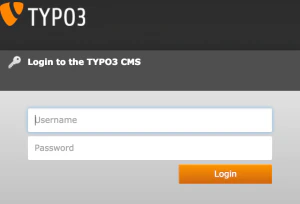
Login to the Typo3 backend.
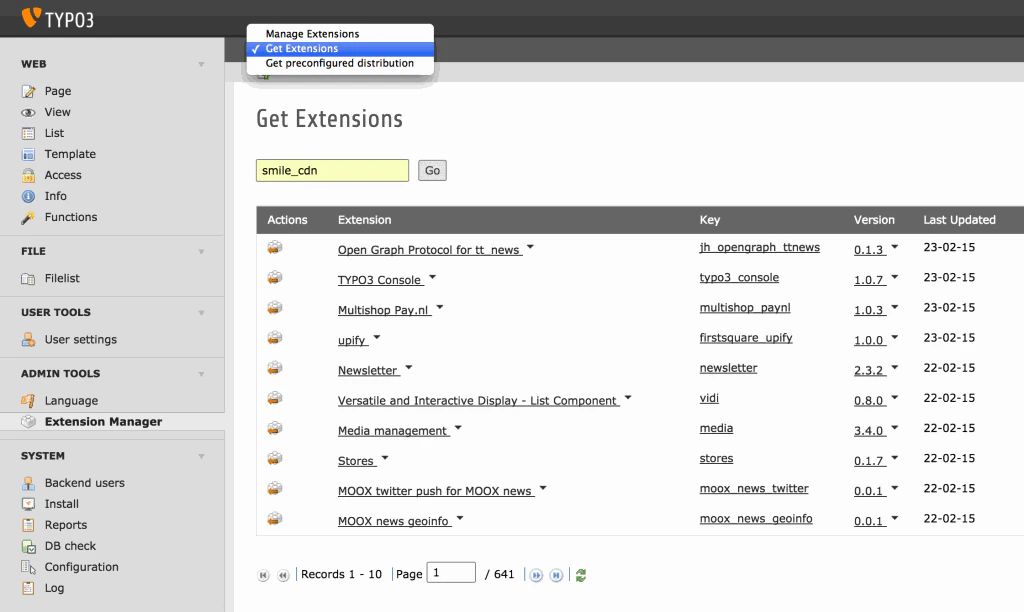
 Navigate to Extension Manager and install the extension smile\_cdn.
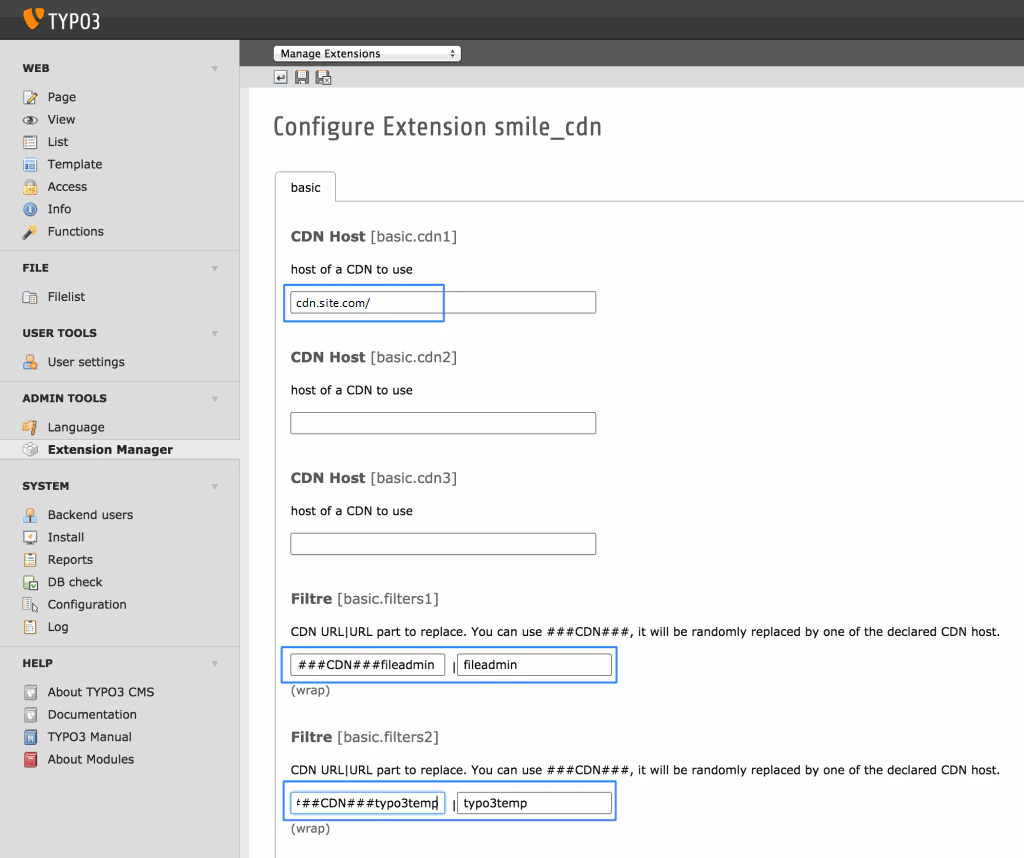
 Configure the smile\_cdn extension by defining the CNAME (without `http://`) that you specified in the [Gcore Customer Portal](https://portal.gcore.com/cdn/resources/list) and the desired filters to offload your assets. Ensure that your [CNAME record has been configured](/cdn/cdn-resource-options/general/create-and-set-a-custom-domain-for-the-content-delivery-via-cdn) in a proper way before using it for integration.
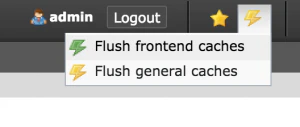
 Click Flush the Frontend Caches in the Typo3 backend.
 Integration has been completed! We highly recommend you to check the HTML code of your web page to ensure that URLs have been rewritten properly from your original ones to CNAME from the Gcore Customer Portal.
To do that press **F12** or open Developers Tools in your browser, choose the Network tab and refresh the page. All static files should have your CNAME in URLs.
Integration has been completed! We highly recommend you to check the HTML code of your web page to ensure that URLs have been rewritten properly from your original ones to CNAME from the Gcore Customer Portal.
To do that press **F12** or open Developers Tools in your browser, choose the Network tab and refresh the page. All static files should have your CNAME in URLs.