> ## Documentation Index
> Fetch the complete documentation index at: https://gcore.com/docs/llms.txt
> Use this file to discover all available pages before exploring further.

# Create a Bare Metal server

export const MethodSection = ({children}) => children ?? null;

export const MethodSwitch = ({children}) => {
  const tabs = React.Children.toArray(children).map(c => {
    if (!c || !c.props) return null;
    if (c.props.id) return c;
    const inner = c.props.children;
    if (inner && inner.props && inner.props.id) return inner;
    return null;
  }).filter(Boolean);
  const firstId = tabs.length > 0 ? tabs[0].props.id : "";
  const [active, setActive] = React.useState(firstId);
  React.useEffect(() => {
    try {
      const saved = localStorage.getItem("gcore_docs_method");
      if (saved && tabs.find(t => t.props.id === saved)) {
        setActive(saved);
      }
    } catch (_) {}
  }, []);
  React.useEffect(() => {
    try {
      document.querySelectorAll("h2[id], h3[id]").forEach(heading => {
        const visible = heading.offsetParent !== null;
        document.querySelectorAll(`a[href="#${heading.id}"]`).forEach(link => {
          if (link.closest("h1,h2,h3,h4,h5,h6")) return;
          const li = link.closest("li");
          if (li) li.style.display = visible ? "" : "none";
        });
      });
    } catch (_) {}
    window.dispatchEvent(new Event("scroll"));
  }, [active]);
  const handleClick = id => {
    setActive(id);
    try {
      localStorage.setItem("gcore_docs_method", id);
    } catch (_) {}
  };
  return <div>
      <div className="not-prose flex gap-0 border-b border-zinc-200 dark:border-zinc-800 mb-8 mt-2" role="tablist">
        {tabs.map(tab => {
    const isActive = active === tab.props.id;
    return <button key={tab.props.id} role="tab" aria-selected={isActive} onClick={() => handleClick(tab.props.id)} className={["px-4 py-2 text-sm font-medium border-b-2 -mb-px transition-colors cursor-pointer", isActive ? "border-primary text-primary" : "border-transparent text-zinc-500 hover:text-zinc-800 dark:hover:text-zinc-200"].join(" ")}>
              {tab.props.label}
            </button>;
  })}
      </div>

      {tabs.map(tab => <div key={tab.props.id} style={{
    display: active === tab.props.id ? "" : "none"
  }}>
          {tab.props.children}
        </div>)}
    </div>;
};

<MethodSwitch>
  <MethodSection id="portal" label="Customer Portal">
    A Bare Metal server is a physical machine allocated entirely to a single tenant, with no hypervisor layer. All CPU, RAM, and storage resources are dedicated - not shared with other users.

    <Info>
      **Info**

      Bare Metal servers require a quota increase before creation. Select a region and server type in the creation form, then click **Send quota request** in the **Quota Increase Required** block. Requests are reviewed by the operations team.
    </Info>

    ## Step 1. Open the creation page

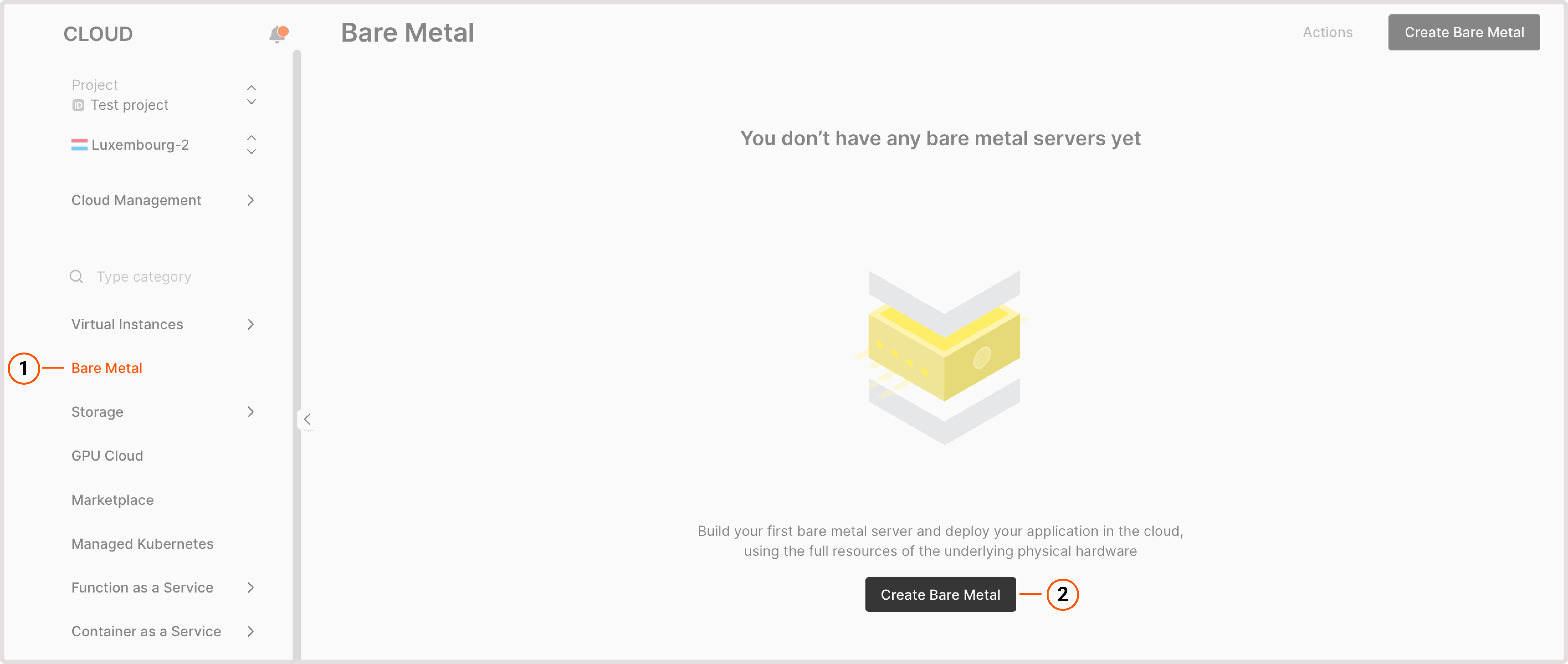
    In the [Gcore Customer Portal](https://portal.gcore.com/accounts/reports/dashboard), navigate to **Cloud** > **Bare Metal** and click **Create Bare Metal**.

    <Frame>
      <img src="https://mintcdn.com/gcore/QIEAnezmG8Bl8nMk/images/docs/cloud/bare-metal-servers/create-a-bare-metal-server/bare-metal-page.png?fit=max&auto=format&n=QIEAnezmG8Bl8nMk&q=85&s=66f03423aefdf92f5a0957b196a76653" alt="Bare metal page in Gcore Customer Portal" width="5660" height="2396" data-path="images/docs/cloud/bare-metal-servers/create-a-bare-metal-server/bare-metal-page.png" />
    </Frame>

    ## Step 2. Select a region

    Choose the region where the server will be deployed.

    ## Step 3. Select an image

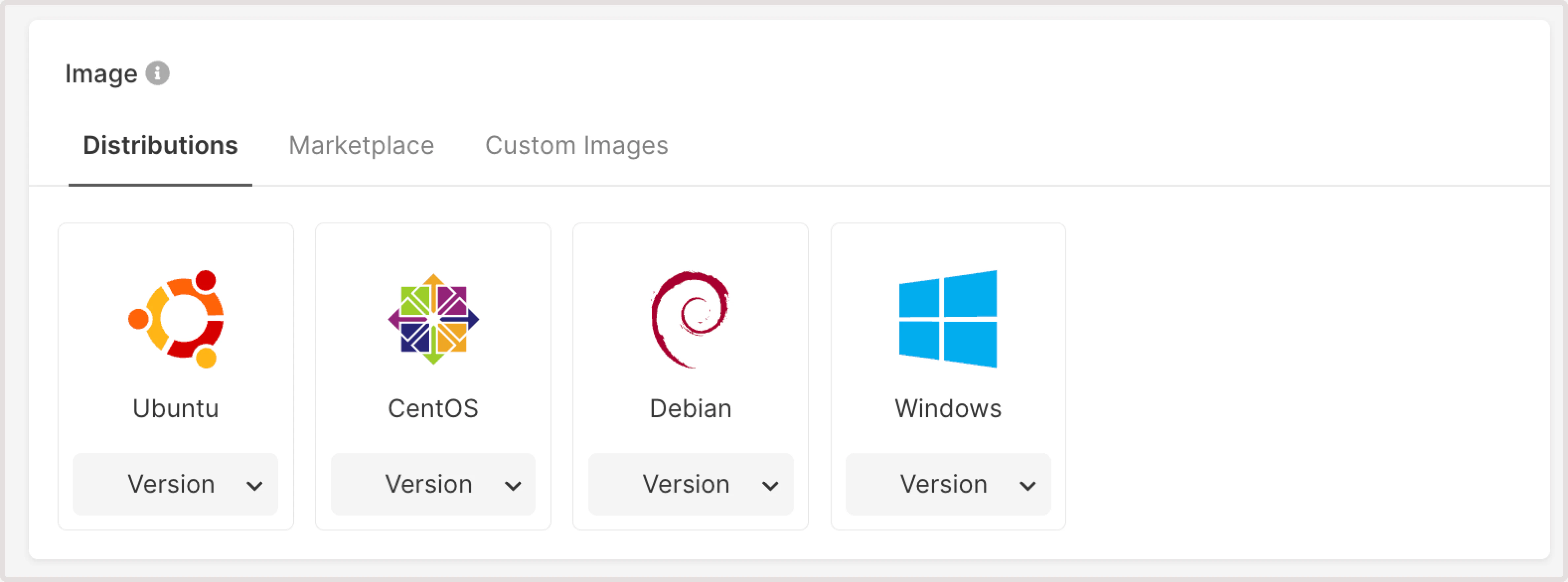
    Select the architecture - **x86-64** or **ARM** - then choose an OS image from one of three tabs:

    * **Distributions** - prepared OS templates (Ubuntu, CentOS, Debian, Windows, and others).
    * **Marketplace** - pre-configured application images.
    * **Custom Images** - images previously uploaded to the account. Only images built for Bare Metal servers are compatible; standard VM images do not work. Build requirements are covered in [image upload](/cloud/images/upload-an-image-to-the-storage).
    <Frame>
      <img src="https://mintcdn.com/gcore/QIEAnezmG8Bl8nMk/images/docs/cloud/bare-metal-servers/create-a-bare-metal-server/select-image.png?fit=max&auto=format&n=QIEAnezmG8Bl8nMk&q=85&s=636f0c1e40a2b922d0fb2fa32986e0e2" alt="A menu with available OS images" width="4752" height="1764" data-path="images/docs/cloud/bare-metal-servers/create-a-bare-metal-server/select-image.png" />
    </Frame>

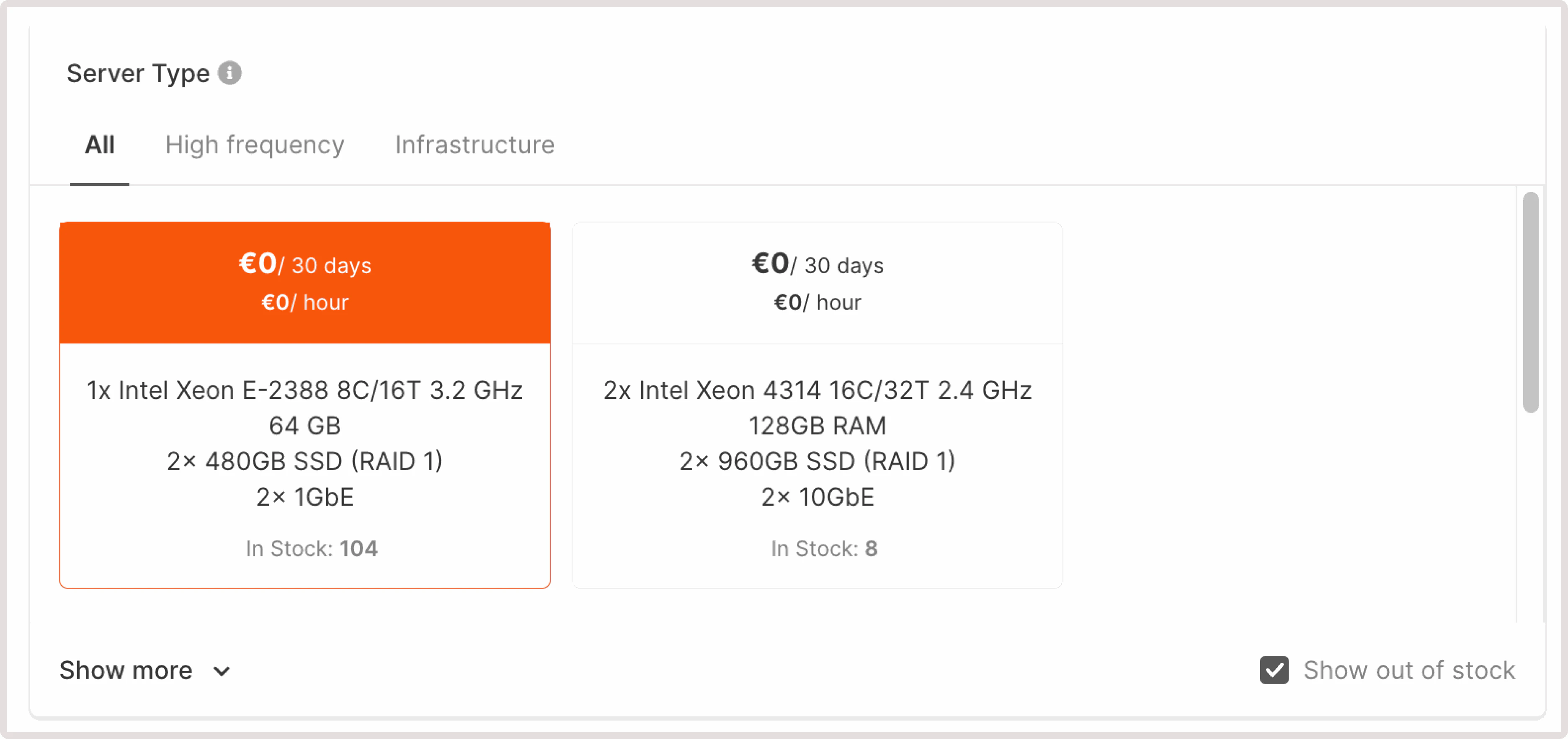
    ## Step 4. Select a server type

    Server types are grouped into three categories:

    * **High frequency** - high clock-speed CPUs for latency-sensitive workloads.
    * **Infrastructure** - high core count and NVMe storage for compute-intensive tasks.
    * **Storage** - large-capacity drives for data-heavy workloads.
    <Frame>
      <img src="https://mintcdn.com/gcore/QIEAnezmG8Bl8nMk/images/docs/cloud/bare-metal-servers/create-a-bare-metal-server/server-type.png?fit=max&auto=format&n=QIEAnezmG8Bl8nMk&q=85&s=2c6fafda492ec6eb966ea9c8460439c9" alt="A menu with available server types" width="3744" height="1764" data-path="images/docs/cloud/bare-metal-servers/create-a-bare-metal-server/server-type.png" />
    </Frame>

    All types require a quota. After selecting a type, a **Quota Increase Required** block appears with a **Send quota request** button. The remaining sections of the form unlock once the quota is approved.

    ## Step 5. Configure network interfaces

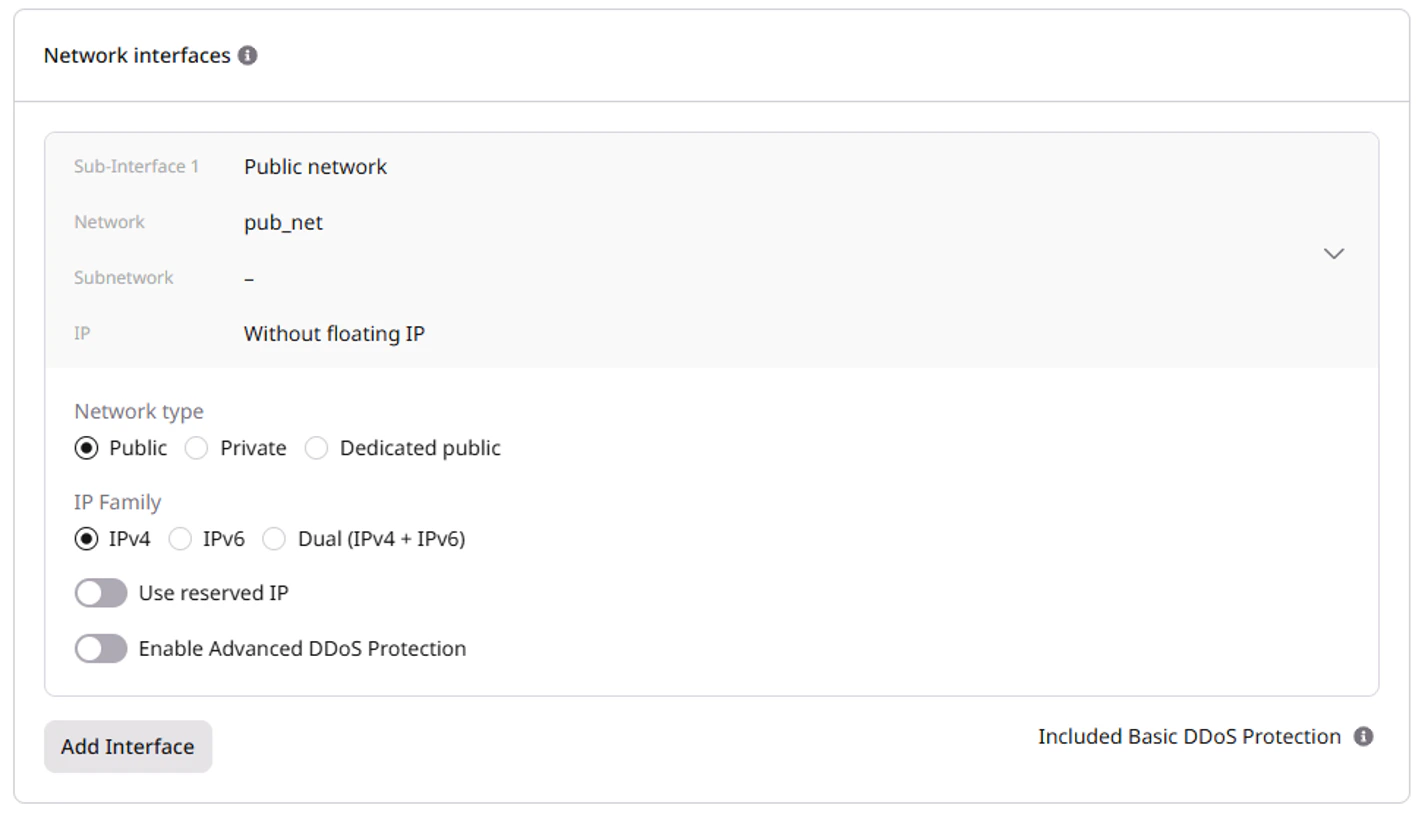
    After quota approval, configure network interfaces. Up to six networks can be attached. An external network cannot be added after the server is created.

    1. Select the **Network type**: **Public**, **Private**, or **Dedicated public**.

    2. In the **IP Family** section, select the IP version: **IPv4**, **IPv6**, or **Dual (IPv4 + IPv6)**.

    3. (Optional) Enable **Use reserved IP** to assign a [reserved IP address](/cloud/networking/ip-address/create-and-configure-a-reserved-ip-address) to the server.

    4. (Optional) Enable **Advanced DDoS Protection** for enhanced security.
    <Frame>
      <img src="https://mintcdn.com/gcore/QIEAnezmG8Bl8nMk/images/docs/cloud/bare-metal-servers/create-a-bare-metal-server/bm-network-section.png?fit=max&auto=format&n=QIEAnezmG8Bl8nMk&q=85&s=76f408a0ad0a4bd2b43c08e396ea2694" alt="Network interfaces configuration" width="1418" height="814" data-path="images/docs/cloud/bare-metal-servers/create-a-bare-metal-server/bm-network-section.png" />
    </Frame>

    For a **private** interface, also configure a network and subnetwork:
    <Info>
      **Info**

      With both a public and a private interface, disable the default gateway on the private subnetwork and assign a floating IP to the private interface to avoid routing conflicts.
    </Info>

    <Tabs>
      <Tab title="Configure a network">
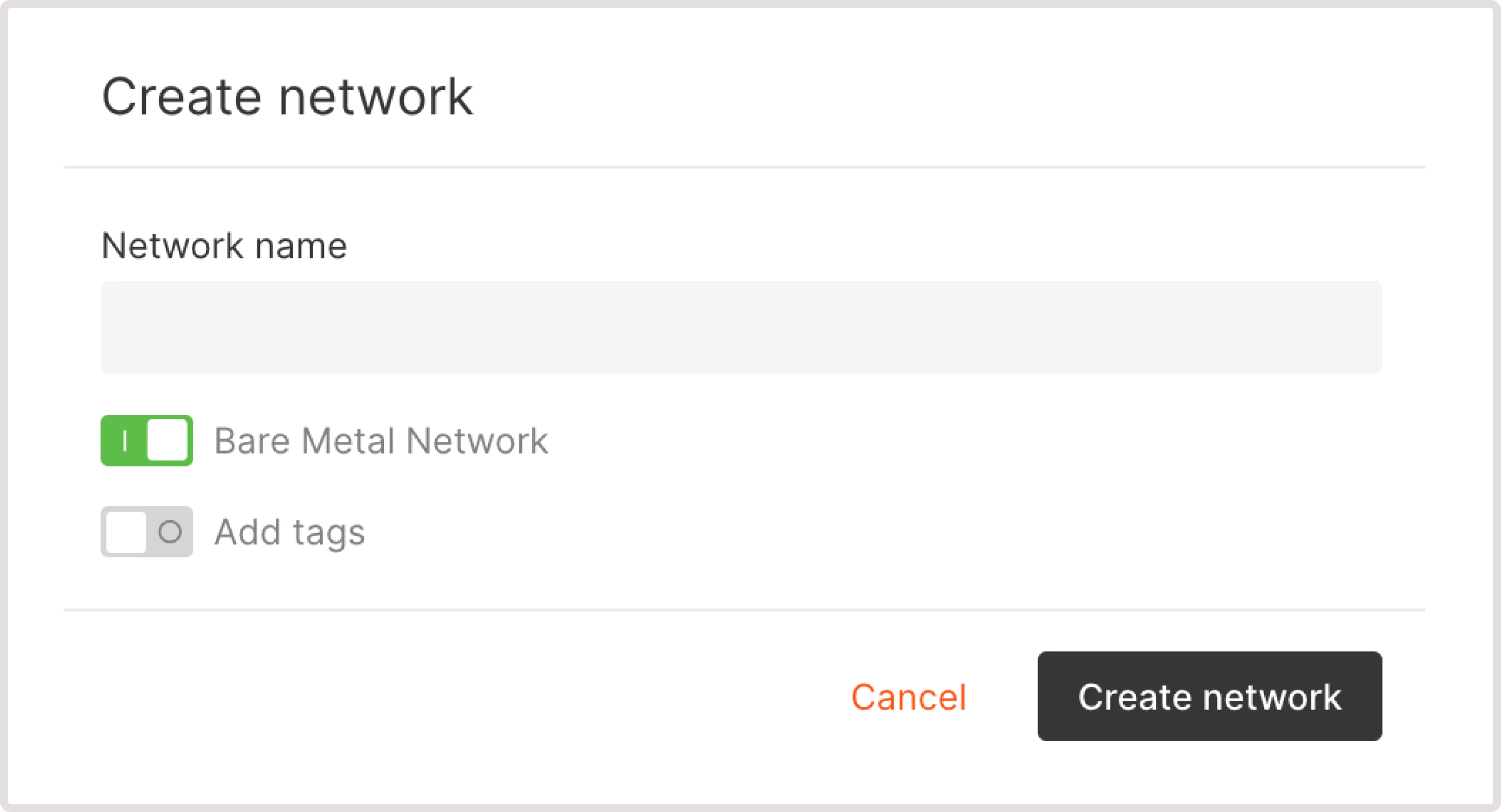
        Select an existing network from the dropdown, or click the **Private network** radio button to create a new one:

        1. Enter the network name.

        2. Confirm that the **Bare Metal network** toggle is enabled - this is required to connect Bare Metal servers to the network.

        3. (Optional) Enable **Add tags** to attach metadata to the network.

        4. Click **Create network**.

        <Frame>
          <img src="https://mintcdn.com/gcore/QIEAnezmG8Bl8nMk/images/docs/cloud/bare-metal-servers/create-a-bare-metal-server/create-network-dialog.png?fit=max&auto=format&n=QIEAnezmG8Bl8nMk&q=85&s=26ce9764b148527a35dcbdea87aee56d" alt="A menu with available network settings and highlighted reserved ip toggle" width="2928" height="1584" data-path="images/docs/cloud/bare-metal-servers/create-a-bare-metal-server/create-network-dialog.png" />
        </Frame>
      </Tab>

      <Tab title="Configure a subnetwork">
        <Info>
          **Info**

          With multiple subnetworks, set only one as [routable](/cloud/networking/create-and-manage-a-subnetwork#set-up-the-default-gateway). Multiple routable subnetworks cause default gateway conflicts that prevent connecting to the server.
        </Info>

        Select an existing subnetwork from the dropdown. Choosing **Automatic** assigns the subnetwork with the most available resources.

        To create a new subnetwork, click **Add a new subnetwork** and follow the steps in [Create a subnetwork](/cloud/networking/create-and-manage-a-subnetwork#create-a-subnetwork).
      </Tab>
    </Tabs>

    A dedicated public network provides an individual address pool, allowing multiple public IPs on a single network port - useful for high-traffic applications, load distribution, or virtualization scenarios where each workload needs a distinct public IP.

    ### Interface order

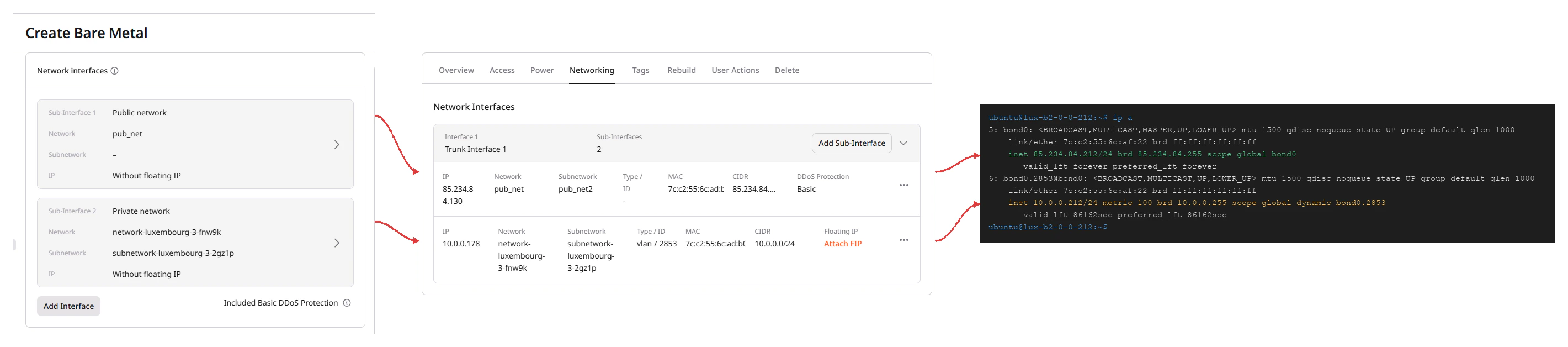
    Bare Metal servers use LACP bonding: all physical ports are aggregated into a single bond (`bond0`). Each sub-interface added in the creation form becomes a logical port on top of that bond.

    * **Sub-Interface 1** (public) maps to `bond0`.
    * **Sub-Interface 2** (private) maps to a VLAN sub-interface named `bond0.<vlan_id>` (for example, `bond0.2853`).

    After the server is created, the **Networking** tab shows the sub-interfaces in the same order as they were added during setup. Running `ip a` in the OS confirms the mapping:

    <Frame>
      <img src="https://mintcdn.com/gcore/QIEAnezmG8Bl8nMk/images/docs/cloud/bare-metal-servers/create-a-bare-metal-server/bm-network-interface-order-diagram.png?fit=max&auto=format&n=QIEAnezmG8Bl8nMk&q=85&s=1574ea7d11a193d735dae302e9eb7d36" alt="Diagram showing how Sub-Interface 1 and Sub-Interface 2 in the creation form map to the Networking tab entries and to bond0 and bond0.2853 in the OS" width="2841" height="628" data-path="images/docs/cloud/bare-metal-servers/create-a-bare-metal-server/bm-network-interface-order-diagram.png" />
    </Frame>

    ```bash theme={null}
    $ ip a
    1: lo: <LOOPBACK,UP,LOWER_UP> mtu 65536 ...
    2: enp1s0f0: <BROADCAST,MULTICAST,SLAVE,UP,LOWER_UP> mtu 1500 ... master bond0
    4: enp1s0f1: <BROADCAST,MULTICAST,SLAVE,UP,LOWER_UP> mtu 1500 ... master bond0
    5: bond0: <BROADCAST,MULTICAST,MASTER,UP,LOWER_UP> mtu 1500 qdisc noqueue state UP
        link/ether 7c:c2:55:6c:ad:b0 brd ff:ff:ff:ff:ff:ff
        inet 85.234.84.162/24 brd 85.234.84.255 scope global bond0
    6: bond0.2853@bond0: <BROADCAST,MULTICAST,UP,LOWER_UP> mtu 1500 qdisc noqueue state UP
        link/ether 7c:c2:55:6c:ad:b0 brd ff:ff:ff:ff:ff:ff
        inet 10.0.0.125/24 brd 10.0.0.255 scope global dynamic bond0.2853
    ```

    Sub-Interface 1 (`bond0`) is the public interface; Sub-Interface 2 (`bond0.2853`) is the private interface. The order set at creation determines routing priority: the first sub-interface has higher priority for outbound traffic than subsequent ones. The sub-interface order cannot be changed after the server is created.

    ## Step 6. Configure access

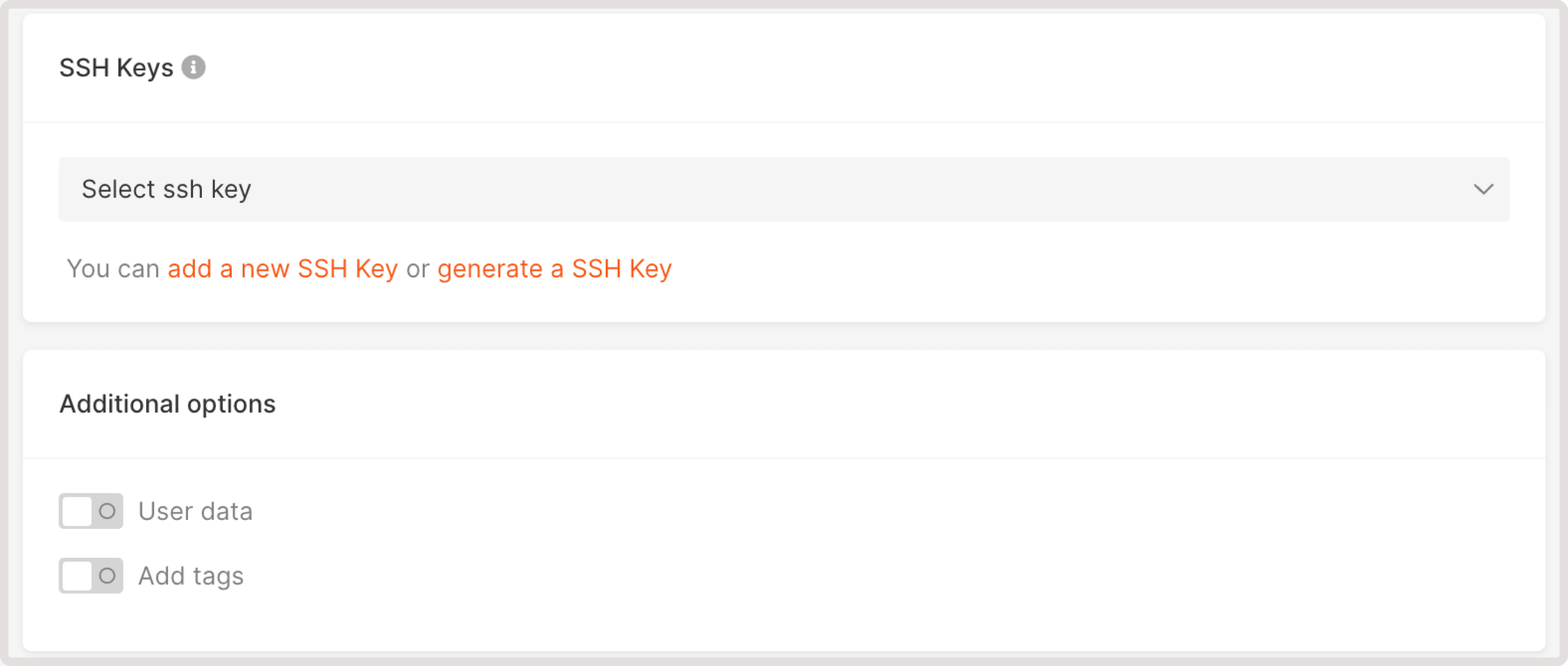
    Select an SSH key for Linux servers, or set a password for Windows servers.

    <Frame>
      <img src="https://mintcdn.com/gcore/QIEAnezmG8Bl8nMk/images/docs/cloud/bare-metal-servers/create-a-bare-metal-server/ssh-keys.png?fit=max&auto=format&n=QIEAnezmG8Bl8nMk&q=85&s=f38a1c83fb9ebdea2e321d70da80bd94" alt="A menu with SSH keys settings settings" width="2928" height="1244" data-path="images/docs/cloud/bare-metal-servers/create-a-bare-metal-server/ssh-keys.png" />
    </Frame>

    To add a new key, follow the steps in [Connect via SSH](/cloud/bare-metal-servers/connect-to-your-bare-metal-server-via-ssh).

    For Windows servers, the password must be 8-16 characters and may contain Latin letters (`a-zA-Z`), digits (`0-9`), and special characters (`!#$%&'()*+,-./:;<=>?@[]^_{|}~`). Connect via [the portal console](/cloud/virtual-instances/connect/connect-to-your-instance-via-control-panel) or RDP.

    <Frame>
      <img src="https://mintcdn.com/gcore/QIEAnezmG8Bl8nMk/images/docs/cloud/bare-metal-servers/create-a-bare-metal-server/access.png?fit=max&auto=format&n=QIEAnezmG8Bl8nMk&q=85&s=e18d5ee72ab7ffc15a3127c960e2586b" alt="A menu with access settings" width="3148" height="624" data-path="images/docs/cloud/bare-metal-servers/create-a-bare-metal-server/access.png" />
    </Frame>

    ## Step 7. Configure additional options

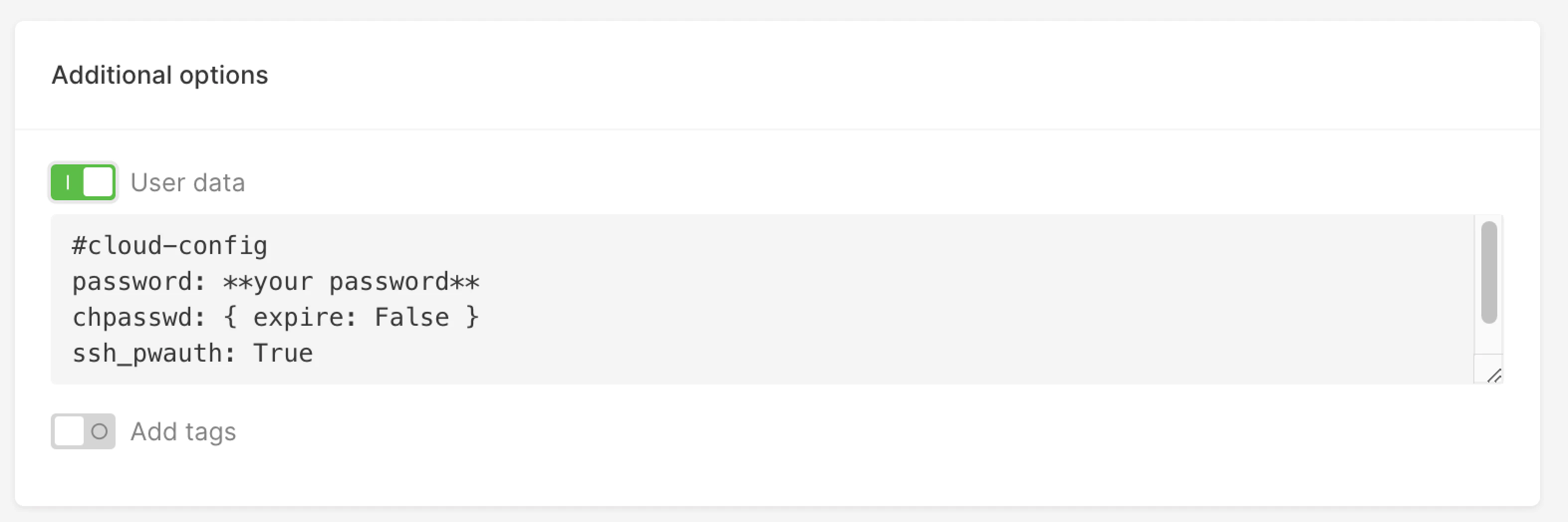
    In the **Additional options** section, optionally provide a `cloud-init` script in the **User data** field to automate initial configuration - install packages, create users, or run commands on first boot.
    <Frame>
      <img src="https://mintcdn.com/gcore/QIEAnezmG8Bl8nMk/images/docs/cloud/bare-metal-servers/create-a-bare-metal-server/user-data.png?fit=max&auto=format&n=QIEAnezmG8Bl8nMk&q=85&s=c0e62616df299097aa35f38ec30b0e7c" alt="A menu with user data settings" width="3148" height="1048" data-path="images/docs/cloud/bare-metal-servers/create-a-bare-metal-server/user-data.png" />
    </Frame>

    ## Step 8. Set quantity and name

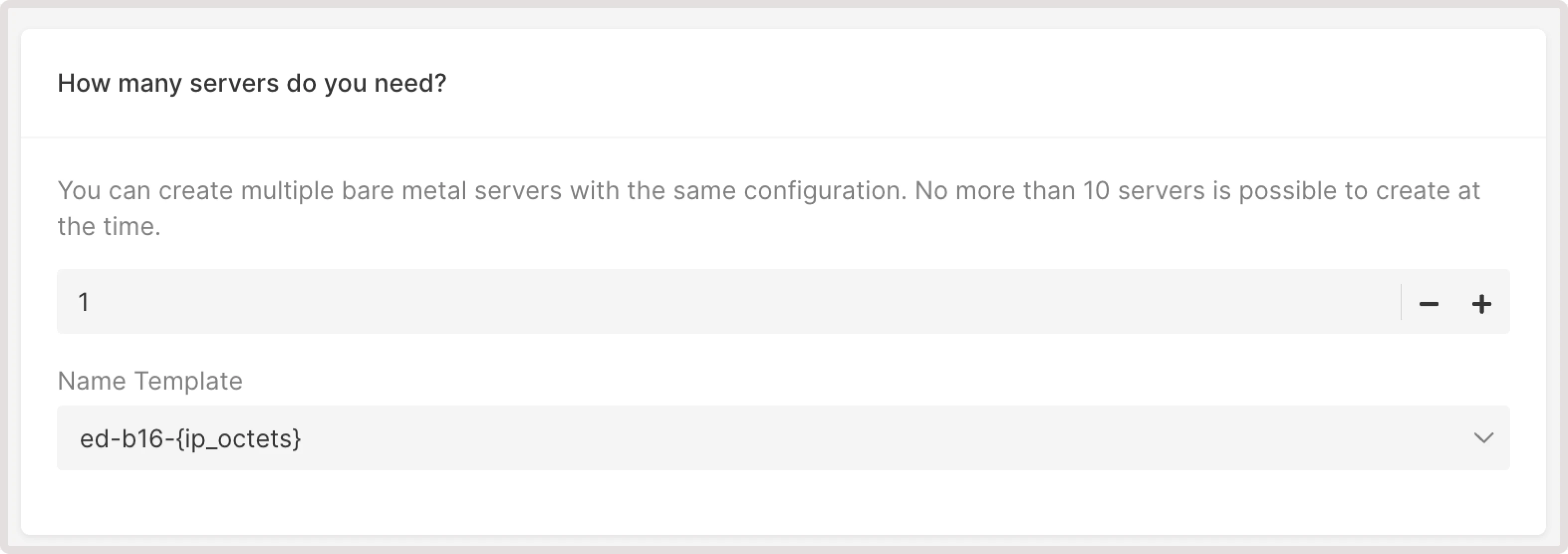
    Specify the number of servers (up to 10, subject to quota) and the name template. Click **Create Server** - the server provisions in the cloud.
    <Frame>
      <img src="https://mintcdn.com/gcore/QIEAnezmG8Bl8nMk/images/docs/cloud/bare-metal-servers/create-a-bare-metal-server/servers-number.png?fit=max&auto=format&n=QIEAnezmG8Bl8nMk&q=85&s=e25fce570507b96fa9a377467e491fae" alt="A menu with an option to choose a number of servers" width="3148" height="1112" data-path="images/docs/cloud/bare-metal-servers/create-a-bare-metal-server/servers-number.png" />
    </Frame>

    ## Multi-bond network configuration

    Bare Metal servers support multiple network bonds, where each bond is a group of LACP-aggregated physical ports. With a multi-bond setup, traffic for different networks is isolated at the hardware level, which improves availability and throughput. Multi-bond configuration is available on request - contact [Gcore support](https://gcore.com/contact-us) to enable it.

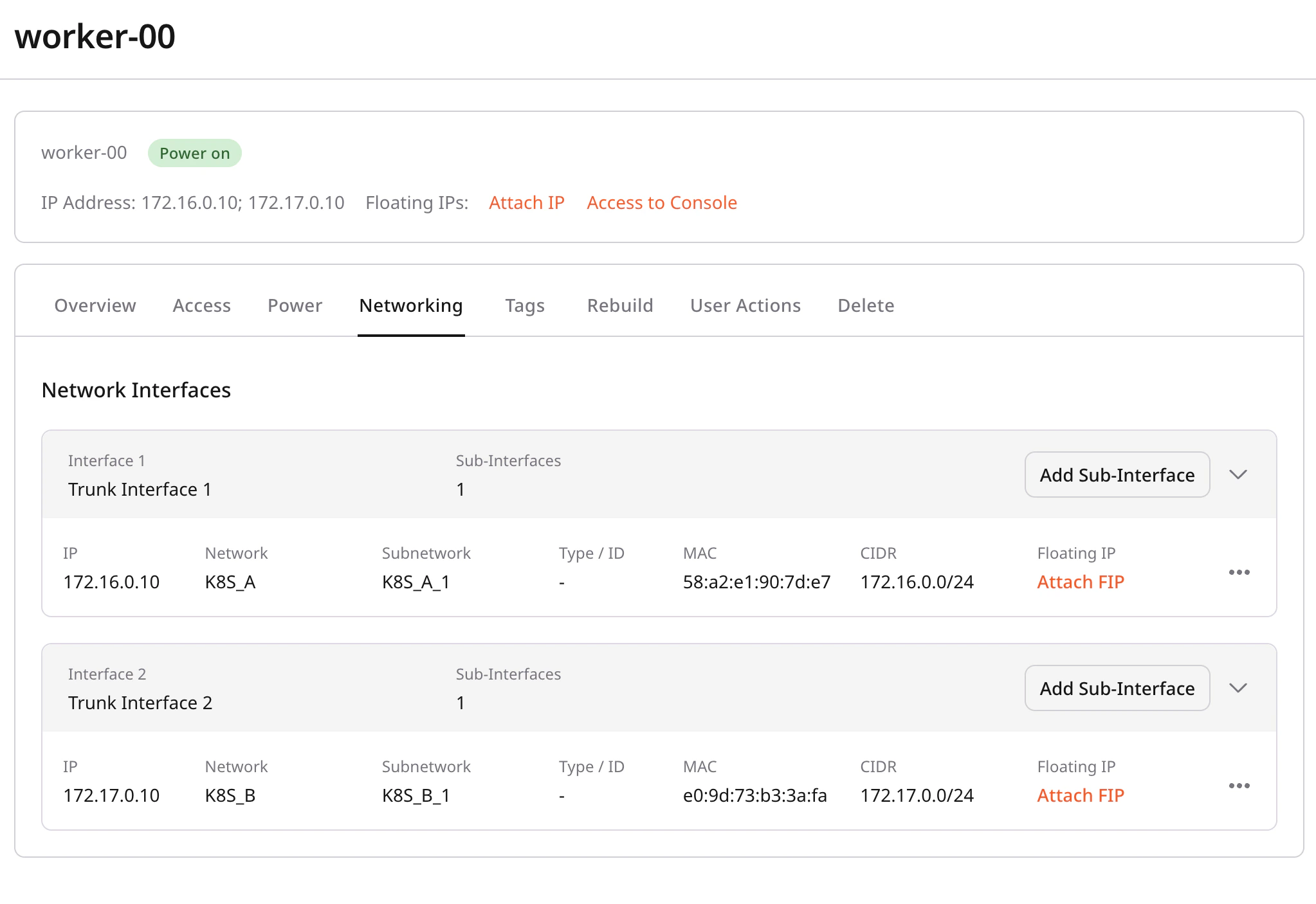
    After the server is deployed, open the server details and go to the **Networking** tab. Each bond appears as a separate interface block labeled **Interface N (Trunk Interface N)**.
    <Frame>
      <img src="https://mintcdn.com/gcore/QIEAnezmG8Bl8nMk/images/docs/cloud/bare-metal-servers/create-a-bare-metal-server/bm-multi-bond-networking-tab.png?fit=max&auto=format&n=QIEAnezmG8Bl8nMk&q=85&s=3b7b8cbe8ad82b88cdbe85588bd663e9" alt="Bare Metal server Networking tab showing multi-bond configuration with Interface 1 (Trunk Interface 1) and Interface 2 (Trunk Interface 2), each with one sub-interface" width="2046" height="1406" data-path="images/docs/cloud/bare-metal-servers/create-a-bare-metal-server/bm-multi-bond-networking-tab.png" />
    </Frame>

    Each interface block shows the sub-interfaces assigned to that bond - a sub-interface is the logical port that carries traffic for a specific network. The table for each sub-interface includes the IP address, network, subnetwork, MAC address, CIDR, and floating IP assignment.

    To add a sub-interface to a bond, click **Add Sub-Interface** in the corresponding interface block and configure the network settings.

    ## Limitations

    * External volumes cannot be attached to Bare Metal servers.
    * Volume configuration cannot be changed after provisioning.
    * No more than six networks can be attached.
    * After deployment, private network interfaces can only be attached or detached manually via the OS.
  </MethodSection>

  <MethodSection id="api" label="REST API">
    A Bare Metal server is a physical machine allocated entirely to one tenant - no hypervisor, no shared resources. Provisioning takes 4-5 minutes.

    <Info>
      An [API token](/developer-tools/rest-api/authentication) is required, along with a [project ID](/api-reference/cloud/projects/list-projects) and [region ID](/api-reference/cloud/regions/list-regions).
    </Info>

    Open a bash terminal and set these as environment variables before running the examples:

    ```bash theme={null}
    export GCORE_API_KEY="{YOUR_API_KEY}"
    export GCORE_CLOUD_PROJECT_ID="{YOUR_PROJECT_ID}"
    export GCORE_CLOUD_REGION_ID="{YOUR_REGION_ID}"
    ```

    Bare Metal servers have per-region quotas. [Check your quota](/cloud/getting-started/request-a-quota-increase) before provisioning.

    ## Quickstart

    The scripts below list available flavors and images, provision a Bare Metal server with a public interface, and print its IP address. Replace `my-key` with an existing SSH key name from the project. Provisioning takes 4-5 minutes.

    <Tabs>
      <Tab title="Python SDK">
        ```python theme={null}
        import os
        from gcore import Gcore

        client = Gcore()

        # Step 1. List BM flavors - pick one with capacity > 0.
        flavors = client.cloud.baremetal.flavors.list(disabled=False, include_capacity=True)
        flavor_id = next(f.flavor_id for f in flavors.results if f.capacity > 0)

        # Step 2. List BM images - pick ubuntu x64.
        images = client.cloud.baremetal.images.list()
        image_id = next(img.id for img in images.results if "ubuntu-24.04-x64-ironic" in img.name)

        # Step 3. Create the server and wait for ACTIVE status (4-5 min).
        server = client.cloud.baremetal.servers.create_and_poll(
            flavor=flavor_id,
            image_id=image_id,
            name="my-bm-server",
            interfaces=[{"type": "external"}],
            ssh_key_name="my-key",
        )

        # Step 4. Get full server details and print the public IP.
        details = client.cloud.baremetal.servers.get(server_id=server.id)
        for network, ifaces in details.addresses.items():
            for iface in ifaces:
                print(f"ssh ubuntu@{iface.addr}")
        ```
      </Tab>

      <Tab title="Go SDK">
        ```go theme={null}
        package main

        import (
            "context"
            "fmt"
            "os"

            gcore "github.com/G-Core/gcore-go"
            "github.com/G-Core/gcore-go/cloud"
            "github.com/G-Core/gcore-go/shared/constant"
        )

        func main() {
            client := gcore.NewClient()
            ctx := context.Background()

            // Step 1. List BM flavors - pick one with capacity > 0.
            flavors, _ := client.Cloud.Baremetal.Flavors.List(ctx, cloud.BaremetalFlavorListParams{
                Disabled:        gcore.Bool(false),
                IncludeCapacity: gcore.Bool(true),
            })
            var flavorID string
            for _, f := range flavors.Results {
                if f.Capacity > 0 {
                    flavorID = f.FlavorID
                    break
                }
            }

            // Step 2. List BM images - pick ubuntu x64.
            images, _ := client.Cloud.Baremetal.Images.List(ctx, cloud.BaremetalImageListParams{})
            var imageID string
            for _, img := range images.Results {
                if img.Name == "ubuntu-24.04-x64-ironic" {
                    imageID = img.ID
                    break
                }
            }

            // Step 3. Create the server and wait for ACTIVE status (4-5 min).
            server, _ := client.Cloud.Baremetal.Servers.NewAndPoll(ctx, cloud.BaremetalServerNewParams{
                Flavor:  flavorID,
                ImageID: gcore.String(imageID),
                Name:    gcore.String("my-bm-server"),
                Interfaces: []cloud.BaremetalServerNewParamsInterfaceUnion{{
                    OfExternal: &cloud.BaremetalServerNewParamsInterfaceExternal{
                        Type: constant.External("external"),
                    },
                }},
                SSHKeyName: gcore.String("my-key"),
            })

            // Step 4. Get full server details and print the public IP.
            details, _ := client.Cloud.Baremetal.Servers.Get(ctx, server.ID, cloud.BaremetalServerGetParams{})
            for network, ifaces := range details.Addresses {
                fmt.Printf("%s: ssh ubuntu@%s\n", network, ifaces[0].AsFixedIPAddress().Addr)
            }
        }
        ```
      </Tab>
    </Tabs>

    ## Step-by-step

    <p>Each step below explains what the call does, which parameters matter, and what the response looks like. Use this section to understand the flow or to debug a specific step.</p>

    <Accordion title="Show all steps">
      ### Step 1. List available flavors

      BM [flavors](/api-reference/cloud/bare-metal-servers/list-baremetal-flavors) describe the physical hardware: CPU model, core count, RAM, local storage, and NIC speed. The `capacity` field shows how many machines of that type are physically available in the region.

      <Tabs>
        <Tab title="Python SDK">
          ```python theme={null}
          flavors = client.cloud.baremetal.flavors.list(disabled=False, include_capacity=True)
          for f in flavors.results:
              print(f.flavor_id, f.capacity, f.hardware_description)
          ```
        </Tab>

        <Tab title="Go SDK">
          ```go theme={null}
          flavors, err := client.Cloud.Baremetal.Flavors.List(ctx, cloud.BaremetalFlavorListParams{
              Disabled:        gcore.Bool(false),
              IncludeCapacity: gcore.Bool(true),
          })
          for _, f := range flavors.Results {
              fmt.Println(f.FlavorID, f.Capacity)
          }
          ```
        </Tab>

        <Tab title="curl">
          ```bash theme={null}
          curl "https://api.gcore.com/cloud/v1/bmflavors/$GCORE_CLOUD_PROJECT_ID/$GCORE_CLOUD_REGION_ID?disabled=false&include_capacity=true" \
            -H "Authorization: APIKey $GCORE_API_KEY"
          ```

          Response:

          ```json theme={null}
          {
            "results": [
              {
                "flavor_id": "bm1a-hf-1x7950x-128-2x960gb-2x10nic",
                "vcpus": 32,
                "ram": 131072,
                "hardware_description": {
                  "cpu": "1x AMD Ryzen 7950X 16C/32T 4.5 GHz",
                  "ram": "128 GB",
                  "disk": "2x 960GB NVMe",
                  "network": "2x 10GbE"
                },
                "capacity": 5
              }
            ]
          }
          ```
        </Tab>
      </Tabs>

      `capacity: 0` means the flavor is temporarily unavailable in the region. Flavor IDs are region-specific - run this call to see what is available in the target region. Save the chosen flavor ID for the next step:

      ```bash theme={null}
      export FLAVOR_ID="{YOUR_FLAVOR_ID}"
      ```

      <Info>
        Replace `{YOUR_FLAVOR_ID}` with a `flavor_id` value from the response above. Flavor IDs are region-specific — use a value returned for your target region.
      </Info>

      ### Step 2. List bare metal images

      BM images use a dedicated [endpoint](/api-reference/cloud/bare-metal-servers/list-baremetal-images) - standard VM images from <code>GET /cloud/v1/images</code> are not compatible. Each BM image name ends with `-ironic` and contains `"is_baremetal": true` in the response.

      <Tabs>
        <Tab title="Python SDK">
          ```python theme={null}
          images = client.cloud.baremetal.images.list()
          for img in images.results:
              print(img.id, img.name)
          ```
        </Tab>

        <Tab title="Go SDK">
          ```go theme={null}
          images, err := client.Cloud.Baremetal.Images.List(ctx, cloud.BaremetalImageListParams{})
          for _, img := range images.Results {
              fmt.Println(img.ID, img.Name)
          }
          ```
        </Tab>

        <Tab title="curl">
          ```bash theme={null}
          curl "https://api.gcore.com/cloud/v1/bmimages/$GCORE_CLOUD_PROJECT_ID/$GCORE_CLOUD_REGION_ID" \
            -H "Authorization: APIKey $GCORE_API_KEY"
          ```

          Response:

          ```json theme={null}
          {
            "count": 16,
            "results": [
              {
                "id": "6918eaaa-05b8-4aaf-a6de-15edc94c1a25",
                "name": "ubuntu-24.04-x64-ironic",
                "is_baremetal": true,
                "visibility": "public",
                "os_distro": "ubuntu",
                "os_version": "24.04"
              }
            ]
          }
          ```
        </Tab>
      </Tabs>

      Pick an image that matches the server architecture (x86-64 or ARM) and the target OS, then save its ID for the next step:

      ```bash theme={null}
      export IMAGE_ID="{YOUR_IMAGE_ID}"
      ```

      <Info>
        Replace `{YOUR_IMAGE_ID}` with the `id` of the chosen image from the response above. BM image IDs are region-specific and differ from standard VM images.
      </Info>

      ### Step 3. Create the server

      The [create](/api-reference/cloud/bare-metal-servers/create-baremetal-server) call submits a provisioning request and returns a task ID. The Python and Go SDKs block until the task completes (4-5 minutes), then return the server object. With curl, poll the task manually.

      <Info>
        An SSH key must already exist in the project. Add one following the [SSH guide](/cloud/virtual-instances/connect/connect-via-ssh).
      </Info>

      | Parameter           | Required | Description                                                                                                                                          |
      | ------------------- | -------- | ---------------------------------------------------------------------------------------------------------------------------------------------------- |
      | `flavor`            | Yes      | Flavor ID from Step 1.                                                                                                                               |
      | `image_id`          | Yes      | BM image ID from Step 2. Standard VM images are not compatible.                                                                                      |
      | `name`              | Yes      | Server name. On reseller accounts, use `name_templates` with a region-specific pattern - the error message lists the allowed values for that region. |
      | `ssh_key_name`      | Yes      | Name of an existing SSH key in the project. Required for Linux images.                                                                               |
      | `interfaces[].type` | Yes      | `"external"` assigns a public IP. `"subnet"` attaches a private network.                                                                             |
      | `password`          | No       | For Windows images: sets the Admin user password. For Linux: sets the default user password when no SSH key is used.                                 |
      | `user_data`         | No       | Base64-encoded [cloud-init](https://cloudinit.readthedocs.io/en/latest/) script applied on first boot. Ignored when `password` is set.               |

      <Tabs>
        <Tab title="Python SDK">
          ```python theme={null}
          server = client.cloud.baremetal.servers.create_and_poll(
              flavor=os.environ["FLAVOR_ID"],
              image_id=os.environ["IMAGE_ID"],
              name="my-bm-server",
              interfaces=[{"type": "external"}],
              ssh_key_name="my-key",
          )
          server_id = server.id
          ```
        </Tab>

        <Tab title="Go SDK">
          ```go theme={null}
          server, err := client.Cloud.Baremetal.Servers.NewAndPoll(ctx, cloud.BaremetalServerNewParams{
              Flavor:  os.Getenv("FLAVOR_ID"),
              ImageID: gcore.String(os.Getenv("IMAGE_ID")),
              Name:    gcore.String("my-bm-server"),
              Interfaces: []cloud.BaremetalServerNewParamsInterfaceUnion{{
                  OfExternal: &cloud.BaremetalServerNewParamsInterfaceExternal{
                      Type: constant.External("external"),
                  },
              }},
              SSHKeyName: gcore.String("my-key"),
          })
          serverID := server.ID
          ```
        </Tab>

        <Tab title="curl">
          ```bash theme={null}
          curl -X POST "https://api.gcore.com/cloud/v1/bminstances/$GCORE_CLOUD_PROJECT_ID/$GCORE_CLOUD_REGION_ID" \
            -H "Authorization: APIKey $GCORE_API_KEY" \
            -H "Content-Type: application/json" \
            -d "{
              \"flavor\": \"$FLAVOR_ID\",
              \"image_id\": \"$IMAGE_ID\",
              \"name\": \"my-bm-server\",
              \"ssh_key_name\": \"my-key\",
              \"interfaces\": [{\"type\": \"external\"}]
            }"
          ```

          Response:

          ```json theme={null}
          {
            "tasks": ["d4a4b10e-5d22-4c23-8e09-f7a3e1c1a999"]
          }
          ```

          Poll <code>GET /cloud/v1/tasks/{task_id}</code> every 30 seconds until `state` is `FINISHED`:

          ```bash theme={null}
          curl "https://api.gcore.com/cloud/v1/tasks/$TASK_ID" \
            -H "Authorization: APIKey $GCORE_API_KEY"
          ```

          When complete:

          ```json theme={null}
          {
            "state": "FINISHED",
            "created_on": "2026-05-29T12:48:58",
            "finished_on": "2026-05-29T12:53:46",
            "created_resources": {
              "instances": ["90ba53c5-def5-4825-83fb-9adc78bd3266"]
            }
          }
          ```

          ```bash theme={null}
          export SERVER_ID="90ba53c5-def5-4825-83fb-9adc78bd3266"
          ```
        </Tab>
      </Tabs>

      ### Step 4. Get server details

      Retrieve the server to confirm `status: ACTIVE` and find the assigned [IP address](/api-reference/cloud/bare-metal-servers/get-baremetal-server).

      <Tabs>
        <Tab title="Python SDK">
          ```python theme={null}
          server = client.cloud.baremetal.servers.get(server_id=server_id)
          for network, ifaces in server.addresses.items():
              for iface in ifaces:
                  print(f"{network}: {iface.addr}")
          ```
        </Tab>

        <Tab title="Go SDK">
          ```go theme={null}
          details, err := client.Cloud.Baremetal.Servers.Get(ctx, serverID, cloud.BaremetalServerGetParams{})
          for network, ifaces := range details.Addresses {
              fmt.Printf("%s: %s\n", network, ifaces[0].AsFixedIPAddress().Addr)
          }
          ```
        </Tab>

        <Tab title="curl">
          ```bash theme={null}
          curl "https://api.gcore.com/cloud/v1/bminstances/$GCORE_CLOUD_PROJECT_ID/$GCORE_CLOUD_REGION_ID/$SERVER_ID" \
            -H "Authorization: APIKey $GCORE_API_KEY"
          ```

          Response:

          ```json theme={null}
          {
            "id": "90ba53c5-def5-4825-83fb-9adc78bd3266",
            "name": "my-bm-server",
            "status": "ACTIVE",
            "flavor": {
              "flavor_id": "bm1a-hf-1x7950x-128-2x960gb-2x10nic",
              "hardware_description": {
                "cpu": "1x AMD Ryzen 7950X 16C/32T 4.5 GHz",
                "disk": "2x 960GB NVMe"
              }
            },
            "addresses": {
              "pub_net": [
                {"addr": "85.234.84.18", "type": "fixed"}
              ]
            },
            "security_groups": [],
            "volumes": []
          }
          ```
        </Tab>
      </Tabs>

      `security_groups: []` is expected — Bare Metal servers have no security groups, so all ports are accessible by default. Restrict traffic with `ufw` or `iptables` after connecting.

      `volumes: []` is expected — Bare Metal servers use local NVMe storage; external block volumes cannot be attached.

      Use the public IP from the response to connect. The default user for Ubuntu images is `ubuntu`:

      ```bash theme={null}
      ssh -i ~/.ssh/my-key ubuntu@<public-ip>
      ```

      Bare Metal servers use LACP bonding, so interfaces are named `bond0` rather than `eth0`. If a private network was attached at creation, it appears as `bond0.<vlan_id>`.
    </Accordion>

    ## Check quota

    Bare Metal servers have per-region quotas tracked separately for `baremetal_hf`, `baremetal_basic`, `baremetal_storage`, `baremetal_network`, and `baremetal_infrastructure` categories. Before creating a server, verify [quota usage](/cloud/getting-started/check-resource-quota) is below the limit.

    ## Attach a private network interface

    To connect a server to a private network, add an interface with `"type": "subnet"` and provide the `network_id` and `subnet_id`. The network must have Bare Metal support enabled - create one following the [network guide](/cloud/networking/create-and-manage-a-network) and check the **Bare Metal network** option. Both public and private interfaces can be added at creation time; the interface order determines routing priority.

    <Tabs>
      <Tab title="Python SDK">
        ```python theme={null}
        server = client.cloud.baremetal.servers.create_and_poll(
            flavor=os.environ["FLAVOR_ID"],
            image_id=os.environ["IMAGE_ID"],
            name="my-bm-server",
            ssh_key_name="my-key",
            interfaces=[
                {"type": "external"},
                {
                    "type": "subnet",
                    "network_id": os.environ["NETWORK_ID"],
                    "subnet_id": os.environ["SUBNET_ID"],
                },
            ],
        )
        ```
      </Tab>

      <Tab title="Go SDK">
        ```go theme={null}
        server, err := client.Cloud.Baremetal.Servers.NewAndPoll(ctx, cloud.BaremetalServerNewParams{
            Flavor:     os.Getenv("FLAVOR_ID"),
            ImageID:    gcore.String(os.Getenv("IMAGE_ID")),
            Name:       gcore.String("my-bm-server"),
            SSHKeyName: gcore.String("my-key"),
            Interfaces: []cloud.BaremetalServerNewParamsInterfaceUnion{
                {
                    OfExternal: &cloud.BaremetalServerNewParamsInterfaceExternal{
                        Type: constant.External("external"),
                    },
                },
                {
                    OfSubnet: &cloud.BaremetalServerNewParamsInterfaceSubnet{
                        Type:      constant.Subnet("subnet"),
                        NetworkID: os.Getenv("NETWORK_ID"),
                        SubnetID:  os.Getenv("SUBNET_ID"),
                    },
                },
            },
        })
        ```
      </Tab>

      <Tab title="curl">
        ```bash theme={null}
        curl -X POST "https://api.gcore.com/cloud/v1/bminstances/$GCORE_CLOUD_PROJECT_ID/$GCORE_CLOUD_REGION_ID" \
          -H "Authorization: APIKey $GCORE_API_KEY" \
          -H "Content-Type: application/json" \
          -d "{
            \"flavor\": \"$FLAVOR_ID\",
            \"image_id\": \"$IMAGE_ID\",
            \"name\": \"my-bm-server\",
            \"ssh_key_name\": \"my-key\",
            \"interfaces\": [
              {\"type\": \"external\"},
              {
                \"type\": \"subnet\",
                \"network_id\": \"$NETWORK_ID\",
                \"subnet_id\": \"$SUBNET_ID\"
              }
            ]
          }"
        ```
      </Tab>
    </Tabs>

    Inside the OS, the public interface maps to `bond0` and the private interface to `bond0.<vlan_id>`. With both interfaces present, disable the default gateway on the private subnet to avoid routing conflicts.

    ## Multi-bond network configuration

    Standard BM servers aggregate all physical ports into a single LACP bond (`bond0`). Multi-bond separates traffic across multiple independent bonds, isolating networks at the hardware level for higher availability and throughput. Multi-bond must be enabled for the server by [Gcore support](https://gcore.com/contact-us) before provisioning.

    Once enabled, control bond assignment with the `port_group` parameter on each interface. Interfaces sharing the same `port_group` value are placed on the same trunk port. Each distinct value creates a separate trunk.

    <Tabs>
      <Tab title="Python SDK">
        ```python theme={null}
        server = client.cloud.baremetal.servers.create_and_poll(
            flavor=os.environ["FLAVOR_ID"],
            image_id=os.environ["IMAGE_ID"],
            name="my-bm-server",
            ssh_key_name="my-key",
            interfaces=[
                {"type": "external", "port_group": 1},
                {
                    "type": "subnet",
                    "network_id": os.environ["NETWORK_ID"],
                    "subnet_id": os.environ["SUBNET_ID"],
                    "port_group": 2,
                },
            ],
        )
        ```
      </Tab>

      <Tab title="Go SDK">
        ```go theme={null}
        server, err := client.Cloud.Baremetal.Servers.NewAndPoll(ctx, cloud.BaremetalServerNewParams{
            Flavor:     os.Getenv("FLAVOR_ID"),
            ImageID:    gcore.String(os.Getenv("IMAGE_ID")),
            Name:       gcore.String("my-bm-server"),
            SSHKeyName: gcore.String("my-key"),
            Interfaces: []cloud.BaremetalServerNewParamsInterfaceUnion{
                {
                    OfExternal: &cloud.BaremetalServerNewParamsInterfaceExternal{
                        Type:      constant.External("external"),
                        PortGroup: gcore.Int(1),
                    },
                },
                {
                    OfSubnet: &cloud.BaremetalServerNewParamsInterfaceSubnet{
                        Type:      constant.Subnet("subnet"),
                        NetworkID: os.Getenv("NETWORK_ID"),
                        SubnetID:  os.Getenv("SUBNET_ID"),
                        PortGroup: gcore.Int(2),
                    },
                },
            },
        })
        ```
      </Tab>

      <Tab title="curl">
        ```bash theme={null}
        curl -X POST "https://api.gcore.com/cloud/v1/bminstances/$GCORE_CLOUD_PROJECT_ID/$GCORE_CLOUD_REGION_ID" \
          -H "Authorization: APIKey $GCORE_API_KEY" \
          -H "Content-Type: application/json" \
          -d "{
            \"flavor\": \"$FLAVOR_ID\",
            \"image_id\": \"$IMAGE_ID\",
            \"name\": \"my-bm-server\",
            \"ssh_key_name\": \"my-key\",
            \"interfaces\": [
              {\"type\": \"external\", \"port_group\": 1},
              {
                \"type\": \"subnet\",
                \"network_id\": \"$NETWORK_ID\",
                \"subnet_id\": \"$SUBNET_ID\",
                \"port_group\": 2
              }
            ]
          }"
        ```
      </Tab>
    </Tabs>

    After provisioning, retrieve the server details with <code>GET /cloud/v1/bminstances/{project_id}/{region_id}/{server_id}</code> - each trunk appears as a separate interface block in the `addresses` map.

    ## Clean up

    Bare Metal deletion is asynchronous and takes 3-5 minutes - the server must be fully deprovisioned before the hardware is released. Local NVMe storage is wiped during deprovisioning.

    <Tabs>
      <Tab title="Python SDK">
        ```python theme={null}
        result = client.cloud.baremetal.servers.delete(server_id=server_id)
        client.cloud.tasks.poll(result.tasks[0])
        ```
      </Tab>

      <Tab title="Go SDK">
        ```go theme={null}
        taskList, err := client.Cloud.Baremetal.Servers.Delete(ctx, serverID, cloud.BaremetalServerDeleteParams{})
        client.Cloud.Tasks.Poll(ctx, taskList.Tasks[0])
        ```
      </Tab>

      <Tab title="curl">
        ```bash theme={null}
        curl -X DELETE \
          "https://api.gcore.com/cloud/v1/bminstances/$GCORE_CLOUD_PROJECT_ID/$GCORE_CLOUD_REGION_ID/$SERVER_ID" \
          -H "Authorization: APIKey $GCORE_API_KEY"
        ```

        Response:

        ```json theme={null}
        {
          "tasks": ["ee54040a-1671-414a-a3f2-c2c0d62a2325"]
        }
        ```

        Poll <code>GET /cloud/v1/tasks/{task_id}</code> every 30 seconds until `state` is `FINISHED`.
      </Tab>
    </Tabs>

    ## Limitations

    These constraints apply to all Bare Metal servers regardless of the provisioning method.

    * External block volumes cannot be attached. All storage is the local NVMe included with the server.
    * Local storage configuration (RAID, disk layout) cannot be changed after provisioning.
    * No more than six network interfaces can be attached at creation time.
    * Private network interfaces added after deployment must be configured manually inside the OS - they are not managed by the Gcore control plane.
    * The interface order set at creation determines routing priority and cannot be changed after provisioning.
  </MethodSection>

  <MethodSection id="terraform" label="Terraform">
    <p>Provision a dedicated Bare Metal server — physical hardware with no virtualization layer — using [`gcore_cloud_baremetal_server`](https://registry.terraform.io/providers/G-Core/gcore/latest/docs/resources/cloud_baremetal_server). Provisioning is asynchronous and may take several minutes to complete.</p>

    ## Create a Bare Metal server

    <p>Declares a server with a public IPv4 interface and an SSH key. Creation takes 4-6 minutes.</p>

    ```hcl theme={null}
    resource "gcore_cloud_baremetal_server" "example" {
      project_id   = var.project_id
      region_id    = var.region_id
      flavor       = var.flavor_id   # region-specific; find with the Customer Portal or flavors API
      name         = "my-bare-metal"
      image_id     = var.image_id    # region-specific; find with the Customer Portal or images API
      ssh_key_name = "my-keypair"

      interfaces = [{
        type      = "external"
        ip_family = "ipv4"
      }]

      # terraform import gcore_cloud_baremetal_server.example '<project_id>/<region_id>/<server_id>'
    }

    output "public_ip" {
      value = gcore_cloud_baremetal_server.example.addresses
    }
    ```

    <Info>
      Flavor IDs and image IDs are region-specific. Find available values in the Gcore Customer Portal under **Cloud** > **Bare Metal** > **Create server**, then pass them as `var.flavor_id` and `var.image_id` in `terraform.tfvars`. The Terraform provider does not include a data source for listing Bare Metal flavors or images.
    </Info>

    <p>After `terraform apply`, `status` is `ACTIVE` and `addresses` contains the assigned public IP. Use the IP to connect over SSH.</p>

    ## Attach a private network

    <p>Private networks for Bare Metal require `type = "vlan"` on the network resource — add both interfaces at creation, as interface order determines routing priority.</p>

    ```hcl theme={null}
    resource "gcore_cloud_network" "bm_net" {
      project_id = var.project_id
      region_id  = var.region_id
      name       = "my-bm-network"
      type       = "vlan"  # required for Bare Metal
    }

    resource "gcore_cloud_network_subnet" "bm_subnet" {
      project_id = var.project_id
      region_id  = var.region_id
      name       = "my-bm-subnet"
      network_id = gcore_cloud_network.bm_net.id
      cidr       = "192.168.10.0/24"
    }

    resource "gcore_cloud_baremetal_server" "example" {
      project_id   = var.project_id
      region_id    = var.region_id
      flavor       = var.flavor_id
      name         = "my-bare-metal"
      image_id     = var.image_id
      ssh_key_name = "my-keypair"

      interfaces = [
        {
          type      = "external"
          ip_family = "ipv4"
        },
        {
          type       = "subnet"
          network_id = gcore_cloud_network.bm_net.id
          subnet_id  = gcore_cloud_network_subnet.bm_subnet.id
        },
      ]
    }
    ```

    <Warning>
      The interface order is fixed at creation. With both a public and a private interface, disable the default gateway on the private subnet to avoid routing conflicts.
    </Warning>

    ## Start, stop, and reboot

    <p>The Terraform provider does not support power state operations (`start`, `stop`, `reboot`, `reboot_hard`) for Bare Metal servers. Use the Customer Portal or the REST API tab to perform these actions.</p>

    ## Delete a Bare Metal server

    <p>Remove the resource block — Terraform deletes the server on the next `terraform apply`. Deprovisioning takes 3-5 minutes and permanently wipes local NVMe storage.</p>

    ```hcl theme={null}
    # Remove or comment out this block:
    # resource "gcore_cloud_baremetal_server" "example" { ... }
    ```

    ```bash theme={null}
    terraform apply
    ```
  </MethodSection>
</MethodSwitch>