> ## Documentation Index
> Fetch the complete documentation index at: https://gcore.com/docs/llms.txt
> Use this file to discover all available pages before exploring further.

# Create a container

export const MethodSection = ({children}) => children ?? null;

export const MethodSwitch = ({children}) => {
  const tabs = React.Children.toArray(children).map(c => {
    if (!c || !c.props) return null;
    if (c.props.id) return c;
    const inner = c.props.children;
    if (inner && inner.props && inner.props.id) return inner;
    return null;
  }).filter(Boolean);
  const firstId = tabs.length > 0 ? tabs[0].props.id : "";
  const [active, setActive] = React.useState(firstId);
  React.useEffect(() => {
    try {
      const saved = localStorage.getItem("gcore_docs_method");
      if (saved && tabs.find(t => t.props.id === saved)) {
        setActive(saved);
      }
    } catch (_) {}
  }, []);
  React.useEffect(() => {
    try {
      document.querySelectorAll("h2[id], h3[id]").forEach(heading => {
        const visible = heading.offsetParent !== null;
        document.querySelectorAll(`a[href="#${heading.id}"]`).forEach(link => {
          if (link.closest("h1,h2,h3,h4,h5,h6")) return;
          const li = link.closest("li");
          if (li) li.style.display = visible ? "" : "none";
        });
      });
    } catch (_) {}
    window.dispatchEvent(new Event("scroll"));
  }, [active]);
  const handleClick = id => {
    setActive(id);
    try {
      localStorage.setItem("gcore_docs_method", id);
    } catch (_) {}
  };
  return <div>
      <div className="not-prose flex gap-0 border-b border-zinc-200 dark:border-zinc-800 mb-8 mt-2" role="tablist">
        {tabs.map(tab => {
    const isActive = active === tab.props.id;
    return <button key={tab.props.id} role="tab" aria-selected={isActive} onClick={() => handleClick(tab.props.id)} className={["px-4 py-2 text-sm font-medium border-b-2 -mb-px transition-colors cursor-pointer", isActive ? "border-primary text-primary" : "border-transparent text-zinc-500 hover:text-zinc-800 dark:hover:text-zinc-200"].join(" ")}>
              {tab.props.label}
            </button>;
  })}
      </div>

      {tabs.map(tab => <div key={tab.props.id} style={{
    display: active === tab.props.id ? "" : "none"
  }}>
          {tab.props.children}
        </div>)}
    </div>;
};

<MethodSwitch>
  <MethodSection id="portal" label="Customer Portal">
    Deploy and run your containerized application in the Cloud, without managing any underlying infrastructure.

    ## Step 1. Add a container image

    <Tip>
      **Tip**

      If you don't have sufficient resources to a create a Container, request [quota increase](/cloud/getting-started/request-a-quota-increase).
    </Tip>

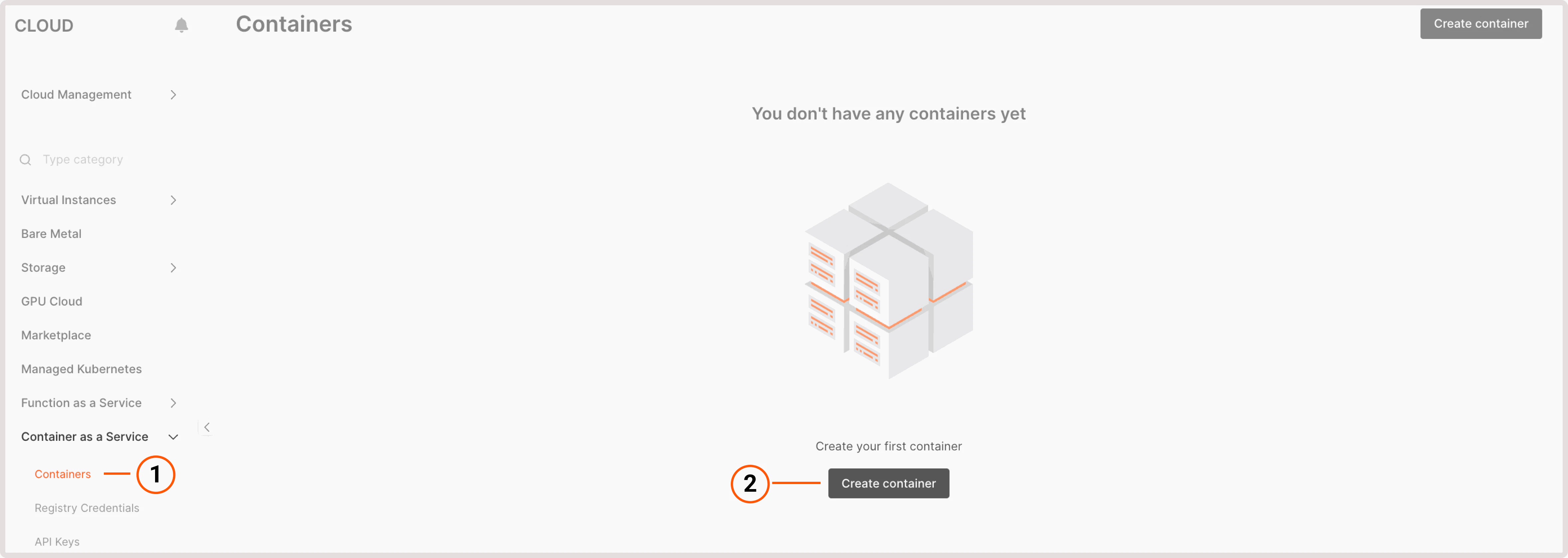
    1\. In the Gcore Customer Portal, navigate to **Cloud** > **Container as a Service**.

    2\. Click **Create container**.

    <Frame>
      <img src="https://mintcdn.com/gcore/QIEAnezmG8Bl8nMk/images/docs/cloud/caas/caas-page.png?fit=max&auto=format&n=QIEAnezmG8Bl8nMk&q=85&s=cd1afa6b69a664cb9361ae8fcf71e28c" alt="CaaS page in the Customer Portal" width="4712" height="1676" data-path="images/docs/cloud/caas/caas-page.png" />
    </Frame>

    3\. In the **Container image** section, select the image type: **public** or **private**. The difference between them is that a private image is secured with credentials.

    4\. Enter your image URL. For example, nginx:latest. For a private image, enter the URL in the format `https://registry.mysite.com`.

    5\. (Optional) Specify registry credentials. If you selected private image in the previous step, enter credentials for accessing that image. If you've already added credentials to the Customer Portal, choose them from the Credentials dropdown.

    <Frame>
      <img src="https://mintcdn.com/gcore/gC2cpnyadtVorzGi/images/docs/cloud/caas/create-a-container/add-container-image.png?fit=max&auto=format&n=gC2cpnyadtVorzGi&q=85&s=e690bedbb9fa3896ac3fc09fc07d6346" alt="Container image settings" width="3644" height="1532" data-path="images/docs/cloud/caas/create-a-container/add-container-image.png" />
    </Frame>

    If you have no saved credentials, add them as follows:

    * **Image registry name** : Registry name that will be displayed in the Credentials dropdown.
    * **Image registry URL** : Link to the location where your application is stored.
    * **Image registry username** : Username you use to access the storage location of your application.
    * **Image registry password** : Password you use to access the storage location of your application.

    To save the new credentials, click **Create credentials**.

    (Optional) Set startup command. Enable the toggle if you want to execute a specific command when your container is initiated.

    ## Step 2. Specify port

    In the **Port** section, specify the port for connection to your container.

    <Frame>
      <img src="https://mintcdn.com/gcore/gC2cpnyadtVorzGi/images/docs/cloud/caas/create-a-container/specify-port.png?fit=max&auto=format&n=gC2cpnyadtVorzGi&q=85&s=ce2b7dbdfd13d54cf271eb74983db692" alt="Container port" width="3064" height="628" data-path="images/docs/cloud/caas/create-a-container/specify-port.png" />
    </Frame>

    <Info>
      **Info**

      Currently, we support only one port for the container. If you need to add additional data, create a separate container.
    </Info>

    ## Step 3. Choose container configuration

    Select the required MB of memory and mCPU (up to 2260 mCPU and 4096 MB). This configuration will be used for the deployed Kubernetes pod, where your container will be placed after creation.

    <Frame>
      <img src="https://mintcdn.com/gcore/gC2cpnyadtVorzGi/images/docs/cloud/caas/create-a-container/container-configuration.png?fit=max&auto=format&n=gC2cpnyadtVorzGi&q=85&s=94de7217dabb88fcbdb7f25f5e4eb474" alt="Container configuration" width="2948" height="628" data-path="images/docs/cloud/caas/create-a-container/container-configuration.png" />
    </Frame>

    ## Step 4. Configure autoscaling

    In the **Limits of autoscaling section**, enter the range for the number of nodes you want to maintain under Minimum pods and Maximum pods.

    <Frame>
      <img src="https://mintcdn.com/gcore/gC2cpnyadtVorzGi/images/docs/cloud/caas/create-a-container/autoscaling-limits.png?fit=max&auto=format&n=gC2cpnyadtVorzGi&q=85&s=ac4deef12da3074e66fe8e04fa90ec45" alt="Container autoscaling limits" width="2120" height="920" data-path="images/docs/cloud/caas/create-a-container/autoscaling-limits.png" />
    </Frame>

    In the **Cooldown period** field, set the interval (in seconds) between the trigger executions. This helps to prevent frequent and unnecessary scaling changes. You can enter a value between 1 and 3600 seconds.

    To ensure more efficient use of computational resources and consistent model performance, define scaling thresholds for CPU, RAM, and HTTP requests resource utilization. You can combine any triggers or use a single one.

    In the **Autoscaling triggers**, click **Add trigger** to view and modify current thresholds:

    * The minimum setting is 1% of the resource capacity. Only **HTTP requests** trigger can scale pods to and from 0.

    * The maximum setting is 100% of the resource capacity.

    <Frame>
      <img src="https://mintcdn.com/gcore/gC2cpnyadtVorzGi/images/docs/cloud/caas/create-a-container/autoscaling-thresholds.png?fit=max&auto=format&n=gC2cpnyadtVorzGi&q=85&s=f6cd81d9716df706ad574e722859b28e" alt="Container autoscaling thresholds" width="2664" height="836" data-path="images/docs/cloud/caas/create-a-container/autoscaling-thresholds.png" />
    </Frame>

    By default, the autoscaling parameters are set to 80% but you can enter any percentage within the specified range.

    Note that the waiting times specified for the **Cooldown period** and **HTTP requests** trigger are combined, and they determine the total time the system waits before initiating another scaling action.

    <Warning>
      **Warning**

      When setting up the cooldown period or HTTP scaling, use small values with caution because they may affect the scale window.

      For the cooldown period, small values can lead to random unexpected scale triggers. For HTTP scaling, small values might affect the time it takes to aggregate HTTP request rates for making scaling decisions.
    </Warning>

    ## Step 5. Specify container lifetime

    Enter the number of seconds after which a pod will be deleted when there are no requests to your pod. For example, if you enter 600, the pod will be deleted in 600 seconds - equal to ten minutes.

    <Frame>
      <img src="https://mintcdn.com/gcore/gC2cpnyadtVorzGi/images/docs/cloud/caas/create-a-container/container-lifetime.png?fit=max&auto=format&n=gC2cpnyadtVorzGi&q=85&s=cbbb692e1a90eab84a99b63bbabb3e35" alt="Container lifetime settings" width="2948" height="628" data-path="images/docs/cloud/caas/create-a-container/container-lifetime.png" />
    </Frame>

    <Tip>
      **Tip**

      If you specify 0, the container will take approximately one minute to scale down.
    </Tip>

    ## Step 6 (optional). Add environment variables

    (Optional) If you want to add metadata to your container, create variables in a form of key-value pairs. These variables will only be used in the environment of the created container.

    <Frame>
      <img src="https://mintcdn.com/gcore/gC2cpnyadtVorzGi/images/docs/cloud/caas/create-a-container/variables.png?fit=max&auto=format&n=gC2cpnyadtVorzGi&q=85&s=3eab835b788dd9211599a283cfb3e501" alt="Enviroment variables settings" width="2948" height="628" data-path="images/docs/cloud/caas/create-a-container/variables.png" />
    </Frame>

    For example, if your container supports it, you can configure where an application should write its log files within the container by setting an environment variable for the log file path:

    * Key: `LOG_FILE_PATH`
    * Value: `/var/log/myapp.log`

    This variable directs the application to write logs to the specified path inside the container.

    ## Step 7. Finalize container configuration

    Specify the container name (this will be displayed in the Customer Portal) and additional information if needed.

    <Frame>
      <img src="https://mintcdn.com/gcore/gC2cpnyadtVorzGi/images/docs/cloud/caas/create-a-container/container-details.png?fit=max&auto=format&n=gC2cpnyadtVorzGi&q=85&s=59dd2da152ad7d44e28ca91a0cd1d8ea" alt="Container details settings" width="2356" height="836" data-path="images/docs/cloud/caas/create-a-container/container-details.png" />
    </Frame>

    In the top-right corner of the screen, click **Create container**. After a few minutes, the initial setup will be finished and the container will be launched.
  </MethodSection>

  <MethodSection id="api" label="REST API">
    The steps below deploy a container from a public registry image and return a live HTTPS endpoint.

    <Info>
      An [API token](/developer-tools/rest-api/authentication) is required, along with a [project ID](/api-reference/cloud/projects/list-projects) and a [region ID](/api-reference/cloud/regions/list-regions).
    </Info>

    Set the following environment variables before running the examples:

    ```bash theme={null}
    export GCORE_API_KEY="{YOUR_API_KEY}"
    export GCORE_CLOUD_PROJECT_ID="{YOUR_PROJECT_ID}"
    export GCORE_CLOUD_REGION_ID="{YOUR_REGION_ID}"
    ```

    ## Step 1. List available flavors

    Flavors define the CPU and RAM allocation for each container pod. Choose the smallest flavor that meets the application's requirements.

    <Tabs>
      <Tab title="Python">
        ```python theme={null}
        import os
        import requests  # pip install requests

        API_KEY = os.environ["GCORE_API_KEY"]
        PROJECT_ID = os.environ["GCORE_CLOUD_PROJECT_ID"]
        REGION_ID = os.environ["GCORE_CLOUD_REGION_ID"]
        HDR = {"Authorization": f"APIKey {API_KEY}"}

        resp = requests.get(
            f"https://api.gcore.com/cloud/v1/caas/flavors/{PROJECT_ID}/{REGION_ID}",
            headers=HDR,
        )
        resp.raise_for_status()
        for f in resp.json()["results"]:
            print(f["name"], "-", f["cpu"], "mCPU,", f["ram"], "MiB")
        ```
      </Tab>

      <Tab title="Go">
        ```go theme={null}
        package main

        import (
            "bytes"
            "encoding/json"
            "fmt"
            "io"
            "net/http"
            "os"
            "time"
        )

        func main() {
            apiKey := os.Getenv("GCORE_API_KEY")
            projectID := os.Getenv("GCORE_CLOUD_PROJECT_ID")
            regionID := os.Getenv("GCORE_CLOUD_REGION_ID")
            client := &http.Client{}

            req, _ := http.NewRequest("GET",
                fmt.Sprintf("https://api.gcore.com/cloud/v1/caas/flavors/%s/%s", projectID, regionID),
                nil)
            req.Header.Set("Authorization", "APIKey "+apiKey)
            resp, _ := client.Do(req)
            body, _ := io.ReadAll(resp.Body)
            resp.Body.Close()

            var flavorsResp struct {
                Results []struct {
                    Name string `json:"name"`
                    CPU  int    `json:"cpu"`
                    RAM  int    `json:"ram"`
                } `json:"results"`
            }
            json.Unmarshal(body, &flavorsResp)
            for _, f := range flavorsResp.Results {
                fmt.Printf("%s - %d mCPU, %d MiB\n", f.Name, f.CPU, f.RAM)
            }
        }
        ```
      </Tab>

      <Tab title="curl">
        ```bash theme={null}
        curl -s "https://api.gcore.com/cloud/v1/caas/flavors/$GCORE_CLOUD_PROJECT_ID/$GCORE_CLOUD_REGION_ID" \
          -H "Authorization: APIKey $GCORE_API_KEY"
        ```

        Response:

        ```json theme={null}
        {
          "count": 7,
          "results": [
            {"name": "80mCPU-128MiB",    "cpu": 80,   "ram": 128},
            {"name": "160mCPU-256MiB",   "cpu": 160,  "ram": 256},
            {"name": "330mCPU-512MiB",   "cpu": 330,  "ram": 512},
            {"name": "580mCPU-1024MiB",  "cpu": 580,  "ram": 1024},
            {"name": "1140mCPU-2048MiB", "cpu": 1140, "ram": 2048},
            {"name": "1700mCPU-3072MiB", "cpu": 1700, "ram": 3072},
            {"name": "2260mCPU-4096MiB", "cpu": 2260, "ram": 4096}
          ]
        }
        ```
      </Tab>
    </Tabs>

    Save the chosen flavor name for the next step:

    ```bash theme={null}
    export FLAVOR="80mCPU-128MiB"
    ```

    ## Step 2. Create a container

    CaaS pulls the image, starts pods, and assigns a public HTTPS endpoint. The container name appears in the endpoint URL.

    | Parameter        | Required | Description                                                                                                             |
    | ---------------- | -------- | ----------------------------------------------------------------------------------------------------------------------- |
    | `name`           | Yes      | Alphanumeric, dots, hyphens; cannot start or end with `.` or `-`; max 43 characters. Appears in the public endpoint URL |
    | `image`          | Yes      | Docker image reference. Use `nginx:latest` for public images or a full registry path for private ones                   |
    | `listening_port` | Yes      | Port the container process listens on                                                                                   |
    | `flavor`         | Yes      | Flavor name from Step 1                                                                                                 |
    | `scale.min`      | Yes      | Minimum running pods. Set to `0` to scale to zero when idle                                                             |
    | `scale.max`      | Yes      | Maximum pods for autoscaling                                                                                            |
    | `timeout`        | No       | Seconds before an idle pod scales down (when `scale.min = 0`). Maximum 180                                              |

    <Tabs>
      <Tab title="Python">
        ```python theme={null}
        FLAVOR = "80mCPU-128MiB"  # from Step 1

        resp = requests.post(
            f"https://api.gcore.com/cloud/v1/caas/{PROJECT_ID}/{REGION_ID}/containers",
            headers=HDR,
            json={
                "name": "my-nginx",
                "image": "nginx:latest",
                "listening_port": 80,
                "flavor": FLAVOR,
                "scale": {"min": 1, "max": 2},
                "timeout": 180,
            },
        )
        resp.raise_for_status()
        task_id = resp.json()["tasks"][0]
        print("Task ID:", task_id)
        ```
      </Tab>

      <Tab title="Go">
        ```go theme={null}
            flavor := "80mCPU-128MiB" // from Step 1

            payload, _ := json.Marshal(map[string]any{
                "name":           "my-nginx",
                "image":          "nginx:latest",
                "listening_port": 80,
                "flavor":         flavor,
                "scale":          map[string]int{"min": 1, "max": 2},
                "timeout":        180,
            })
            req, _ = http.NewRequest("POST",
                fmt.Sprintf("https://api.gcore.com/cloud/v1/caas/%s/%s/containers", projectID, regionID),
                bytes.NewReader(payload))
            req.Header.Set("Authorization", "APIKey "+apiKey)
            req.Header.Set("Content-Type", "application/json")
            resp, _ = client.Do(req)
            body, _ = io.ReadAll(resp.Body)
            resp.Body.Close()

            var taskResp struct{ Tasks []string `json:"tasks"` }
            json.Unmarshal(body, &taskResp)
            taskID := taskResp.Tasks[0]
            fmt.Println("Task ID:", taskID)
        ```
      </Tab>

      <Tab title="curl">
        ```bash theme={null}
        curl -s -X POST "https://api.gcore.com/cloud/v1/caas/$GCORE_CLOUD_PROJECT_ID/$GCORE_CLOUD_REGION_ID/containers" \
          -H "Authorization: APIKey $GCORE_API_KEY" \
          -H "Content-Type: application/json" \
          -d '{
            "name": "my-nginx",
            "image": "nginx:latest",
            "listening_port": 80,
            "flavor": "'"$FLAVOR"'",
            "scale": {"min": 1, "max": 2},
            "timeout": 180
          }'
        ```

        Response:

        ```json theme={null}
        {
          "tasks": ["dd52d84a-b49b-43f1-93d1-06bd928a8f26"]
        }
        ```
      </Tab>
    </Tabs>

    Save the task ID for the next step:

    ```bash theme={null}
    export TASK_ID="dd52d84a-b49b-43f1-93d1-06bd928a8f26"
    ```

    ## Step 3. Poll the task

    Container provisioning typically takes 30-60 seconds. Poll every 5 seconds until `state` is `FINISHED`.

    <Tabs>
      <Tab title="Python">
        ```python theme={null}
        import time

        while True:
            resp = requests.get(
                f"https://api.gcore.com/cloud/v1/tasks/{task_id}",
                headers=HDR,
            )
            resp.raise_for_status()
            state = resp.json()["state"]
            print("State:", state)
            if state == "FINISHED":
                break
            time.sleep(5)
        ```
      </Tab>

      <Tab title="Go">
        ```go theme={null}
            for {
                req, _ = http.NewRequest("GET",
                    fmt.Sprintf("https://api.gcore.com/cloud/v1/tasks/%s", taskID),
                    nil)
                req.Header.Set("Authorization", "APIKey "+apiKey)
                resp, _ = client.Do(req)
                body, _ = io.ReadAll(resp.Body)
                resp.Body.Close()

                var status struct{ State string `json:"state"` }
                json.Unmarshal(body, &status)
                fmt.Println("State:", status.State)
                if status.State == "FINISHED" {
                    break
                }
                time.Sleep(5 * time.Second)
            }
        ```
      </Tab>

      <Tab title="curl">
        ```bash theme={null}
        curl -s "https://api.gcore.com/cloud/v1/tasks/$TASK_ID" \
          -H "Authorization: APIKey $GCORE_API_KEY"
        ```

        Response when complete:

        ```json theme={null}
        {
          "id": "dd52d84a-b49b-43f1-93d1-06bd928a8f26",
          "state": "FINISHED",
          "created_resources": {
            "caas_containers": ["my-nginx"]
          }
        }
        ```
      </Tab>
    </Tabs>

    `caas_containers` returns the container name (not a UUID). Use it in subsequent calls.

    ## Step 4. Get container details

    Retrieve the container to find the public endpoint and confirm it is ready.

    <Tabs>
      <Tab title="Python">
        ```python theme={null}
        resp = requests.get(
            f"https://api.gcore.com/cloud/v1/caas/{PROJECT_ID}/{REGION_ID}/containers/my-nginx",
            headers=HDR,
        )
        resp.raise_for_status()
        container = resp.json()
        print("Status:", container["status"])
        print("Endpoint:", container["address"])
        ```
      </Tab>

      <Tab title="Go">
        ```go theme={null}
            req, _ = http.NewRequest("GET",
                fmt.Sprintf("https://api.gcore.com/cloud/v1/caas/%s/%s/containers/my-nginx", projectID, regionID),
                nil)
            req.Header.Set("Authorization", "APIKey "+apiKey)
            resp, _ = client.Do(req)
            body, _ = io.ReadAll(resp.Body)
            resp.Body.Close()

            var container struct {
                Status  string `json:"status"`
                Address string `json:"address"`
            }
            json.Unmarshal(body, &container)
            fmt.Println("Status:", container.Status)
            fmt.Println("Endpoint:", container.Address)
        ```
      </Tab>

      <Tab title="curl">
        ```bash theme={null}
        curl -s "https://api.gcore.com/cloud/v1/caas/$GCORE_CLOUD_PROJECT_ID/$GCORE_CLOUD_REGION_ID/containers/my-nginx" \
          -H "Authorization: APIKey $GCORE_API_KEY"
        ```

        Response:

        ```json theme={null}
        {
          "name": "my-nginx",
          "image": "nginx:latest",
          "listening_port": 80,
          "flavor": "80mCPU-128MiB",
          "status": "Ready",
          "address": "https://my-nginx-76-1186668-caas.caas.k1.luxembourg-2.cloud.gcore.dev/",
          "deploy_status": {"total": 2, "ready": 1},
          "scale": {"min": 1, "max": 2, "cooldown_period": 60}
        }
        ```
      </Tab>
    </Tabs>

    ## Step 5. Verify the endpoint

    Send a request to confirm the container is serving traffic. The pod may return `503` for 1-2 minutes after the task completes while the ingress routes settle - retry if the first attempt fails.

    <Tabs>
      <Tab title="Python">
        ```python theme={null}
        resp = requests.get(container["address"])
        print("HTTP status:", resp.status_code)
        ```
      </Tab>

      <Tab title="Go">
        ```go theme={null}
            resp, _ = http.Get(container.Address)
            fmt.Println("HTTP status:", resp.StatusCode)
            resp.Body.Close()
        ```
      </Tab>

      <Tab title="curl">
        ```bash theme={null}
        curl -s -o /dev/null -w "%{http_code}" \
          "https://my-nginx-76-1186668-caas.caas.k1.luxembourg-2.cloud.gcore.dev/"
        ```

        Response:

        ```
        200
        ```
      </Tab>
    </Tabs>

    ## Use a private registry

    To run an image stored in a private [Container Registry](/cloud/container-registry/create-a-registry), complete the following steps before creating the container. Both Container Registry and CaaS must be in the same region - Luxembourg-2 supports both.

    ### Step 1. Create a Container Registry

    A Container Registry stores the Docker image before CaaS pulls it.

    | Parameter       | Required | Description                                                                    |
    | --------------- | -------- | ------------------------------------------------------------------------------ |
    | `name`          | Yes      | Registry name, lowercase letters and hyphens. Becomes part of the registry URL |
    | `storage_limit` | No       | Maximum storage in GiB. Defaults to 10                                         |

    <Tabs>
      <Tab title="Python">
        ```python theme={null}
        resp = requests.post(
            f"https://api.gcore.com/cloud/v1/registries/{PROJECT_ID}/{REGION_ID}",
            headers=HDR,
            json={"name": "my-registry", "storage_limit": 10},
        )
        resp.raise_for_status()
        registry = resp.json()
        REGISTRY_ID = registry["id"]
        REGISTRY_URL = registry["url"].rstrip("/")
        print("Registry URL:", REGISTRY_URL)
        ```
      </Tab>

      <Tab title="Go">
        ```go theme={null}
        package main

        import (
            "bytes"
            "encoding/json"
            "fmt"
            "io"
            "net/http"
            "os"
            "strings"
            "time"
        )

        func main() {
            apiKey := os.Getenv("GCORE_API_KEY")
            projectID := os.Getenv("GCORE_CLOUD_PROJECT_ID")
            regionID := os.Getenv("GCORE_CLOUD_REGION_ID")
            client := &http.Client{}

            payload, _ := json.Marshal(map[string]any{"name": "my-registry", "storage_limit": 10})
            req, _ := http.NewRequest("POST",
                fmt.Sprintf("https://api.gcore.com/cloud/v1/registries/%s/%s", projectID, regionID),
                bytes.NewReader(payload))
            req.Header.Set("Authorization", "APIKey "+apiKey)
            req.Header.Set("Content-Type", "application/json")
            resp, _ := client.Do(req)
            body, _ := io.ReadAll(resp.Body)
            resp.Body.Close()

            var registry struct {
                ID  int    `json:"id"`
                URL string `json:"url"`
            }
            json.Unmarshal(body, &registry)
            registryID := registry.ID
            registryURL := strings.TrimSuffix(registry.URL, "/")
            fmt.Printf("Registry ID: %d, URL: %s\n", registryID, registryURL)
        }
        ```
      </Tab>

      <Tab title="curl">
        ```bash theme={null}
        curl -s -X POST "https://api.gcore.com/cloud/v1/registries/$GCORE_CLOUD_PROJECT_ID/$GCORE_CLOUD_REGION_ID" \
          -H "Authorization: APIKey $GCORE_API_KEY" \
          -H "Content-Type: application/json" \
          -d '{"name": "my-registry", "storage_limit": 10}'
        ```

        Response:

        ```json theme={null}
        {
          "id": 606,
          "name": "my-registry",
          "url": "registry.luxembourg-2.cloud.gcore.dev/1000503-1186668-76-my-registry/"
        }
        ```
      </Tab>
    </Tabs>

    ```bash theme={null}
    export REGISTRY_ID="606"
    export REGISTRY_URL="registry.luxembourg-2.cloud.gcore.dev/1000503-1186668-76-my-registry"
    ```

    ### Step 2. Create a registry user

    A registry user provides Docker login credentials. The `secret` is returned only once - copy it immediately.

    | Parameter  | Required | Description                                                |
    | ---------- | -------- | ---------------------------------------------------------- |
    | `name`     | Yes      | Username suffix, lowercase alphanumeric, max 16 characters |
    | `duration` | Yes      | Credential lifetime in days. Use `-1` for no expiration    |

    <Tabs>
      <Tab title="Python">
        ```python theme={null}
        resp = requests.post(
            f"https://api.gcore.com/cloud/v1/registries/{PROJECT_ID}/{REGION_ID}/{REGISTRY_ID}/users",
            headers=HDR,
            json={"name": "pusher", "duration": -1},
        )
        resp.raise_for_status()
        user = resp.json()
        DOCKER_USERNAME = user["name"]
        DOCKER_PASSWORD = user["secret"]
        print("Username:", DOCKER_USERNAME)
        ```
      </Tab>

      <Tab title="Go">
        ```go theme={null}
            payload, _ = json.Marshal(map[string]any{"name": "pusher", "duration": -1})
            req, _ = http.NewRequest("POST",
                fmt.Sprintf("https://api.gcore.com/cloud/v1/registries/%s/%s/%d/users",
                    projectID, regionID, registryID),
                bytes.NewReader(payload))
            req.Header.Set("Authorization", "APIKey "+apiKey)
            req.Header.Set("Content-Type", "application/json")
            resp, _ = client.Do(req)
            body, _ = io.ReadAll(resp.Body)
            resp.Body.Close()

            var regUser struct {
                Name   string `json:"name"`
                Secret string `json:"secret"`
            }
            json.Unmarshal(body, &regUser)
            dockerUsername := regUser.Name
            dockerPassword := regUser.Secret
            fmt.Println("Username:", dockerUsername)
        ```
      </Tab>

      <Tab title="curl">
        ```bash theme={null}
        curl -s -X POST \
          "https://api.gcore.com/cloud/v1/registries/$GCORE_CLOUD_PROJECT_ID/$GCORE_CLOUD_REGION_ID/$REGISTRY_ID/users" \
          -H "Authorization: APIKey $GCORE_API_KEY" \
          -H "Content-Type: application/json" \
          -d '{"name": "pusher", "duration": -1}'
        ```

        Response:

        ```json theme={null}
        {
          "name": "r_1000503-1186668-76-my-registry+pusher",
          "secret": "gVa7zL5meW9cBOJLGiQx9AcvPFSehcgg"
        }
        ```
      </Tab>
    </Tabs>

    <Warning>
      The `secret` field cannot be retrieved after this response. Save it immediately. If lost, delete the user and create a new one.
    </Warning>

    ```bash theme={null}
    export DOCKER_USERNAME="r_1000503-1186668-76-my-registry+pusher"
    export DOCKER_PASSWORD="{secret_from_response}"
    ```

    ### Step 3. Push an image

    Log in to the registry, tag a local image, and push it. Requires [Docker](https://docs.docker.com/get-started/get-docker/) installed locally.

    ```bash theme={null}
    echo "$DOCKER_PASSWORD" | docker login "$REGISTRY_URL" \
      --username "$DOCKER_USERNAME" --password-stdin

    docker tag nginx:latest "$REGISTRY_URL/nginx:latest"
    docker push "$REGISTRY_URL/nginx:latest"
    ```

    ### Step 4. Create a pull secret

    A pull secret stores registry credentials inside the CaaS region, letting CaaS authenticate when pulling the private image.

    | Parameter  | Required | Description                                                                                  |
    | ---------- | -------- | -------------------------------------------------------------------------------------------- |
    | `name`     | Yes      | Secret identifier referenced in the container spec. Pattern `^[a-z][-a-z0-9]{0,24}[a-z0-9]$` |
    | `registry` | Yes      | Registry hostname without path                                                               |
    | `login`    | Yes      | Full Docker username from Step 2                                                             |
    | `password` | Yes      | Secret from Step 2                                                                           |

    <Tabs>
      <Tab title="Python">
        ```python theme={null}
        resp = requests.post(
            f"https://api.gcore.com/cloud/v1/caas/secrets/{PROJECT_ID}/{REGION_ID}",
            headers=HDR,
            json={
                "name": "my-registry-secret",
                "registry": "registry.luxembourg-2.cloud.gcore.dev",
                "login": DOCKER_USERNAME,
                "password": DOCKER_PASSWORD,
            },
        )
        resp.raise_for_status()
        PULL_SECRET_NAME = resp.json()["name"]
        print("Pull secret:", PULL_SECRET_NAME)
        ```
      </Tab>

      <Tab title="Go">
        ```go theme={null}
            payload, _ = json.Marshal(map[string]any{
                "name":     "my-registry-secret",
                "registry": "registry.luxembourg-2.cloud.gcore.dev",
                "login":    dockerUsername,
                "password": dockerPassword,
            })
            req, _ = http.NewRequest("POST",
                fmt.Sprintf("https://api.gcore.com/cloud/v1/caas/secrets/%s/%s", projectID, regionID),
                bytes.NewReader(payload))
            req.Header.Set("Authorization", "APIKey "+apiKey)
            req.Header.Set("Content-Type", "application/json")
            resp, _ = client.Do(req)
            body, _ = io.ReadAll(resp.Body)
            resp.Body.Close()

            var secret struct{ Name string `json:"name"` }
            json.Unmarshal(body, &secret)
            pullSecretName := secret.Name
            fmt.Println("Pull secret:", pullSecretName)
        ```
      </Tab>

      <Tab title="curl">
        ```bash theme={null}
        curl -s -X POST "https://api.gcore.com/cloud/v1/caas/secrets/$GCORE_CLOUD_PROJECT_ID/$GCORE_CLOUD_REGION_ID" \
          -H "Authorization: APIKey $GCORE_API_KEY" \
          -H "Content-Type: application/json" \
          -d "{
            \"name\": \"my-registry-secret\",
            \"registry\": \"registry.luxembourg-2.cloud.gcore.dev\",
            \"login\": \"$DOCKER_USERNAME\",
            \"password\": \"$DOCKER_PASSWORD\"
          }"
        ```

        Response:

        ```json theme={null}
        {
          "name": "my-registry-secret",
          "registry": "registry.luxembourg-2.cloud.gcore.dev",
          "login": "r_1000503-1186668-76-my-registry+pusher"
        }
        ```
      </Tab>
    </Tabs>

    ```bash theme={null}
    export PULL_SECRET_NAME="my-registry-secret"
    ```

    ### Step 5. Create a container with pull secret

    Pass the pull secret name and the full private image path in the container spec.

    <Tabs>
      <Tab title="Python">
        ```python theme={null}
        resp = requests.post(
            f"https://api.gcore.com/cloud/v1/caas/{PROJECT_ID}/{REGION_ID}/containers",
            headers=HDR,
            json={
                "name": "my-nginx",
                "image": f"{REGISTRY_URL}/nginx:latest",
                "listening_port": 80,
                "flavor": "80mCPU-128MiB",
                "scale": {"min": 1, "max": 2},
                "timeout": 180,
                "pull_secret": PULL_SECRET_NAME,
            },
        )
        resp.raise_for_status()
        task_id = resp.json()["tasks"][0]
        print("Task ID:", task_id)
        ```
      </Tab>

      <Tab title="Go">
        ```go theme={null}
            payload, _ = json.Marshal(map[string]any{
                "name":           "my-nginx",
                "image":          registryURL + "/nginx:latest",
                "listening_port": 80,
                "flavor":         "80mCPU-128MiB",
                "scale":          map[string]int{"min": 1, "max": 2},
                "timeout":        180,
                "pull_secret":    pullSecretName,
            })
            req, _ = http.NewRequest("POST",
                fmt.Sprintf("https://api.gcore.com/cloud/v1/caas/%s/%s/containers", projectID, regionID),
                bytes.NewReader(payload))
            req.Header.Set("Authorization", "APIKey "+apiKey)
            req.Header.Set("Content-Type", "application/json")
            resp, _ = client.Do(req)
            body, _ = io.ReadAll(resp.Body)
            resp.Body.Close()

            var taskResp2 struct{ Tasks []string `json:"tasks"` }
            json.Unmarshal(body, &taskResp2)
            taskID = taskResp2.Tasks[0]
            fmt.Println("Task ID:", taskID)
        ```
      </Tab>

      <Tab title="curl">
        ```bash theme={null}
        curl -s -X POST "https://api.gcore.com/cloud/v1/caas/$GCORE_CLOUD_PROJECT_ID/$GCORE_CLOUD_REGION_ID/containers" \
          -H "Authorization: APIKey $GCORE_API_KEY" \
          -H "Content-Type: application/json" \
          -d "{
            \"name\": \"my-nginx\",
            \"image\": \"$REGISTRY_URL/nginx:latest\",
            \"listening_port\": 80,
            \"flavor\": \"80mCPU-128MiB\",
            \"scale\": {\"min\": 1, \"max\": 2},
            \"timeout\": 180,
            \"pull_secret\": \"$PULL_SECRET_NAME\"
          }"
        ```

        Response:

        ```json theme={null}
        {
          "tasks": ["bf1bbc44-3a20-4c90-bbb9-3781e208fd16"]
        }
        ```
      </Tab>
    </Tabs>

    Poll the task and retrieve the endpoint as in [Step 3](#step-3-poll-the-task) and [Step 4](#step-4-get-container-details) of the basic flow.

    ## Clean up

    Delete the container when it is no longer needed:

    <Tabs>
      <Tab title="Python">
        ```python theme={null}
        resp = requests.delete(
            f"https://api.gcore.com/cloud/v1/caas/{PROJECT_ID}/{REGION_ID}/containers/my-nginx",
            headers=HDR,
        )
        resp.raise_for_status()
        task_id = resp.json()["tasks"][0]
        print("Delete task:", task_id)
        # Poll task_id until FINISHED (same as Step 3)
        ```
      </Tab>

      <Tab title="Go">
        ```go theme={null}
            req, _ = http.NewRequest("DELETE",
                fmt.Sprintf("https://api.gcore.com/cloud/v1/caas/%s/%s/containers/my-nginx",
                    projectID, regionID),
                nil)
            req.Header.Set("Authorization", "APIKey "+apiKey)
            resp, _ = client.Do(req)
            body, _ = io.ReadAll(resp.Body)
            resp.Body.Close()

            var delTask struct{ Tasks []string `json:"tasks"` }
            json.Unmarshal(body, &delTask)
            fmt.Println("Delete task:", delTask.Tasks[0])
            // Poll delTask.Tasks[0] until FINISHED (same as Step 3)
        ```
      </Tab>

      <Tab title="curl">
        ```bash theme={null}
        curl -s -X DELETE \
          "https://api.gcore.com/cloud/v1/caas/$GCORE_CLOUD_PROJECT_ID/$GCORE_CLOUD_REGION_ID/containers/my-nginx" \
          -H "Authorization: APIKey $GCORE_API_KEY"
        ```

        Response:

        ```json theme={null}
        {
          "tasks": ["2b7eb0dd-360f-4a35-9b85-4bf8336a3171"]
        }
        ```
      </Tab>
    </Tabs>

    Poll <code>GET /cloud/v1/tasks/{task_id}</code> until `state` is `FINISHED`.

    To remove a private registry and its user, delete the registry user first, then the registry:

    <Tabs>
      <Tab title="Python">
        ```python theme={null}
        requests.delete(
            f"https://api.gcore.com/cloud/v1/registries/{PROJECT_ID}/{REGION_ID}/{REGISTRY_ID}/users/pusher",
            headers=HDR,
        ).raise_for_status()

        requests.delete(
            f"https://api.gcore.com/cloud/v1/registries/{PROJECT_ID}/{REGION_ID}/{REGISTRY_ID}",
            headers=HDR,
        ).raise_for_status()
        ```
      </Tab>

      <Tab title="Go">
        ```go theme={null}
            req, _ = http.NewRequest("DELETE",
                fmt.Sprintf("https://api.gcore.com/cloud/v1/registries/%s/%s/%d/users/pusher",
                    projectID, regionID, registryID),
                nil)
            req.Header.Set("Authorization", "APIKey "+apiKey)
            client.Do(req)

            req, _ = http.NewRequest("DELETE",
                fmt.Sprintf("https://api.gcore.com/cloud/v1/registries/%s/%s/%d",
                    projectID, regionID, registryID),
                nil)
            req.Header.Set("Authorization", "APIKey "+apiKey)
            client.Do(req)
        ```
      </Tab>

      <Tab title="curl">
        ```bash theme={null}
        curl -s -X DELETE \
          "https://api.gcore.com/cloud/v1/registries/$GCORE_CLOUD_PROJECT_ID/$GCORE_CLOUD_REGION_ID/$REGISTRY_ID/users/pusher" \
          -H "Authorization: APIKey $GCORE_API_KEY"

        curl -s -X DELETE \
          "https://api.gcore.com/cloud/v1/registries/$GCORE_CLOUD_PROJECT_ID/$GCORE_CLOUD_REGION_ID/$REGISTRY_ID" \
          -H "Authorization: APIKey $GCORE_API_KEY"
        ```
      </Tab>
    </Tabs>
  </MethodSection>
</MethodSwitch>
