> ## Documentation Index
> Fetch the complete documentation index at: https://gcore.com/docs/llms.txt
> Use this file to discover all available pages before exploring further.
# Manage user access to your project
If you want to add a new user to your project, follow this article: [Add a new user to your project](/cloud/getting-started/projects/users/add-a-new-user-to-your-project)
## Edit user roles
To learn more about user roles and rights, refer to the article: [User roles and rights](/cloud/getting-started/projects/users/user-roles-and-rights)
If you have enough rights, you can change user rights:
1\. Click **Edit** to go to the user settings.
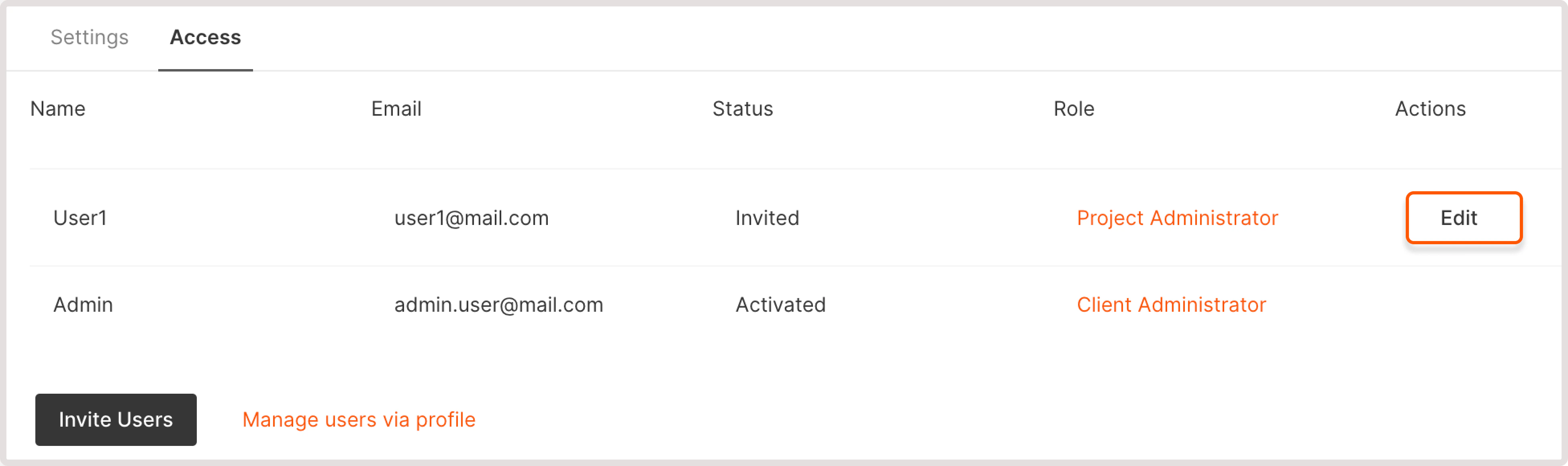 2\. Change the user role in the column **Role**. There are available the following roles: User, Observer, and Administrator.
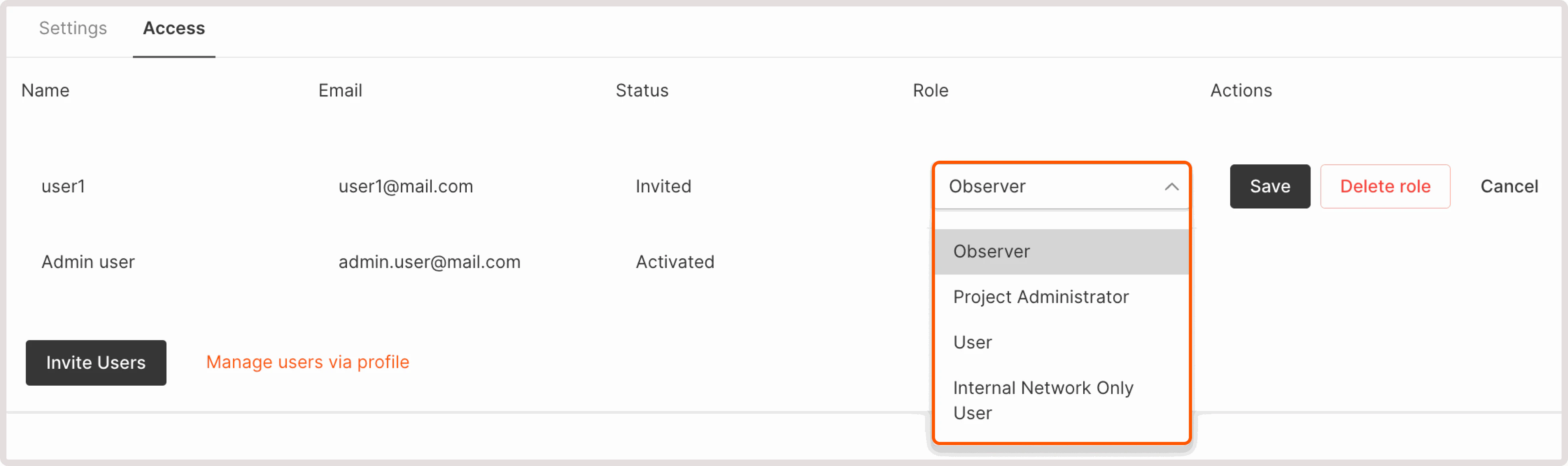 3\. Save and confirm changes.
## Deny access to a project
To deny access to a project:
1\. Click the **Delete role** button in the user settings.
3\. Save and confirm changes.
## Deny access to a project
To deny access to a project:
1\. Click the **Delete role** button in the user settings.
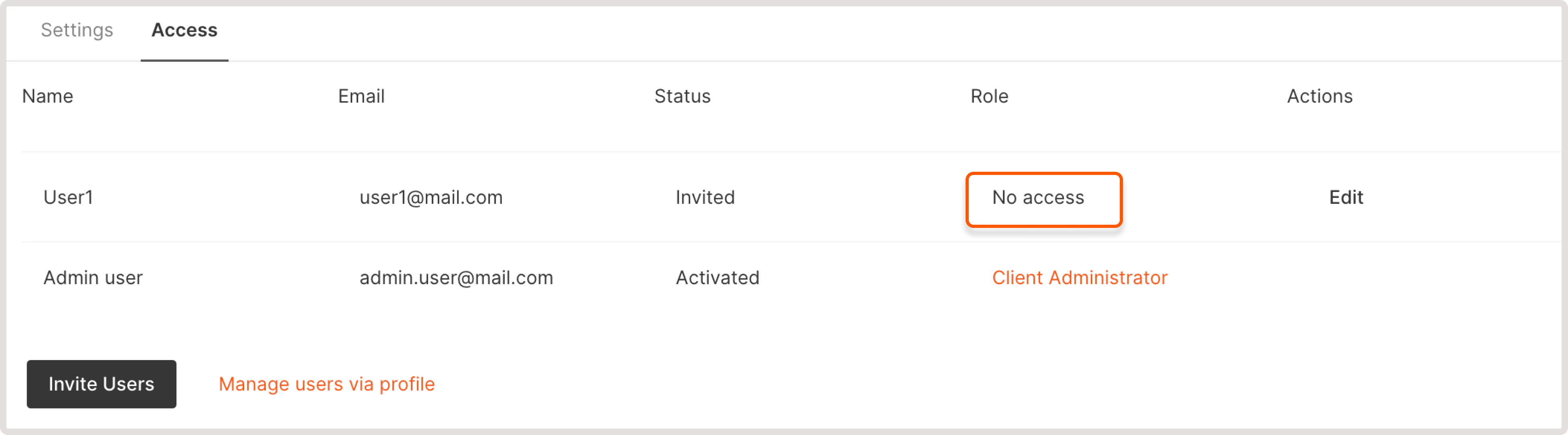
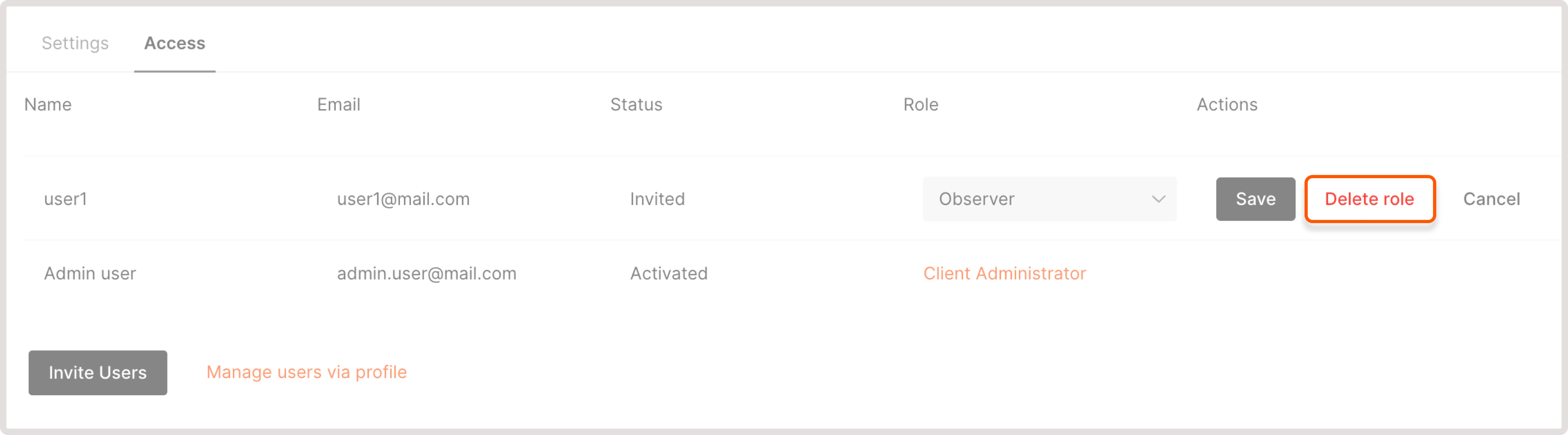 2\. After confirming the deletion, a user will not be allowed to access the project. In the **Access** section of project settings, the user will be displayed with the No-access role.
 ## Restore user access to a project
To invite a user to the project again:
1\. Click **Edit** in the user settings.
## Restore user access to a project
To invite a user to the project again:
1\. Click **Edit** in the user settings.
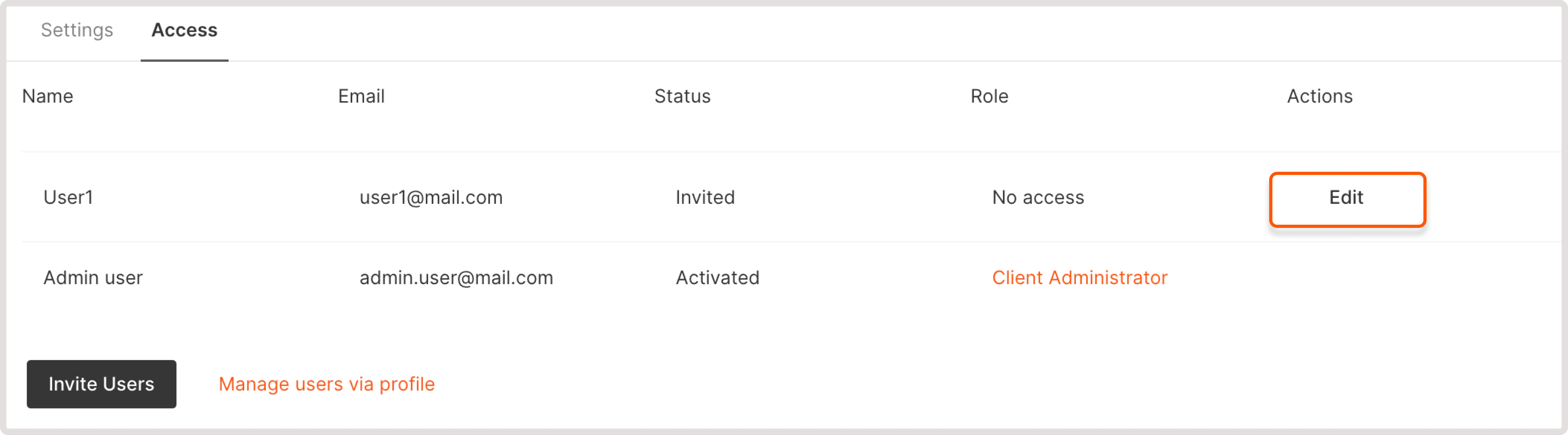 2\. Change the user role to the required one and save the settings.
3\. Confirm the role reassigning.
2\. Change the user role to the required one and save the settings.
3\. Confirm the role reassigning.
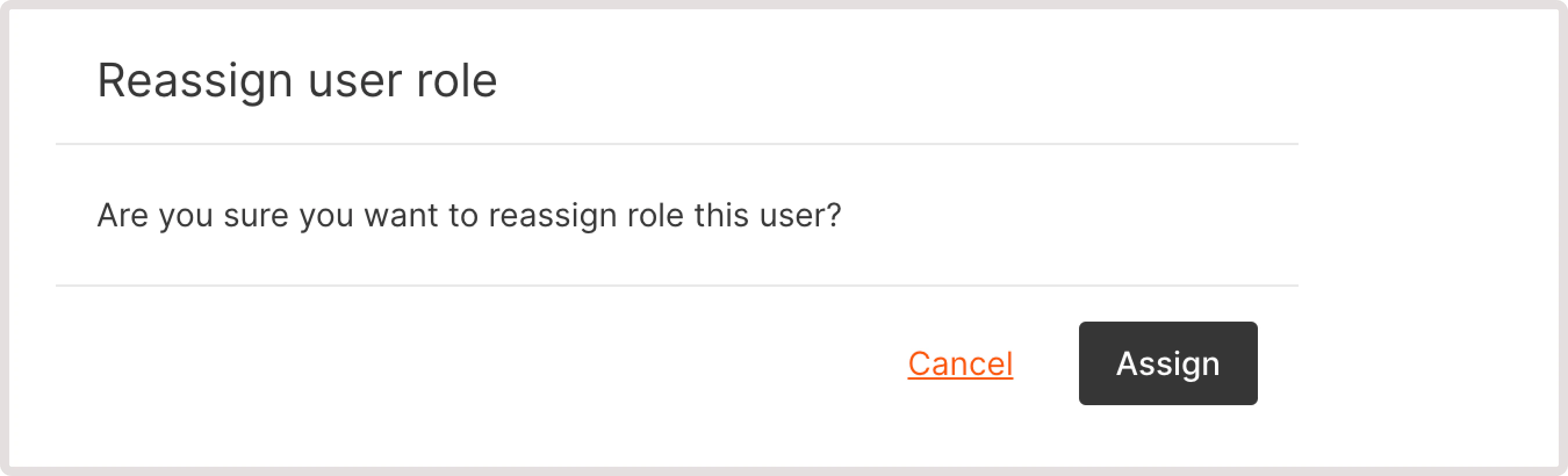 After the changes, the user will again have access to a project via the personal account.