> ## Documentation Index
> Fetch the complete documentation index at: https://gcore.com/docs/llms.txt
> Use this file to discover all available pages before exploring further.

# Manage custom images

export const MethodSection = ({children}) => children ?? null;

export const MethodSwitch = ({children}) => {
  const tabs = React.Children.toArray(children).map(c => {
    if (!c || !c.props) return null;
    if (c.props.id) return c;
    const inner = c.props.children;
    if (inner && inner.props && inner.props.id) return inner;
    return null;
  }).filter(Boolean);
  const firstId = tabs.length > 0 ? tabs[0].props.id : "";
  const [active, setActive] = React.useState(firstId);
  React.useEffect(() => {
    try {
      const saved = localStorage.getItem("gcore_docs_method");
      if (saved && tabs.find(t => t.props.id === saved)) {
        setActive(saved);
      }
    } catch (_) {}
  }, []);
  React.useEffect(() => {
    try {
      document.querySelectorAll("h2[id], h3[id]").forEach(heading => {
        const visible = heading.offsetParent !== null;
        document.querySelectorAll(`a[href="#${heading.id}"]`).forEach(link => {
          if (link.closest("h1,h2,h3,h4,h5,h6")) return;
          const li = link.closest("li");
          if (li) li.style.display = visible ? "" : "none";
        });
      });
    } catch (_) {}
    window.dispatchEvent(new Event("scroll"));
  }, [active]);
  const handleClick = id => {
    setActive(id);
    try {
      localStorage.setItem("gcore_docs_method", id);
    } catch (_) {}
  };
  return <div>
      <div className="not-prose flex gap-0 border-b border-zinc-200 dark:border-zinc-800 mb-8 mt-2" role="tablist">
        {tabs.map(tab => {
    const isActive = active === tab.props.id;
    return <button key={tab.props.id} role="tab" aria-selected={isActive} onClick={() => handleClick(tab.props.id)} className={["px-4 py-2 text-sm font-medium border-b-2 -mb-px transition-colors cursor-pointer", isActive ? "border-primary text-primary" : "border-transparent text-zinc-500 hover:text-zinc-800 dark:hover:text-zinc-200"].join(" ")}>
              {tab.props.label}
            </button>;
  })}
      </div>

      {tabs.map(tab => <div key={tab.props.id} style={{
    display: active === tab.props.id ? "" : "none"
  }}>
          {tab.props.children}
        </div>)}
    </div>;
};

Images must be in one of the supported formats — raw, vhd, vhdx, vdi, ploop, qcow2, or ami — with VirtIO SCSI drivers and the `cloud-init` package installed. Images downloaded from other cloud providers already include both.

<MethodSwitch>
  <MethodSection id="portal" label="Customer Portal">
    You can upload images to the cloud storage by following a few simple steps, ensuring the correct formats and settings are in place for a successful upload and easy management.

    ## Image requirements

    Before uploading an image to the storage, check that it meets the required format, driver, and package requirements.

    ### Supported formats

    The uploaded image must be in one of the following formats:

    |                 |                              |
    | --------------- | ---------------------------- |
    | raw             | Uncompressed image format    |
    | vhd / vhdx      | Microsoft Hyper-V formats    |
    | vdi             | VirtualBox disk image        |
    | ploop           | Parallels storage format     |
    | qcow2           | QEMU copy-on-write format    |
    | aki / ari / ami | Amazon Machine Image formats |

    ### VirtIO drivers

    If you upload an image previously downloaded from another cloud, the image should already have VirtIO drivers installed. However, if you have built your own image, please install and configure the VirtIO SCSI drivers.

    ### cloud-init

    If you upload an image previously downloaded from another cloud, the image should already have the `cloud-init` package installed. However, if you have built your own image, please install and configure the `cloud-init` package accordingly.

    ## Upload an image

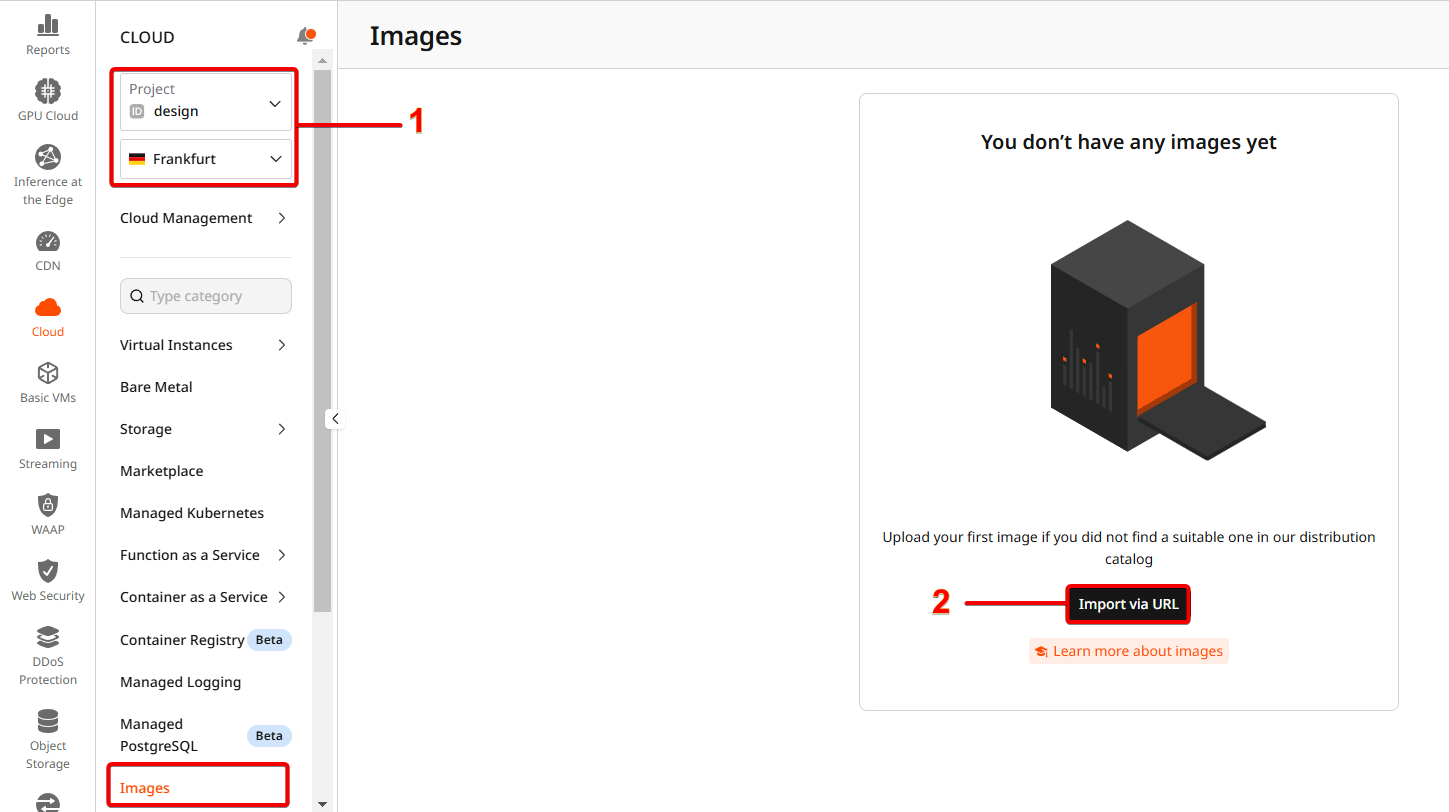
    1. In the **Cloud** menu, select the desired project and region.

    2. Go to the **Images** tab and then proceed to **Import via URL**.

    <Frame>
      <img src="https://mintcdn.com/gcore/yxYVl3HpxFEvUXPS/images/docs/cloud/images/upload-an-image-to-the-storage/click-import-via-url.png?fit=max&auto=format&n=yxYVl3HpxFEvUXPS&q=85&s=dbbb7047fb3f98a9bbc6abcbb66cdf98" alt="Gcore Customer Portal - Import an image via URL in the Images section" width="1449" height="812" data-path="images/docs/cloud/images/upload-an-image-to-the-storage/click-import-via-url.png" />
    </Frame>

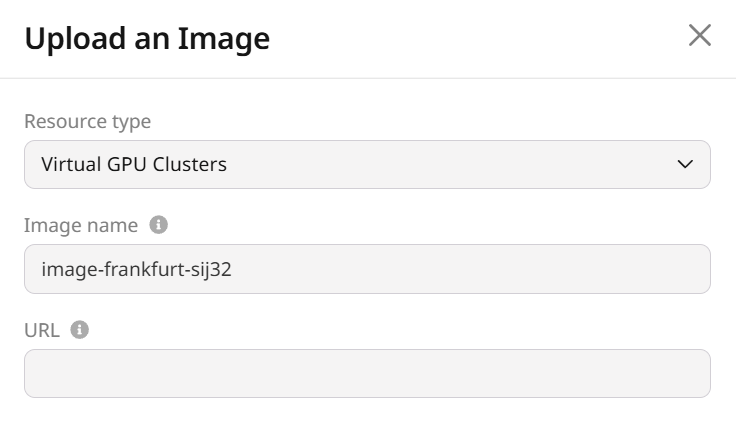
    3. Select the Resource type:

       * Virtual Instances
       * Bare Metal
       * Virtual GPU Clusters
       * Baremetal GPU Clusters
    4. Enter the image name and specify the URL from where the image will be downloaded.
    <Frame>
      <img src="https://mintcdn.com/gcore/yxYVl3HpxFEvUXPS/images/docs/cloud/images/upload-an-image-to-the-storage/enter-url-of-your-image.png?fit=max&auto=format&n=yxYVl3HpxFEvUXPS&q=85&s=e442801edcd468a61373972c4cba4604" alt="Enter the image name and URL for uploading" width="736" height="422" data-path="images/docs/cloud/images/upload-an-image-to-the-storage/enter-url-of-your-image.png" />
    </Frame>

    5. Choose the architecture of the image based on the processor type where it will run: select x86 for traditional CISC processors like Intel or AMD, or ARM for RISC-based processors such as ARM CPUs.

    6. If **VM quick start** toggle is on, the Virtual Machines will be deployed faster with this image mounted. However, please note that you cannot delete this image if there are active Virtual Machines created from this image.

    **Standard start vs quick start:**

    | Start type     | Standard                                                                 | Quick                                                                                                                                     |
    | -------------- | ------------------------------------------------------------------------ | ----------------------------------------------------------------------------------------------------------------------------------------- |
    | Technology     | RBD copy-on-write                                                        | RBD copy-on-write                                                                                                                         |
    | Image data     | All data is copied to a separate volume                                  | Image data is NOT copied when reading or writing new information, i.e. all changes and updates are applied directly to the original image |
    | Format         | qcow2                                                                    | raw                                                                                                                                       |
    | Resource usage | Resource-intensive                                                       | Less resources used                                                                                                                       |
    | Image deletion | The image can be deleted without affecting a Virtual Machine's operation | The image can be deleted only when there are NO active Virtual Machines created from this image                                           |

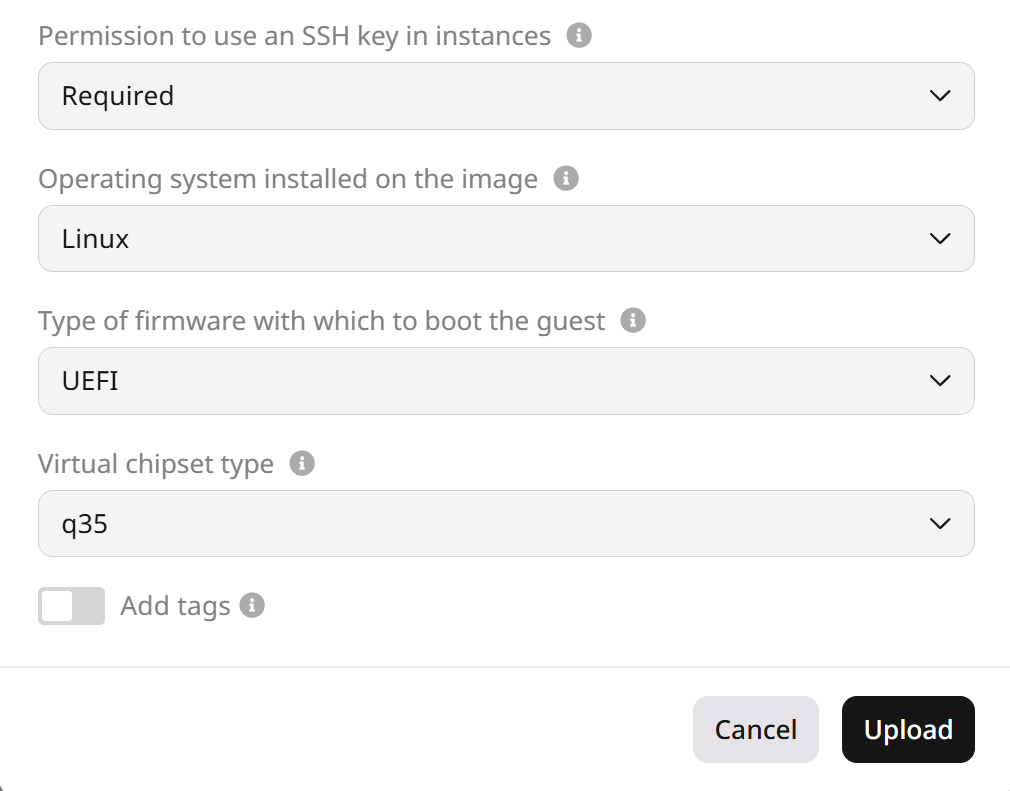
    7. Specify the permission level for SSH key usage in instances created from this image. You can choose **Allow** to make SSH key usage optional, **Deny** to prohibit SSH key usage entirely, or **Required** to mandate SSH key usage for secure instance access. We recommend using SSH-key authorization for security reasons.

    8. Select the OS pre-installed on the image, like Linux or Windows Server, to suit your deployment needs and ensure smooth operation.

    9. Select firmware type. For Bare Metal servers, UEFI is recommended for proper functionality. For Virtual Machines, the choice depends on your personal preference. The firmware type is determined by the selected product. Virtual Instances and GPU virtual clusters support both UEFI and BIOS, while Bare Metal servers and GPU baremetal clusters are restricted to UEFI for compatibility. Choose UEFI for modern systems or BIOS for legacy setups.

    10. Choose the virtual chipset type between q35 and i440 virtual chipsets based on the OS version, required functionality, and supported virtual devices.

    11. Add tags (optional) to identify images using the "Key" and "Value" principles. Enable this option to add metadata tags to your image, helping you efficiently organize and identify resources.

    12. Click the **Upload** button. Your image will be uploaded.
    <Frame>
      <img src="https://mintcdn.com/gcore/yxYVl3HpxFEvUXPS/images/docs/cloud/images/upload-an-image-to-the-storage/click-upload.png?fit=max&auto=format&n=yxYVl3HpxFEvUXPS&q=85&s=a3f83aeb1f6da75d0767e2e5204600e6" alt="Click the Upload button to finalize image import" width="1010" height="791" data-path="images/docs/cloud/images/upload-an-image-to-the-storage/click-upload.png" />
    </Frame>
  </MethodSection>

  <MethodSection id="api" label="REST API">
    Custom images are imported by providing a public URL — Gcore fetches and stores the image in the selected region, where it becomes available for instance creation.

    <Info>
      An [API token](/account-settings/api-tokens) is required, along with a [project ID](/api-reference/cloud/projects/list-projects) and a [region ID](/api-reference/cloud/regions/list-regions).
    </Info>

    Set the following environment variables before running the examples:

    ```bash theme={null}
    export GCORE_API_KEY="{YOUR_API_KEY}"
    export GCORE_CLOUD_PROJECT_ID="{YOUR_PROJECT_ID}"
    export GCORE_CLOUD_REGION_ID="{YOUR_REGION_ID}"
    ```

    ## Upload an image

    The [upload image](/api-reference/cloud/images/upload-image) endpoint fetches the image from the provided URL and stores it in the region. The image becomes available once the download task completes.

    | Parameter          | Required | Description                                                                                                   |
    | ------------------ | -------- | ------------------------------------------------------------------------------------------------------------- |
    | `name`             | Yes      | Display name for the image                                                                                    |
    | `url`              | Yes      | Public URL of the image file; the accepted formats are raw, vhd, vhdx, vdi, ploop, qcow2, and ami             |
    | `os_type`          | No       | OS family — `linux` or `windows`; defaults to `linux`                                                         |
    | `architecture`     | No       | CPU architecture — `x86_64` or `aarch64`; defaults to `x86_64`                                                |
    | `ssh_key`          | No       | SSH key policy — `allow`, `deny`, or `required`; defaults to `allow`                                          |
    | `cow_format`       | No       | Set to `true` to enable VM quick start (raw format, image-backed VMs); defaults to `false` (qcow2, full copy) |
    | `is_baremetal`     | No       | Set to `true` to use the image with Bare Metal servers; defaults to `false`                                   |
    | `hw_firmware_type` | No       | Boot firmware — `bios` or `uefi`                                                                              |

    <Tabs>
      <Tab title="Python SDK">
        ```python theme={null}
        import os
        from gcore import Gcore

        client = Gcore()

        image = client.cloud.instances.images.upload_and_poll(
            name="my-custom-image",
            url="https://example.com/images/ubuntu-24.04-custom.qcow2",
            os_type="linux",
            architecture="x86_64",
            ssh_key="allow",
        )
        print(f"Image ID:   {image.id}")    # save as IMAGE_ID
        print(f"Status:     {image.status}")
        print(f"Format:     {image.disk_format}")
        print(f"Size:       {image.size} bytes")
        ```
      </Tab>

      <Tab title="Go SDK">
        ```go theme={null}
        import (
            "context"
            "fmt"
            "log"

            gcore "github.com/G-Core/gcore-go"
            "github.com/G-Core/gcore-go/cloud"
        )

        client := gcore.NewClient()
        ctx := context.Background()

        image, err := client.Cloud.Instances.Images.UploadAndPoll(ctx, cloud.InstanceImageUploadParams{
            Name:         "my-custom-image",
            URL:          "https://example.com/images/ubuntu-24.04-custom.qcow2",
            OsType:       cloud.InstanceImageUploadParamsOsTypeLinux,
            Architecture: cloud.InstanceImageUploadParamsArchitectureX86_64,
            SSHKey:       cloud.InstanceImageUploadParamsSSHKeyAllow,
        })
        if err != nil {
            log.Fatal(err)
        }
        fmt.Printf("Image ID: %s\n", image.ID)    // save as IMAGE_ID
        fmt.Printf("Status:   %s\n", image.Status)
        fmt.Printf("Format:   %s\n", image.DiskFormat)
        fmt.Printf("Size:     %d bytes\n", image.Size)
        ```
      </Tab>

      <Tab title="curl">
        ```bash theme={null}
        curl -X POST "https://api.gcore.com/cloud/v1/downloadimage/$GCORE_CLOUD_PROJECT_ID/$GCORE_CLOUD_REGION_ID" \
          -H "Authorization: APIKey $GCORE_API_KEY" \
          -H "Content-Type: application/json" \
          -d '{
            "name": "my-custom-image",
            "url": "https://example.com/images/ubuntu-24.04-custom.qcow2",
            "os_type": "linux",
            "architecture": "x86_64",
            "ssh_key": "allow"
          }'
        ```

        Response:

        ```json theme={null}
        {
          "tasks": ["b63f0fff-1234-5678-abcd-ef0123456789"]
        }
        ```

        Poll <code>GET [https://api.gcore.com/cloud/v1/tasks/\{task\_id}](https://api.gcore.com/cloud/v1/tasks/\{task_id})</code> every 5 seconds until `state` is `FINISHED`. The image ID is in `created_resources.images[0]`.
      </Tab>
    </Tabs>

    Uploaded images get `visibility: "shared"` — they are visible within the project and region but not publicly available.

    ## List custom images

    The [list images](/api-reference/cloud/images/list-images) endpoint returns images visible in the region. Filter by `visibility=shared` to see only custom and shared images, excluding public OS images.

    <Tabs>
      <Tab title="Python SDK">
        ```python theme={null}
        images = client.cloud.instances.images.list(visibility="shared")
        print(f"Count: {images.count}")
        for img in images.results:
            print(f"  {img.id}  {img.name}  {img.status}  {img.disk_format}")
        ```
      </Tab>

      <Tab title="Go SDK">
        ```go theme={null}
        imageList, err := client.Cloud.Instances.Images.List(ctx, cloud.InstanceImageListParams{
            Visibility: cloud.InstanceImageListParamsVisibilityShared,
        })
        if err != nil {
            log.Fatal(err)
        }
        fmt.Printf("Count: %d\n", imageList.Count)
        for _, img := range imageList.Results {
            fmt.Printf("  %s  %s  %s\n", img.ID, img.Name, img.Status)
        }
        ```
      </Tab>

      <Tab title="curl">
        ```bash theme={null}
        curl "https://api.gcore.com/cloud/v1/images/$GCORE_CLOUD_PROJECT_ID/$GCORE_CLOUD_REGION_ID?visibility=shared" \
          -H "Authorization: APIKey $GCORE_API_KEY"
        ```

        Response:

        ```json theme={null}
        {
          "count": 1,
          "results": [
            {
              "id": "e418cec8-cf26-4146-aad8-82e3ca805d2e",
              "name": "my-custom-image",
              "status": "active",
              "visibility": "shared",
              "disk_format": "qcow2",
              "size": 12716032,
              "os_type": "linux",
              "architecture": "x86_64",
              "created_at": "2026-05-31T10:00:00+00:00"
            }
          ]
        }
        ```
      </Tab>
    </Tabs>

    ## Get image details

    The [get image](/api-reference/cloud/images/get-image) endpoint returns full metadata for a single image by ID, including its format, size, OS type, and architecture.

    <Tabs>
      <Tab title="Python SDK">
        ```python theme={null}
        IMAGE_ID = "YOUR_IMAGE_ID"

        image = client.cloud.instances.images.get(IMAGE_ID)
        print(f"Name:         {image.name}")
        print(f"Status:       {image.status}")
        print(f"Format:       {image.disk_format}")
        print(f"Size:         {image.size} bytes")
        print(f"OS type:      {image.os_type}")
        print(f"Architecture: {image.architecture}")
        ```
      </Tab>

      <Tab title="Go SDK">
        ```go theme={null}
        imageID := "YOUR_IMAGE_ID"

        image, err := client.Cloud.Instances.Images.Get(ctx, imageID, cloud.InstanceImageGetParams{})
        if err != nil {
            log.Fatal(err)
        }
        fmt.Printf("Name:         %s\n", image.Name)
        fmt.Printf("Status:       %s\n", image.Status)
        fmt.Printf("Format:       %s\n", image.DiskFormat)
        fmt.Printf("Size:         %d bytes\n", image.Size)
        fmt.Printf("OS type:      %s\n", image.OsType)
        fmt.Printf("Architecture: %s\n", image.Architecture)
        ```
      </Tab>

      <Tab title="curl">
        ```bash theme={null}
        IMAGE_ID="YOUR_IMAGE_ID"

        curl "https://api.gcore.com/cloud/v1/images/$GCORE_CLOUD_PROJECT_ID/$GCORE_CLOUD_REGION_ID/$IMAGE_ID" \
          -H "Authorization: APIKey $GCORE_API_KEY"
        ```

        Response:

        ```json theme={null}
        {
          "id": "e418cec8-cf26-4146-aad8-82e3ca805d2e",
          "name": "my-custom-image",
          "status": "active",
          "visibility": "shared",
          "disk_format": "qcow2",
          "size": 12716032,
          "os_type": "linux",
          "architecture": "x86_64",
          "ssh_key": "allow",
          "hw_firmware_type": null,
          "is_baremetal": false,
          "created_at": "2026-05-31T10:00:00+00:00"
        }
        ```
      </Tab>
    </Tabs>

    ## Update an image

    The [update image](/api-reference/cloud/images/update-image) endpoint modifies image properties such as its name, OS type, firmware type, and SSH key policy. The update takes effect immediately — no task polling is needed.

    <Tabs>
      <Tab title="Python SDK">
        ```python theme={null}
        IMAGE_ID = "YOUR_IMAGE_ID"

        image = client.cloud.instances.images.update(
            IMAGE_ID,
            name="my-custom-image-v2",
        )
        print(f"Updated name: {image.name}")
        ```
      </Tab>

      <Tab title="Go SDK">
        ```go theme={null}
        imageID := "YOUR_IMAGE_ID"

        image, err := client.Cloud.Instances.Images.Update(ctx, imageID, cloud.InstanceImageUpdateParams{
            Name: gcore.String("my-custom-image-v2"),
        })
        if err != nil {
            log.Fatal(err)
        }
        fmt.Printf("Updated name: %s\n", image.Name)
        ```
      </Tab>

      <Tab title="curl">
        ```bash theme={null}
        IMAGE_ID="YOUR_IMAGE_ID"

        curl -X PATCH "https://api.gcore.com/cloud/v1/images/$GCORE_CLOUD_PROJECT_ID/$GCORE_CLOUD_REGION_ID/$IMAGE_ID" \
          -H "Authorization: APIKey $GCORE_API_KEY" \
          -H "Content-Type: application/json" \
          -d '{"name": "my-custom-image-v2"}'
        ```

        Response:

        ```json theme={null}
        {
          "id": "e418cec8-cf26-4146-aad8-82e3ca805d2e",
          "name": "my-custom-image-v2",
          "status": "active"
        }
        ```
      </Tab>
    </Tabs>

    ## Clean up

    The [delete image](/api-reference/cloud/images/delete-image) endpoint removes a custom image permanently. An image cannot be deleted while VMs created from it are still running (when `cow_format` was enabled at upload time).

    <Tabs>
      <Tab title="Python SDK">
        ```python theme={null}
        IMAGE_ID = "YOUR_IMAGE_ID"

        client.cloud.instances.images.delete_and_poll(IMAGE_ID)
        print("Image deleted.")
        ```
      </Tab>

      <Tab title="Go SDK">
        ```go theme={null}
        imageID := "YOUR_IMAGE_ID"

        if err := client.Cloud.Instances.Images.DeleteAndPoll(ctx, imageID, cloud.InstanceImageDeleteParams{}); err != nil {
            log.Fatal(err)
        }
        fmt.Println("Image deleted.")
        ```
      </Tab>

      <Tab title="curl">
        ```bash theme={null}
        IMAGE_ID="YOUR_IMAGE_ID"

        curl -X DELETE "https://api.gcore.com/cloud/v1/images/$GCORE_CLOUD_PROJECT_ID/$GCORE_CLOUD_REGION_ID/$IMAGE_ID" \
          -H "Authorization: APIKey $GCORE_API_KEY"
        ```

        Response:

        ```json theme={null}
        {
          "tasks": ["b63f0fff-1234-5678-abcd-ef0123456789"]
        }
        ```

        Poll <code>GET [https://api.gcore.com/cloud/v1/tasks/\{task\_id}](https://api.gcore.com/cloud/v1/tasks/\{task_id})</code> until `state` is `FINISHED`.
      </Tab>
    </Tabs>
  </MethodSection>

  <MethodSection id="terraform" label="Terraform">
    <p>Register a custom OS image from a public URL. Gcore fetches and stores the image in the selected region — the resulting ID from [`gcore_cloud_instance_image`](https://registry.terraform.io/providers/G-Core/gcore/latest/docs/resources/cloud_instance_image) can then be used in volume or instance resources.</p>

    ## Upload an image

    <p>Upload an image from a public URL. After apply, the image is available in the region with `visibility: "shared"`.</p>

    ```hcl theme={null}
    resource "gcore_cloud_instance_image" "example" {
      project_id   = var.project_id
      region_id    = var.region_id
      name         = "my-custom-image"
      url          = "https://example.com/images/ubuntu-24.04-custom.qcow2"
      os_type      = "linux"       # "linux" or "windows"
      architecture = "x86_64"     # "x86_64" or "aarch64"
      ssh_key      = "allow"      # "allow", "deny", or "required"
      # cow_format   = true       # enable VM quick start (image-backed VMs)
      # is_baremetal = true       # set to true for Bare Metal images

      # terraform import gcore_cloud_instance_image.example '<project_id>/<region_id>/<image_id>'
    }

    output "image_id" {
      value = gcore_cloud_instance_image.example.id
    }
    ```

    ## Replace an image

    <Warning>Any change to the resource block triggers a replace — Terraform deletes the existing image and re-uploads from the URL, assigning a new image ID regardless of the type of change.</Warning>

    ```hcl theme={null}
    resource "gcore_cloud_instance_image" "example" {
      project_id   = var.project_id
      region_id    = var.region_id
      name         = "my-custom-image-v2"  # changed
      url          = "https://example.com/images/ubuntu-24.04-custom.qcow2"
      os_type      = "linux"
      architecture = "x86_64"
      ssh_key      = "allow"
    }
    ```

    ```bash theme={null}
    terraform apply
    ```

    ## Delete an image

    <p>Remove the resource block — Terraform detects the missing declaration and deletes it on the next `terraform apply`.</p>

    ```hcl theme={null}
    # Remove or comment out this block:
    # resource "gcore_cloud_instance_image" "example" {
    #   name         = "my-custom-image"
    #   url          = "https://example.com/images/ubuntu-24.04-custom.qcow2"
    #   project_id   = var.project_id
    #   region_id    = var.region_id
    # }
    ```

    ```bash theme={null}
    terraform apply
    ```
  </MethodSection>
</MethodSwitch>
