> ## Documentation Index
> Fetch the complete documentation index at: https://gcore.com/docs/llms.txt
> Use this file to discover all available pages before exploring further.
# Connect to your nodes via SSH
You can connect to your nodes via [a floating IP address](/cloud/networking/ip-address/create-and-configure-a-floating-ip-address).
## Assign a floating IP address
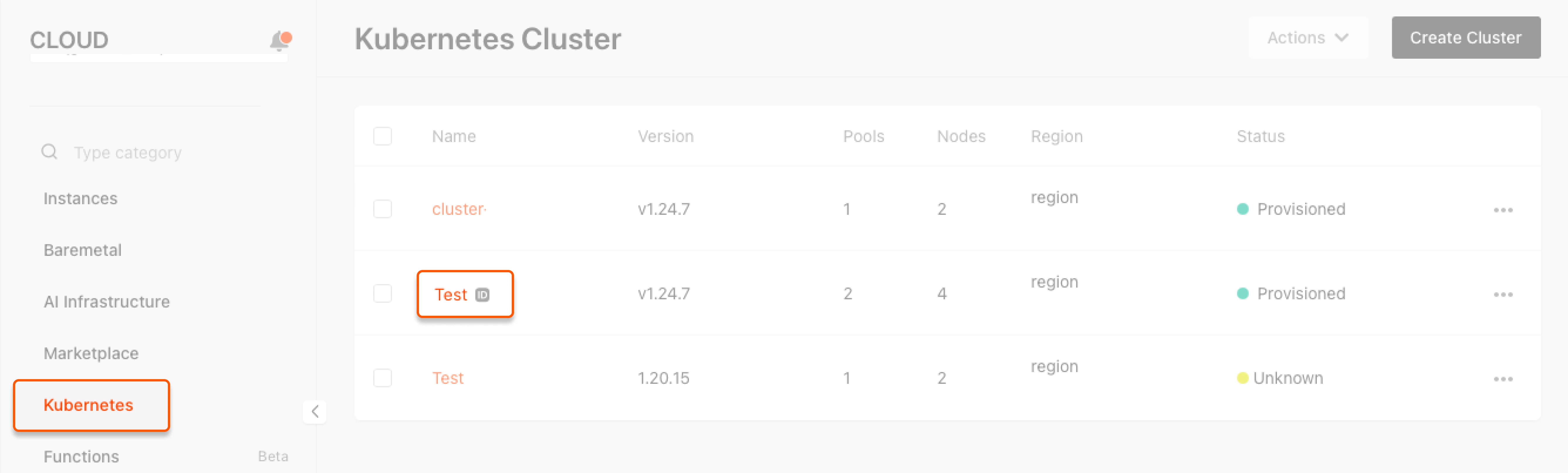
1\. In the Cloud menu, go to **Kubernetes**, find the required cluster and click its name.
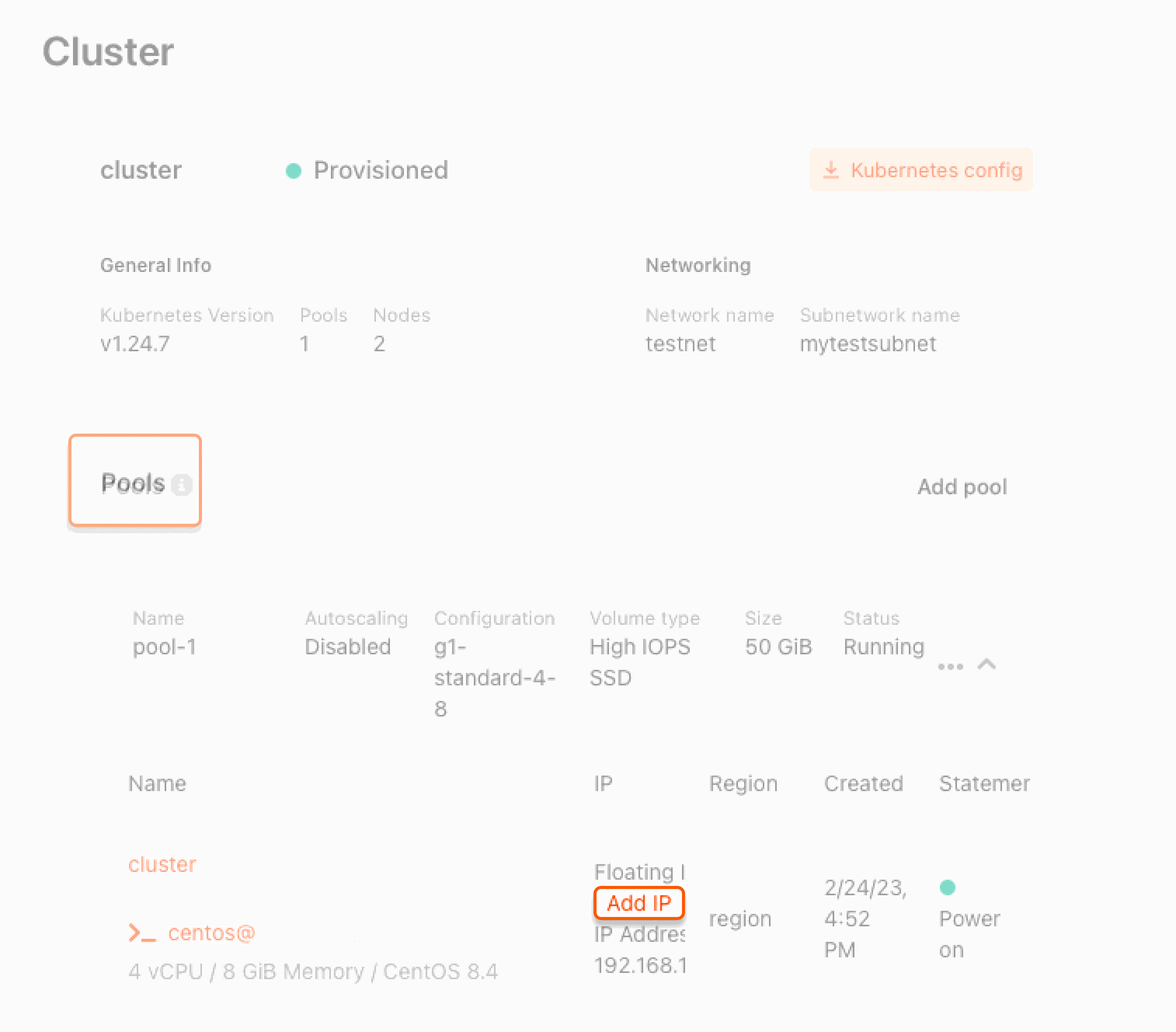
 2\. Go to the **Pools** section, click the required pool to expand the menu, find the node you want to connect to and click **Add IP**.
 3\. In the new window, create a new floating IP address or attach an existing one.
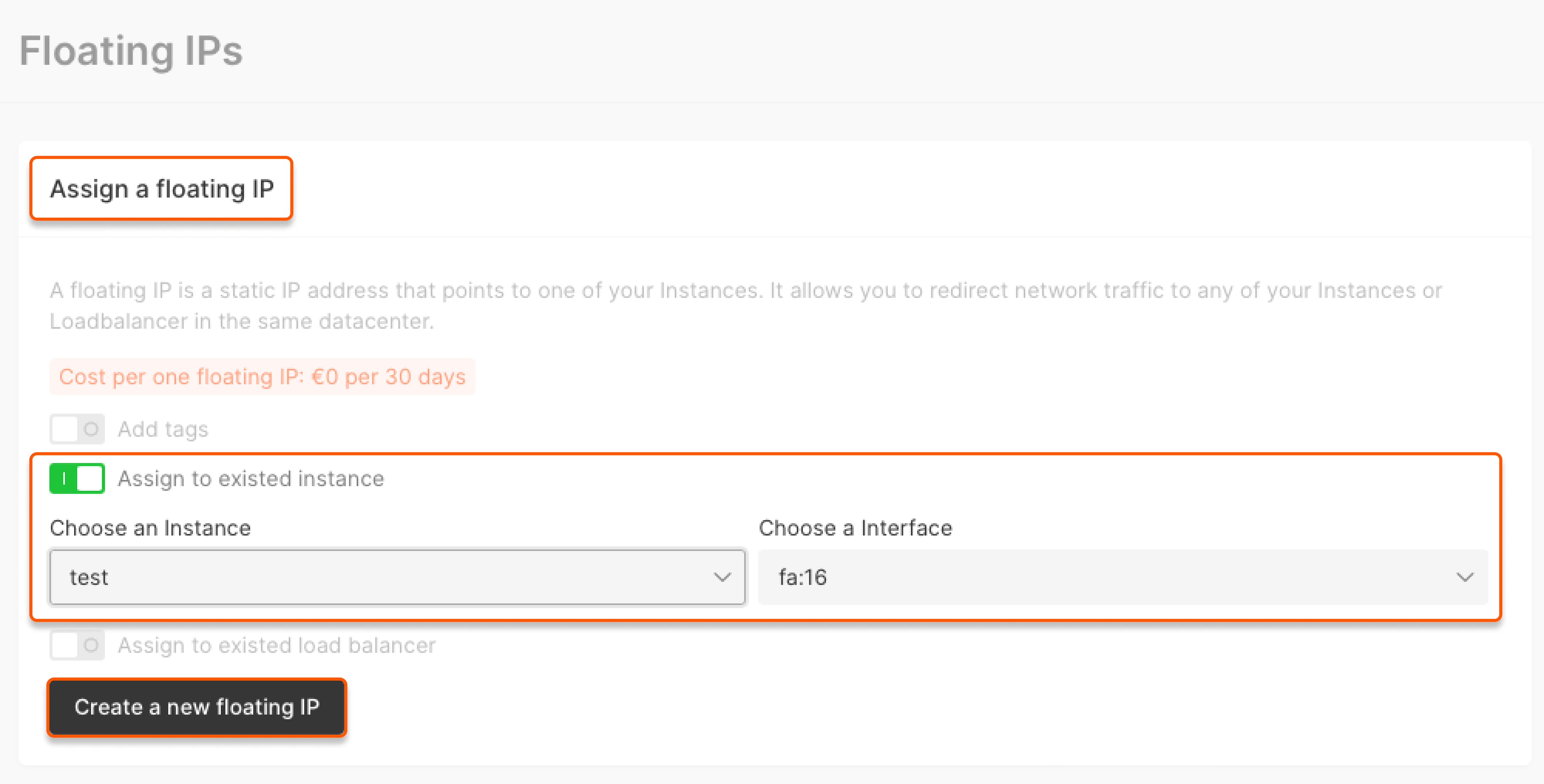
* To create a new floating IP address, go to the **Assign a floating IP** section, switch on the **Assign to existing instance** toggle, choose the node and the interface, and click **Create a new floating IP**.
3\. In the new window, create a new floating IP address or attach an existing one.
* To create a new floating IP address, go to the **Assign a floating IP** section, switch on the **Assign to existing instance** toggle, choose the node and the interface, and click **Create a new floating IP**.
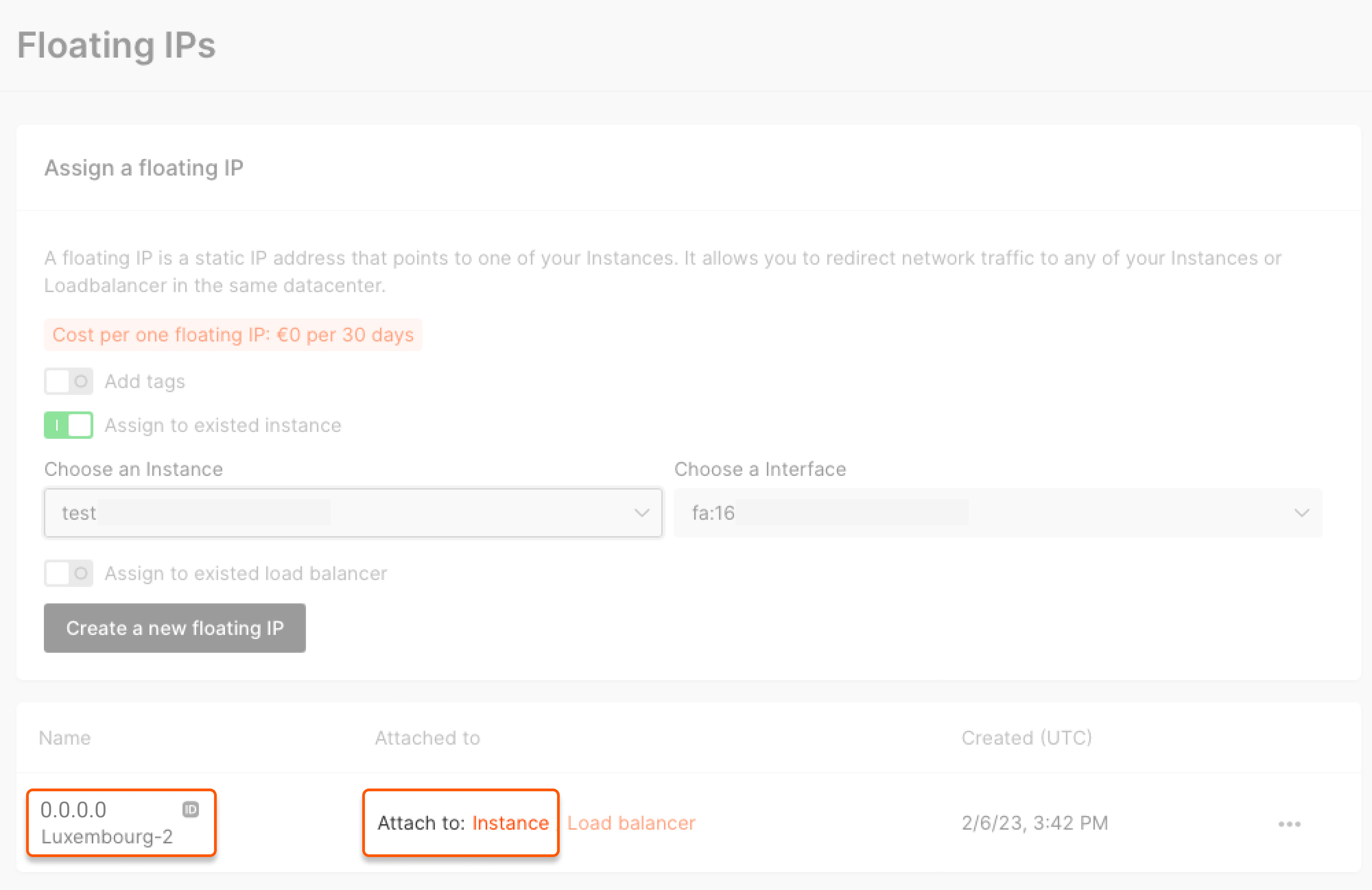
 * To assign an existing floating IP address, find the required one in the list below the **Assign a floating IP** section and click **Assign to instance**.
 In the new window, choose the node and the interface and click **Assign floating IP**.
The floating IP has been assigned to the node, and you can now access it.
## Connect to your node via SSH
Run the command in the command-line utility:
```sh theme={null}
ssh ubuntu@[floating IP address] -i "[path to the private SSH key]"
```
Replace **\[floating IP address]** with the actual floating IP address of the node and **\[path to the private SSH key]** with the path to the private key on your local machine.
In the new window, choose the node and the interface and click **Assign floating IP**.
The floating IP has been assigned to the node, and you can now access it.
## Connect to your node via SSH
Run the command in the command-line utility:
```sh theme={null}
ssh ubuntu@[floating IP address] -i "[path to the private SSH key]"
```
Replace **\[floating IP address]** with the actual floating IP address of the node and **\[path to the private SSH key]** with the path to the private key on your local machine.