> ## Documentation Index
> Fetch the complete documentation index at: https://gcore.com/docs/llms.txt
> Use this file to discover all available pages before exploring further.
# Create a PVC and bind to a pod
## What are PV and PVC?
A PV (PersistentVolume) in Managed Kubernetes is a resource used to store data. It is attached to pods but has a separate lifecycle, specified by its reclaim policy. This policy determines if a PV will continue to exist or will be deleted when a pod attached to it gets destroyed.
A PV represents a piece of available storage. To use a PV, a user needs to create a PersistentVolumeClaim (PVC,) which is a request for storage. Kubernetes passes this request to a storage class, which creates PVs automatically in response to the PVC.
## Create a PVC
Before you create a PVC, you need to create a storage class with the required disk type. Gcore provides the following disk types:
| Volume type | Features |
| --------------- | -------------------------------------------------------------------------------------------------------------------------------------------------------------------------------------------------------------------------------- |
| standard | Standard Network SSD disk, which provides stable and high random I/O performance, as well as high data reliability (6 IOPS per 1 GiB; 0.4 MB/s per 1 GiB.) The IOPS performance limit is 4,500. The bandwidth limit is 300 MB/s. |
| ssd\_hiiops | High IOPS SSD High-performance SSD block storage designed for latency-sensitive transactional workloads (60 IOPS per 1 GiB; 2.5 MB/s per 1 GiB.) The IOPS performance limit is 9,000. The bandwidth limit is 500 MB/s. |
| ssd\_lowlatency | SSD Low Latency SSD block storage, designed for applications that require low-latency storage and real-time data processing. It can achieve IOPS performance of up to 5000, with an average latency of 300 µs. |
To proceed with a PVC, follow the steps:
1. Make sure the required disk type is available in your region. To do so, go to the **Kubernetes** tab, select the required region and click **Create new cluster**. Click the **Volume type** field and check which options are available on the drop-down list.
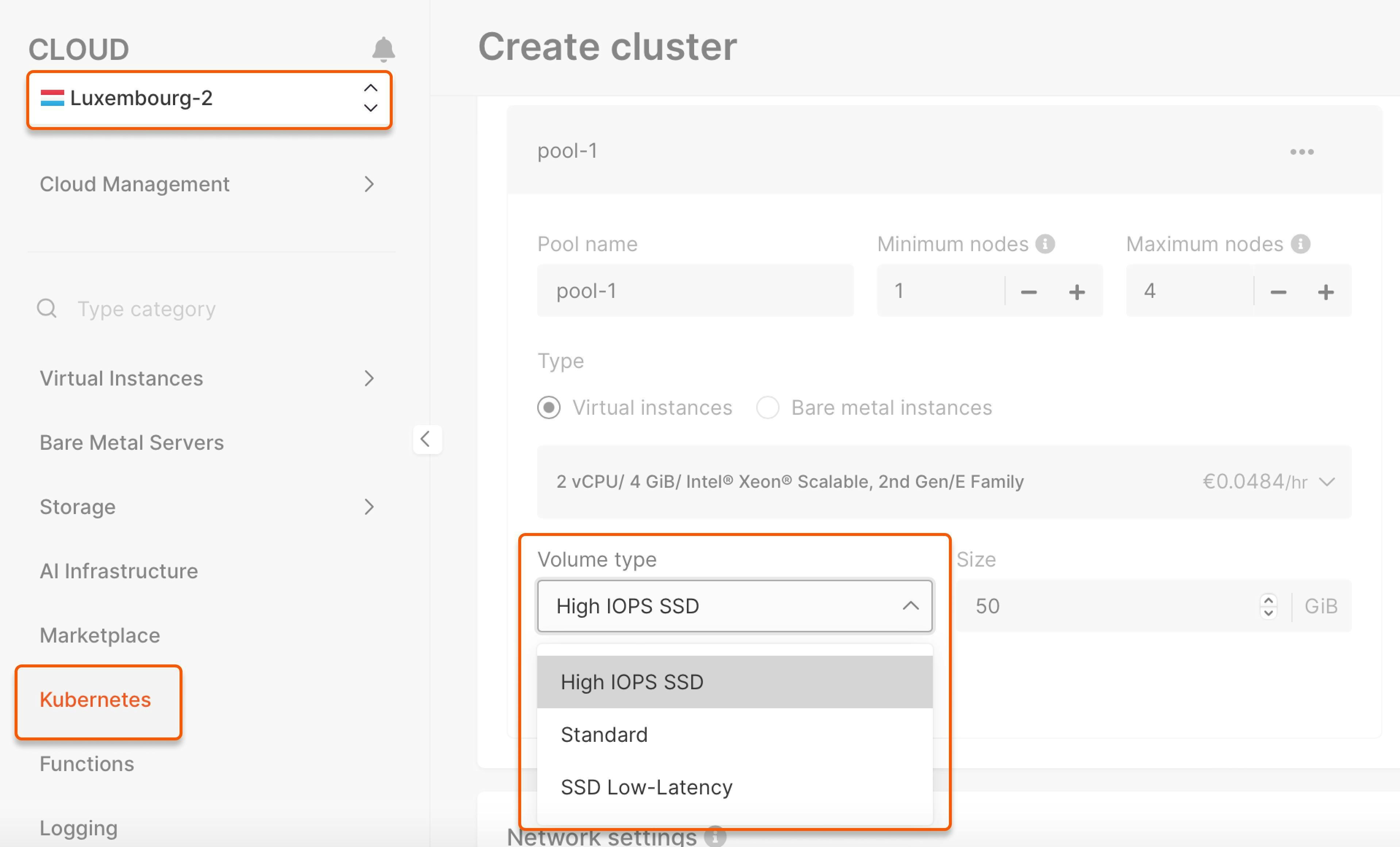 If you create a storage class with a volume type that is not available in your region, the PV won't work.
2. Create a YAML file to create a storage class with the required disk type:
```yaml theme={null}
apiVersion: storage.k8s.io/v1
kind: StorageClass
metadata:
name: csi-sc-cinderplugin-hiiops
annotations:
storageclass.kubernetes.io/is-default-class: "false"
provisioner: cinder.csi.gcorelabs.com
parameters:
type: ssd_hiiops
allowVolumeExpansion: true
```
Enter your custom values instead:
* `csi-sc-cinderplugin-hiiops`: Storage class name
* `ssd_hiiops`: Disk type (`standard`, `ssd_hiiops`, or `ssd_lowlatency`)
2. Run the kubectl command from the file directory:
```sh theme={null}
kubectl apply -f .yaml
```
You will get this output:
```sh theme={null}
storageclass/ created
```
3. Create a YAML file to configure a PVC:
```yaml theme={null}
apiVersion: v1
kind: PersistentVolumeClaim
metadata:
name: block-pvc
spec:
storageClassName: csi-sc-cinderplugin-hiiops
accessModes:
- ReadWriteOnce
resources:
requests:
storage: 1Gi
```
Enter your custom values instead:
* `block-pvc`: PVC name
* `csi-sc-cinderplugin-hiiops`: Name of the created storage class
* `1Gi`: Storage size
4. Run the kubectl command from the file directory:
```sh theme={null}
kubectl apply -f .yaml
```
You will get this output:
```sh theme={null}
persistentvolumeclaim/ created
```
This means you have successfully created a PVC with a storage class of the required disk type. To connect the PVC to your pods, refer to the section below.
## Bind your PVC to a pod
1. Create a YAML file to bind the created storage class to your pod.
```yaml theme={null}
apiVersion: v1
kind: Pod
metadata:
name: mypod
spec:
containers:
- name: myfrontend
image: nginx
volumeMounts:
- mountPath: "/var/www/html"
name: mypd
volumes:
- name: mypd
persistentVolumeClaim:
claimName: block-pvc
```
Enter your custom values instead:
* `mypod`: Pod name
* `myfrontend`: Container name
* `"/var/www/html"`: Destination inside the pod where to mount the storage class
* `mypd`: Storage class name
* `block-pvc`: Created PVC name
2. Run the kubectl command from the file directory:
```sh theme={null}
kubectl apply -f .yaml
```
3. You will get this output:
```sh theme={null}
pod/ created
```
This means you have successfully connected the PVC to your pod, and its containers can now access the storage.
## Resize a PVC
Gcore Managed Kubernetes offers you predefined storage classes for PVs. If you issue a PVC, Managed Kubernetes will provision a dynamic PV that matches the PVC's specs. This means that to increase the size of a PV, you have to update the PVC that was used to create it.
Reducing the size of a PV is not supported
1\. Find the PVC by querying all PVCs with this command:
```
kubectl get pvc
```
2\. Locate the storage field in your PVC spec and replace it with your desired size (e.g., 1 Ti, 250 Gi, etc.).
An example PVC spec for 250 GB and the standard storage class could look like this:
```yaml theme={null}
apiVersion: v1
kind: PersistentVolumeClaim
metadata:
name: example-pvc
spec:
storageClassName: standard
accessModes:
- ReadWriteOnce
resources:
requests:
storage: 250Gi
```
3\. Send it to your cluster with this command:
```
kubectl apply -f /path/to/example-pvc.yaml
```
The update may take a few minutes to complete.
4\. Check if the resize worked.
```
kubectl get pvc example-pvc
```
If you create a storage class with a volume type that is not available in your region, the PV won't work.
2. Create a YAML file to create a storage class with the required disk type:
```yaml theme={null}
apiVersion: storage.k8s.io/v1
kind: StorageClass
metadata:
name: csi-sc-cinderplugin-hiiops
annotations:
storageclass.kubernetes.io/is-default-class: "false"
provisioner: cinder.csi.gcorelabs.com
parameters:
type: ssd_hiiops
allowVolumeExpansion: true
```
Enter your custom values instead:
* `csi-sc-cinderplugin-hiiops`: Storage class name
* `ssd_hiiops`: Disk type (`standard`, `ssd_hiiops`, or `ssd_lowlatency`)
2. Run the kubectl command from the file directory:
```sh theme={null}
kubectl apply -f .yaml
```
You will get this output:
```sh theme={null}
storageclass/ created
```
3. Create a YAML file to configure a PVC:
```yaml theme={null}
apiVersion: v1
kind: PersistentVolumeClaim
metadata:
name: block-pvc
spec:
storageClassName: csi-sc-cinderplugin-hiiops
accessModes:
- ReadWriteOnce
resources:
requests:
storage: 1Gi
```
Enter your custom values instead:
* `block-pvc`: PVC name
* `csi-sc-cinderplugin-hiiops`: Name of the created storage class
* `1Gi`: Storage size
4. Run the kubectl command from the file directory:
```sh theme={null}
kubectl apply -f .yaml
```
You will get this output:
```sh theme={null}
persistentvolumeclaim/ created
```
This means you have successfully created a PVC with a storage class of the required disk type. To connect the PVC to your pods, refer to the section below.
## Bind your PVC to a pod
1. Create a YAML file to bind the created storage class to your pod.
```yaml theme={null}
apiVersion: v1
kind: Pod
metadata:
name: mypod
spec:
containers:
- name: myfrontend
image: nginx
volumeMounts:
- mountPath: "/var/www/html"
name: mypd
volumes:
- name: mypd
persistentVolumeClaim:
claimName: block-pvc
```
Enter your custom values instead:
* `mypod`: Pod name
* `myfrontend`: Container name
* `"/var/www/html"`: Destination inside the pod where to mount the storage class
* `mypd`: Storage class name
* `block-pvc`: Created PVC name
2. Run the kubectl command from the file directory:
```sh theme={null}
kubectl apply -f .yaml
```
3. You will get this output:
```sh theme={null}
pod/ created
```
This means you have successfully connected the PVC to your pod, and its containers can now access the storage.
## Resize a PVC
Gcore Managed Kubernetes offers you predefined storage classes for PVs. If you issue a PVC, Managed Kubernetes will provision a dynamic PV that matches the PVC's specs. This means that to increase the size of a PV, you have to update the PVC that was used to create it.
Reducing the size of a PV is not supported
1\. Find the PVC by querying all PVCs with this command:
```
kubectl get pvc
```
2\. Locate the storage field in your PVC spec and replace it with your desired size (e.g., 1 Ti, 250 Gi, etc.).
An example PVC spec for 250 GB and the standard storage class could look like this:
```yaml theme={null}
apiVersion: v1
kind: PersistentVolumeClaim
metadata:
name: example-pvc
spec:
storageClassName: standard
accessModes:
- ReadWriteOnce
resources:
requests:
storage: 250Gi
```
3\. Send it to your cluster with this command:
```
kubectl apply -f /path/to/example-pvc.yaml
```
The update may take a few minutes to complete.
4\. Check if the resize worked.
```
kubectl get pvc example-pvc
```