> ## Documentation Index
> Fetch the complete documentation index at: https://gcore.com/docs/llms.txt
> Use this file to discover all available pages before exploring further.

# Create and configure a floating IP address

export const MethodSection = ({children}) => children ?? null;

export const MethodSwitch = ({children}) => {
  const tabs = React.Children.toArray(children).map(c => {
    if (!c || !c.props) return null;
    if (c.props.id) return c;
    const inner = c.props.children;
    if (inner && inner.props && inner.props.id) return inner;
    return null;
  }).filter(Boolean);
  const firstId = tabs.length > 0 ? tabs[0].props.id : "";
  const [active, setActive] = React.useState(firstId);
  React.useEffect(() => {
    try {
      const saved = localStorage.getItem("gcore_docs_method");
      if (saved && tabs.find(t => t.props.id === saved)) {
        setActive(saved);
      }
    } catch (_) {}
  }, []);
  React.useEffect(() => {
    try {
      document.querySelectorAll("h2[id], h3[id]").forEach(heading => {
        const visible = heading.offsetParent !== null;
        document.querySelectorAll(`a[href="#${heading.id}"]`).forEach(link => {
          if (link.closest("h1,h2,h3,h4,h5,h6")) return;
          const li = link.closest("li");
          if (li) li.style.display = visible ? "" : "none";
        });
      });
    } catch (_) {}
    window.dispatchEvent(new Event("scroll"));
  }, [active]);
  const handleClick = id => {
    setActive(id);
    try {
      localStorage.setItem("gcore_docs_method", id);
    } catch (_) {}
  };
  return <div>
      <div className="not-prose flex gap-0 border-b border-zinc-200 dark:border-zinc-800 mb-8 mt-2" role="tablist">
        {tabs.map(tab => {
    const isActive = active === tab.props.id;
    return <button key={tab.props.id} role="tab" aria-selected={isActive} onClick={() => handleClick(tab.props.id)} className={["px-4 py-2 text-sm font-medium border-b-2 -mb-px transition-colors cursor-pointer", isActive ? "border-primary text-primary" : "border-transparent text-zinc-500 hover:text-zinc-800 dark:hover:text-zinc-200"].join(" ")}>
              {tab.props.label}
            </button>;
  })}
      </div>

      {tabs.map(tab => <div key={tab.props.id} style={{
    display: active === tab.props.id ? "" : "none"
  }}>
          {tab.props.children}
        </div>)}
    </div>;
};

<MethodSwitch>
  <MethodSection id="portal" label="Customer Portal">
    ## What is a floating IP address?

    <p>A Floating IP is a public, static IP address that can be assigned to Virtual Machines (VMs), Bare Metal servers, and Load Balancers, allowing them to receive external connections without having a public network interface. This means that these products don't have a public network interface, but they can still receive incoming connections from the Internet.</p>

    <Info>
      **Info**

      The private subnet of the VM must be [routable](/cloud/networking/create-and-manage-a-subnetwork#network-routing). Routing can be enabled in the subnet settings.
    </Info>

    ## What is it used for?

    <p>A floating IP allows you to quickly provide access from an external network to a Virtual Machine that doesn't have a public network interface. By assigning an address to the VM you will be able to connect to it.</p>

    <p>Another method for providing access is by creating a public interface for the device. However, this can cause conflicts with the private routed interface as both are used for accessing the internet. You would have to configure the routing manually. A Floating IP is a convenient solution if you only need temporary access to an external network or prefer not to deal with routing configuration.</p>

    ## How does it work?

    <p>When you reserve a floating IP and assign it to your Virtual Machine, the router directs incoming traffic to your device by forwarding packets intended for that IP. Outgoing traffic from your instance will still use its private IP, while incoming traffic will be forwarded through the Floating IP.</p>

    <p>If your instance has multiple private IPv4 addresses within a routable private subnet, you can assign a unique floating IP to each of these private addresses. Multiple private subnets from one network can be grouped to a single port, allowing the client to attach a Floating IP to any of the routable addresses.</p>

    ## Check if your subnet is routable

    <Warning>
      **Warning**

      Changing the subnet gateway or disabling it may cause loss of connectivity between the private IP and the Floating IP (if they exist).
    </Warning>

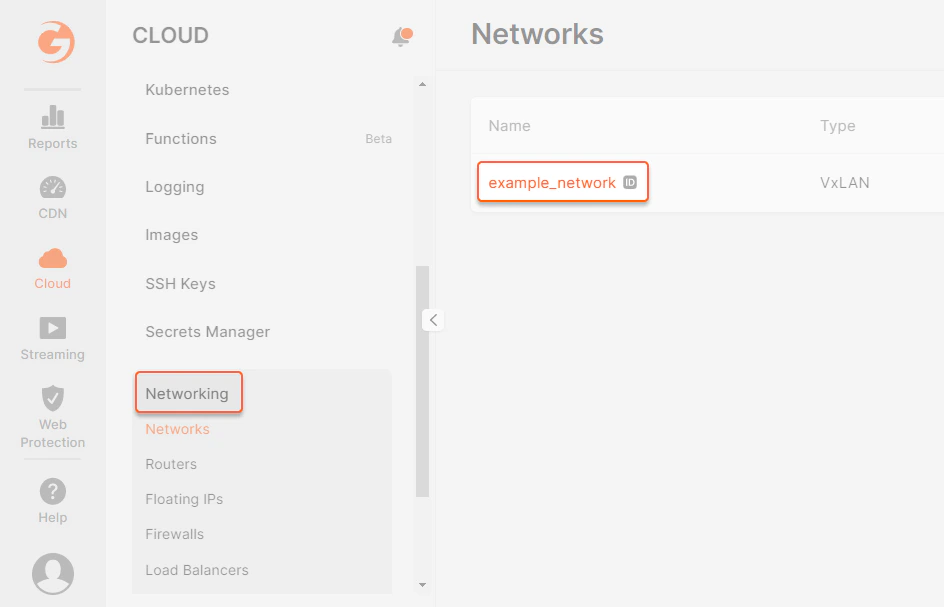
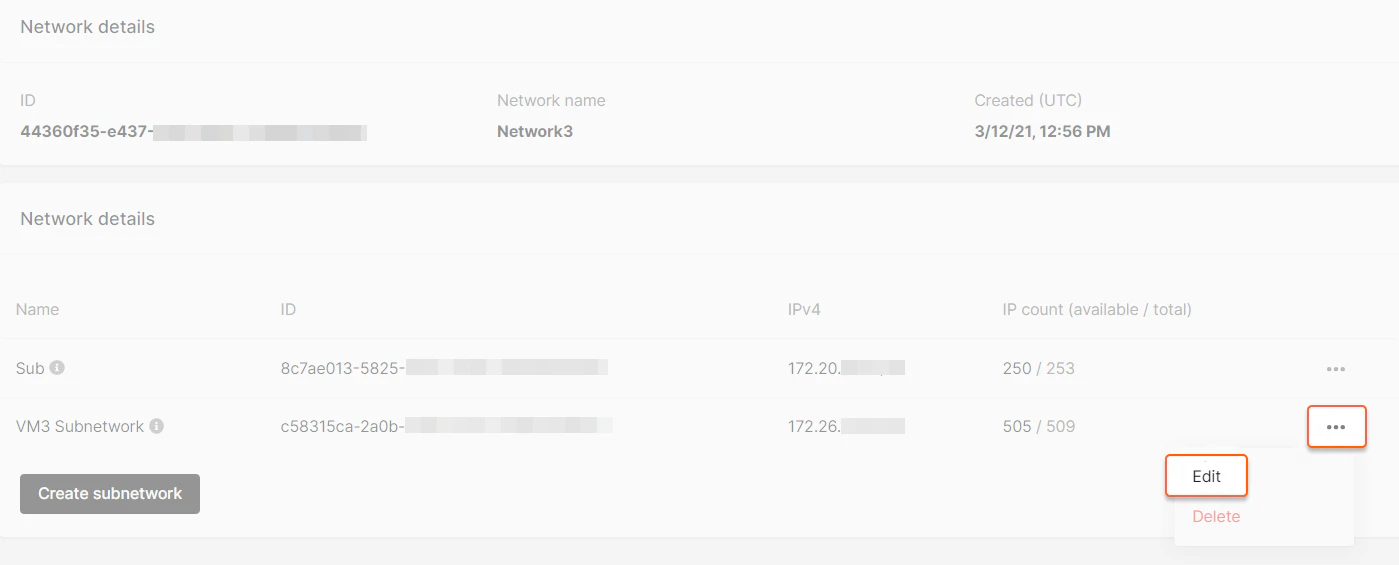
    1. Open the **Networking** section, select the required network, and navigate to your equipment's subnet settings.

    <Frame>
      <img src="https://mintcdn.com/gcore/c-GSw73gRYekqiTo/images/docs/cloud/networking/ip-address/create-and-configure-a-floating-ip-address/12391415662737.png?fit=max&auto=format&n=c-GSw73gRYekqiTo&q=85&s=0a139a86025269d956c67abee5ac1fbe" alt="floating-ip-01.png" width="944" height="607" data-path="images/docs/cloud/networking/ip-address/create-and-configure-a-floating-ip-address/12391415662737.png" />
    </Frame>

    2. Click the three-dot menu, then select **Edit**.
    <Frame>
      <img src="https://mintcdn.com/gcore/c-GSw73gRYekqiTo/images/docs/cloud/networking/ip-address/create-and-configure-a-floating-ip-address/12391621674513.png?fit=max&auto=format&n=c-GSw73gRYekqiTo&q=85&s=881cc05659411e5c94e4b147a388eaa2" alt="floating-ip-02.png" width="1399" height="565" data-path="images/docs/cloud/networking/ip-address/create-and-configure-a-floating-ip-address/12391621674513.png" />
    </Frame>

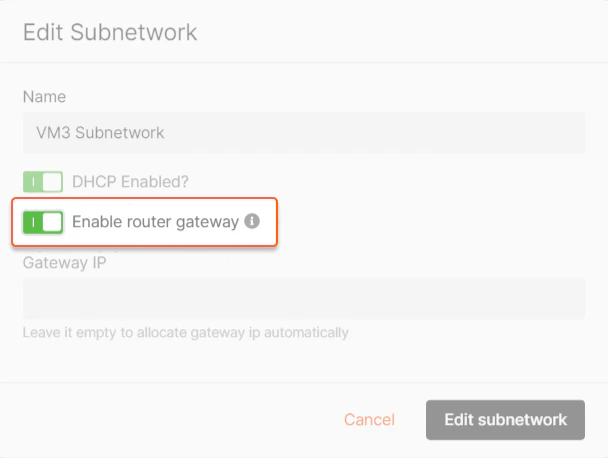
    3. Ensure the **Enable router gateway** slider is enabled, making the subnet routable, and allowing servers within the subnet to access the Internet and receive incoming connections.
    <Frame>
      <img src="https://mintcdn.com/gcore/c-GSw73gRYekqiTo/images/docs/cloud/networking/ip-address/create-and-configure-a-floating-ip-address/12391738930705.png?fit=max&auto=format&n=c-GSw73gRYekqiTo&q=85&s=f544a5db0eb5dd94c15800b4b8707aa3" alt="floating-ip-03.png" width="608" height="458" data-path="images/docs/cloud/networking/ip-address/create-and-configure-a-floating-ip-address/12391738930705.png" />
    </Frame>

    ## Reserve a floating IP from the menu

    <p>A floating IP is assigned by a specific data center, and its address is linked to that location. It can only be transferred to a Virtual Machine within the exact location.</p>

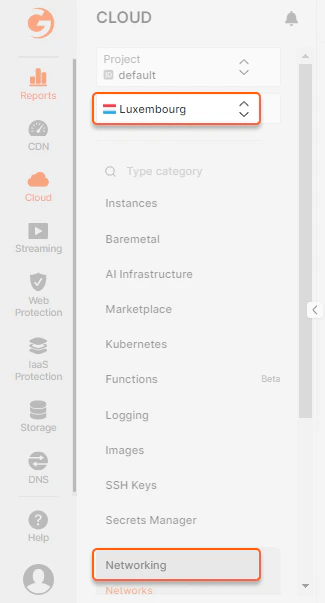
    1. Select the Region where your machine is located to assign a floating IP and navigate to the **Networking** section.
    <Frame>
      <img src="https://mintcdn.com/gcore/c-GSw73gRYekqiTo/images/docs/cloud/networking/ip-address/create-and-configure-a-floating-ip-address/12391851006353.png?fit=max&auto=format&n=c-GSw73gRYekqiTo&q=85&s=024a27f11d719c5faede15d882cabdb0" alt="floating-ip-04.png" width="325" height="603" data-path="images/docs/cloud/networking/ip-address/create-and-configure-a-floating-ip-address/12391851006353.png" />
    </Frame>

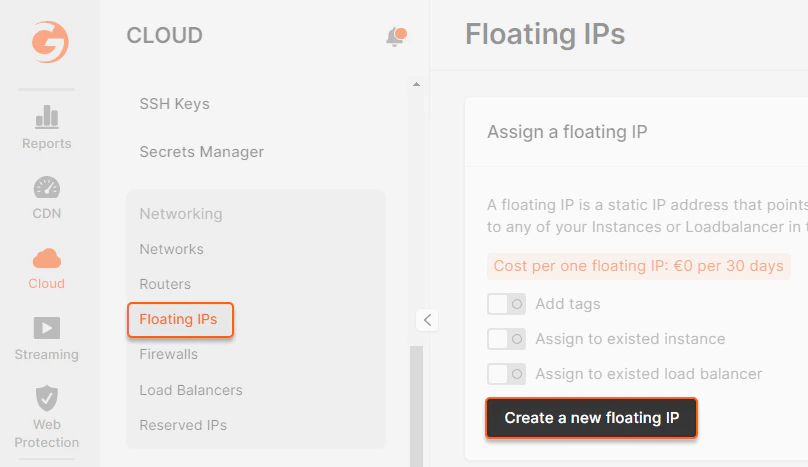
    2. Open the Floating IPs section. You can create a floating IP without assigning it to a machine by clicking **Create a new floating IP.**
    <Frame>
      <img src="https://mintcdn.com/gcore/c-GSw73gRYekqiTo/images/docs/cloud/networking/ip-address/create-and-configure-a-floating-ip-address/12392006241425.png?fit=max&auto=format&n=c-GSw73gRYekqiTo&q=85&s=276d841797530c953d7897f6c08f2c43" alt="floating-ip-05.png" width="808" height="467" data-path="images/docs/cloud/networking/ip-address/create-and-configure-a-floating-ip-address/12392006241425.png" />
    </Frame>

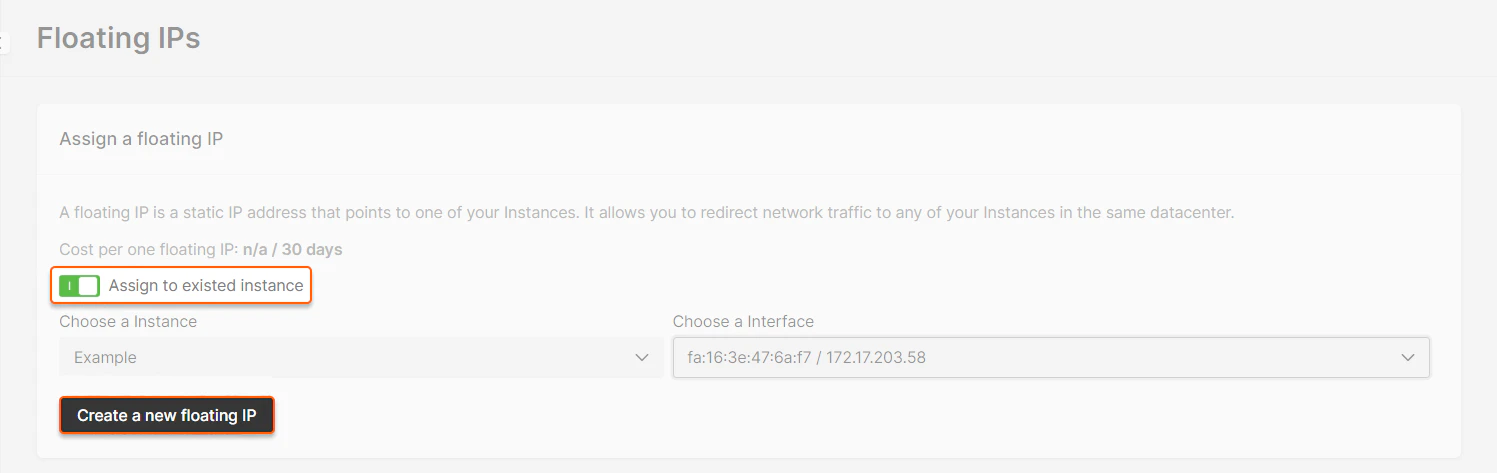
    3. Additionally, you can create a floating IP and immediately assign it to a specific Virtual Machine. To do this, enable the "Assign to existing instance" slider, select the machine and interface, and click **Create a new floating IP.**
    <Frame>
      <img src="https://mintcdn.com/gcore/c-GSw73gRYekqiTo/images/docs/cloud/networking/ip-address/create-and-configure-a-floating-ip-address/12392182782993.png?fit=max&auto=format&n=c-GSw73gRYekqiTo&q=85&s=6006a8ec3e990aa4b521e644993e364c" alt="floating-ip-06.png" width="1497" height="473" data-path="images/docs/cloud/networking/ip-address/create-and-configure-a-floating-ip-address/12392182782993.png" />
    </Frame>

    ## Reserve a floating IP when creating a Virtual Machine

    <p>When creating a VM, in the "Network settings" section, select the "**Private** " network type. Specify the network and subnet of the interface you want to assign the floating IP. Enable the "**Use floating IP** " slider, click "**Create a new floating IP** ", and save the settings using the "**Add Interface** " button.</p>

    <Frame>
      <img src="https://mintcdn.com/gcore/c-GSw73gRYekqiTo/images/docs/cloud/networking/ip-address/create-and-configure-a-floating-ip-address/12392462274833.png?fit=max&auto=format&n=c-GSw73gRYekqiTo&q=85&s=4c12bf39cffb9afc5f45721e9b44875d" alt="floating-ip-07.png" width="719" height="580" data-path="images/docs/cloud/networking/ip-address/create-and-configure-a-floating-ip-address/12392462274833.png" />
    </Frame>

    <p>The Virtual Machine will be created with a private interface and a new floating IP assigned to it.</p>

    <Info>
      **Info**

      A Floating IP can only be added after creating the network interface. A subnet must be created before assigning the floating IP if you add a new interface.
    </Info>

    ## Assign a floating IP to a Virtual Machine

    <p>Next to the free IP, click "Assign to instance" or select this option from the selector on the right.</p>

    <Frame>
      <img src="https://mintcdn.com/gcore/c-GSw73gRYekqiTo/images/docs/cloud/networking/ip-address/create-and-configure-a-floating-ip-address/12392603351313.png?fit=max&auto=format&n=c-GSw73gRYekqiTo&q=85&s=1bb0ec95d53d6a14106364a05450c652" alt="floating-ip-08.png" width="1480" height="235" data-path="images/docs/cloud/networking/ip-address/create-and-configure-a-floating-ip-address/12392603351313.png" />
    </Frame>

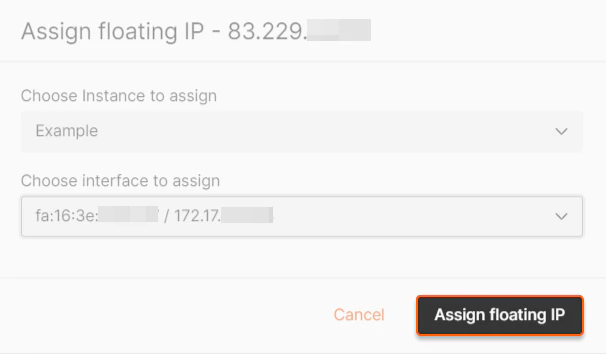
    <p>Select the Virtual Machine in the pop-up window, and the floating IP's network interface will be assigned. Click **Assign floating IP**.</p>

    <Frame>
      <img src="https://mintcdn.com/gcore/c-GSw73gRYekqiTo/images/docs/cloud/networking/ip-address/create-and-configure-a-floating-ip-address/12392628635793.png?fit=max&auto=format&n=c-GSw73gRYekqiTo&q=85&s=aef308b95ee9625b113320154b2a168d" alt="floating-ip-09.png" width="606" height="354" data-path="images/docs/cloud/networking/ip-address/create-and-configure-a-floating-ip-address/12392628635793.png" />
    </Frame>

    ## Detach a floating IP from a Virtual Machine

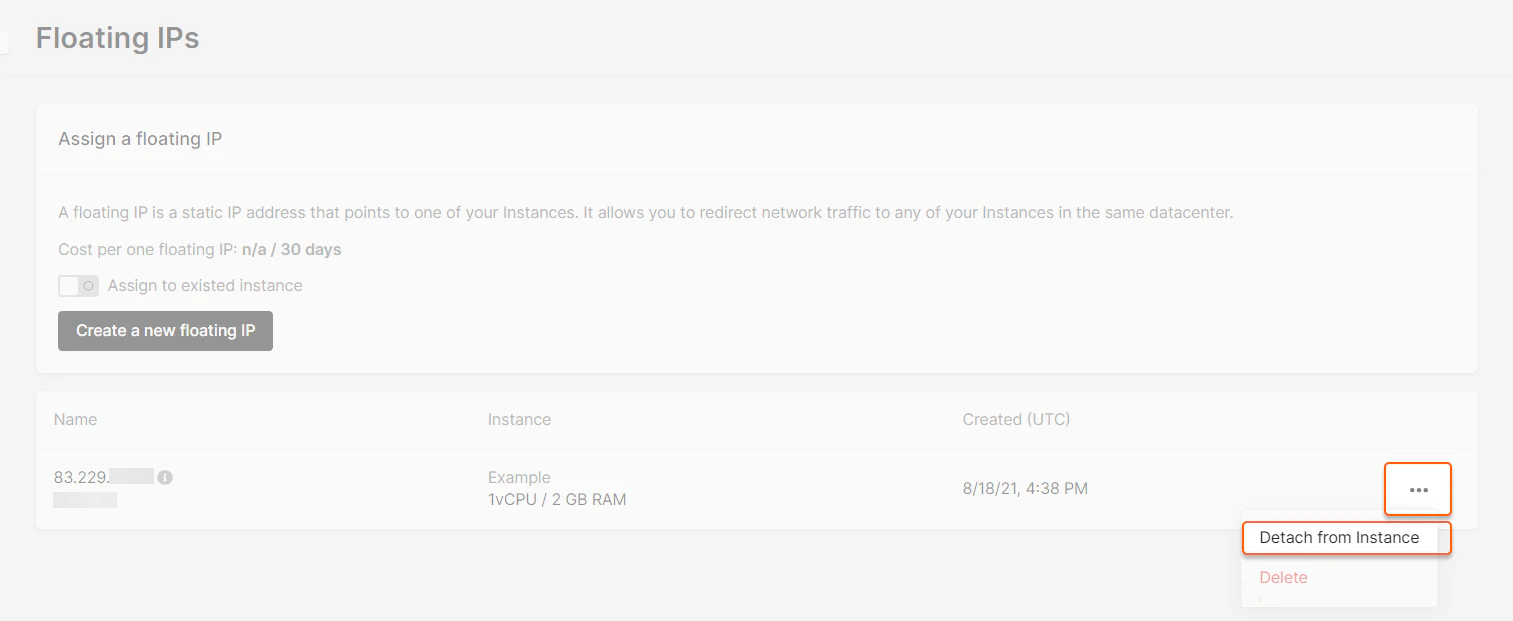
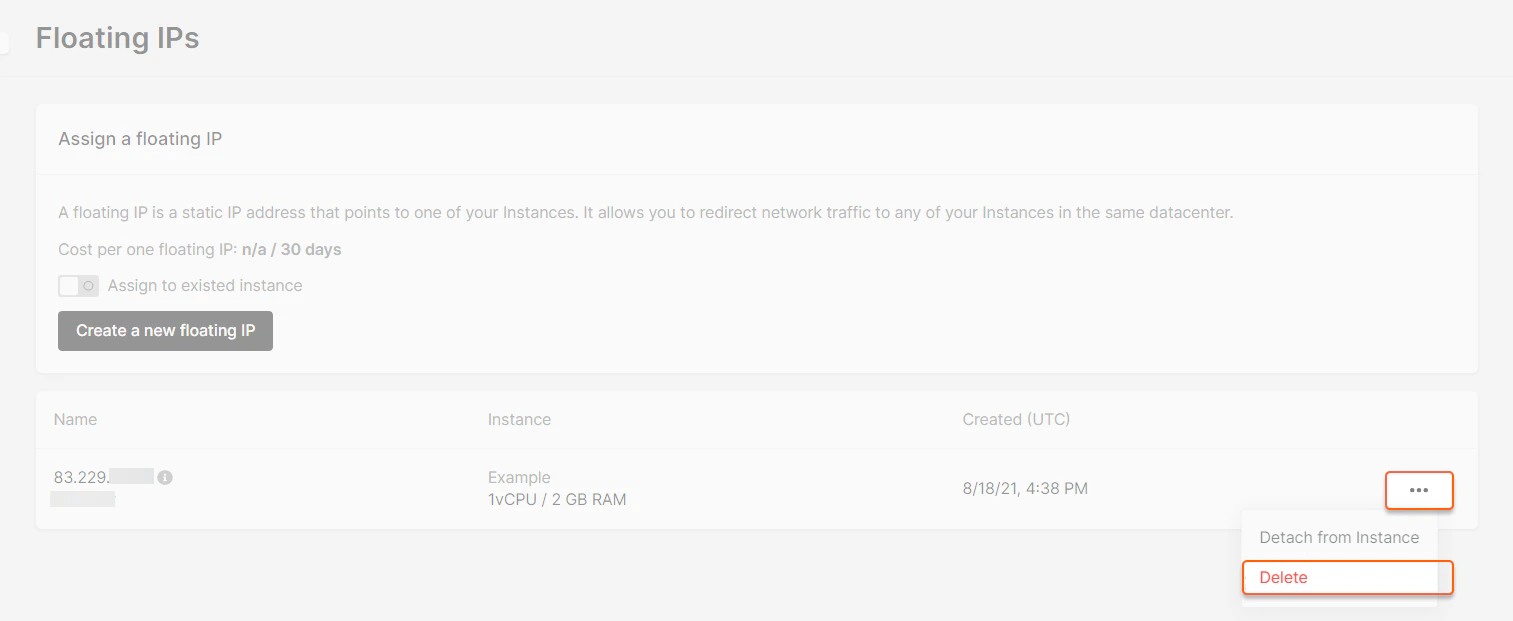
    <p>You can detach a floating IP address in the "Floating IPs" section or in the Virtual Machine menu. In the "Floating IP" section, click the selector next to the address and select **Detach from Instance**, and the IP will no longer be assigned to the machine.</p>

    <Frame>
      <img src="https://mintcdn.com/gcore/c-GSw73gRYekqiTo/images/docs/cloud/networking/ip-address/create-and-configure-a-floating-ip-address/12392631295505.png?fit=max&auto=format&n=c-GSw73gRYekqiTo&q=85&s=2ca8c34fa2de593b97ec592d603d123a" alt="floating-ip-10.png" width="1513" height="621" data-path="images/docs/cloud/networking/ip-address/create-and-configure-a-floating-ip-address/12392631295505.png" />
    </Frame>

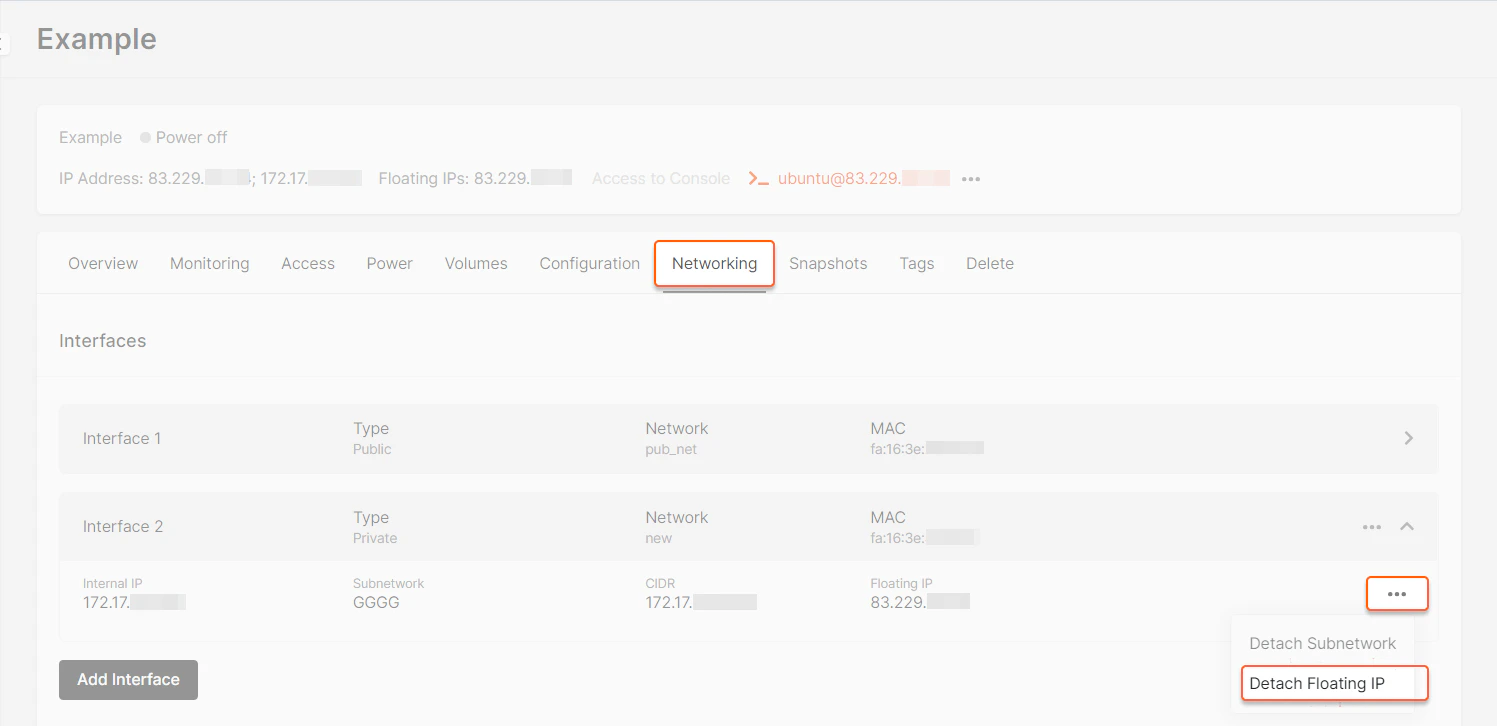
    <p>In the Virtual Machine menu, open the "Networking" tab and select the private interface. Open the selector and click "**Detach Floating IP** ". The IP will no longer be assigned to this machine.</p>

    <p>Floating IPs are freely available for Virtual Machines, Bare Metal servers, and Load Balancers. Once detached, they remain ready for reassignment. You can transfer it to another Virtual Machine within the same data center by selecting the target instance and linking the IP. This helps maintain a stable external address even as your infrastructure evolves.</p>

    <Frame>
      <img src="https://mintcdn.com/gcore/c-GSw73gRYekqiTo/images/docs/cloud/networking/ip-address/create-and-configure-a-floating-ip-address/12392664056465.png?fit=max&auto=format&n=c-GSw73gRYekqiTo&q=85&s=c81daf334ac273ecb1aa482e72cb5560" alt="floating-ip-11.png" width="1497" height="726" data-path="images/docs/cloud/networking/ip-address/create-and-configure-a-floating-ip-address/12392664056465.png" />
    </Frame>

    ## Delete a floating IP

    <p>In the "Floating IPs" section, click the selector next to the desired address and select **Delete**. The IP will be removed, and you will no longer be charged.</p>

    <Frame>
      <img src="https://mintcdn.com/gcore/c-GSw73gRYekqiTo/images/docs/cloud/networking/ip-address/create-and-configure-a-floating-ip-address/12392700821393.png?fit=max&auto=format&n=c-GSw73gRYekqiTo&q=85&s=d627ee570b600a4868db3f55f282925a" alt="floating-ip-12.png" width="1513" height="621" data-path="images/docs/cloud/networking/ip-address/create-and-configure-a-floating-ip-address/12392700821393.png" />
    </Frame>
  </MethodSection>

  <MethodSection id="api" label="REST API">
    <p>Keep services reachable even when infrastructure changes by assigning and reassigning a floating IP address to a Virtual Machine. A floating IP is a static public address — it stays the same when moved between instances, so DNS records and client configurations remain valid.</p>

    <Info>
      An [API token](/account-settings/api-tokens) is required, along with a [project ID](/api-reference/cloud/projects/list-projects) and a [region ID](/api-reference/cloud/regions/list-regions).
    </Info>

    <p>Open a terminal and set these variables before running the examples:</p>

    ```bash theme={null}
    export GCORE_API_KEY="{YOUR_API_KEY}"
    export GCORE_CLOUD_PROJECT_ID="{YOUR_PROJECT_ID}"
    export GCORE_CLOUD_REGION_ID="{YOUR_REGION_ID}"
    ```

    ## Quickstart

    <p>The scripts below reserve a floating IP and assign it to an existing Virtual Machine's private interface, then unassign and delete it. The VM's subnet must be [routable](/cloud/networking/create-and-manage-a-subnetwork#network-routing) for assignment to work.</p>

    <Tabs>
      <Tab title="Python SDK">
        ```python theme={null}
        import os
        from gcore import Gcore

        PROJECT_ID = int(os.environ["GCORE_CLOUD_PROJECT_ID"])
        REGION_ID = int(os.environ["GCORE_CLOUD_REGION_ID"])
        PORT_ID = os.environ["PORT_ID"]

        client = Gcore(api_key=os.environ["GCORE_API_KEY"])

        # Step 1. Reserve a floating IP
        fip = client.cloud.floating_ips.create_and_poll(
            project_id=PROJECT_ID,
            region_id=REGION_ID,
        )
        print(f"Reserved: {fip.floating_ip_address}  ID: {fip.id}  status: {fip.status}")

        # Step 2. Assign to a Virtual Machine
        fip = client.cloud.floating_ips.assign(
            fip.id,
            port_id=PORT_ID,
            project_id=PROJECT_ID,
            region_id=REGION_ID,
        )
        print(f"Assigned: {fip.floating_ip_address}  status: {fip.status}")

        # Step 3. Unassign from the Virtual Machine
        fip = client.cloud.floating_ips.unassign(
            fip.id,
            project_id=PROJECT_ID,
            region_id=REGION_ID,
        )
        print(f"Unassigned: status {fip.status}")

        # Step 4. Delete the floating IP
        client.cloud.floating_ips.delete_and_poll(
            fip.id,
            project_id=PROJECT_ID,
            region_id=REGION_ID,
        )
        print("Floating IP deleted.")
        ```
      </Tab>

      <Tab title="Go SDK">
        ```go theme={null}
        package main

        import (
            "context"
            "fmt"
            "log"
            "os"

            gcore "github.com/G-Core/gcore-go"
            "github.com/G-Core/gcore-go/cloud"
        )

        func main() {
            portID := os.Getenv("PORT_ID")

            client := gcore.NewClient()
            ctx := context.Background()

            // Step 1. Reserve a floating IP
            fip, err := client.Cloud.FloatingIPs.NewAndPoll(ctx, cloud.FloatingIPNewParams{})
            if err != nil {
                log.Fatalf("create: %v", err)
            }
            fmt.Printf("Reserved: %s  ID: %s  status: %s\n", fip.FloatingIPAddress, fip.ID, fip.Status)

            // Step 2. Assign to a Virtual Machine
            fip, err = client.Cloud.FloatingIPs.Assign(ctx, fip.ID, cloud.FloatingIPAssignParams{
                PortID: portID,
            })
            if err != nil {
                log.Fatalf("assign: %v", err)
            }
            fmt.Printf("Assigned: %s  status: %s\n", fip.FloatingIPAddress, fip.Status)

            // Step 3. Unassign from the Virtual Machine
            fip, err = client.Cloud.FloatingIPs.Unassign(ctx, fip.ID, cloud.FloatingIPUnassignParams{})
            if err != nil {
                log.Fatalf("unassign: %v", err)
            }
            fmt.Printf("Unassigned: status %s\n", fip.Status)

            // Step 4. Delete the floating IP
            if err = client.Cloud.FloatingIPs.DeleteAndPoll(ctx, fip.ID, cloud.FloatingIPDeleteParams{}); err != nil {
                log.Fatalf("delete: %v", err)
            }
            fmt.Println("Floating IP deleted.")
        }
        ```
      </Tab>
    </Tabs>

    ## Step-by-step

    <p>Each step below explains what the call does, which parameters matter, and what the response looks like.</p>

    <Accordion title="Show all steps">
      ### Step 1. Reserve a floating IP

      Allocating a floating IP reserves a public address from the region pool without attaching it to any resource.

      <Tabs>
        <Tab title="Python SDK">
          ```python theme={null}
          import os
          from gcore import Gcore

          client = Gcore(api_key=os.environ["GCORE_API_KEY"])

          fip = client.cloud.floating_ips.create_and_poll(
              project_id=int(os.environ["GCORE_CLOUD_PROJECT_ID"]),
              region_id=int(os.environ["GCORE_CLOUD_REGION_ID"]),
          )
          print(f"ID: {fip.id}  address: {fip.floating_ip_address}  status: {fip.status}")
          ```
        </Tab>

        <Tab title="Go SDK">
          ```go theme={null}
          fip, err := client.Cloud.FloatingIPs.NewAndPoll(ctx, cloud.FloatingIPNewParams{})
          if err != nil {
              log.Fatalf("create: %v", err)
          }
          fmt.Printf("ID: %s  address: %s  status: %s\n", fip.ID, fip.FloatingIPAddress, fip.Status)
          ```
        </Tab>

        <Tab title="curl">
          ```bash theme={null}
          curl -X POST "https://api.gcore.com/cloud/v1/floatingips/$GCORE_CLOUD_PROJECT_ID/$GCORE_CLOUD_REGION_ID" \
            -H "Authorization: APIKey $GCORE_API_KEY" \
            -H "Content-Type: application/json" \
            -d '{}'
          ```

          Response:

          ```json theme={null}
          {
            "tasks": ["6c9d3adb-8ece-4403-af51-14b011a8332f"]
          }
          ```

          Poll `GET /cloud/v1/tasks/{task_id}` every 5 seconds until `state` is `FINISHED`:

          ```json theme={null}
          {
            "id": "6c9d3adb-8ece-4403-af51-14b011a8332f",
            "state": "FINISHED",
            "created_resources": {
              "floatingips": ["a4c44f3c-5f2c-45d2-a5f1-8c694d9a72ef"]
            }
          }
          ```

          Save `created_resources.floatingips[0]` as `FIP_ID`. A newly reserved floating IP has `status: DOWN` — it becomes `ACTIVE` after assignment to a Virtual Machine.
        </Tab>
      </Tabs>

      ### Step 2. Find the port ID of the VM's interface

      The port ID is the UUID of the Virtual Machine's private network interface — required for assignment in the next step.

      Retrieve it from the instance details:

      ```bash theme={null}
      curl "https://api.gcore.com/cloud/v1/instances/$GCORE_CLOUD_PROJECT_ID/$GCORE_CLOUD_REGION_ID/$INSTANCE_ID" \
        -H "Authorization: APIKey $GCORE_API_KEY"
      ```

      In the response, look for `addresses.{network_name}[].port_id`:

      ```json theme={null}
      {
        "addresses": {
          "my-private-network": [
            {
              "addr": "192.168.100.5",
              "port_id": "b1e2c3d4-...",
              "subnet_id": "a87cedcc-..."
            }
          ]
        }
      }
      ```

      Save the `port_id` value as `PORT_ID`. The VM's subnet must have **Enable router gateway** turned on — without it, the assignment succeeds but traffic does not reach the VM.

      ### Step 3. Assign to a Virtual Machine

      Linking the floating IP to the port makes the address reachable from the Internet; incoming packets are forwarded to the VM's private interface while outbound traffic continues to use the private IP.

      | Parameter          | Required | Description                                              |
      | ------------------ | -------- | -------------------------------------------------------- |
      | `port_id`          | Yes      | UUID of the VM's private network interface (from Step 2) |
      | `fixed_ip_address` | No       | Specific private IP if the port has multiple addresses   |

      <Tabs>
        <Tab title="Python SDK">
          ```python theme={null}
          fip = client.cloud.floating_ips.assign(
              os.environ["FIP_ID"],
              port_id=os.environ["PORT_ID"],
              project_id=int(os.environ["GCORE_CLOUD_PROJECT_ID"]),
              region_id=int(os.environ["GCORE_CLOUD_REGION_ID"]),
          )
          print(f"status: {fip.status}  fixed_ip: {fip.fixed_ip_address}")
          ```
        </Tab>

        <Tab title="Go SDK">
          ```go theme={null}
          fip, err = client.Cloud.FloatingIPs.Assign(ctx, fip.ID, cloud.FloatingIPAssignParams{
              PortID: os.Getenv("PORT_ID"),
          })
          if err != nil {
              log.Fatalf("assign: %v", err)
          }
          fmt.Printf("status: %s  fixed_ip: %v\n", fip.Status, fip.FixedIPAddress)
          ```
        </Tab>

        <Tab title="curl">
          ```bash theme={null}
          curl -X PATCH "https://api.gcore.com/cloud/v2/floatingips/$GCORE_CLOUD_PROJECT_ID/$GCORE_CLOUD_REGION_ID/$FIP_ID" \
            -H "Authorization: APIKey $GCORE_API_KEY" \
            -H "Content-Type: application/json" \
            -d "{\"port_id\": \"$PORT_ID\"}"
          ```

          Response:

          ```json theme={null}
          {
            "tasks": ["8f1a2b3c-..."]
          }
          ```

          Poll the task until `FINISHED`. When complete, the floating IP `status` changes to `ACTIVE` and `port_id` is set to the VM's interface UUID.
        </Tab>
      </Tabs>

      ### Step 4. Unassign from a Virtual Machine

      Detaching releases the floating IP from the port; the address remains reserved and available for reassignment to another resource.

      <Tabs>
        <Tab title="Python SDK">
          ```python theme={null}
          fip = client.cloud.floating_ips.unassign(
              os.environ["FIP_ID"],
              project_id=int(os.environ["GCORE_CLOUD_PROJECT_ID"]),
              region_id=int(os.environ["GCORE_CLOUD_REGION_ID"]),
          )
          print(f"status: {fip.status}")
          ```
        </Tab>

        <Tab title="Go SDK">
          ```go theme={null}
          fip, err = client.Cloud.FloatingIPs.Unassign(ctx, fip.ID, cloud.FloatingIPUnassignParams{})
          if err != nil {
              log.Fatalf("unassign: %v", err)
          }
          fmt.Printf("status: %s\n", fip.Status)
          ```
        </Tab>

        <Tab title="curl">
          ```bash theme={null}
          curl -X PATCH "https://api.gcore.com/cloud/v2/floatingips/$GCORE_CLOUD_PROJECT_ID/$GCORE_CLOUD_REGION_ID/$FIP_ID" \
            -H "Authorization: APIKey $GCORE_API_KEY" \
            -H "Content-Type: application/json" \
            -d '{"port_id": null}'
          ```

          Response:

          ```json theme={null}
          {
            "tasks": ["9d2e3f4a-..."]
          }
          ```

          Poll the task until `FINISHED`. The floating IP `status` returns to `DOWN` and `port_id` becomes `null`.
        </Tab>
      </Tabs>
    </Accordion>

    ## Clean up

    <p>Deleting a floating IP releases the address and stops billing for it.</p>

    <Tabs>
      <Tab title="Python SDK">
        ```python theme={null}
        client.cloud.floating_ips.delete_and_poll(
            os.environ["FIP_ID"],
            project_id=int(os.environ["GCORE_CLOUD_PROJECT_ID"]),
            region_id=int(os.environ["GCORE_CLOUD_REGION_ID"]),
        )
        print("Floating IP deleted.")
        ```
      </Tab>

      <Tab title="Go SDK">
        ```go theme={null}
        if err = client.Cloud.FloatingIPs.DeleteAndPoll(ctx, fip.ID, cloud.FloatingIPDeleteParams{}); err != nil {
            log.Fatalf("delete: %v", err)
        }
        fmt.Println("Floating IP deleted.")
        ```
      </Tab>

      <Tab title="curl">
        ```bash theme={null}
        curl -X DELETE "https://api.gcore.com/cloud/v1/floatingips/$GCORE_CLOUD_PROJECT_ID/$GCORE_CLOUD_REGION_ID/$FIP_ID" \
          -H "Authorization: APIKey $GCORE_API_KEY"
        ```

        Response:

        ```json theme={null}
        {
          "tasks": ["0bef145b-f0f2-4070-9231-dc6fdcbf570b"]
        }
        ```

        Poll the task until `state` is `FINISHED`. The floating IP is permanently removed and no longer billed.
      </Tab>
    </Tabs>
  </MethodSection>

  <MethodSection id="terraform" label="Terraform">
    <p>Reserve a public IP from the region pool and bind it to a VM's private interface. The [`gcore_cloud_floating_ip`](https://registry.terraform.io/providers/G-Core/gcore/latest/docs/resources/cloud_floating_ip) resource manages both reservation and assignment in a single configuration.</p>

    <Info>
      The VM's subnet must have **Enable router gateway** turned on — without it, assignment succeeds but traffic does not reach the VM. Configure routing in [subnet settings](/cloud/networking/create-and-manage-a-subnetwork#network-routing).
    </Info>

    ## Reserve a floating IP

    <p>Creating the resource reserves a public IP from the region pool. Without `port_id`, the address is held unassigned with `status: DOWN`.</p>

    ```hcl theme={null}
    resource "gcore_cloud_floating_ip" "example" {
      project_id = var.project_id
      region_id  = var.region_id
    }

    output "floating_ip_address" {
      value = gcore_cloud_floating_ip.example.floating_ip_address
    }
    ```

    <p>After `terraform apply`:</p>

    ```bash theme={null}
    floating_ip_address = "109.61.46.198"
    ```

    ## Assign to a Virtual Machine

    <p>Setting `port_id` to a VM's private interface UUID binds the floating IP to that instance. Incoming packets are forwarded to the VM; outbound traffic continues to use the private IP.</p>

    ```hcl theme={null}
    resource "gcore_cloud_floating_ip" "example" {
      project_id = var.project_id
      region_id  = var.region_id
      port_id    = "{PORT_ID}"
    }
    ```

    <p>To find the `port_id`, retrieve the instance details and extract the port ID from each interface entry under `addresses`:</p>

    ```bash theme={null}
    curl "https://api.gcore.com/cloud/v1/instances/{PROJECT_ID}/{REGION_ID}/{INSTANCE_ID}" \
      -H "Authorization: APIKey $GCORE_API_KEY" \
      | jq '.addresses | to_entries[].value[].port_id'
    ```

    <p>After applying, `status` changes from `DOWN` to `ACTIVE`.</p>

    ## Unassign from a Virtual Machine

    <p>Remove `port_id` from the resource block and run `terraform apply`. The address returns to `DOWN` and remains reserved for reassignment.</p>

    ```hcl theme={null}
    resource "gcore_cloud_floating_ip" "example" {
      project_id = var.project_id
      region_id  = var.region_id
      # port_id removed — Terraform detaches the floating IP on next apply
    }
    ```

    ```bash theme={null}
    terraform apply
    ```

    ## Delete a floating IP

    <p>Remove the resource block — Terraform detects the missing declaration and releases the address on the next `terraform apply`.</p>

    ```hcl theme={null}
    # Remove or comment out this block:
    # resource "gcore_cloud_floating_ip" "example" {
    #   project_id = var.project_id
    #   region_id  = var.region_id
    # }
    ```

    ```bash theme={null}
    terraform apply
    ```

    ## Import an existing floating IP

    <p>Use when a floating IP was reserved outside Terraform and needs to be brought under configuration management.</p>

    ```bash theme={null}
    terraform import gcore_cloud_floating_ip.example '{PROJECT_ID}/{REGION_ID}/{FLOATING_IP_ID}'
    ```
  </MethodSection>
</MethodSwitch>