A reserved IP is a dedicated address that can be assigned to a [Virtual Machine](/cloud/virtual-instances/create-an-instance), [Bare Metal server](/cloud/bare-metal-servers/create-a-bare-metal-server), or [Load Balancer](/cloud/networking/create-and-configure-a-load-balancer). It exists independently of resources, can be pre-configured in DNS or firewall rules, and remains valid when reassigned. A reserved IP can also be used as a [Virtual IP address](/cloud/networking/ip-address/create-and-configure-a-virtual-ip-vip-address).
## Overview
After a reserved IP is created, this address is exclusively allocated within the Gcore system. No other account can use it. The IP can be assigned to a resource or kept unassigned for future use. An existing port attached to a [Virtual Machine](/cloud/virtual-instances/create-an-instance) or [Load Balancer](/cloud/networking/create-and-configure-a-load-balancer) can also be marked as reserved to protect it from deletion.
## Billing
The monthly price for the IP is displayed in the order window. Billing applies only for the time from creating an IP to deleting it.
If an IP is reserved and deleted after an hour, charges apply only for that hour. The price remains the same whether the IP is assigned or not.
 ## Reserve an IP address
To create a new reserved IP:
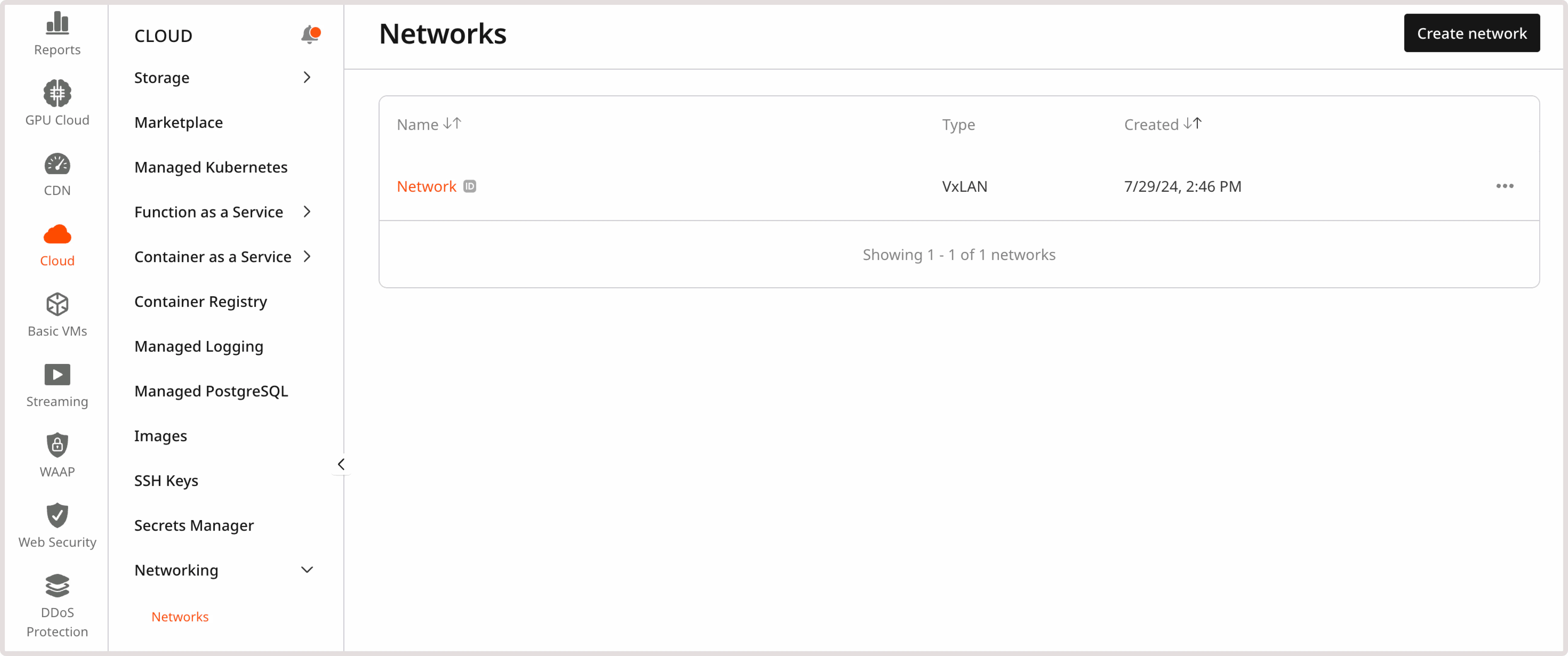
1. In the [Gcore Customer Portal](https://portal.gcore.com/accounts/reports/dashboard), navigate to **Cloud** > **Networking**.
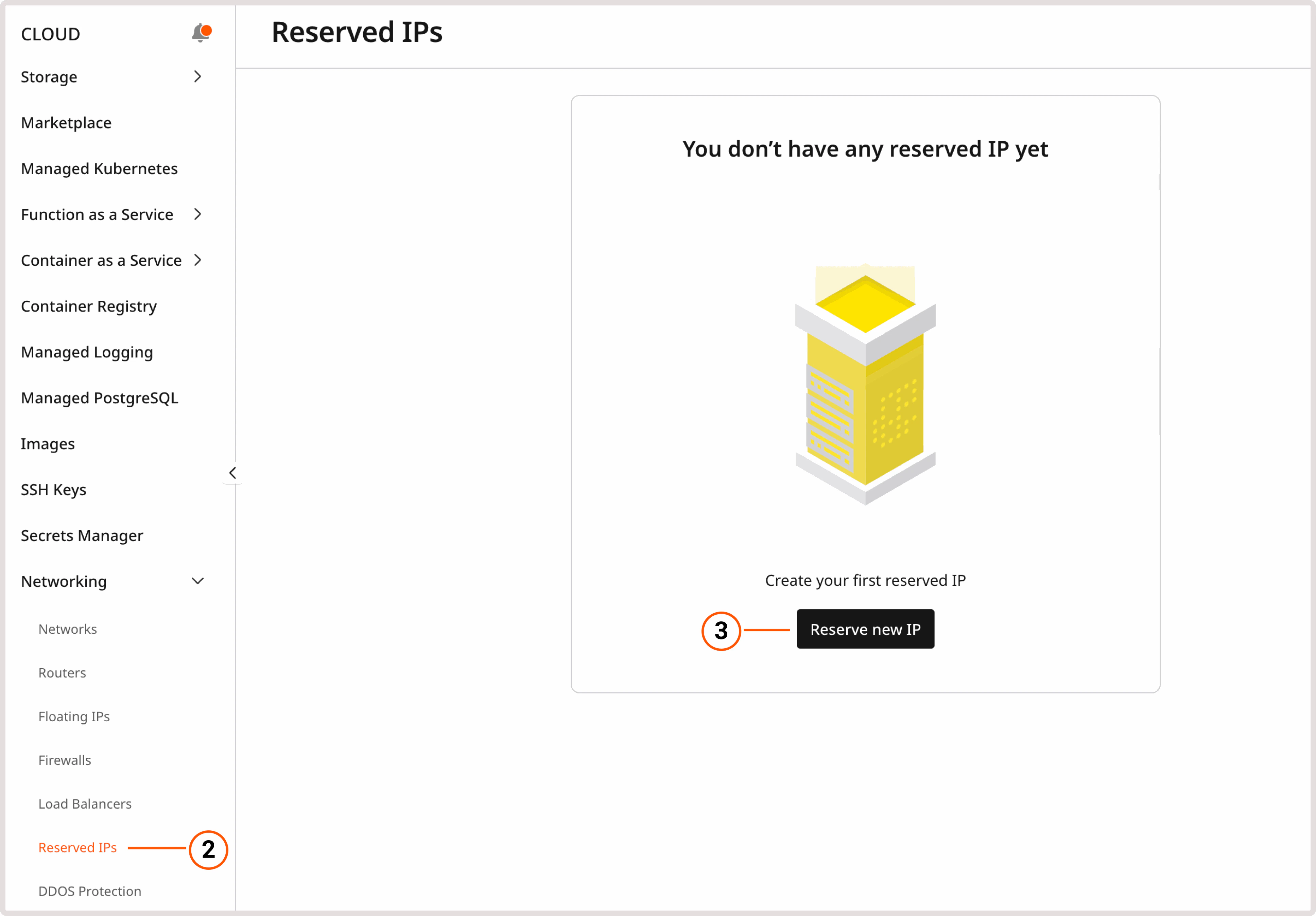
 2. Open the **Reserved IPs** page.
A project can have up to 1000 reserved fixed IP addresses that are not attached to any resource.
3. Click **Reserve new IP**.
2. Open the **Reserved IPs** page.
A project can have up to 1000 reserved fixed IP addresses that are not attached to any resource.
3. Click **Reserve new IP**.
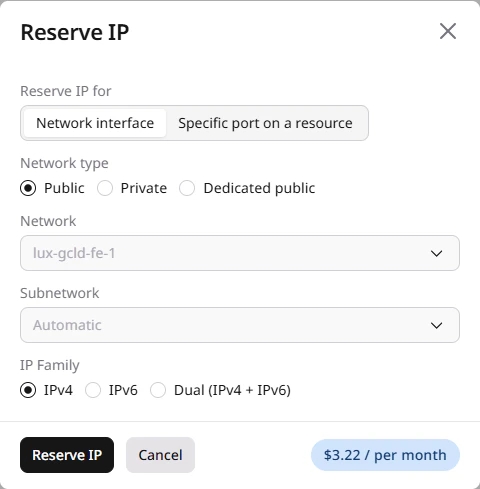
 4. In the **Network** field, select the network type:
* **Public**: External network for internet-facing IP addresses.
* **Private**: Internal network within the project. For this option, select the [network](/cloud/networking/create-and-manage-a-network) and optionally a specific [subnetwork](/cloud/networking/create-and-manage-a-subnetwork).
* **Dedicated public**: Dedicated public network (if configured for the project).
4. In the **Network** field, select the network type:
* **Public**: External network for internet-facing IP addresses.
* **Private**: Internal network within the project. For this option, select the [network](/cloud/networking/create-and-manage-a-network) and optionally a specific [subnetwork](/cloud/networking/create-and-manage-a-subnetwork).
* **Dedicated public**: Dedicated public network (if configured for the project).
When a network is selected without specifying a subnetwork, the IP address is allocated in any available subnet of that network.
A reserved private IP works within the specified subnetwork. To request a specific address, in the **IP address to reserve** section, select **Custom** and enter the IP that belongs to that subnetwork.
5. (Optional) In the **IP Family** section, select the IP version: **IPv4**, **IPv6**, or **Dual (IPv4 + IPv6)**.
6. Click **Reserve IP**.
## Assign a reserved IP to a VM
Refer to the [VM creation](/cloud/virtual-instances/create-an-instance#step-5-add-network-interfaces) guide.
1. In the Virtual Machine settings, open the **Networking** tab.
If the machine is already connected to the target subnetwork, detach it first before assigning a new IP. This removes the existing IP from the interface.
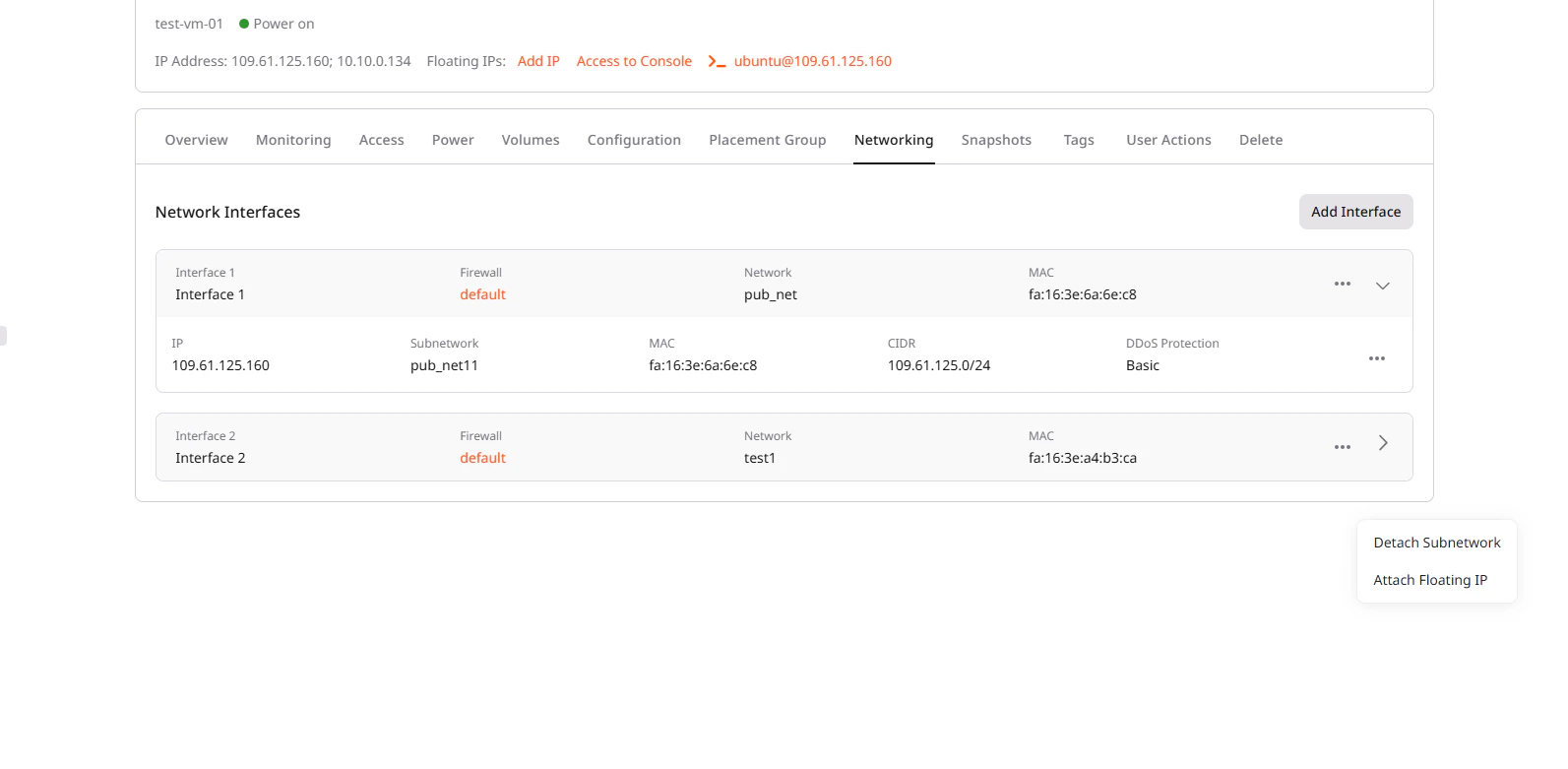 2. Add a new interface (public or private) and enable the **Use reserved IP** toggle.
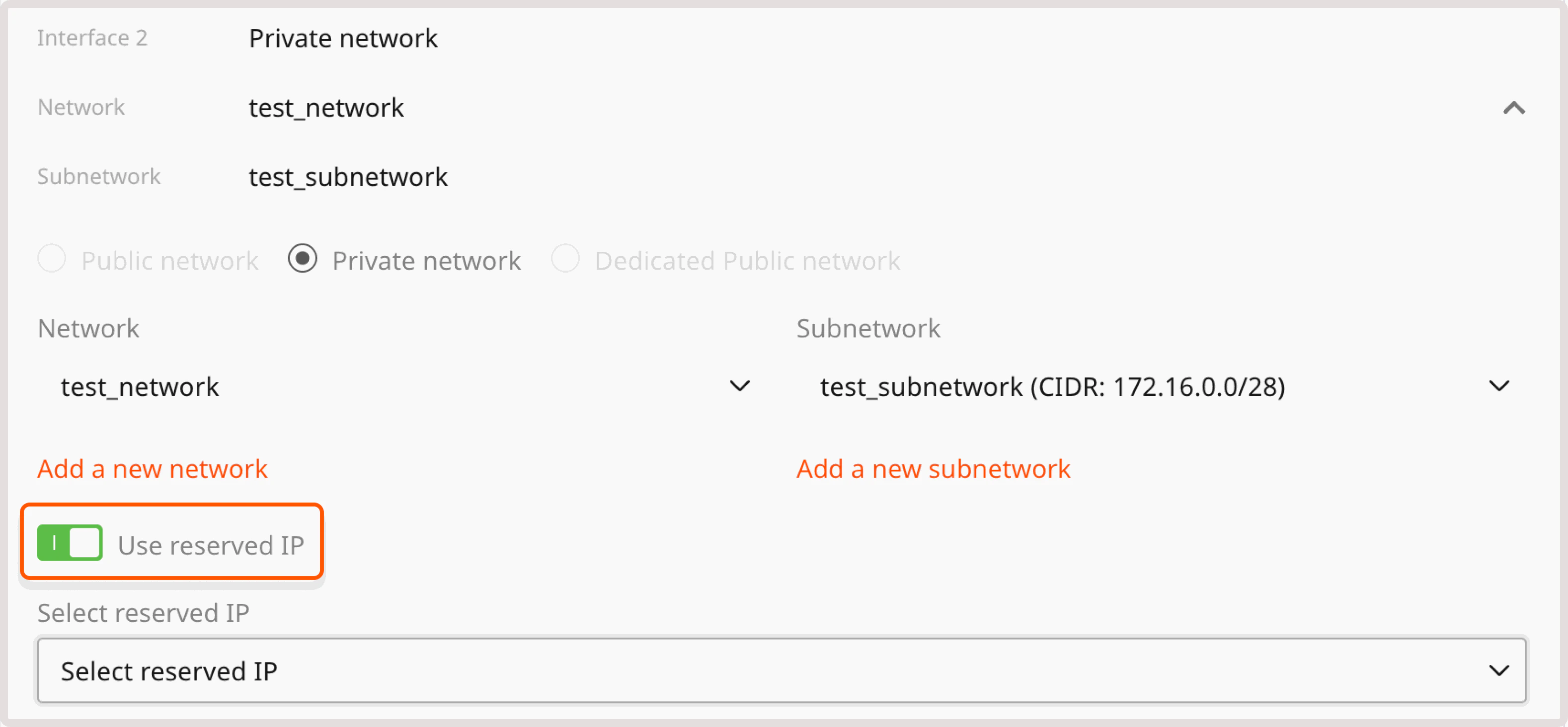 3. Select the reserved IP and click **Add**.
The IP will be assigned to the Virtual Machine.
## Configure the network interface in the operating system
3. Select the reserved IP and click **Add**.
The IP will be assigned to the Virtual Machine.
## Configure the network interface in the operating system
Manual configuration is required only when adding a private interface to an existing VM or Bare Metal server.
Find the interface name, IP address, and CIDR in the **Networking** tab. The gateway is the first usable IP in the subnet (`10.10.0.1` for `10.10.0.0/24`).
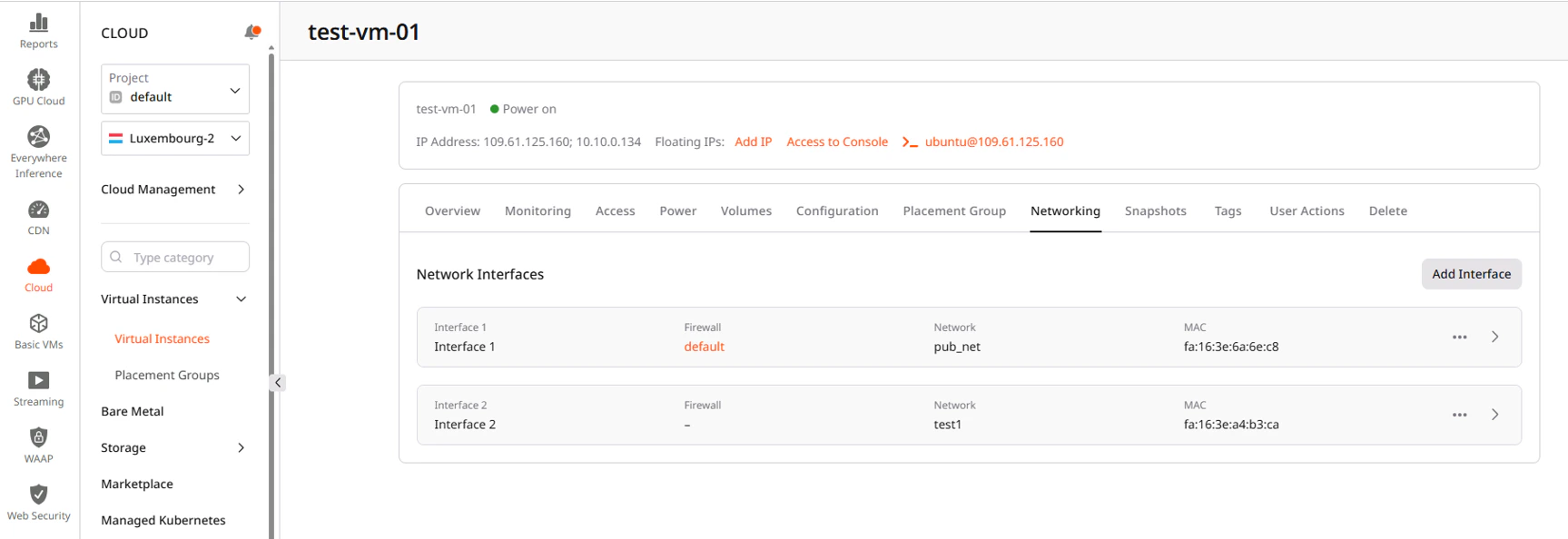
To identify the new interface, run `ip link show` and match the MAC address shown in the portal.
If the network has DHCP enabled, request an IP address automatically:
```sh theme={null}
sudo dhcpcd
```
Example:
```sh theme={null}
sudo dhcpcd enp4s0
```
This configuration is lost after a reboot.
Assign a static IP address manually:
```sh theme={null}
sudo ip link set up
sudo ip addr add / dev
sudo ip route add via dev
```
Example:
```sh theme={null}
sudo ip link set enp4s0 up
sudo ip addr add 172.18.220.100/22 dev enp4s0
```
This configuration is lost after a reboot.
For Ubuntu 24.04 and other Netplan-based distributions, create a configuration file:
```sh theme={null}
sudo bash -c 'cat < /etc/netplan/51-new-interface.yaml
network:
version: 2
ethernets:
enp4s0:
dhcp4: true
EOF'
```
Apply the configuration:
```sh theme={null}
sudo netplan apply
```
For Ubuntu 24.04 and other Netplan-based distributions, create a configuration file:
```sh theme={null}
sudo bash -c 'cat < /etc/netplan/51-new-interface.yaml
network:
version: 2
ethernets:
enp4s0:
dhcp4: false
addresses:
- 192.168.1.10/24
gateway4: 192.168.1.1
nameservers:
addresses:
- 95.85.95.85
- 2.56.220.2
EOF'
```
Replace `enp4s0`, IP address, gateway, and nameservers with the actual values.
Apply the configuration:
```sh theme={null}
sudo netplan apply
```
1\. Open **Control Panel** > **Network and Sharing Center** > **Change adapter settings**.
2\. Right-click the new network adapter and select **Properties**.
3\. Select **Internet Protocol Version 4 (TCP/IPv4)** and click **Properties**.
4\. Select **Use the following IP address** and enter the IP address, subnet mask, and default gateway.
5\. Click **OK** to save the settings.
The [Virtual IP (VIP) address configuration](/cloud/networking/ip-address/create-and-configure-a-virtual-ip-vip-address#configure-a-virtual-ip-address-for-non-windows-virtual-machines) guide contains additional configuration examples.
## Detach a reserved IP from a VM
Detaching is required before reassigning the IP to another resource or deleting it.
1. Open the Virtual Machine settings.
2. Go to the **Networking** tab.
3. Expand the interface that contains the reserved IP.
4. Click the three-dot menu next to the subnetwork row.
5. Select **Detach Subnetwork**.
## Assign a reserved IP to a load balancer
Reserved IP assignment is available during Load Balancer creation.
The IP becomes the frontend address and is tightly bound to the frontend network interface. It cannot be changed after provisioning.
For instructions, refer to the [Load Balancer creation](/cloud/networking/create-and-configure-a-load-balancer#step-4-configure-network) guide.
## Find a resource with reserved IP
The **Status** column on the **Reserved IPs** page shows if an IP is attached to a resource:
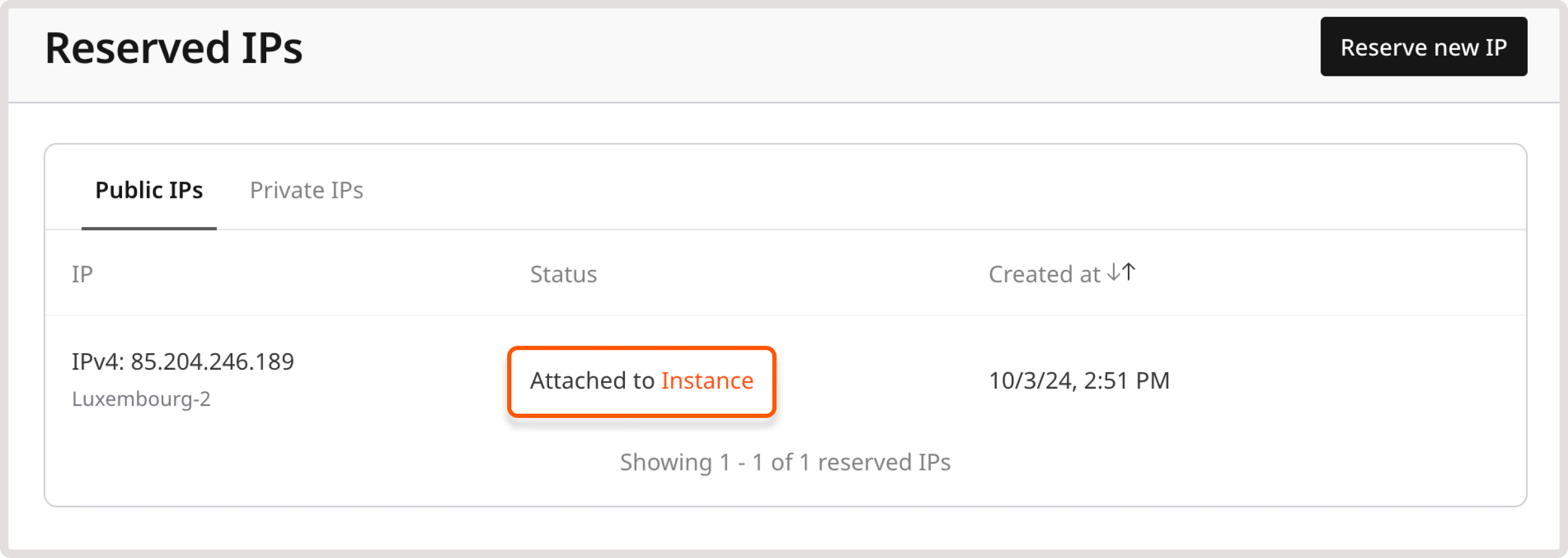
Click the resource name to view and update its settings.
## Delete a reserved IP
After verifying that the IP is no longer attached to any resource, it can be deleted:
1. In the [Gcore Customer Portal](https://portal.gcore.com/accounts/reports/dashboard), navigate to **Cloud** > **Networking**.
2. Open the **Reserved IPs** page.
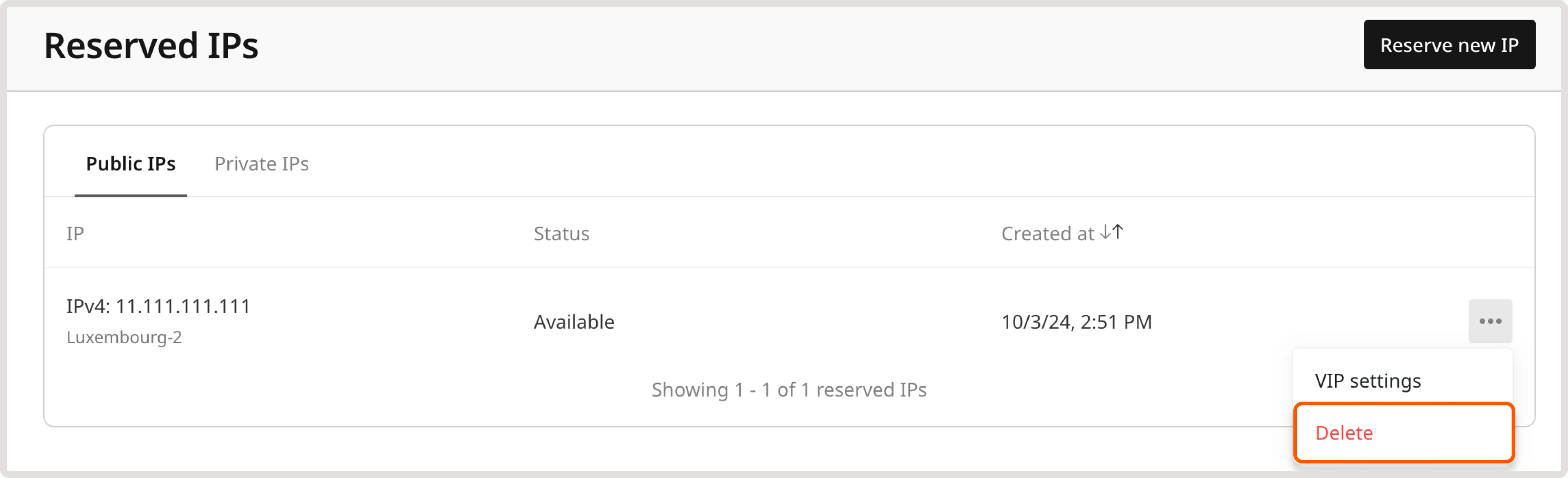
3. Click the three-dot icon next to the target IP.
4. Select **Delete**.
Use the Gcore API to reserve a public or private IP address, retrieve its details and assignment status, attach it to a Virtual Machine via its port ID, and release it when no longer needed.
An [API token](/account-settings/api-tokens) is required, along with a [project ID](/api-reference/cloud/projects/list-projects) and a [region ID](/api-reference/cloud/regions/list-regions).
Open a terminal and set these variables before running the examples:
```bash theme={null}
export GCORE_API_KEY="{YOUR_API_KEY}"
export GCORE_CLOUD_PROJECT_ID="{YOUR_PROJECT_ID}"
export GCORE_CLOUD_REGION_ID="{YOUR_REGION_ID}"
```
## Quickstart
The scripts below reserve a public IPv4 address, create a Virtual Machine that uses it as its network interface, then delete both resources. Set the required environment variables before running:
```bash theme={null}
export GCORE_API_KEY="{YOUR_API_KEY}"
export GCORE_CLOUD_PROJECT_ID="{YOUR_PROJECT_ID}"
export GCORE_CLOUD_REGION_ID="{YOUR_REGION_ID}"
export IMAGE_ID="{YOUR_IMAGE_ID}"
export FLAVOR_ID="{YOUR_FLAVOR_ID}"
```
```python theme={null}
import os
from gcore import Gcore
PROJECT_ID = int(os.environ["GCORE_CLOUD_PROJECT_ID"])
REGION_ID = int(os.environ["GCORE_CLOUD_REGION_ID"])
client = Gcore(api_key=os.environ["GCORE_API_KEY"])
# Step 1. Reserve a public IP address
rip = client.cloud.reserved_fixed_ips.create_and_poll(
type="external",
ip_family="ipv4",
project_id=PROJECT_ID,
region_id=REGION_ID,
)
print(f"Reserved: {rip.fixed_ip_address} port_id: {rip.port_id}")
# Step 2. Create a VM using the reserved IP's port_id
volume = client.cloud.volumes.create_and_poll(
name="boot",
source="image",
image_id=os.environ["IMAGE_ID"],
size=20,
type_name="ssd_hiiops",
project_id=PROJECT_ID,
region_id=REGION_ID,
)
instance = client.cloud.instances.create_and_poll(
name="my-vm",
flavor=os.environ["FLAVOR_ID"],
interfaces=[{"type": "reserved_fixed_ip", "port_id": rip.port_id}],
volumes=[{"volume_id": volume.id}],
project_id=PROJECT_ID,
region_id=REGION_ID,
)
print(f"Instance: {instance.id} IP: {rip.fixed_ip_address}")
# Step 3. Delete the VM, volume, and reserved IP
client.cloud.instances.delete_and_poll(instance.id, project_id=PROJECT_ID, region_id=REGION_ID)
client.cloud.volumes.delete_and_poll(volume.id, project_id=PROJECT_ID, region_id=REGION_ID)
client.cloud.reserved_fixed_ips.delete_and_poll(rip.port_id, project_id=PROJECT_ID, region_id=REGION_ID)
print("Cleaned up.")
```
```go theme={null}
package main
import (
"context"
"fmt"
"log"
"os"
gcore "github.com/G-Core/gcore-go"
"github.com/G-Core/gcore-go/cloud"
"github.com/G-Core/gcore-go/shared/constant"
)
func main() {
client := gcore.NewClient()
ctx := context.Background()
// Step 1. Reserve a public IP address
rip, err := client.Cloud.ReservedFixedIPs.NewAndPoll(ctx, cloud.ReservedFixedIPNewParams{
OfExternal: &cloud.ReservedFixedIPNewParamsBodyExternal{
IPFamily: cloud.InterfaceIPFamilyIpv4,
Type: constant.ValueOf[constant.External](),
},
})
if err != nil {
log.Fatalf("create: %v", err)
}
fmt.Printf("Reserved: %s port_id: %s\n", rip.FixedIPAddress, rip.PortID)
// Step 2. Create a VM using the reserved IP's port_id
vol, err := client.Cloud.Volumes.NewAndPoll(ctx, cloud.VolumeNewParams{
Name: "boot",
Source: cloud.VolumeSourceImage,
ImageID: gcore.String(os.Getenv("IMAGE_ID")),
Size: gcore.Int(20),
TypeName: gcore.String("ssd_hiiops"),
})
if err != nil {
log.Fatalf("create volume: %v", err)
}
instance, err := client.Cloud.Instances.NewAndPoll(ctx, cloud.InstanceNewParams{
Flavor: os.Getenv("FLAVOR_ID"),
Interfaces: []cloud.InstanceNewParamsInterfaceUnion{{
OfReservedFixedIP: &cloud.InstanceNewParamsInterfaceReservedFixedIP{
PortID: rip.PortID,
},
}},
Volumes: []cloud.InstanceNewParamsVolumeUnion{{
OfVolume: &cloud.InstanceNewParamsVolumeVolume{VolumeID: vol.ID},
}},
})
if err != nil {
log.Fatalf("create instance: %v", err)
}
fmt.Printf("Instance: %s IP: %s\n", instance.ID, rip.FixedIPAddress)
// Step 3. Delete the VM, volume, and reserved IP
client.Cloud.Instances.DeleteAndPoll(ctx, instance.ID, cloud.InstanceDeleteParams{})
client.Cloud.Volumes.DeleteAndPoll(ctx, vol.ID, cloud.VolumeDeleteParams{})
client.Cloud.ReservedFixedIPs.DeleteAndPoll(ctx, rip.PortID, cloud.ReservedFixedIPDeleteParams{})
fmt.Println("Cleaned up.")
}
```
## Step-by-step
Each step below explains what the call does, which parameters matter, and what the response looks like.
### Step 1. Reserve an IP address
Reserving an IP allocates a static address from the region pool exclusively for this project — no other account can claim it.
| Parameter | Required | Description |
| ----------- | -------- | ----------------------------------------------------------------------------------------------------------------------------- |
| `type` | Yes | `"external"` for a public address |
| `ip_family` | No | `"ipv4"` (default), `"ipv6"`, or `"dual"` |
| `is_vip` | No | Set to `true` to create as a [Virtual IP address](/cloud/networking/ip-address/create-and-configure-a-virtual-ip-vip-address) |
```python theme={null}
import os
from gcore import Gcore
client = Gcore(api_key=os.environ["GCORE_API_KEY"])
rip = client.cloud.reserved_fixed_ips.create_and_poll(
type="external",
ip_family="ipv4",
project_id=int(os.environ["GCORE_CLOUD_PROJECT_ID"]),
region_id=int(os.environ["GCORE_CLOUD_REGION_ID"]),
)
print(f"IP: {rip.fixed_ip_address} port_id: {rip.port_id} status: {rip.status}")
```
```go theme={null}
rip, err := client.Cloud.ReservedFixedIPs.NewAndPoll(ctx, cloud.ReservedFixedIPNewParams{
OfExternal: &cloud.ReservedFixedIPNewParamsBodyExternal{
IPFamily: cloud.InterfaceIPFamilyIpv4,
Type: constant.ValueOf[constant.External](),
},
})
if err != nil {
log.Fatalf("create: %v", err)
}
fmt.Printf("IP: %s port_id: %s status: %s\n", rip.FixedIPAddress, rip.PortID, rip.Status)
```
```bash theme={null}
curl -X POST "https://api.gcore.com/cloud/v1/reserved_fixed_ips/$GCORE_CLOUD_PROJECT_ID/$GCORE_CLOUD_REGION_ID" \
-H "Authorization: APIKey $GCORE_API_KEY" \
-H "Content-Type: application/json" \
-d '{"type": "external", "ip_family": "ipv4"}'
```
Response:
```json theme={null}
{
"tasks": ["27ed1ca3-54a8-4a63-81b0-ef651a326757"]
}
```
Poll `GET /cloud/v1/tasks/{task_id}` every 5 seconds until `state` is `FINISHED`:
```json theme={null}
{
"id": "27ed1ca3-54a8-4a63-81b0-ef651a326757",
"state": "FINISHED",
"created_resources": {
"ports": ["f7a67158-3e88-4893-95df-998eb5d49a16"]
}
}
```
Save `created_resources.ports[0]` as `PORT_ID` — this is the identifier used in all subsequent calls for this reserved IP.
A private reserved IP is allocated within a specific subnet. Add `SUBNET_ID` to the environment variables:
```bash theme={null}
export SUBNET_ID="{YOUR_SUBNET_ID}"
```
**SUBNET\_ID** is the UUID of the subnetwork from which to allocate the private IP. To create a subnetwork or find its ID, see [Create and manage a subnetwork](/cloud/networking/create-and-manage-a-subnetwork).
```python theme={null}
rip = client.cloud.reserved_fixed_ips.create_and_poll(
type="subnet",
subnet_id=os.environ["SUBNET_ID"],
project_id=int(os.environ["GCORE_CLOUD_PROJECT_ID"]),
region_id=int(os.environ["GCORE_CLOUD_REGION_ID"]),
)
print(f"Private IP: {rip.fixed_ip_address} port_id: {rip.port_id}")
```
```go theme={null}
rip, err := client.Cloud.ReservedFixedIPs.NewAndPoll(ctx, cloud.ReservedFixedIPNewParams{
OfSubnet: &cloud.ReservedFixedIPNewParamsBodySubnet{
SubnetID: os.Getenv("SUBNET_ID"),
Type: constant.ValueOf[constant.Subnet](),
},
})
if err != nil {
log.Fatalf("create private: %v", err)
}
fmt.Printf("Private IP: %s port_id: %s\n", rip.FixedIPAddress, rip.PortID)
```
```bash theme={null}
curl -X POST "https://api.gcore.com/cloud/v1/reserved_fixed_ips/$GCORE_CLOUD_PROJECT_ID/$GCORE_CLOUD_REGION_ID" \
-H "Authorization: APIKey $GCORE_API_KEY" \
-H "Content-Type: application/json" \
-d "{\"type\": \"subnet\", \"subnet_id\": \"$SUBNET_ID\"}"
```
Response:
```json theme={null}
{
"tasks": ["f84f8a0d-d315-4426-b73b-e7479327ae92"]
}
```
Poll the task until `FINISHED`. Save `created_resources.ports[0]` as `PORT_ID`.
To reserve a specific address within a subnet, use `type: "ip_address"` with `network_id` and `ip_address` fields. To allocate from any available subnet, use `type: "any_subnet"` with `network_id`.
### Step 2. Get reserved IP details
Retrieving the reserved IP confirms the allocated address and shows its current assignment status.
```python theme={null}
rip = client.cloud.reserved_fixed_ips.get(
os.environ["PORT_ID"],
project_id=int(os.environ["GCORE_CLOUD_PROJECT_ID"]),
region_id=int(os.environ["GCORE_CLOUD_REGION_ID"]),
)
print(f"IP: {rip.fixed_ip_address} is_external: {rip.is_external} reservation: {rip.reservation.status}")
```
```go theme={null}
rip, err = client.Cloud.ReservedFixedIPs.Get(ctx, rip.PortID, cloud.ReservedFixedIPGetParams{})
if err != nil {
log.Fatalf("get: %v", err)
}
fmt.Printf("IP: %s is_external: %t reservation: %s\n",
rip.FixedIPAddress, rip.IsExternal, rip.Reservation.Status)
```
```bash theme={null}
curl "https://api.gcore.com/cloud/v1/reserved_fixed_ips/$GCORE_CLOUD_PROJECT_ID/$GCORE_CLOUD_REGION_ID/$PORT_ID" \
-H "Authorization: APIKey $GCORE_API_KEY"
```
Response:
```json theme={null}
{
"port_id": "f7a67158-3e88-4893-95df-998eb5d49a16",
"name": "reserved_fixed_ip_85.234.84.235",
"status": "DOWN",
"fixed_ip_address": "85.234.84.235",
"is_external": true,
"is_vip": false,
"reservation": {
"status": "available",
"resource_type": null,
"resource_id": null
},
"network_id": "4e16750d-2656-4038-9411-3c7f06c62643",
"subnet_id": "f12223d3-dc23-4833-8f35-9aa88f823de8"
}
```
`reservation.status` is `"available"` when the IP is not attached to any resource. Once assigned, it changes to `"attached"` and `resource_type` and `resource_id` are populated.
## Use a reserved IP with a Virtual Machine
The reserved IP's `port_id` is the identifier passed in the `interfaces` block during VM creation. Set `type` to `"reserved_fixed_ip"` and supply `port_id` — the VM receives the reserved address as its network interface.
```python theme={null}
instance = client.cloud.instances.create_and_poll(
name="my-vm",
flavor=os.environ["FLAVOR_ID"],
interfaces=[{
"type": "reserved_fixed_ip",
"port_id": os.environ["PORT_ID"],
}],
volumes=[{
"source": "image",
"image_id": os.environ["IMAGE_ID"],
"size": 20,
"boot_index": 0,
}],
project_id=int(os.environ["GCORE_CLOUD_PROJECT_ID"]),
region_id=int(os.environ["GCORE_CLOUD_REGION_ID"]),
)
print(f"Instance: {instance.id}")
```
```go theme={null}
instance, err := client.Cloud.Instances.NewAndPoll(ctx, cloud.InstanceNewParams{
Flavor: os.Getenv("FLAVOR_ID"),
Interfaces: []cloud.InstanceNewParamsInterfaceUnion{{
OfReservedFixedIP: &cloud.InstanceNewParamsInterfaceReservedFixedIP{
PortID: os.Getenv("PORT_ID"),
},
}},
Volumes: []cloud.InstanceNewParamsVolumeUnion{{
OfImage: &cloud.InstanceNewParamsVolumeImage{
ImageID: os.Getenv("IMAGE_ID"),
Size: gcore.Int(20),
BootIndex: gcore.Int(0),
},
}},
})
if err != nil {
log.Fatalf("create instance: %v", err)
}
fmt.Printf("Instance: %s\n", instance.ID)
```
```bash theme={null}
curl -X POST "https://api.gcore.com/cloud/v2/instances/$GCORE_CLOUD_PROJECT_ID/$GCORE_CLOUD_REGION_ID" \
-H "Authorization: APIKey $GCORE_API_KEY" \
-H "Content-Type: application/json" \
-d '{
"name": "my-vm",
"flavor": "'"$FLAVOR_ID"'",
"interfaces": [{"type": "reserved_fixed_ip", "port_id": "'"$PORT_ID"'"}],
"volumes": [{"source": "image", "image_id": "'"$IMAGE_ID"'", "size": 20, "boot_index": 0}]
}'
```
After creation, adding the reserved IP to a running VM requires attaching a new interface through the [instance API](/api-reference/cloud#tag/Instances/operation/InstanceAddInterfaceV2.post). The same operation is available in the Customer Portal via the VM **Networking** tab — see the [Portal tab](#portal) for step-by-step instructions.
## Clean up
Deleting a reserved IP releases the address and stops billing. The IP must not be attached to any resource before deletion.
```python theme={null}
client.cloud.reserved_fixed_ips.delete_and_poll(
os.environ["PORT_ID"],
project_id=int(os.environ["GCORE_CLOUD_PROJECT_ID"]),
region_id=int(os.environ["GCORE_CLOUD_REGION_ID"]),
)
print("Reserved IP deleted.")
```
```go theme={null}
if err = client.Cloud.ReservedFixedIPs.DeleteAndPoll(ctx, rip.PortID, cloud.ReservedFixedIPDeleteParams{}); err != nil {
log.Fatalf("delete: %v", err)
}
fmt.Println("Reserved IP deleted.")
```
```bash theme={null}
curl -X DELETE "https://api.gcore.com/cloud/v1/reserved_fixed_ips/$GCORE_CLOUD_PROJECT_ID/$GCORE_CLOUD_REGION_ID/$PORT_ID" \
-H "Authorization: APIKey $GCORE_API_KEY"
```
Response:
```json theme={null}
{
"tasks": ["8c40dd47-1490-4dde-9cd5-0daee5a567a9"]
}
```
Poll the task until `state` is `FINISHED`. The IP is permanently released and no longer billed.
Allocate a static IP that outlives individual Virtual Machines using [`gcore_cloud_reserved_fixed_ip`](https://registry.terraform.io/providers/G-Core/gcore/latest/docs/resources/cloud_reserved_fixed_ip). The address persists until explicitly destroyed and can be reassigned to any VM in the same region.
## Reserve a public IP address
Setting `type = "external"` reserves a public address from the region pool. The address is exclusively allocated to the project until the resource is destroyed.
```hcl theme={null}
resource "gcore_cloud_reserved_fixed_ip" "example" {
project_id = var.project_id
region_id = var.region_id
type = "external"
ip_family = "ipv4"
}
output "fixed_ip_address" {
value = gcore_cloud_reserved_fixed_ip.example.fixed_ip_address
}
output "port_id" {
value = gcore_cloud_reserved_fixed_ip.example.port_id
}
```
After `terraform apply`:
```bash theme={null}
fixed_ip_address = "85.234.84.181"
port_id = "616c00c0-e0d5-46bf-93c9-d4bc08912b45"
```
`port_id` and `id` contain the same UUID — this is the identifier passed to a Virtual Machine's interface configuration (see below).
## Reserve a private IP address
Setting `type = "subnet"` and providing `subnet_id` allocates a private address from a specific subnet's CIDR range.
```hcl theme={null}
resource "gcore_cloud_reserved_fixed_ip" "private" {
project_id = var.project_id
region_id = var.region_id
type = "subnet"
subnet_id = "{SUBNET_ID}"
}
```
To request a specific address within the subnet, add `ip_address = "192.168.1.100"` and change `type` to `"ip_address"` with `network_id` instead of `subnet_id`.
## Use with a Virtual Machine
Pass `port_id` to a `gcore_cloud_instance` interface block to bind the reserved IP to a VM at creation time.
```hcl theme={null}
resource "gcore_cloud_instance" "example" {
project_id = var.project_id
region_id = var.region_id
flavor = "g2-standard-2-4"
volumes = [{ volume_id = gcore_cloud_volume.boot.id }]
interfaces = [{
type = "reserved_fixed_ip"
port_id = gcore_cloud_reserved_fixed_ip.example.port_id
}]
}
```
The reserved IP remains allocated even if the instance is destroyed. Reassign it to a new VM by updating `port_id` in a different instance resource and running `terraform apply`.
To reserve an IP for use as a [Virtual IP](/cloud/networking/ip-address/create-and-configure-a-virtual-ip-vip-address), set `is_vip = true` when creating the resource — this field is immutable.
## Delete a reserved IP
Remove the resource block — Terraform releases the address and stops billing on the next `terraform apply`.
```hcl theme={null}
# Remove or comment out this block:
# resource "gcore_cloud_reserved_fixed_ip" "example" {
# project_id = var.project_id
# region_id = var.region_id
# type = "external"
# ip_family = "ipv4"
# }
```
```bash theme={null}
terraform apply
```
The IP must not be attached to any resource before deletion.
## Import an existing reserved IP
Use when a reserved IP was created outside Terraform and needs to be brought under configuration management.
```bash theme={null}
terraform import gcore_cloud_reserved_fixed_ip.example '{PROJECT_ID}/{REGION_ID}/{PORT_ID}'
```