> ## Documentation Index
> Fetch the complete documentation index at: https://gcore.com/docs/llms.txt
> Use this file to discover all available pages before exploring further.
# Convert an SSH key to PPK format
If you generated your SSH keys via PuTTYgen or in the Gcore Customer Portal and want to use PuTTY to connect to a Gcore Virtual Machine, you need to convert the keys to a .ppk format.
To do this, you can use PuTTYgen:
1\. Make sure that [PuTTY](https://putty.org) is installed on your device.
2\. Launch the PuTTYgen app.
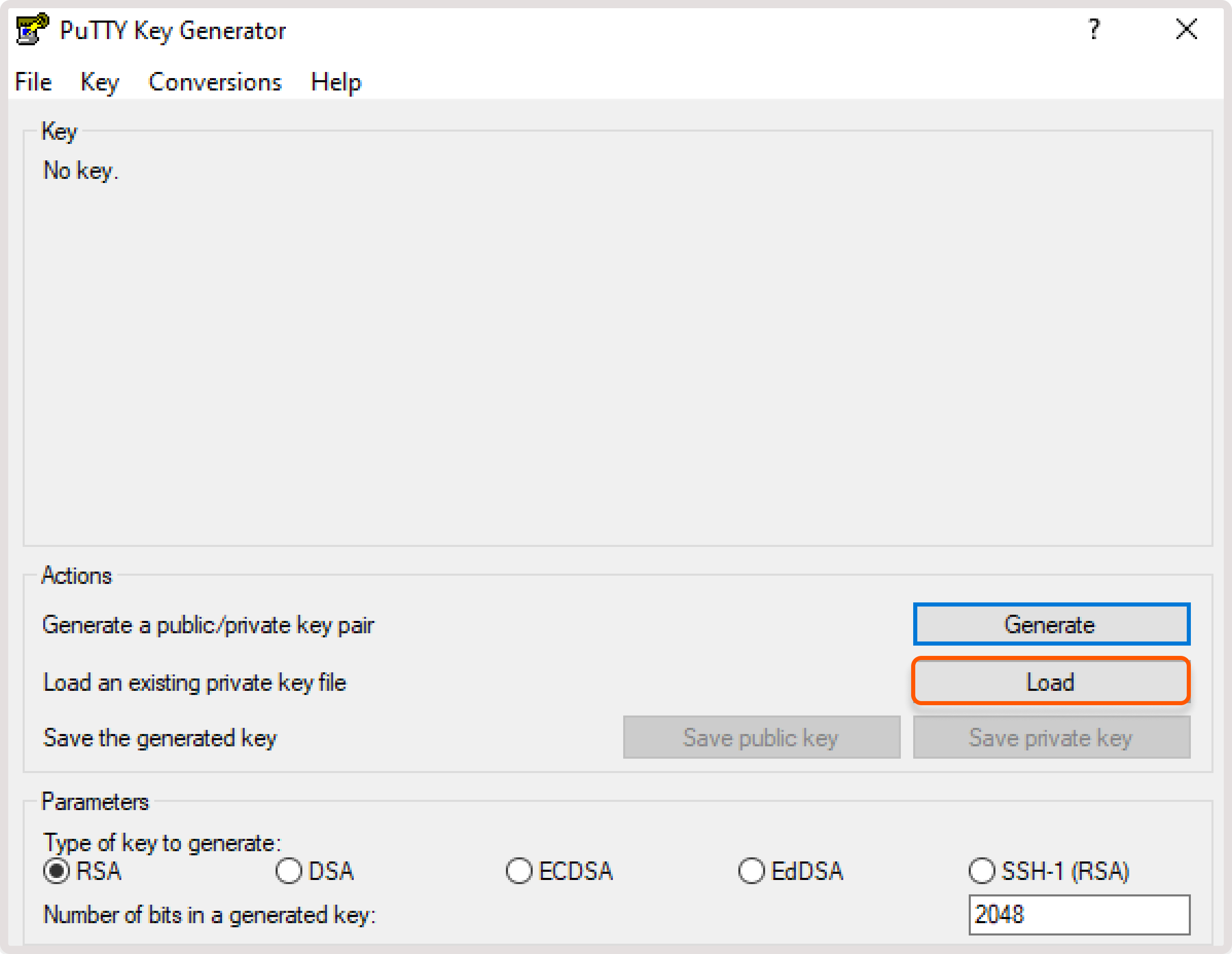
3\. Click **Load**. Then, find the file with the key that you want to convert.
 **Info**
By default, Windows will display only .ppk files. To view all file types, click **All files** in the "Open file" dialog.
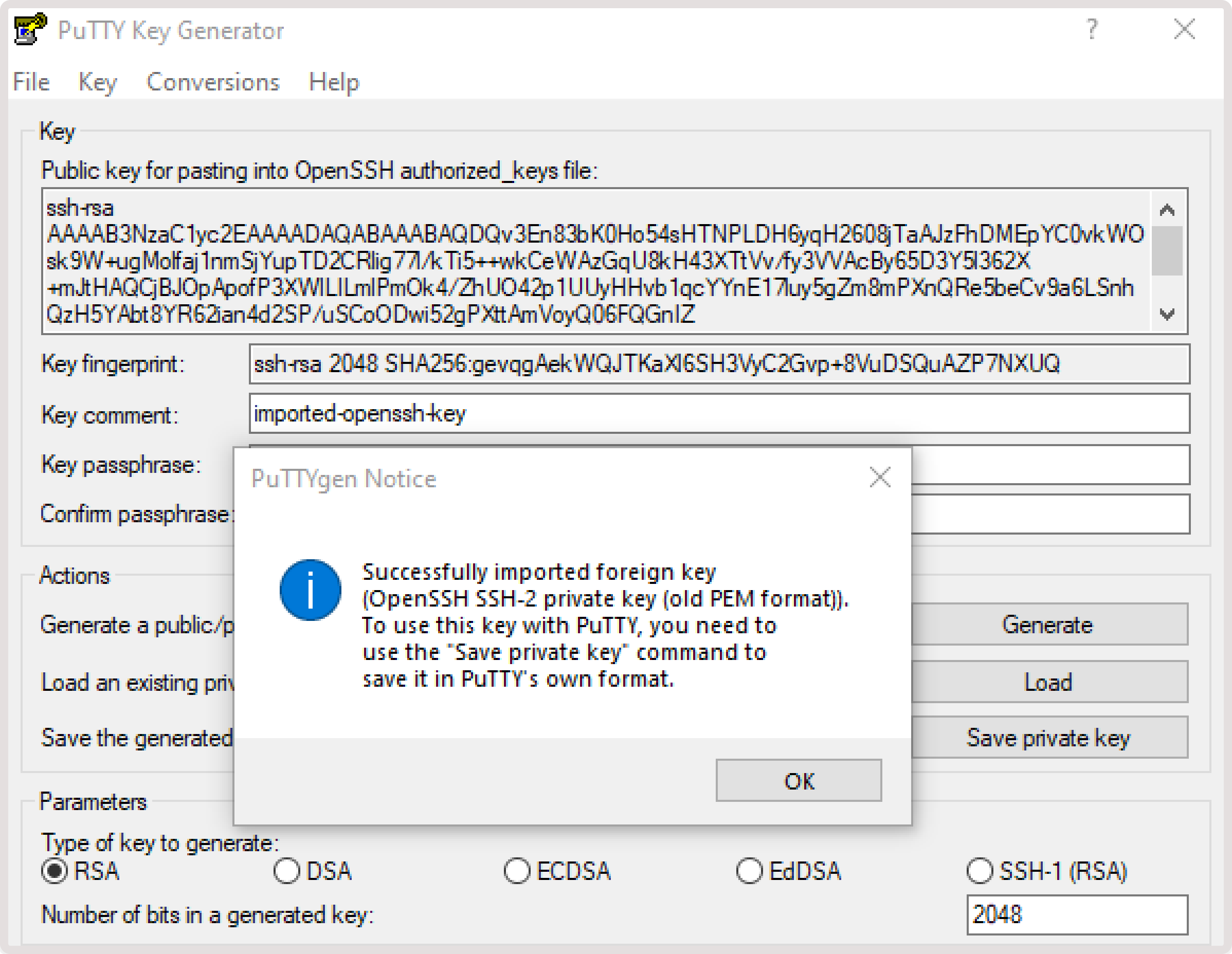
4\. PuTTYgen will prompt you to confirm that you want to import the key. Click **OK**.
**Info**
By default, Windows will display only .ppk files. To view all file types, click **All files** in the "Open file" dialog.
4\. PuTTYgen will prompt you to confirm that you want to import the key. Click **OK**.
 5\. Select a converted key by clicking either **Save private key** or **Save public key**.
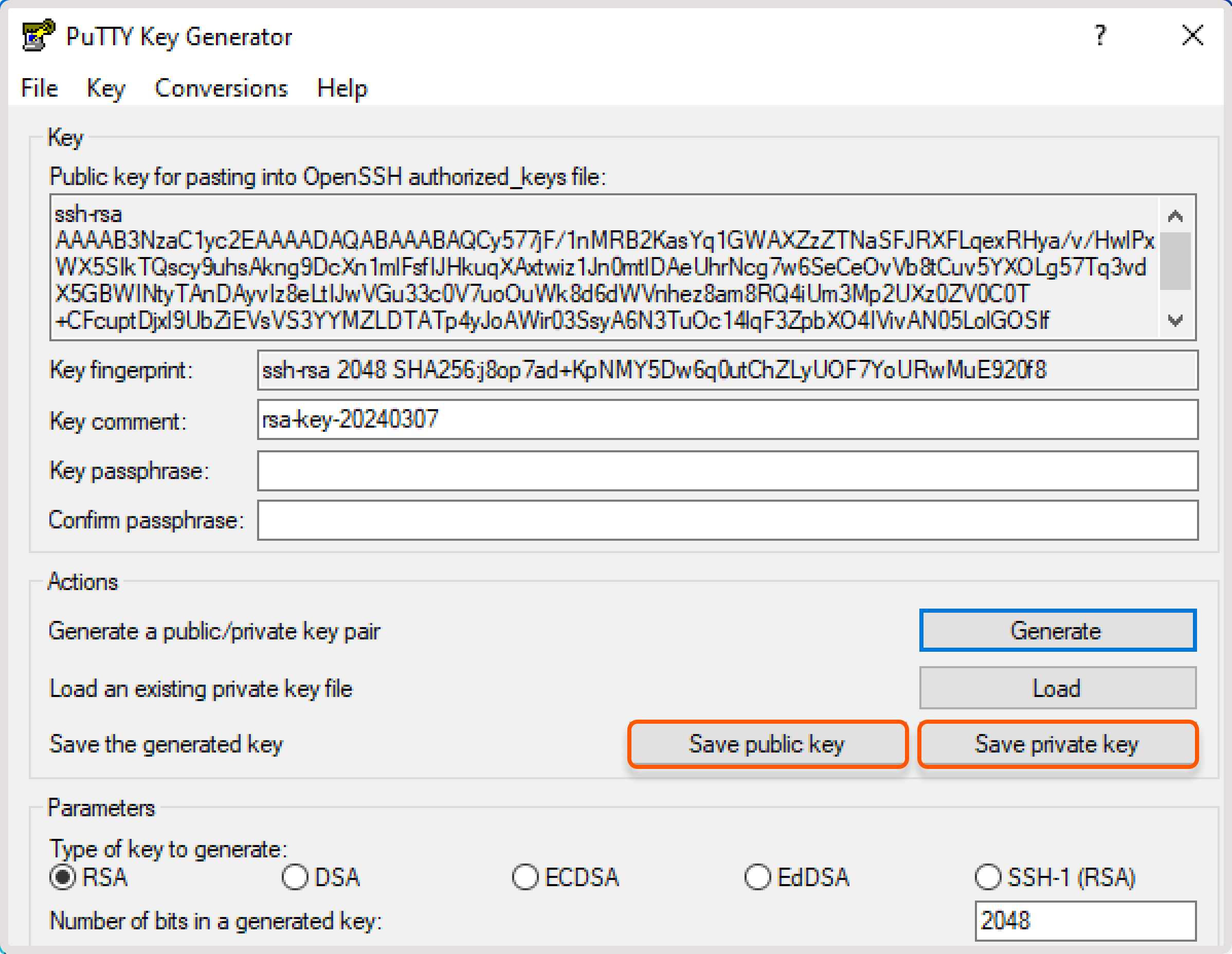 6\. Save the key on your device for future use.