> ## Documentation Index
> Fetch the complete documentation index at: https://gcore.com/docs/llms.txt
> Use this file to discover all available pages before exploring further.
# Getting started with managed DNS
To use Managed DNS, you need to create a DNS zone for your domain or subdomain in the Gcore Customer Portal or via API and specify Gcore's NS servers for your domain. You can then use Gcore's DNS infrastructure features.
## Create DNS zones
1\. Navigate to [DNS](https://portal.gcore.com/dns/zones) in the Gcore Customer Portal and click **Add zone**.
 3\. Enter a domain or subdomain name for the DNS zone and click **Confirm**.
**Tip**
You can opt to skip validation and automatic addition of domain DNS records created earlier by checking the "Skip scanning" box. If you choose this option, go to step 5.
3\. Enter a domain or subdomain name for the DNS zone and click **Confirm**.
**Tip**
You can opt to skip validation and automatic addition of domain DNS records created earlier by checking the "Skip scanning" box. If you choose this option, go to step 5.
 4\. The new page will display all previously created records; you can edit or delete them. Once everything's correct, click **Confirm**.
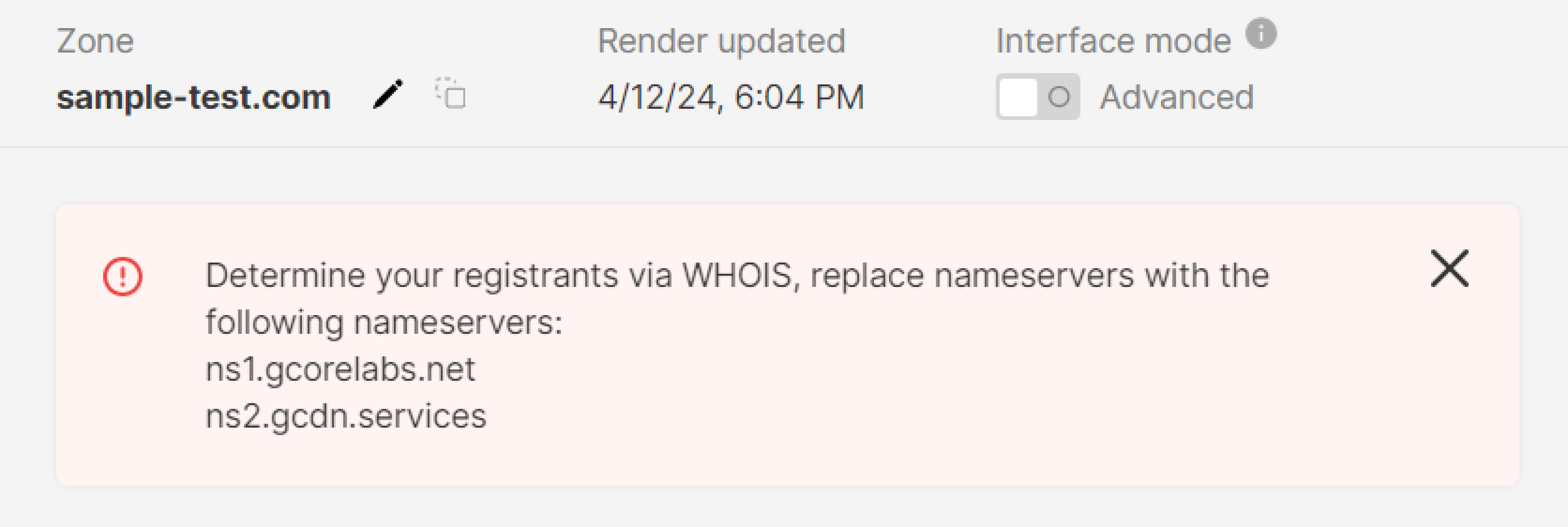
 5\. Go to the site where you manage your domain records (this may be your DNS provider's interface or other DNS hosting) and change your domain's current NS records to Gcore values: `ns1.gcorelabs.net` and `ns2.gcdn.services`. On the DNS zone creation page, click **Confirm**.
 That's it! Now, you can add records and manage the DNS zone in the Gcore Customer Portal.
**Warning**
Please be aware of the NS records change notification. It may remain active for up to 24 hours after changing nameservers. This duration is necessary in order to update the DNS cache.
That's it! Now, you can add records and manage the DNS zone in the Gcore Customer Portal.
**Warning**
Please be aware of the NS records change notification. It may remain active for up to 24 hours after changing nameservers. This duration is necessary in order to update the DNS cache.
 ## Manage DNS zones
You can manage a DNS zone in the [All zones](https://portal.gcore.com/dns/zones) section. In the row of the desired zone, click the three-dot icon and select the required action:
1. **Turn off the zone.** Disable a zone. It will continue to be displayed, but the records added in your Customer Portal will not be active.
2. **Go to records.** Create, edit, and delete records.
3. **Settings.** Edit the TTL of the records in the zone.
4. **Delete zone.** Delete zones.
## Manage DNS zones
You can manage a DNS zone in the [All zones](https://portal.gcore.com/dns/zones) section. In the row of the desired zone, click the three-dot icon and select the required action:
1. **Turn off the zone.** Disable a zone. It will continue to be displayed, but the records added in your Customer Portal will not be active.
2. **Go to records.** Create, edit, and delete records.
3. **Settings.** Edit the TTL of the records in the zone.
4. **Delete zone.** Delete zones.
