GPU clusters are high-performance computing resources designed for AI/ML workloads, inference, and large-scale data processing. Each cluster consists of one or more GPU servers connected via high-speed networking.
GPU clusters come in two types:
* **Bare Metal GPU**: Dedicated physical servers without virtualization, offering maximum performance and full hardware control.
* **Spot Bare Metal GPU**: Discounted servers suitable for batch processing, experiments, and testing. [Spot clusters](/edge-ai/ai-infrastructure/spot-bare-metal-gpu) provide the same hardware access as standard Bare Metal GPUs and may be reclaimed with 24 hours' notice.
Cluster type and GPU model availability vary by region. The creation form displays only the options available in the selected region.
## Cluster architecture
A cluster consists of one or more GPU servers with identical configuration.
For multi-node clusters:
* Nodes share the same image and network settings.
* InfiniBand networking is configured automatically when supported by the flavor.
* File shares provide shared storage for datasets and checkpoints across all nodes.
## Create a GPU cluster
To create a Bare Metal GPU cluster, complete the following steps in the Gcore Customer Portal.
1. In the [Gcore Customer Portal](https://portal.gcore.com), navigate to **GPU Cloud**.
2. In the sidebar, expand **GPU Clusters** and select **Bare Metal GPU Clusters**.
3. Click **Create Cluster**.
### Step 1. Select region
In the **Region** section, select the data center location for the cluster.
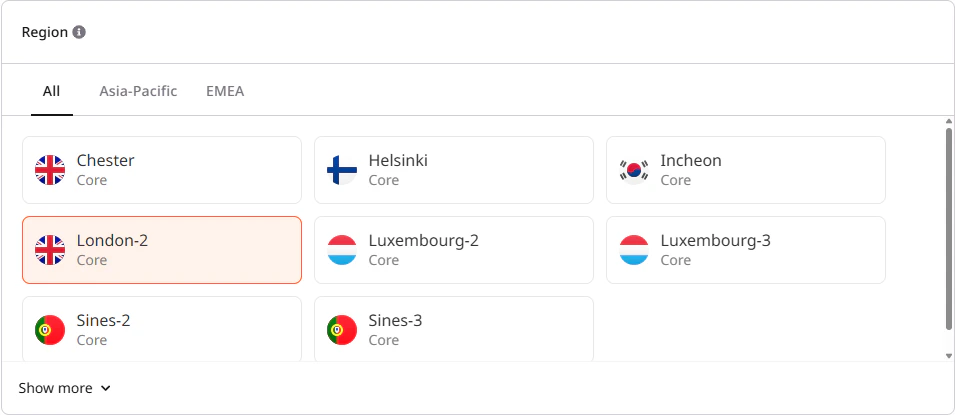
Regions are grouped by geography (Asia-Pacific, EMEA). Each region card shows its availability status. File share integration, for example, is available only in select regions.
GPU model availability and pricing vary by region. Check other regions if a required GPU model is not available. For help with availability, contact the [sales team](https://gcore.com/contact-sales).
### Step 2. Configure cluster capacity
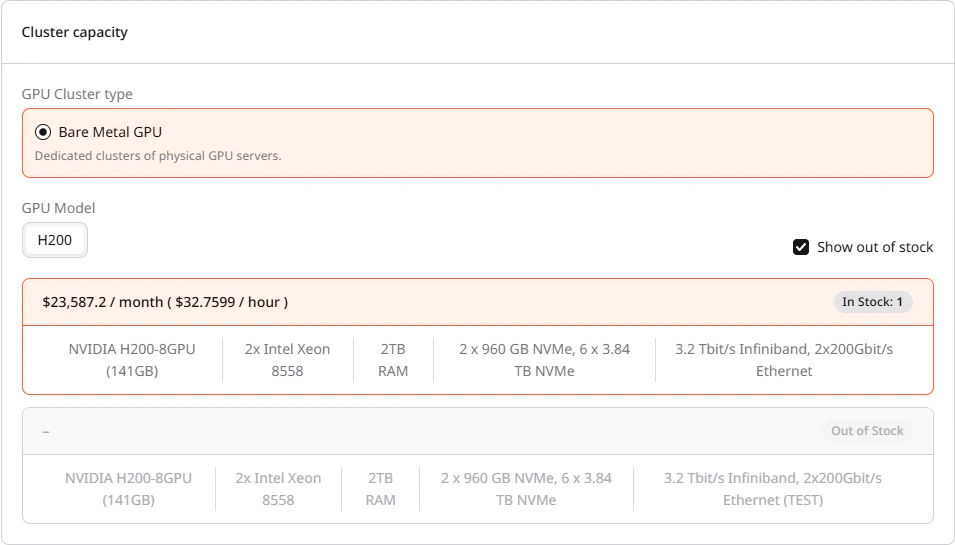
In this step, select the GPU model and flavor that define the hardware configuration for every node in the cluster. Available options depend on the selected region.
1. In the **Cluster capacity** section, select the **GPU Cluster type**:
* **Bare Metal GPU** for dedicated physical servers
* **Spot Bare Metal GPU** for discounted, interruptible instances (available in select regions)
2. Select the **GPU Model**. Available models — A100, H100, or H200 — depend on the region.
3. Enable or disable **Show out of stock** to filter available flavors.
4. Select a flavor. Each flavor card displays GPU configuration, CPU type, RAM capacity, storage, network connectivity, pricing, and stock availability.
 ### Step 3. Set the number of instances
In the **Number of Instances** section, specify how many servers to provision in the cluster.

Each instance is a separate physical server with the selected flavor configuration. For single-node workloads, one instance is sufficient. For distributed training, provision multiple instances.
The maximum number of instances is limited by the current stock availability in the region. There is no fixed per-cluster limit — clusters can scale to hundreds of nodes if capacity is available.
After creation, the cluster can be resized. Scaling up adds nodes with the same configuration used at creation. Scaling down removes a random node — to delete a specific node, use the per-node delete action in the cluster details. Deleting the last node in a cluster deletes the entire cluster.
### Step 4. Select image
The image defines the operating system and pre-installed software for cluster nodes.
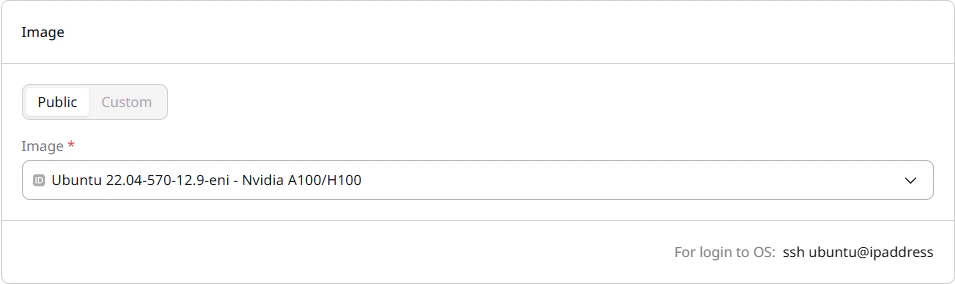 1. In the **Image** section, choose the operating system:
* **Public**: Pre-configured images with NVIDIA drivers and CUDA toolkit (recommended)
* **Custom**: Custom images uploaded to the account
1. In the **Image** section, choose the operating system:
* **Public**: Pre-configured images with NVIDIA drivers and CUDA toolkit (recommended)
* **Custom**: Custom images uploaded to the account
The default Ubuntu images include pre-installed NVIDIA drivers and CUDA toolkit. Images with the `eni` suffix in the name are configured for InfiniBand interconnect.
2. Note the default login credentials displayed below the image selector: username `ubuntu`, SSH port `22`. These credentials are used to connect to the cluster after creation.
### Step 5. Configure file share integration
File shares provide shared storage accessible from all cluster nodes. GPU-enabled regions use VAST-backed high-performance shares. This option appears only in regions where file shares are available.
For share types, sizing, access rules, and manual mounting, see [Configure file shares](/cloud/file-shares/configure-file-shares).
 1. Enable the **File Share integration** checkbox.
2. Select an existing file share or create a new one.
3. Specify the mount path on cluster nodes (default: `/home/ubuntu/mnt/nfs`).
When file share integration is enabled, the cluster automatically adds mount commands to the user data script. If **User data** is also configured in Additional options, do not remove these commands — they handle automatic mounting on first boot.
### Step 6. Configure network settings
1. Enable the **File Share integration** checkbox.
2. Select an existing file share or create a new one.
3. Specify the mount path on cluster nodes (default: `/home/ubuntu/mnt/nfs`).
When file share integration is enabled, the cluster automatically adds mount commands to the user data script. If **User data** is also configured in Additional options, do not remove these commands — they handle automatic mounting on first boot.
### Step 6. Configure network settings
Network settings define how the cluster communicates with external services and other resources. At least one interface is required.
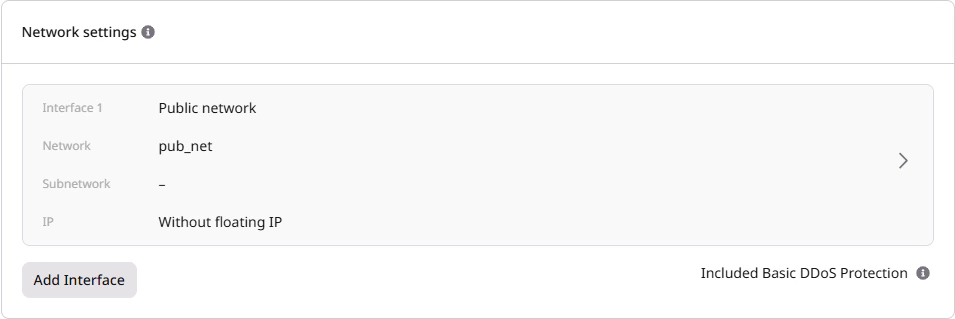 1. In the **Network settings** section, configure the network interface:
| Type | Access | Use case |
| -------------------- | --------------------------------------------- | ----------------------------------------------------- |
| **Public** | Direct internet access with dynamic public IP | Development, testing, quick access to cluster |
| **Private** | Internal network only, no external access | Production workloads, security-sensitive environments |
| **Dedicated public** | Reserved static public IP | Production APIs, services requiring stable endpoints |
1. In the **Network settings** section, configure the network interface:
| Type | Access | Use case |
| -------------------- | --------------------------------------------- | ----------------------------------------------------- |
| **Public** | Direct internet access with dynamic public IP | Development, testing, quick access to cluster |
| **Private** | Internal network only, no external access | Production workloads, security-sensitive environments |
| **Dedicated public** | Reserved static public IP | Production APIs, services requiring stable endpoints |
For multi-node clusters, a private interface keeps internal traffic separate from internet-facing traffic.
To add or configure interfaces, expand the interface card and adjust settings as needed. Additional interfaces can be attached by clicking **Add Interface**.
All public interfaces include Basic DDoS Protection at no additional cost.
Each interface can be expanded to configure security groups. In the **Security Groups** field, select one or more [security groups](/cloud/networking/add-and-configure-a-firewall) to control inbound and outbound traffic for that interface. The `default` security group is pre-selected. If no security group is selected, the default security group is attached automatically.

To create a new security group, click **Add new Security Group** and configure inbound and outbound rules in the dialog.
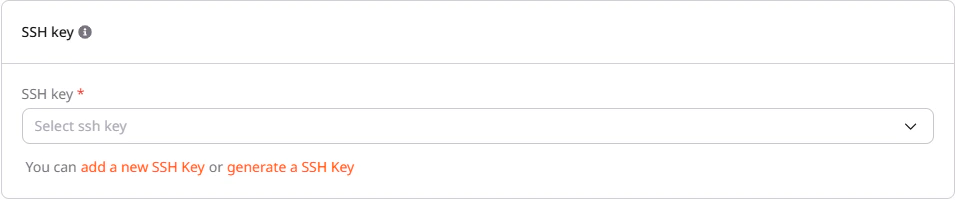
### Step 7. Configure SSH key
In the **SSH key** section, select an existing key from the dropdown or create a new one. Keys can be uploaded or generated directly in the Customer Portal. If generating a new key pair, save the private key immediately as it cannot be retrieved later.
 ### Step 8. Set additional options
The **Additional options** section provides optional settings: user data scripts for automated configuration and metadata tags for resource organization.
 ### Step 9. Name and create the cluster
The final step assigns a name to the cluster and initiates provisioning.
 1. In the **GPU Cluster Name** section, enter a name or use the auto-generated one.
2. Review the **Estimated cost** panel on the right.
3. Click **Create Cluster**.
1. In the **GPU Cluster Name** section, enter a name or use the auto-generated one.
2. Review the **Estimated cost** panel on the right.
3. Click **Create Cluster**.
Once all instances reach **Power on** status, the cluster is ready for use.
Cluster-level settings (image, file share integration, default networks) cannot be changed after creation. New nodes added via scaling inherit the original configuration. To change these settings, create a new cluster.
## Connect and verify the cluster
After the cluster is created, use SSH to connect to a node. The default username is `ubuntu`.
```bash theme={null}
ssh ubuntu@
```
Replace `` with the public or floating IP shown in the cluster details. For nodes with only private interfaces, connect through a bastion host or VPN, or use the [Gcore Customer Portal console](/cloud/virtual-instances/connect/connect-to-your-instance-via-control-panel).
Verify that GPUs are available and drivers are loaded:
```bash theme={null}
nvidia-smi
```
The output displays all available GPUs, driver version, and CUDA version. If no GPUs appear, check that the image includes the correct NVIDIA drivers for the GPU model.
If file share integration was enabled, verify the mount is accessible:
```bash theme={null}
ls /home/ubuntu/mnt/nfs
```
Clusters can also be created programmatically using the [GPU Bare Metal API](/api-reference/cloud/gpu-bare-metal).
Create a Bare Metal GPU cluster by selecting a flavor and image, then provisioning the cluster with a single API call.
An [API token](/account-settings/api-tokens) is required, along with a
[project ID](/api-reference/cloud#tag/Projects/operation/ProjectsListV1.get)
and a [region ID](/api-reference/cloud#tag/Regions/operation/RegionListV1.get).
Bare Metal GPU clusters are available in select regions — use the [List flavors](#step-1-list-available-flavors) call to confirm availability.
Open a terminal and set these environment variables before running the examples:
```bash theme={null}
export GCORE_API_KEY="{YOUR_API_KEY}"
export GCORE_CLOUD_PROJECT_ID="{YOUR_PROJECT_ID}"
export GCORE_CLOUD_REGION_ID="{YOUR_REGION_ID}"
export GCORE_SSH_KEY_NAME="{YOUR_SSH_KEY_NAME}"
```
## Quickstart
Complete scripts that list flavors and images, create a one-node cluster, wait for provisioning, and print the SSH command.
```python theme={null}
import os
import time
from gcore import Gcore
client = Gcore(api_key=os.environ.get("GCORE_API_KEY"))
project_id = int(os.environ["GCORE_CLOUD_PROJECT_ID"])
region_id = int(os.environ["GCORE_CLOUD_REGION_ID"])
ssh_key_name = os.environ["GCORE_SSH_KEY_NAME"]
# Step 1. List flavors — select the one with the fewest GPUs
flavors = client.cloud.gpu_baremetal.clusters.flavors.list(
project_id=project_id,
region_id=region_id,
)
flavor = min(
flavors.results,
key=lambda f: f.hardware_properties.gpu_count,
)
print(f"Flavor: {flavor.name} ({flavor.hardware_properties.gpu_count} GPU(s))")
# Step 2. List images — select the first (latest) image
images = client.cloud.gpu_baremetal.clusters.images.list(
project_id=project_id,
region_id=region_id,
)
image = images.results[0]
print(f"Image: {image.name}")
# Step 3. Create the cluster
task_id_list = client.cloud.gpu_baremetal.clusters.create(
project_id=project_id,
region_id=region_id,
name="my-gpu-cluster",
flavor=flavor.name,
image_id=image.id,
servers_count=1,
servers_settings={
"interfaces": [{"type": "external"}],
"credentials": {"ssh_key_name": ssh_key_name},
},
)
task_id = task_id_list.tasks[0]
print(f"Provisioning — task: {task_id}")
# Step 4. Poll task until FINISHED
while True:
task = client.cloud.tasks.get(task_id)
if task.state == "FINISHED":
cluster_id = task.created_resources.clusters[0]
print(f"Cluster ID: {cluster_id}")
break
if task.state == "ERROR":
raise RuntimeError(f"Cluster creation failed: {task.error}")
print(f" state={task.state} — retrying in 15s…")
time.sleep(15)
# Step 5. Get the public IP and print SSH command
ifaces = client.cloud.gpu_baremetal.clusters.interfaces.list(
cluster_id=cluster_id,
project_id=project_id,
region_id=region_id,
)
for iface in ifaces.results:
if iface.network_details.external:
ip = iface.ip_assignments[0].ip_address
print(f"SSH: ssh ubuntu@{ip}")
```
```go theme={null}
package main
import (
"context"
"fmt"
"os"
"sort"
"strconv"
"time"
"github.com/G-Core/gcore-go"
"github.com/G-Core/gcore-go/cloud"
"github.com/G-Core/gcore-go/option"
)
func main() {
projectIDInt, _ := strconv.ParseInt(os.Getenv("GCORE_CLOUD_PROJECT_ID"), 10, 64)
regionIDInt, _ := strconv.ParseInt(os.Getenv("GCORE_CLOUD_REGION_ID"), 10, 64)
sshKeyName := os.Getenv("GCORE_SSH_KEY_NAME")
client := gcore.NewClient(option.WithAPIKey(os.Getenv("GCORE_API_KEY")))
ctx := context.TODO()
// Step 1. List flavors — select the one with fewest GPUs
flavorList, err := client.Cloud.GPUBaremetal.Clusters.Flavors.List(ctx,
cloud.GPUBaremetalClusterFlavorListParams{
ProjectID: gcore.Int(projectIDInt),
RegionID: gcore.Int(regionIDInt),
})
if err != nil {
panic(err)
}
sort.Slice(flavorList.Results, func(i, j int) bool {
return flavorList.Results[i].HardwareProperties.GPUCount <
flavorList.Results[j].HardwareProperties.GPUCount
})
flavor := flavorList.Results[0]
fmt.Printf("Flavor: %s (%d GPU(s))\n", flavor.Name, flavor.HardwareProperties.GPUCount)
// Step 2. List images — select the first (latest) image
imageList, err := client.Cloud.GPUBaremetal.Clusters.Images.List(ctx,
cloud.GPUBaremetalClusterImageListParams{
ProjectID: gcore.Int(projectIDInt),
RegionID: gcore.Int(regionIDInt),
})
if err != nil {
panic(err)
}
image := imageList.Results[0]
fmt.Printf("Image: %s\n", image.Name)
// Step 3. Create the cluster
taskIDList, err := client.Cloud.GPUBaremetal.Clusters.New(ctx,
cloud.GPUBaremetalClusterNewParams{
ProjectID: gcore.Int(projectIDInt),
RegionID: gcore.Int(regionIDInt),
Name: "my-gpu-cluster",
Flavor: flavor.Name,
ImageID: image.ID,
ServersCount: 1,
ServersSettings: cloud.GPUBaremetalClusterNewParamsServersSettings{
Interfaces: []cloud.GPUBaremetalClusterNewParamsServersSettingsInterfaceUnion{{
OfExternal: &cloud.GPUBaremetalClusterNewParamsServersSettingsInterfaceExternal{},
}},
Credentials: cloud.GPUBaremetalClusterNewParamsServersSettingsCredentials{
SSHKeyName: gcore.String(sshKeyName),
},
},
})
if err != nil {
panic(err)
}
taskID := taskIDList.Tasks[0]
fmt.Printf("Provisioning — task: %s\n", taskID)
// Step 4. Poll task until FINISHED
var clusterID string
for {
task, err := client.Cloud.Tasks.Get(ctx, taskID)
if err != nil {
panic(err)
}
if task.State == "FINISHED" {
clusterID = task.CreatedResources.Clusters[0]
fmt.Printf("Cluster ID: %s\n", clusterID)
break
}
if task.State == "ERROR" {
panic(fmt.Sprintf("Cluster creation failed: %v", task.Error))
}
fmt.Printf(" state=%s — retrying in 15s…\n", task.State)
time.Sleep(15 * time.Second)
}
// Step 5. Get the public IP and print SSH command
ifaces, err := client.Cloud.GPUBaremetal.Clusters.Interfaces.List(ctx,
clusterID,
cloud.GPUBaremetalClusterInterfaceListParams{
ProjectID: gcore.Int(projectIDInt),
RegionID: gcore.Int(regionIDInt),
})
if err != nil {
panic(err)
}
for _, iface := range ifaces.Results {
if iface.NetworkDetails.External {
ip := iface.IPAssignments[0].IPAddress
fmt.Printf("SSH: ssh ubuntu@%s\n", ip)
}
}
}
```
## Step-by-step
Each step below explains the call, its key parameters, and what the response looks like.
### Step 1. List available flavors
Returns all Bare Metal GPU flavors available in the region. Use the response to pick a flavor name — required when creating the cluster.
| Field | Description |
| ------------------------------- | ------------------------------------------------------------------------- |
| `name` | Flavor identifier — pass this value as `flavor` when creating the cluster |
| `hardware_description.gpu` | GPU model name and VRAM |
| `hardware_properties.gpu_count` | Number of GPUs per node |
| `hardware_properties.nic_ib` | InfiniBand configuration, if present |
| `capacity` | Available node count in the region (`0` means currently out of stock) |
```python theme={null}
import os
from gcore import Gcore
client = Gcore(api_key=os.environ.get("GCORE_API_KEY"))
flavors = client.cloud.gpu_baremetal.clusters.flavors.list(
project_id=int(os.environ["GCORE_CLOUD_PROJECT_ID"]),
region_id=int(os.environ["GCORE_CLOUD_REGION_ID"]),
)
for f in flavors.results:
print(f.name, f.hardware_description.gpu, f"GPUs={f.hardware_properties.gpu_count}")
```
```go theme={null}
flavorList, err := client.Cloud.GPUBaremetal.Clusters.Flavors.List(ctx,
cloud.GPUBaremetalClusterFlavorListParams{
ProjectID: gcore.Int(projectID),
RegionID: gcore.Int(regionID),
})
if err != nil {
panic(err)
}
for _, f := range flavorList.Results {
fmt.Printf("%s gpu=%s count=%d\n",
f.Name, f.HardwareDescription.GPU, f.HardwareProperties.GPUCount)
}
```
```bash theme={null}
curl "https://api.gcore.com/cloud/v3/gpu/baremetal/${GCORE_CLOUD_PROJECT_ID}/${GCORE_CLOUD_REGION_ID}/flavors" \
-H "Authorization: APIKey ${GCORE_API_KEY}"
```
The API returns:
```json theme={null}
{
"count": 2,
"results": [
{
"name": "bm3-ai-1xlarge-h100-80-8",
"architecture": "x86_64",
"disabled": false,
"capacity": 0,
"hardware_description": {
"cpu": "2x Intel Xeon 8480+",
"ram": "2TB RAM",
"disk": "8 x 3.84 TB NVMe",
"network": "3.2 Tbit/s Infiniband",
"gpu": "NVIDIA H100-8GPU (80GB)"
},
"hardware_properties": {
"gpu_model": "h100",
"gpu_manufacturer": "nvidia",
"gpu_count": 8,
"nic_eth": "2x100",
"nic_ib": "8x400"
}
}
]
}
```
### Step 2. List available images
Returns all Bare Metal GPU cluster images available in the region. Use the response to pick an image ID — required when creating the cluster.
| Field | Description |
| ------ | --------------------------------------------------------------------- |
| `id` | Image UUID — pass this as `image_id` when creating the cluster |
| `name` | Image name; images with the `eni` suffix are optimized for InfiniBand |
```python theme={null}
import os
from gcore import Gcore
client = Gcore(api_key=os.environ.get("GCORE_API_KEY"))
images = client.cloud.gpu_baremetal.clusters.images.list(
project_id=int(os.environ["GCORE_CLOUD_PROJECT_ID"]),
region_id=int(os.environ["GCORE_CLOUD_REGION_ID"]),
)
for img in images.results:
print(img.id, img.name)
```
```go theme={null}
imageList, err := client.Cloud.GPUBaremetal.Clusters.Images.List(ctx,
cloud.GPUBaremetalClusterImageListParams{
ProjectID: gcore.Int(projectID),
RegionID: gcore.Int(regionID),
})
if err != nil {
panic(err)
}
for _, img := range imageList.Results {
fmt.Printf("%s %s\n", img.ID, img.Name)
}
```
```bash theme={null}
curl "https://api.gcore.com/cloud/v3/gpu/baremetal/${GCORE_CLOUD_PROJECT_ID}/${GCORE_CLOUD_REGION_ID}/images" \
-H "Authorization: APIKey ${GCORE_API_KEY}"
```
The API returns:
```json theme={null}
{
"count": 9,
"results": [
{
"id": "e975eac6-e81e-49b6-a0ca-967786907961",
"name": "gcloud-ai-gpu-ubuntu-24.04-580.126.16-open-13.0.2-bm-v1.14.20"
},
{
"id": "0e2600fe-df82-40bf-97f1-0b4b1f8bc9e0",
"name": "ubuntu-22.04-x64-nvidia-a100/h100-eni"
}
]
}
```
### Step 3. Create the cluster
Submits the cluster creation request and returns a task ID for tracking provisioning progress.
| Parameter | Required | Description |
| ------------------------------------------- | -------- | ---------------------------------------------------------------------------- |
| `name` | Yes | Cluster name (2–63 chars, alphanumeric, hyphens, underscores) |
| `flavor` | Yes | Flavor name from Step 1 |
| `image_id` | Yes | Image UUID from Step 2 |
| `servers_count` | Yes | Number of nodes to provision |
| `servers_settings.interfaces` | Yes | At least one interface — use `"type": "external"` for public internet access |
| `servers_settings.credentials.ssh_key_name` | Yes | Name of an existing SSH key in the project |
| `tags` | No | Key-value metadata tags |
```python theme={null}
import os
from gcore import Gcore
client = Gcore(api_key=os.environ.get("GCORE_API_KEY"))
task_id_list = client.cloud.gpu_baremetal.clusters.create(
project_id=int(os.environ["GCORE_CLOUD_PROJECT_ID"]),
region_id=int(os.environ["GCORE_CLOUD_REGION_ID"]),
name="my-gpu-cluster",
flavor="{FLAVOR_NAME}",
image_id="{IMAGE_ID}",
servers_count=1,
servers_settings={
"interfaces": [{"type": "external"}],
"credentials": {"ssh_key_name": os.environ["GCORE_SSH_KEY_NAME"]},
},
tags={"env": "production"},
)
print(task_id_list.tasks) # save as TASK_ID
```
```go theme={null}
taskIDList, err := client.Cloud.GPUBaremetal.Clusters.New(ctx,
cloud.GPUBaremetalClusterNewParams{
ProjectID: gcore.Int(projectID),
RegionID: gcore.Int(regionID),
Name: "my-gpu-cluster",
Flavor: "{FLAVOR_NAME}",
ImageID: "{IMAGE_ID}",
ServersCount: 1,
ServersSettings: cloud.GPUBaremetalClusterNewParamsServersSettings{
Interfaces: []cloud.GPUBaremetalClusterNewParamsServersSettingsInterfaceUnion{{
OfExternal: &cloud.GPUBaremetalClusterNewParamsServersSettingsInterfaceExternal{},
}},
Credentials: cloud.GPUBaremetalClusterNewParamsServersSettingsCredentials{
SSHKeyName: gcore.String(os.Getenv("GCORE_SSH_KEY_NAME")),
},
},
})
if err != nil {
panic(err)
}
fmt.Printf("%+v\n", taskIDList.Tasks) // save as TASK_ID
```
```bash theme={null}
curl -X POST \
"https://api.gcore.com/cloud/v3/gpu/baremetal/${GCORE_CLOUD_PROJECT_ID}/${GCORE_CLOUD_REGION_ID}/clusters" \
-H "Authorization: APIKey ${GCORE_API_KEY}" \
-H "Content-Type: application/json" \
-d '{
"name": "my-gpu-cluster",
"flavor": "{FLAVOR_NAME}",
"image_id": "{IMAGE_ID}",
"servers_count": 1,
"servers_settings": {
"interfaces": [{"type": "external"}],
"credentials": {"ssh_key_name": "{YOUR_SSH_KEY_NAME}"}
},
"tags": {"env": "production"}
}'
```
The API returns:
```json theme={null}
{ "tasks": ["e4cecbfc-5258-40bb-b78f-3cd92621c3b2"] }
```
### Step 4. Wait for provisioning
Poll the task endpoint every 15 seconds until `state` is `FINISHED`. Bare Metal GPU nodes typically provision in 15–20 minutes.
```bash theme={null}
curl "https://api.gcore.com/cloud/v1/tasks/e4cecbfc-5258-40bb-b78f-3cd92621c3b2" \
-H "Authorization: APIKey ${GCORE_API_KEY}"
```
While provisioning:
```json theme={null}
{
"id": "e4cecbfc-5258-40bb-b78f-3cd92621c3b2",
"state": "RUNNING",
"created_resources": null
}
```
When complete:
```json theme={null}
{
"id": "e4cecbfc-5258-40bb-b78f-3cd92621c3b2",
"state": "FINISHED",
"created_resources": {
"clusters": ["4146c059-501a-409f-8fe1-04de091d917a"]
}
}
```
Read the cluster ID from `created_resources.clusters[0]`.
### Step 5. Get the cluster public IP
Retrieve the network interfaces to find the node's public IP address for SSH access.
```python theme={null}
ifaces = client.cloud.gpu_baremetal.clusters.interfaces.list(
cluster_id="{CLUSTER_ID}",
project_id=int(os.environ["GCORE_CLOUD_PROJECT_ID"]),
region_id=int(os.environ["GCORE_CLOUD_REGION_ID"]),
)
for iface in ifaces.results:
if iface.network_details.external:
print("Public IP:", iface.ip_assignments[0].ip_address)
```
```go theme={null}
ifaces, err := client.Cloud.GPUBaremetal.Clusters.Interfaces.List(ctx,
"{CLUSTER_ID}",
cloud.GPUBaremetalClusterInterfaceListParams{
ProjectID: gcore.Int(projectID),
RegionID: gcore.Int(regionID),
})
if err != nil {
panic(err)
}
for _, iface := range ifaces.Results {
if iface.NetworkDetails.External {
fmt.Println("Public IP:", iface.IPAssignments[0].IPAddress)
}
}
```
```bash theme={null}
curl "https://api.gcore.com/cloud/v3/gpu/baremetal/${GCORE_CLOUD_PROJECT_ID}/${GCORE_CLOUD_REGION_ID}/clusters/{CLUSTER_ID}/interfaces" \
-H "Authorization: APIKey ${GCORE_API_KEY}"
```
The API returns:
```json theme={null}
{
"count": 1,
"results": [
{
"port_id": "302f6e9c-ff95-4d67-ac19-2d3473e2c3ee",
"ip_assignments": [{ "ip_address": "85.234.84.39", "subnet_id": "351b0dd7-ca09-431c-be53-935db3785067" }],
"network_details": { "name": "pub_net", "external": true }
}
]
}
```
The interface with `network_details.external: true` is the public network. Use its `ip_assignments[0].ip_address` for SSH.
## Connect to the cluster
After the cluster reaches `active` status, connect to a node via SSH using the `ubuntu` user:
```bash theme={null}
ssh ubuntu@{NODE_PUBLIC_IP}
```
Verify that GPUs are detected:
```bash theme={null}
nvidia-smi
```
A successful output shows the list of GPUs, driver version, and CUDA version. For nodes with only private interfaces, connect through a bastion host or VPN.