> ## Documentation Index
> Fetch the complete documentation index at: https://gcore.com/docs/llms.txt
> Use this file to discover all available pages before exploring further.
# Inference deployment with API key authentication
API key authentication restricts access to a deployment endpoint. Without it, anyone with the endpoint URL can query the model. With authentication enabled, every request must include a valid `X-API-Key` header — requests without a valid key receive an HTTP 401 response.
API keys are managed at the project level in Everywhere Inference > API Keys. A single key can be linked to multiple deployments, and a deployment can have multiple keys linked simultaneously.
## API key creation
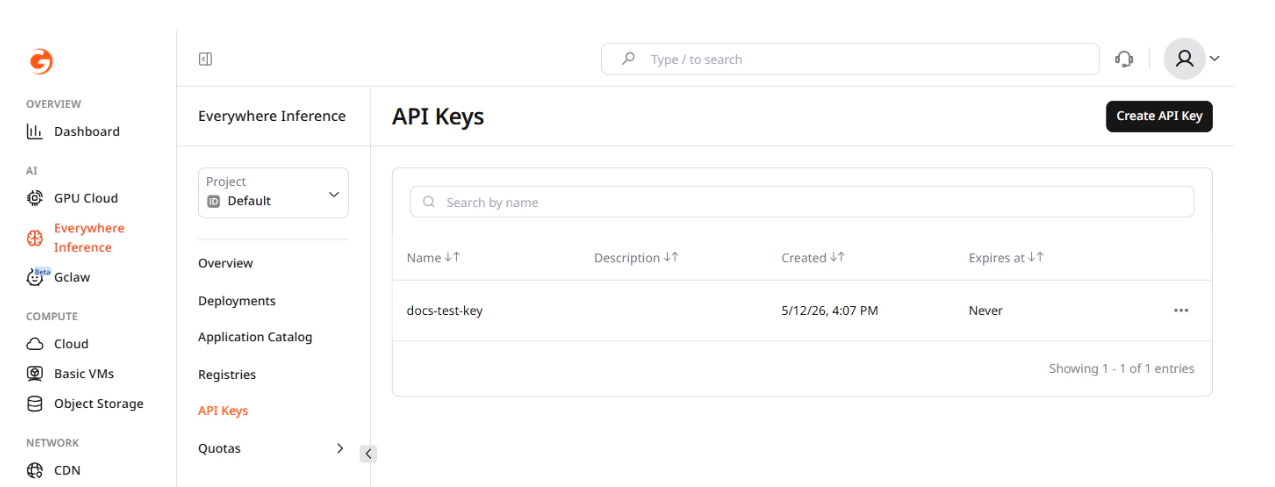
In the [Gcore Customer Portal](https://portal.gcore.com/), navigate to **Everywhere Inference** > **API Keys** and click **Create API Key**.
 The **Add API Key** dialog opens. Fill in the fields:
* **Name** — a label to identify the key across deployments.
* **Description** — optional note describing the key's purpose or owner.
* **Expires at** — set a fixed expiration date or leave as **Never expire** for a permanent key.
The **Add API Key** dialog opens. Fill in the fields:
* **Name** — a label to identify the key across deployments.
* **Description** — optional note describing the key's purpose or owner.
* **Expires at** — set a fixed expiration date or leave as **Never expire** for a permanent key.
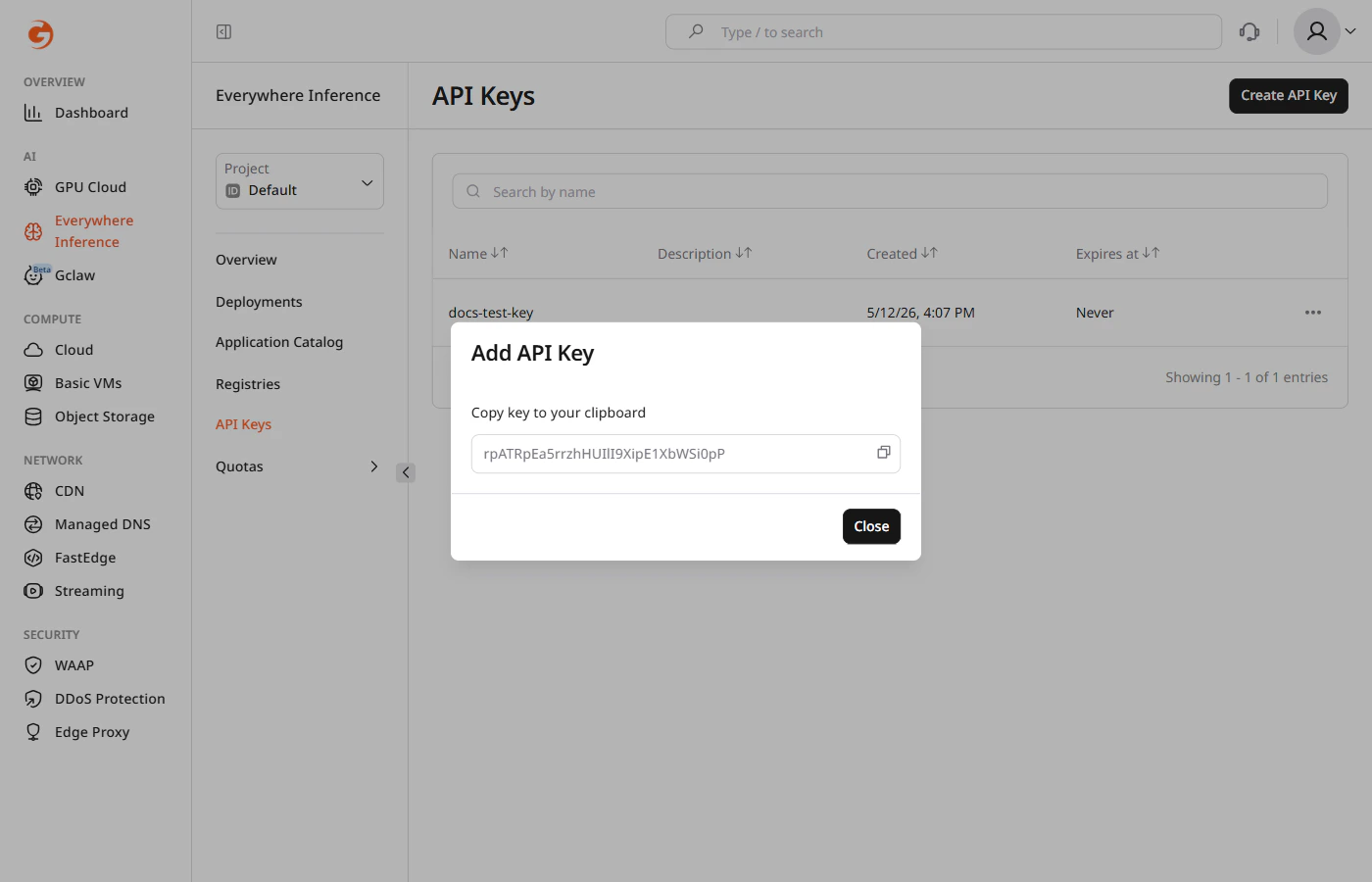
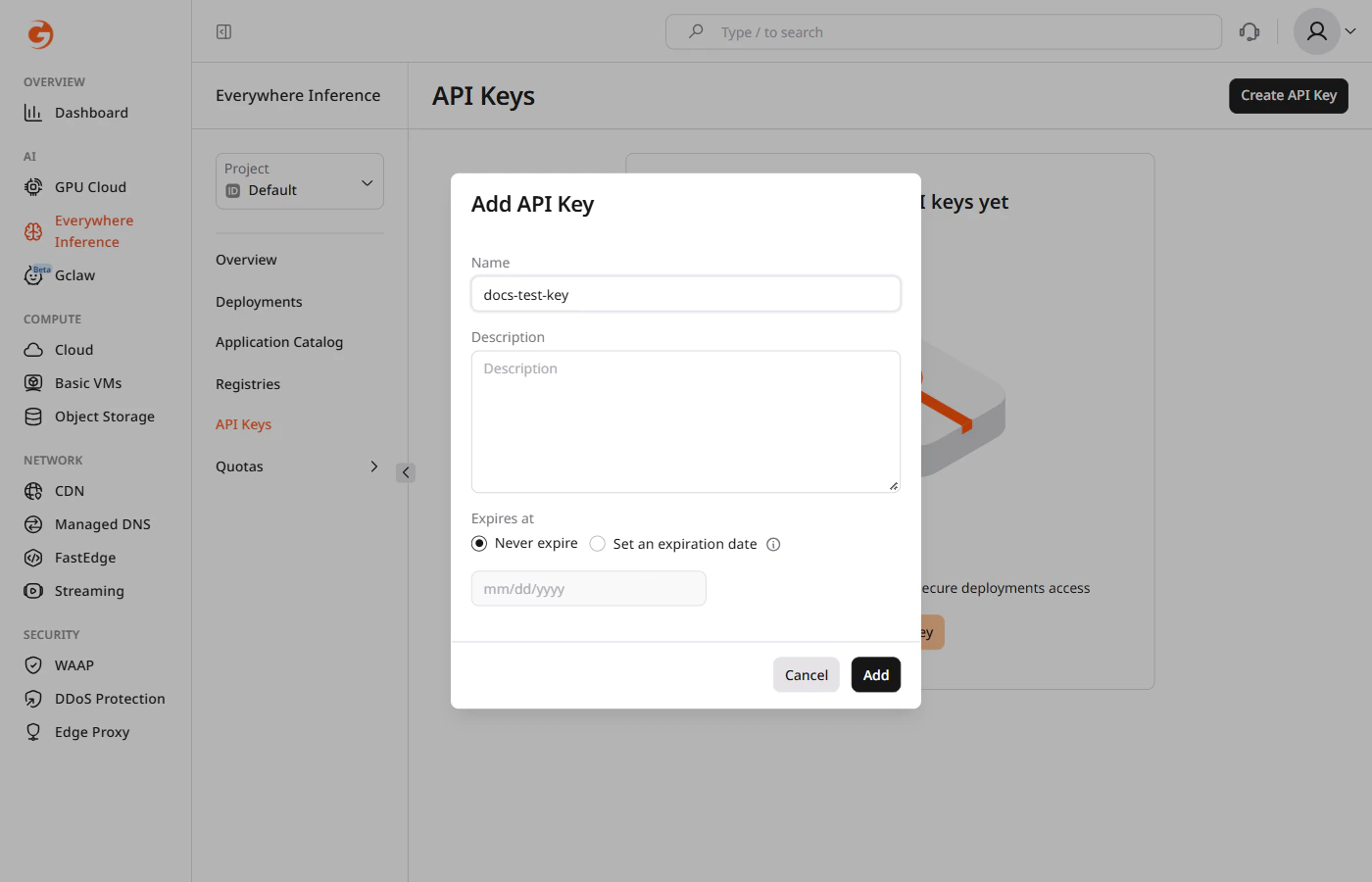 Click **Add**. The key value appears once — copy it immediately and store it securely. It cannot be retrieved later.
 ## Deployment authentication
API key authentication is configured during deployment. The steps below use **meta-llama/Llama-3.2-1B-Instruct** deployed from the [Application Catalog](/edge-ai/everywhere-inference/ai-models/deploy-from-catalog). The same **Additional options** section is available when deploying a [custom model](/edge-ai/everywhere-inference/ai-models/deploy-a-custom-model).
### Step 1. Deployment form
In the [Gcore Customer Portal](https://portal.gcore.com/), navigate to **Everywhere Inference** > [**Application Catalog**](/edge-ai/everywhere-inference/application-catalog), select a model, and click **Deploy Application**. The Create Deployment form opens.
### Step 2. Additional options
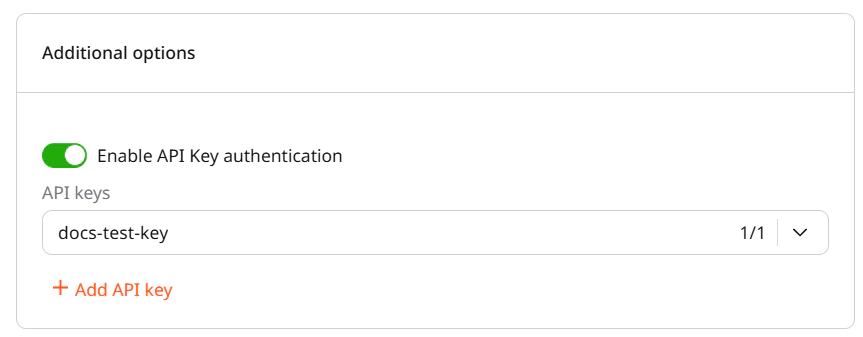
Scroll to the **Additional options** section and enable the **Enable API Key authentication** toggle. A dropdown labeled **API keys** appears, showing all keys created in the project. Select one or more keys to link to this deployment.
## Deployment authentication
API key authentication is configured during deployment. The steps below use **meta-llama/Llama-3.2-1B-Instruct** deployed from the [Application Catalog](/edge-ai/everywhere-inference/ai-models/deploy-from-catalog). The same **Additional options** section is available when deploying a [custom model](/edge-ai/everywhere-inference/ai-models/deploy-a-custom-model).
### Step 1. Deployment form
In the [Gcore Customer Portal](https://portal.gcore.com/), navigate to **Everywhere Inference** > [**Application Catalog**](/edge-ai/everywhere-inference/application-catalog), select a model, and click **Deploy Application**. The Create Deployment form opens.
### Step 2. Additional options
Scroll to the **Additional options** section and enable the **Enable API Key authentication** toggle. A dropdown labeled **API keys** appears, showing all keys created in the project. Select one or more keys to link to this deployment.
 Complete the remaining deployment fields (region, flavor, deployment name) and click **Deploy model**. Once the deployment reaches **Deployed** status, the endpoint accepts only requests that include a linked key.
## Authenticated requests
Include the API key in the `X-API-Key` header on every request. The endpoint rejects requests that omit the header or provide a key not linked to the deployment.
```bash curl theme={null}
ENDPOINT_URL="https://model-..ai.gcore.dev"
API_KEY=""
MODEL="meta-llama/Llama-3.2-1B-Instruct"
curl "${ENDPOINT_URL}/v1/chat/completions" \
-H "Content-Type: application/json" \
-H "X-API-Key: ${API_KEY}" \
-d '{
"model": "'"${MODEL}"'",
"messages": [{"role": "user", "content": "Explain gradient descent in two sentences."}]
}'
```
```python Python theme={null}
from openai import OpenAI
ENDPOINT_URL = "https://model-..ai.gcore.dev"
API_KEY = ""
MODEL = "meta-llama/Llama-3.2-1B-Instruct"
client = OpenAI(
base_url=f"{ENDPOINT_URL}/v1",
api_key="unused",
)
response = client.chat.completions.create(
model=MODEL,
messages=[{"role": "user", "content": "Explain gradient descent in two sentences."}],
extra_headers={"X-API-Key": API_KEY},
)
print(response.choices[0].message.content)
```
```javascript JavaScript theme={null}
const ENDPOINT_URL = "https://model-..ai.gcore.dev";
const API_KEY = "";
const MODEL = "meta-llama/Llama-3.2-1B-Instruct";
const response = await fetch(`${ENDPOINT_URL}/v1/chat/completions`, {
method: "POST",
headers: {
"Content-Type": "application/json",
"X-API-Key": API_KEY,
},
body: JSON.stringify({
model: MODEL,
messages: [{ role: "user", content: "Explain gradient descent in two sentences." }],
}),
});
const data = await response.json();
console.log(data.choices[0].message.content);
```
The OpenAI Python client requires a non-empty `api_key` parameter even when the endpoint does not validate it. Pass any string, and provide the actual key via `extra_headers`.
## API Keys authentication tab
The **API Keys authentication** tab on the deployment detail page shows which keys are currently linked and allows adding or removing keys without redeploying. Changes take effect on the next request after saving.
Complete the remaining deployment fields (region, flavor, deployment name) and click **Deploy model**. Once the deployment reaches **Deployed** status, the endpoint accepts only requests that include a linked key.
## Authenticated requests
Include the API key in the `X-API-Key` header on every request. The endpoint rejects requests that omit the header or provide a key not linked to the deployment.
```bash curl theme={null}
ENDPOINT_URL="https://model-..ai.gcore.dev"
API_KEY=""
MODEL="meta-llama/Llama-3.2-1B-Instruct"
curl "${ENDPOINT_URL}/v1/chat/completions" \
-H "Content-Type: application/json" \
-H "X-API-Key: ${API_KEY}" \
-d '{
"model": "'"${MODEL}"'",
"messages": [{"role": "user", "content": "Explain gradient descent in two sentences."}]
}'
```
```python Python theme={null}
from openai import OpenAI
ENDPOINT_URL = "https://model-..ai.gcore.dev"
API_KEY = ""
MODEL = "meta-llama/Llama-3.2-1B-Instruct"
client = OpenAI(
base_url=f"{ENDPOINT_URL}/v1",
api_key="unused",
)
response = client.chat.completions.create(
model=MODEL,
messages=[{"role": "user", "content": "Explain gradient descent in two sentences."}],
extra_headers={"X-API-Key": API_KEY},
)
print(response.choices[0].message.content)
```
```javascript JavaScript theme={null}
const ENDPOINT_URL = "https://model-..ai.gcore.dev";
const API_KEY = "";
const MODEL = "meta-llama/Llama-3.2-1B-Instruct";
const response = await fetch(`${ENDPOINT_URL}/v1/chat/completions`, {
method: "POST",
headers: {
"Content-Type": "application/json",
"X-API-Key": API_KEY,
},
body: JSON.stringify({
model: MODEL,
messages: [{ role: "user", content: "Explain gradient descent in two sentences." }],
}),
});
const data = await response.json();
console.log(data.choices[0].message.content);
```
The OpenAI Python client requires a non-empty `api_key` parameter even when the endpoint does not validate it. Pass any string, and provide the actual key via `extra_headers`.
## API Keys authentication tab
The **API Keys authentication** tab on the deployment detail page shows which keys are currently linked and allows adding or removing keys without redeploying. Changes take effect on the next request after saving.
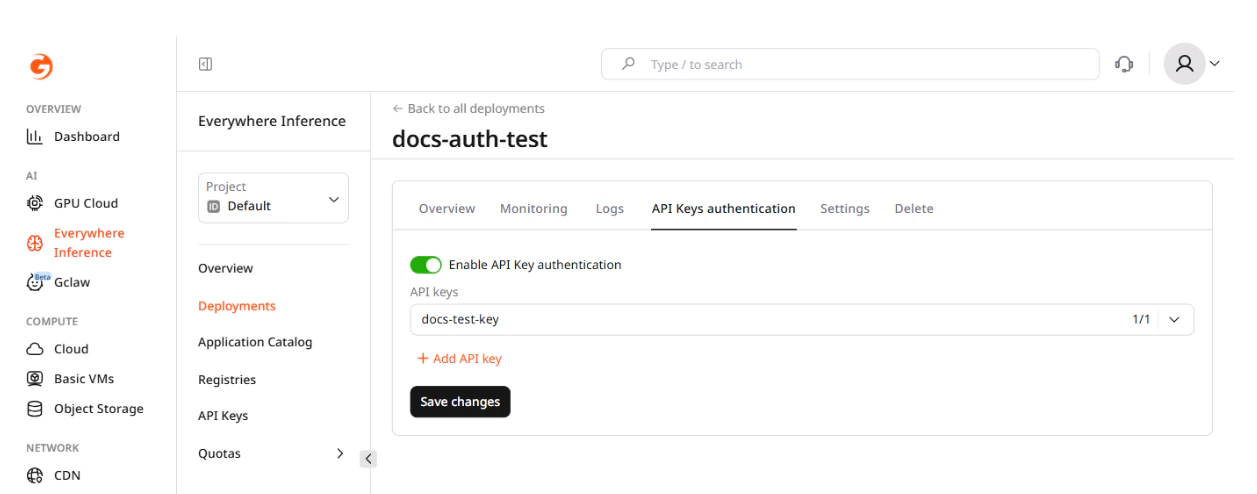 To add a key, open the **API keys** dropdown and select a key from the project-level list. To unlink a key, deselect it from the same dropdown. Click **Save changes** to apply.
Disabling the **Enable API Key authentication** toggle on this tab removes the authentication requirement from the deployment entirely — all requests are accepted regardless of headers.
To add a key, open the **API keys** dropdown and select a key from the project-level list. To unlink a key, deselect it from the same dropdown. Click **Save changes** to apply.
Disabling the **Enable API Key authentication** toggle on this tab removes the authentication requirement from the deployment entirely — all requests are accepted regardless of headers.