> ## Documentation Index
> Fetch the complete documentation index at: https://gcore.com/docs/llms.txt
> Use this file to discover all available pages before exploring further.
# Manage container image registries
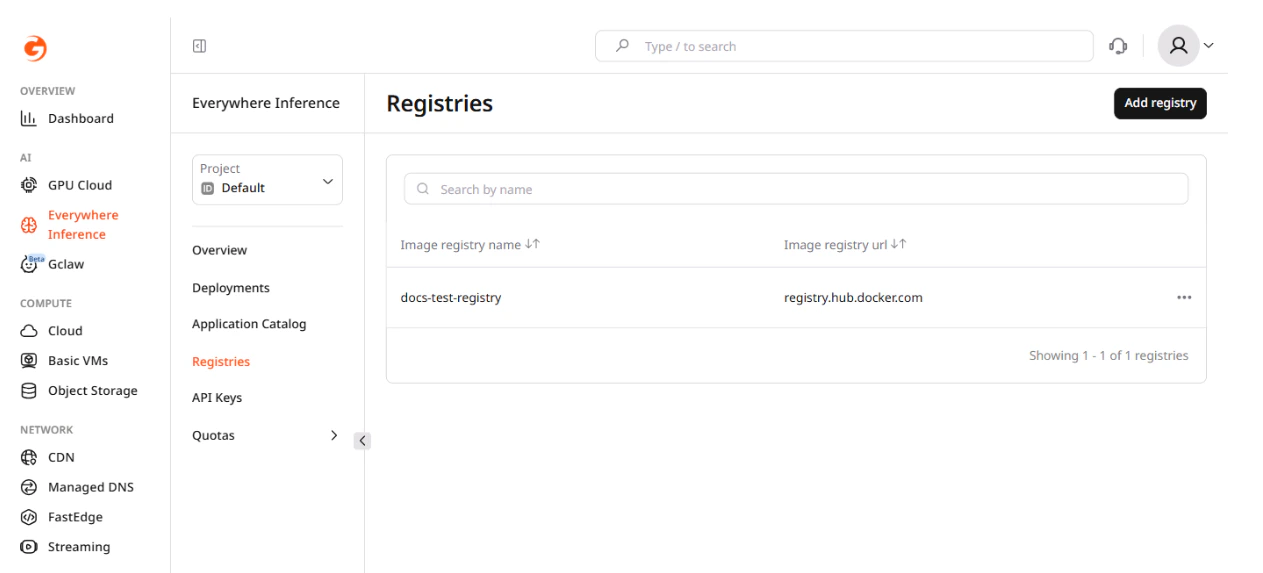
The **Registries** page in the Gcore Customer Portal lists all container image registries added to the project. Each registry stores the credentials Gcore uses to pull private container images when starting deployment pods. Navigate to **Everywhere Inference > Registries** to open the list.
The registry table has two columns: **Image registry name** and **Image registry url**. The URL identifies the registry host, and the name is the label shown in the deployment form when selecting a registry.
 ## Registry in a deployment
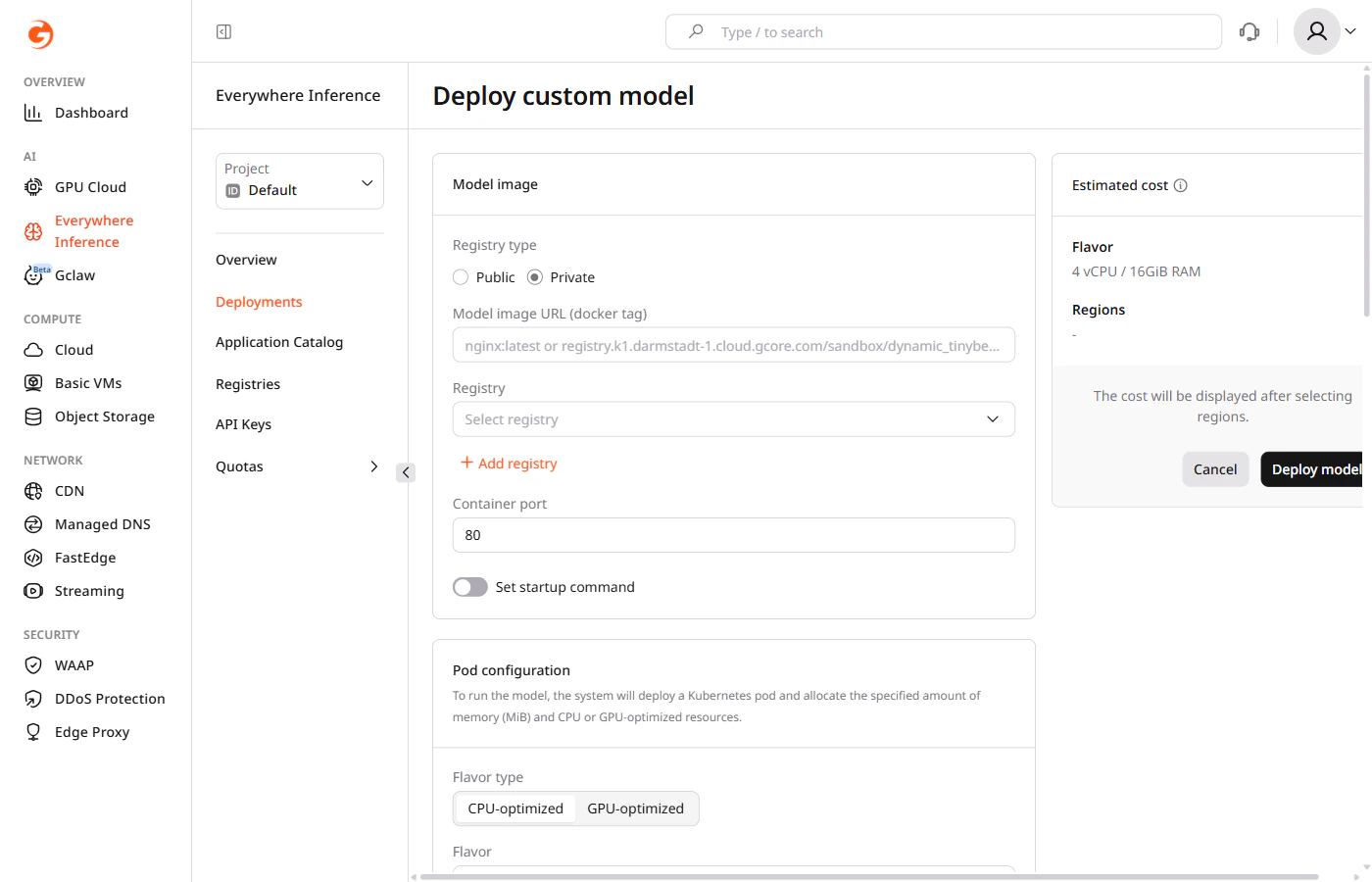
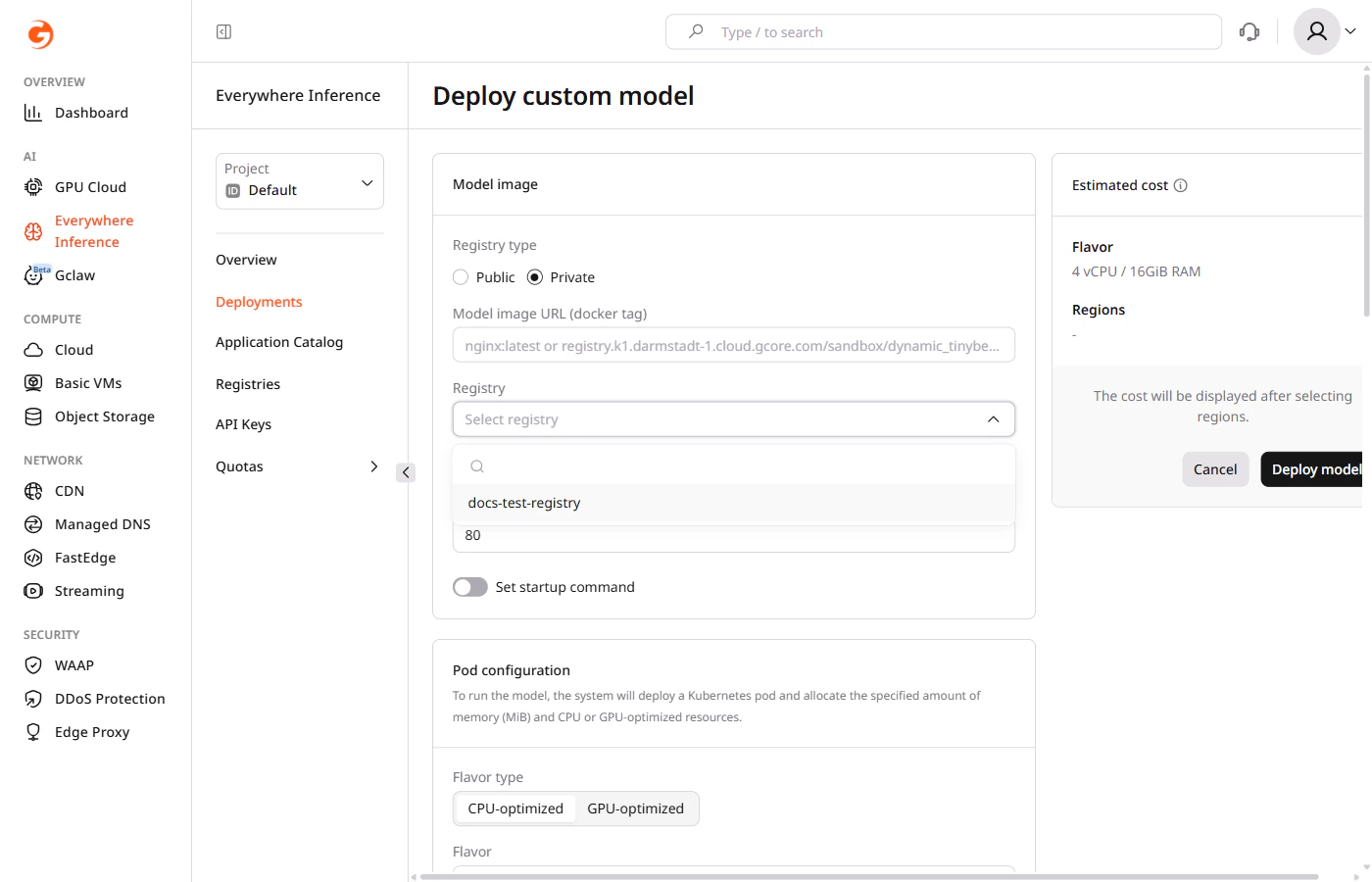
Registries are referenced when [deploying a custom container image](/edge-ai/everywhere-inference/ai-models/deploy-a-custom-model) from a private source. In the **Deploy custom model** form, set **Registry type** to **Private** — a **Registry** dropdown appears showing all registries added to the project. Select the registry that hosts the image, then enter the full image URL in the **Model image URL** field.
## Registry in a deployment
Registries are referenced when [deploying a custom container image](/edge-ai/everywhere-inference/ai-models/deploy-a-custom-model) from a private source. In the **Deploy custom model** form, set **Registry type** to **Private** — a **Registry** dropdown appears showing all registries added to the project. Select the registry that hosts the image, then enter the full image URL in the **Model image URL** field.
 Gcore uses the stored credentials to authenticate against the registry host and pull the image when the pod starts. The credentials are not embedded in the deployment — they are resolved at pod startup from the registry record.
 ## Registry credentials
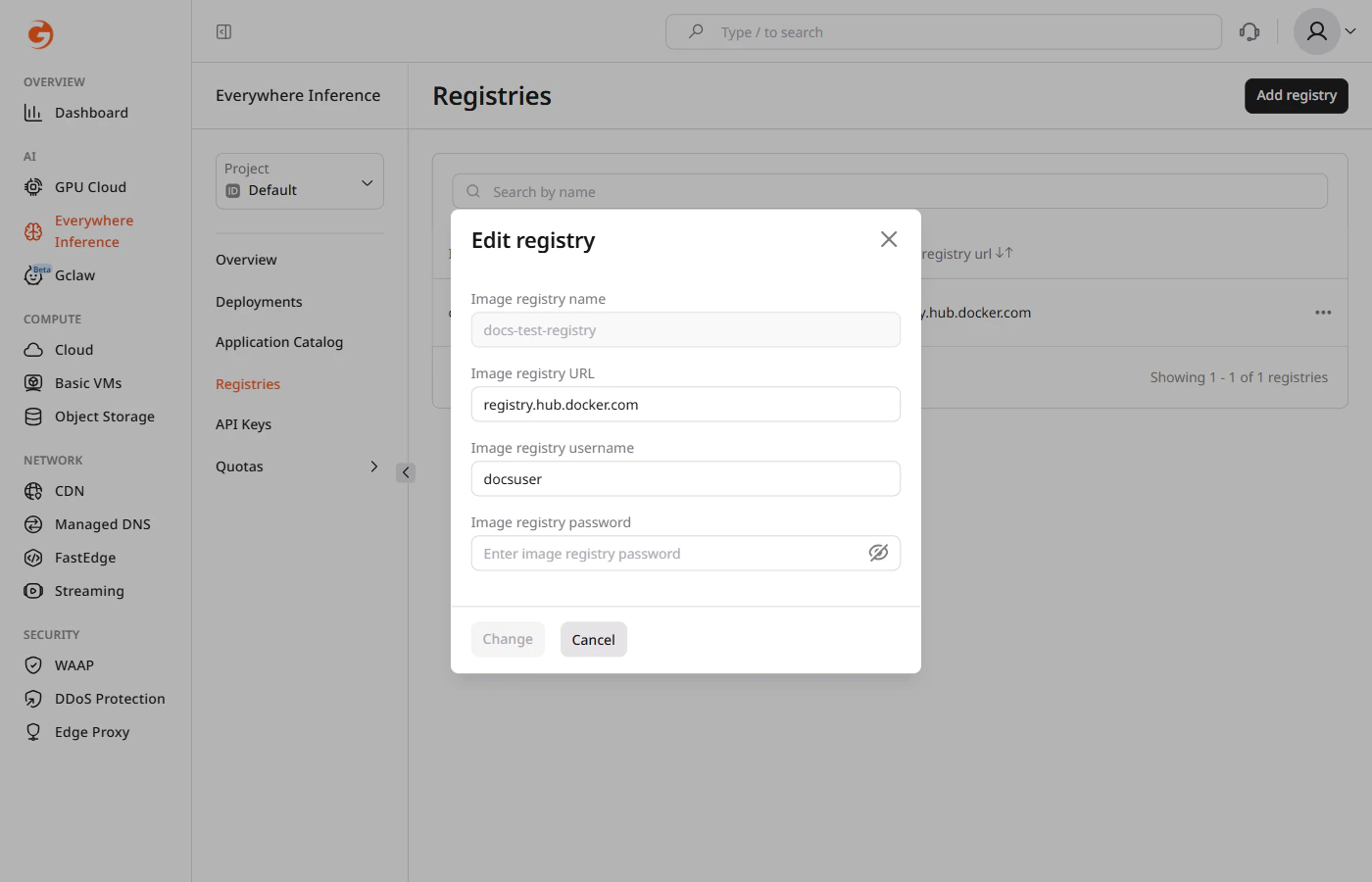
Only authentication credentials can be updated on an existing registry. The registry name and URL are immutable — to use a different registry host, delete the registry and [add a new one](/edge-ai/everywhere-inference/container-image-registries/add-a-registry).
To open the action menu, click the three-dot button on the right side of the registry row and select **Edit**.
## Registry credentials
Only authentication credentials can be updated on an existing registry. The registry name and URL are immutable — to use a different registry host, delete the registry and [add a new one](/edge-ai/everywhere-inference/container-image-registries/add-a-registry).
To open the action menu, click the three-dot button on the right side of the registry row and select **Edit**.
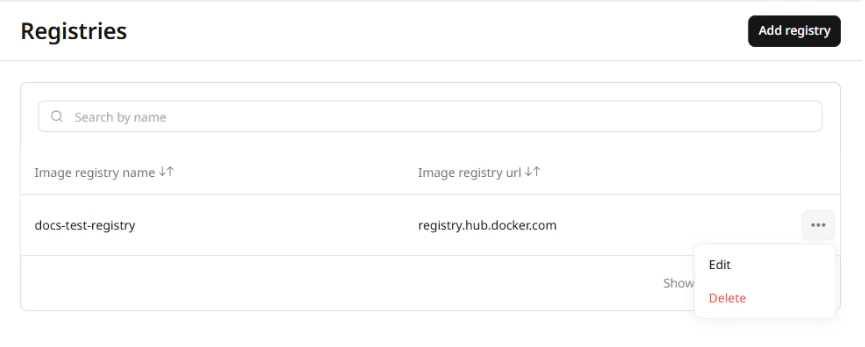 The **Edit registry** dialog opens. Enter the updated **Username** and **Password** and click **Save**. The new credentials take effect on the next pod pull — running pods are not affected until they restart.
 ## Registry deletion
Deleting a registry removes the stored credentials from the project. Running deployments that already pulled the image continue operating. New pods — including autoscaled pods and pod restarts — will fail to pull the image until the registry is re-added with valid credentials.
To delete a registry, click the three-dot button on the right side of the row and select **Delete**. Confirm the deletion in the dialog that appears.
## Registry deletion
Deleting a registry removes the stored credentials from the project. Running deployments that already pulled the image continue operating. New pods — including autoscaled pods and pod restarts — will fail to pull the image until the registry is re-added with valid credentials.
To delete a registry, click the three-dot button on the right side of the row and select **Delete**. Confirm the deletion in the dialog that appears.