> ## Documentation Index
> Fetch the complete documentation index at: https://gcore.com/docs/llms.txt
> Use this file to discover all available pages before exploring further.

# Check statistics of your dedicated server

## A volume of incoming and outcoming traffic

In the DCI Manager panel, go to the "Statistics" section and click on the "Traffic" tab.

Select a period for which you want to retrieve statistics and click **OK**.

<Frame>
  <img src="https://mintcdn.com/gcore/UReUj2sLE0VBIJKL/images/docs/hosting/dedicated-servers/check-statistics-of-your-dedicated-server/check-statistics-of-your-dedicated-server-image1.png?fit=max&auto=format&n=UReUj2sLE0VBIJKL&q=85&s=db9133d61b1b36fafaa67a5da4bc4115" alt="A volume of incoming and outcoming traffic" width="2172" height="300" data-path="images/docs/hosting/dedicated-servers/check-statistics-of-your-dedicated-server/check-statistics-of-your-dedicated-server-image1.png" />
</Frame>

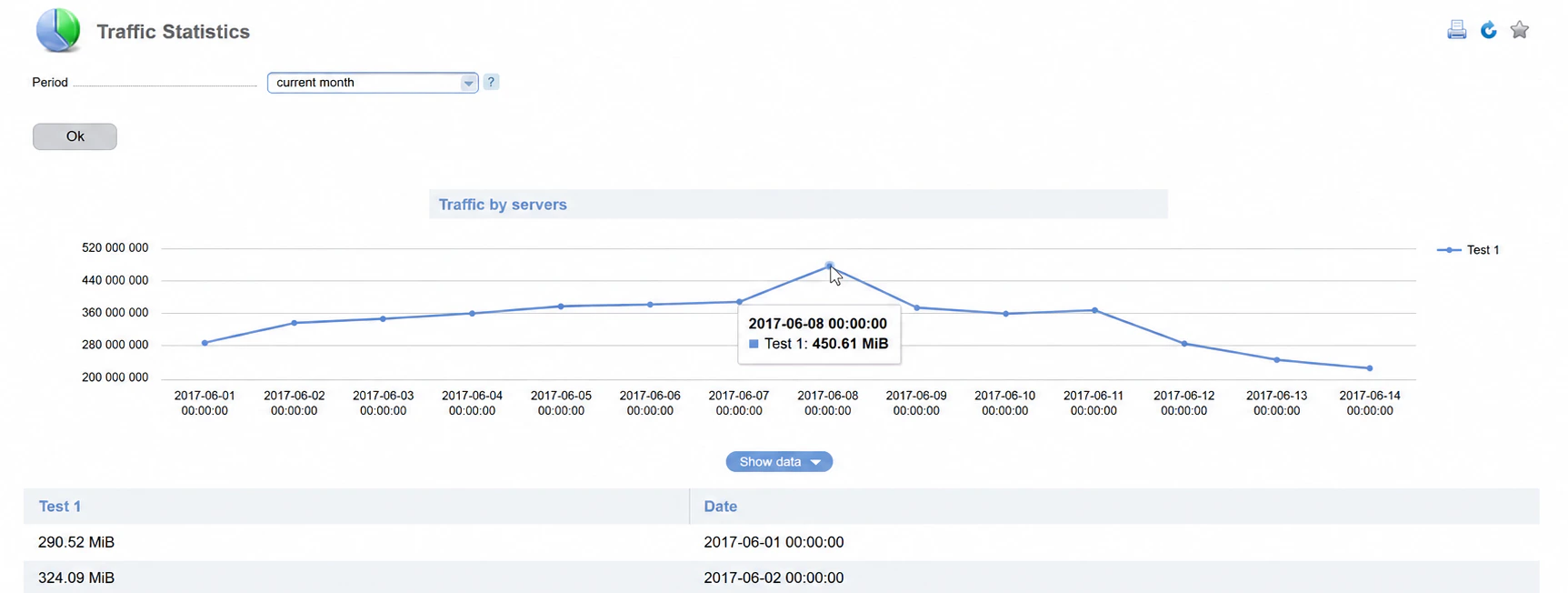
## Total traffic volume

On the "Common Traffic" section you can see a total traffic volume.
<Frame>
  <img src="https://mintcdn.com/gcore/UReUj2sLE0VBIJKL/images/docs/hosting/dedicated-servers/check-statistics-of-your-dedicated-server/check-statistics-of-your-dedicated-server-image2.png?fit=max&auto=format&n=UReUj2sLE0VBIJKL&q=85&s=310cdff58efb35e4529ee5b104e16a33" alt="Total traffic volume" width="1725" height="652" data-path="images/docs/hosting/dedicated-servers/check-statistics-of-your-dedicated-server/check-statistics-of-your-dedicated-server-image2.png" />
</Frame>
