> ## Documentation Index
> Fetch the complete documentation index at: https://gcore.com/docs/llms.txt
> Use this file to discover all available pages before exploring further.
# Log in to IPMI
IPMI is an interface for remote monitoring and managing the physical state of the server. For example, IPMI provides a way to power on, power off, reboot server remotely or reinstall OS using ISO.
We provide IPMI access for the Dedicated Server in all locations.
How to get access to IPMI
Go to the Dedicated server section, choose an active server and click the **To panel** button.
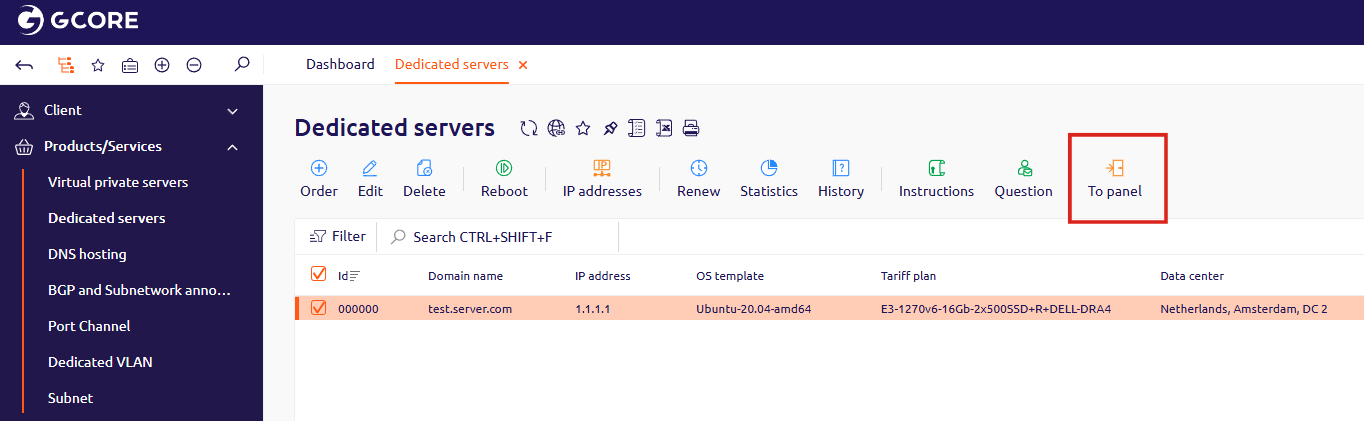 In DCI manager, choose the server you need and click on the monitor button to go to IPMI.
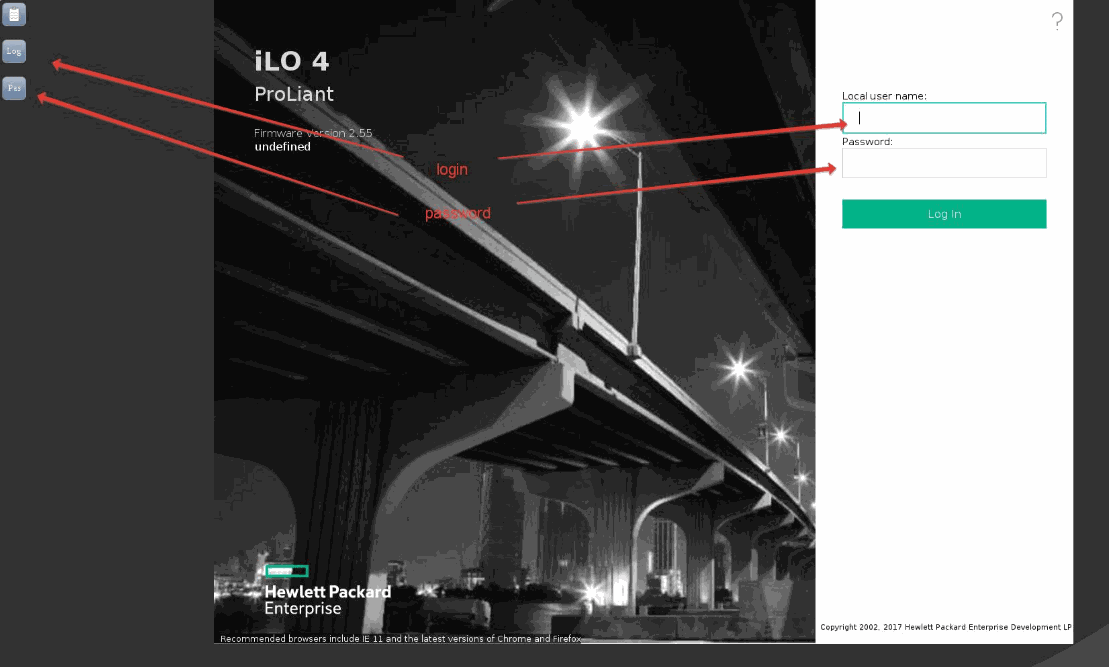
 Click on the "Local username field" and then on the "Log" button in the left corner. Do the same actions for the "Password" field.
After the Local username and Password fields will be filled, click on the **Login** button.
Click on the "Local username field" and then on the "Log" button in the left corner. Do the same actions for the "Password" field.
After the Local username and Password fields will be filled, click on the **Login** button.