> ## Documentation Index
> Fetch the complete documentation index at: https://gcore.com/docs/llms.txt
> Use this file to discover all available pages before exploring further.

# Connect to a virtual server via VNC in VMmanager 6

VNC (Virtual Network Computing) lets you view and control a remote computer's desktop. It works by transmitting graphics, mouse, and keyboard input between client and server applications using the Remote Frame Buffer protocol. You can use the VNC console to connect to your virtual server directly from the control panel.

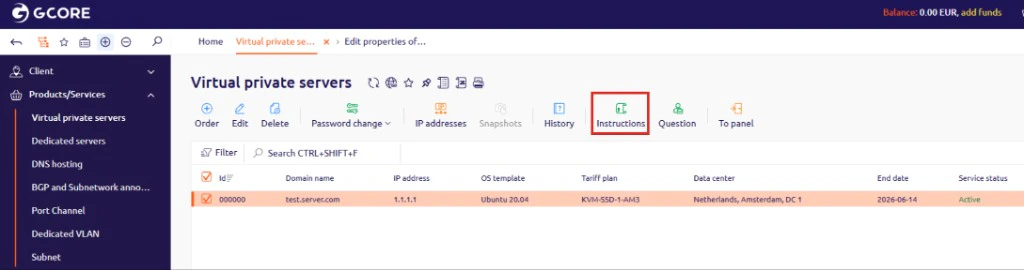
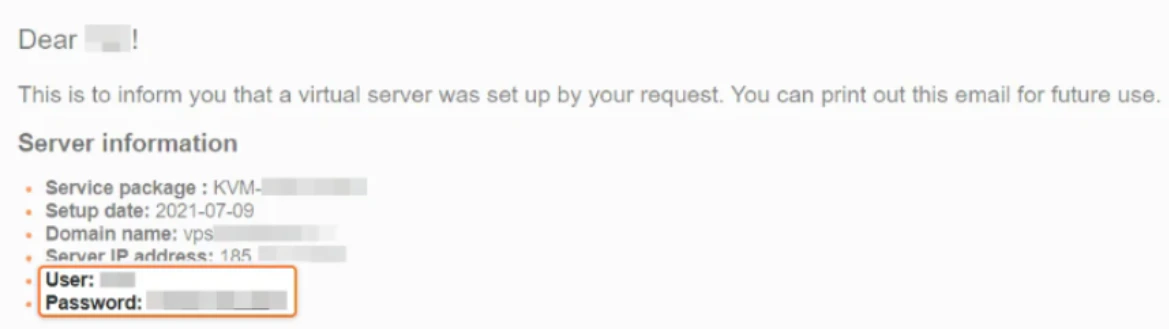
1. After activating your virtual server, you'll receive an email with connection instructions and login credentials. This information is also available in the control panel on the **Instructions** tab, where you'll find your **User** and **Password**.
<Frame>
  <img src="https://mintcdn.com/gcore/tjctxZLqa0HEGlqj/images/docs/hosting/virtual-servers/manage/connect/connect-to-a-virtual-server-via-vnc/connect-to-a-virtual-server-via-vnc-image1.png?fit=max&auto=format&n=tjctxZLqa0HEGlqj&q=85&s=51d5da8d91d4028a43466110e65336ee" alt="Instructions tab in the control panel" width="1024" height="270" data-path="images/docs/hosting/virtual-servers/manage/connect/connect-to-a-virtual-server-via-vnc/connect-to-a-virtual-server-via-vnc-image1.png" />
</Frame>

<Frame>
  <img src="https://mintcdn.com/gcore/tjctxZLqa0HEGlqj/images/docs/hosting/virtual-servers/manage/connect/connect-to-a-virtual-server-via-vnc/connect-to-a-virtual-server-via-vnc-image2.png?fit=max&auto=format&n=tjctxZLqa0HEGlqj&q=85&s=b9116c8bdc2c88ac46c96a88a32f5d61" alt="Instructions in the activation email" width="1169" height="329" data-path="images/docs/hosting/virtual-servers/manage/connect/connect-to-a-virtual-server-via-vnc/connect-to-a-virtual-server-via-vnc-image2.png" />
</Frame>

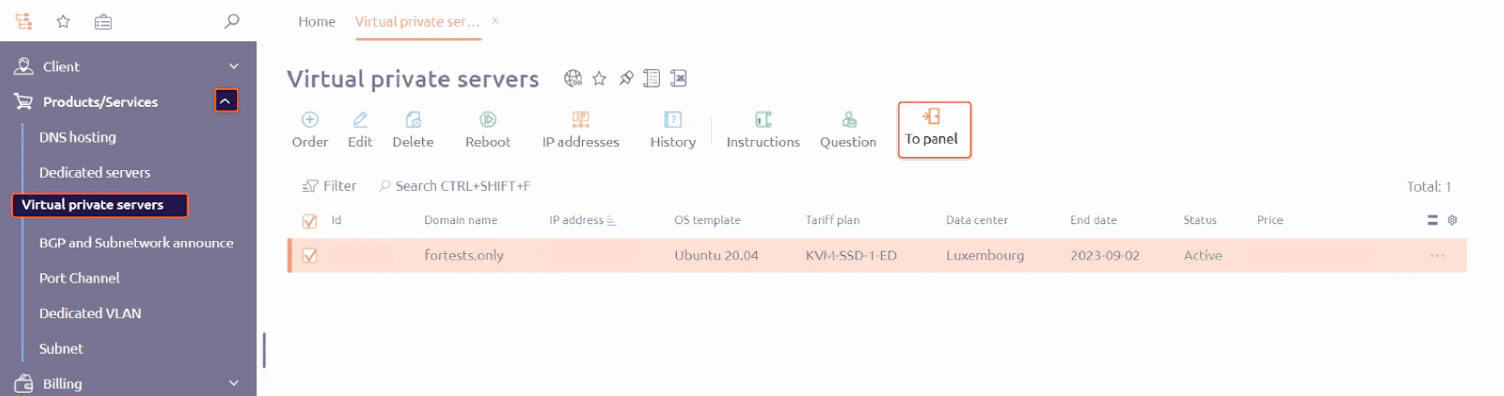
2. Open the control panel. Select **Products/Services**, click **Virtual private servers**, and then click **To Panel**.
<Frame>
  <img src="https://mintcdn.com/gcore/tjctxZLqa0HEGlqj/images/docs/hosting/virtual-servers/manage/connect/connect-to-a-virtual-server-via-vnc/connect-to-a-virtual-server-via-vnc-image3.png?fit=max&auto=format&n=tjctxZLqa0HEGlqj&q=85&s=e1e324e01b38cc0073208ff1eb151760" alt="To Panel button in the control panel" width="1504" height="396" data-path="images/docs/hosting/virtual-servers/manage/connect/connect-to-a-virtual-server-via-vnc/connect-to-a-virtual-server-via-vnc-image3.png" />
</Frame>

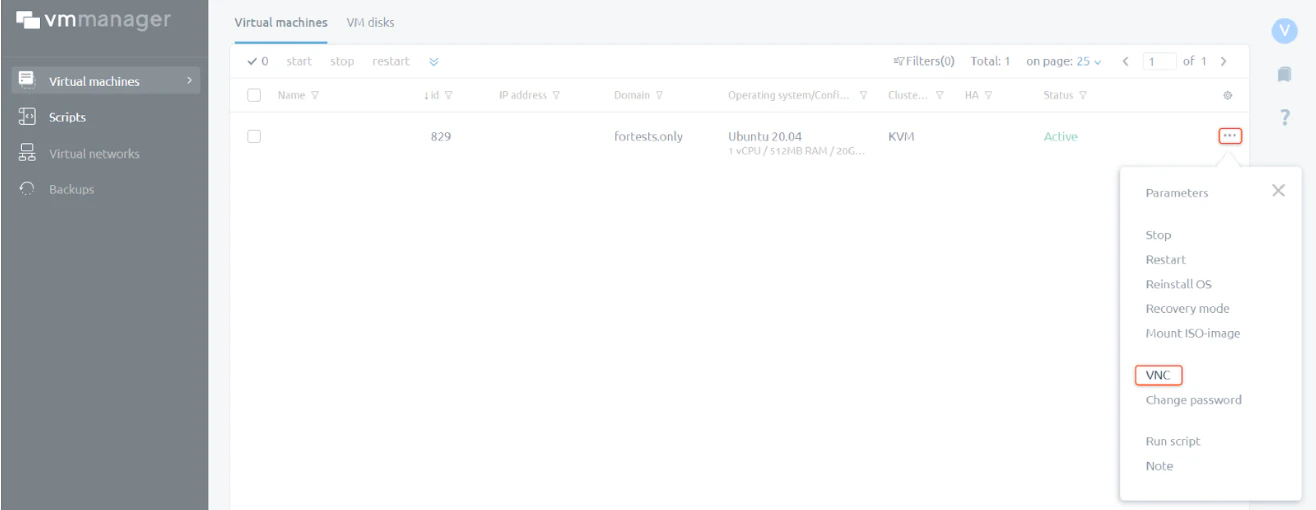
3. In the VMmanager panel, open the three-dot menu and click **VNC**.
<Frame>
  <img src="https://mintcdn.com/gcore/tjctxZLqa0HEGlqj/images/docs/hosting/virtual-servers/manage/connect/connect-to-a-virtual-server-via-vnc/connect-to-a-virtual-server-via-vnc-image4.png?fit=max&auto=format&n=tjctxZLqa0HEGlqj&q=85&s=9be896e0a934735a2a40d67a056d3627" alt="VNC option in VMmanager 6" width="1316" height="510" data-path="images/docs/hosting/virtual-servers/manage/connect/connect-to-a-virtual-server-via-vnc/connect-to-a-virtual-server-via-vnc-image4.png" />
</Frame>

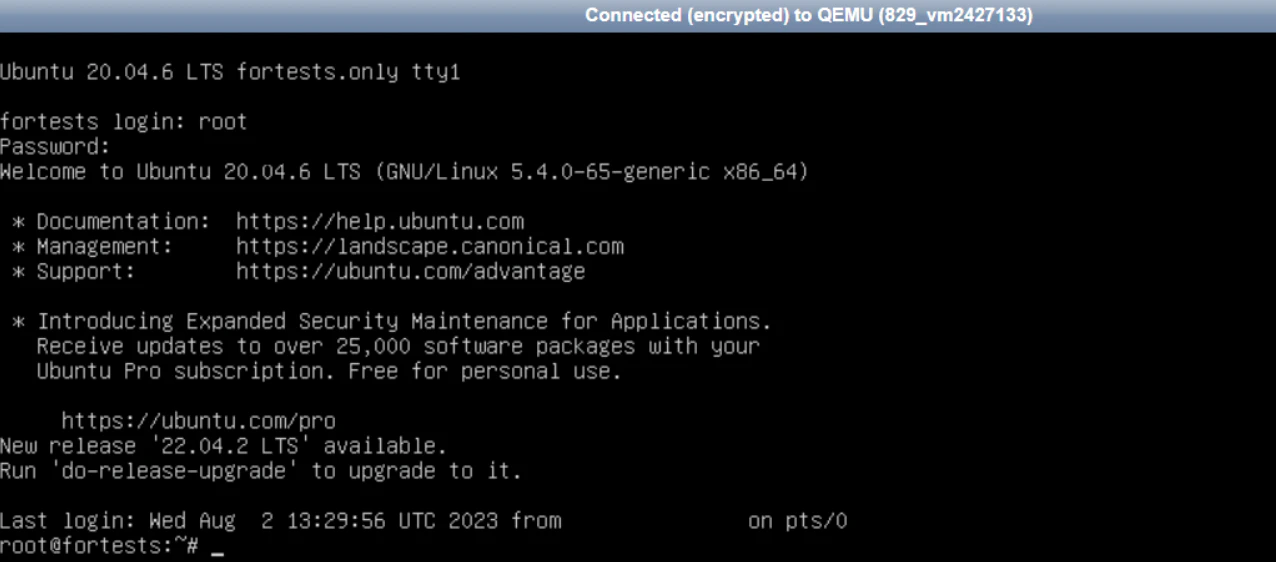
The VNC server management console will open. Enter the root login and password from your activation email or the **Instructions** tab.
<Frame>
  <img src="https://mintcdn.com/gcore/tjctxZLqa0HEGlqj/images/docs/hosting/virtual-servers/manage/connect/connect-to-a-virtual-server-via-vnc/connect-to-a-virtual-server-via-vnc-image5.png?fit=max&auto=format&n=tjctxZLqa0HEGlqj&q=85&s=c9175d1541e4318749cd992a113a6571" alt="VNC server management console" width="1276" height="562" data-path="images/docs/hosting/virtual-servers/manage/connect/connect-to-a-virtual-server-via-vnc/connect-to-a-virtual-server-via-vnc-image5.png" />
</Frame>

You've successfully connected to your server using VNC.
