> ## Documentation Index
> Fetch the complete documentation index at: https://gcore.com/docs/llms.txt
> Use this file to discover all available pages before exploring further.
# Change the port for SSH connections
Follow these instructions to modify the SSH port through which you connect to your Linux server.
1. Log in to your server.
2. Navigate to the SSH directory using the following command:
```sh theme={null}
cd /etc/ssh/
```
3. Open the SSH configuration file with root privileges using this command:
```sh theme={null}
sudo nano sshd_config
```
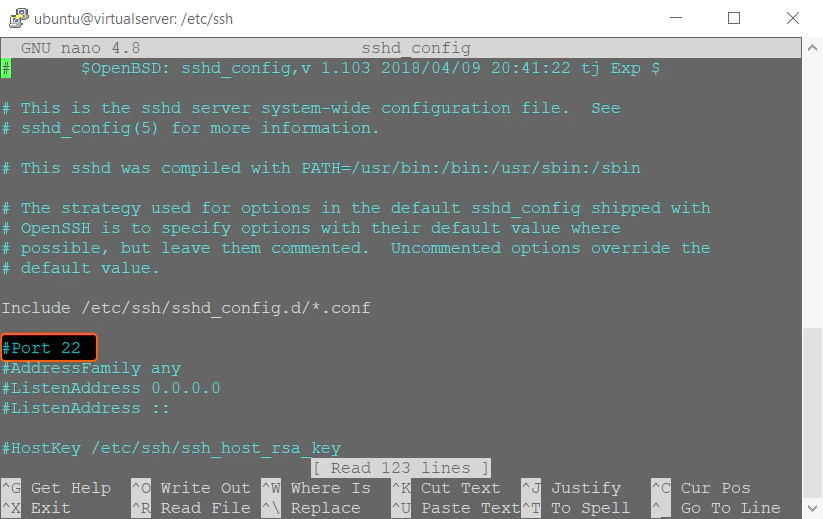
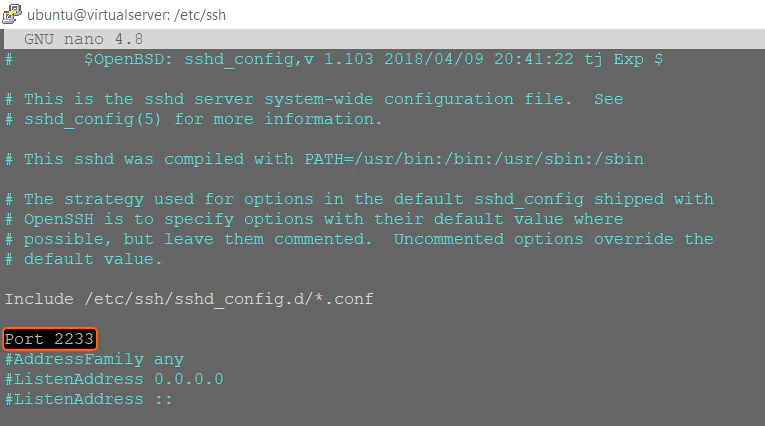
4. Find the **Port** line in the open file and replace the value 22 with the port number you want to use. Also, remove the **#** symbol if it is present before the **Port** line.
 5. Press **Ctrl+O** to save the changes.
6. Restart the SSH service. For Ubuntu, Debian, or CentOS, use the following command:
```sh theme={null}
sudo systemctl restart ssh
```
For FreeBSD, use:
```sh theme={null}
sudo service sshd restart
```
7. Add a rule to permit traffic exchange on the new port using the command:
```sh theme={null}
sudo ufw allow 2233
```
Replace "2233" with the chosen port.
8. Verify if everything is functioning properly by using the command:
```sh theme={null}
telnet 8.8.8.8 2233
```
Replace "8.8.8.8" with your server IP address, and "2233" with the chosen port.
The output should look like this:
5. Press **Ctrl+O** to save the changes.
6. Restart the SSH service. For Ubuntu, Debian, or CentOS, use the following command:
```sh theme={null}
sudo systemctl restart ssh
```
For FreeBSD, use:
```sh theme={null}
sudo service sshd restart
```
7. Add a rule to permit traffic exchange on the new port using the command:
```sh theme={null}
sudo ufw allow 2233
```
Replace "2233" with the chosen port.
8. Verify if everything is functioning properly by using the command:
```sh theme={null}
telnet 8.8.8.8 2233
```
Replace "8.8.8.8" with your server IP address, and "2233" with the chosen port.
The output should look like this:
 9. Attempt to establish a connection to your server using the new port in a separate window **without closing your current session**. This step is crucial to prevent any potential loss of access to your server. If you encounter difficulties connecting to your server through the new port, revert the port back to 22 and then try again.