> ## Documentation Index
> Fetch the complete documentation index at: https://gcore.com/docs/llms.txt
> Use this file to discover all available pages before exploring further.
# Managing buckets through the customer portal
## Create a bucket
1\. Navigate to the [Object Storage](https://portal.gcore.com/storage/storages/list) section. Click the relevant storage name.
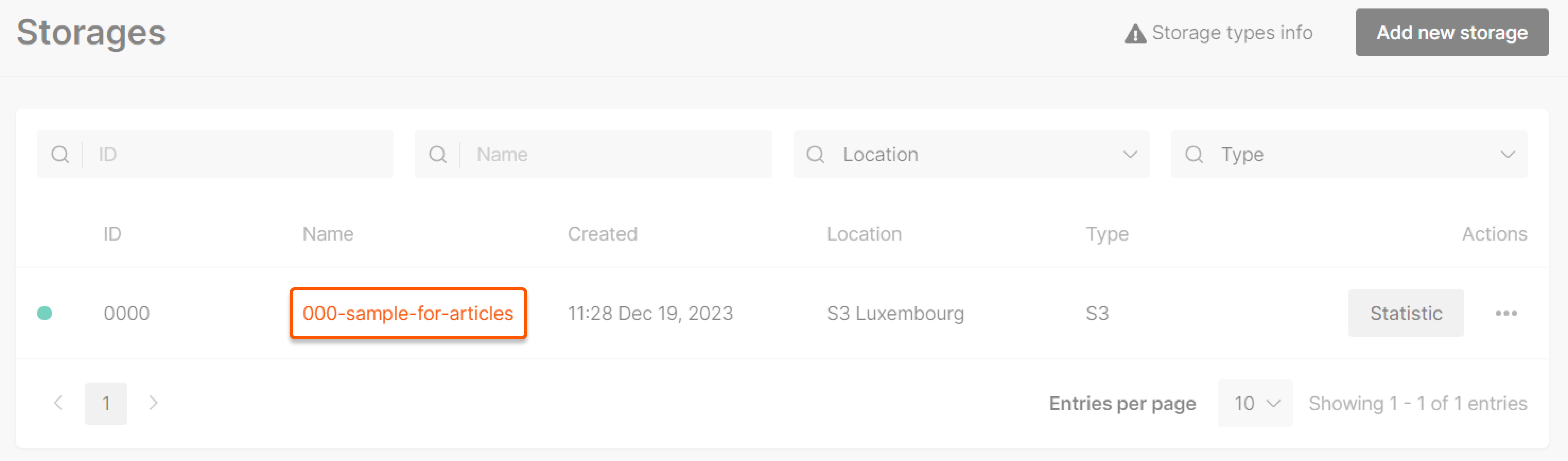 You can access the bucket interface by clicking the three dots on the right side and selecting **Buckets**.
2\. Click **Add new bucket**.
You can access the bucket interface by clicking the three dots on the right side and selecting **Buckets**.
2\. Click **Add new bucket**.
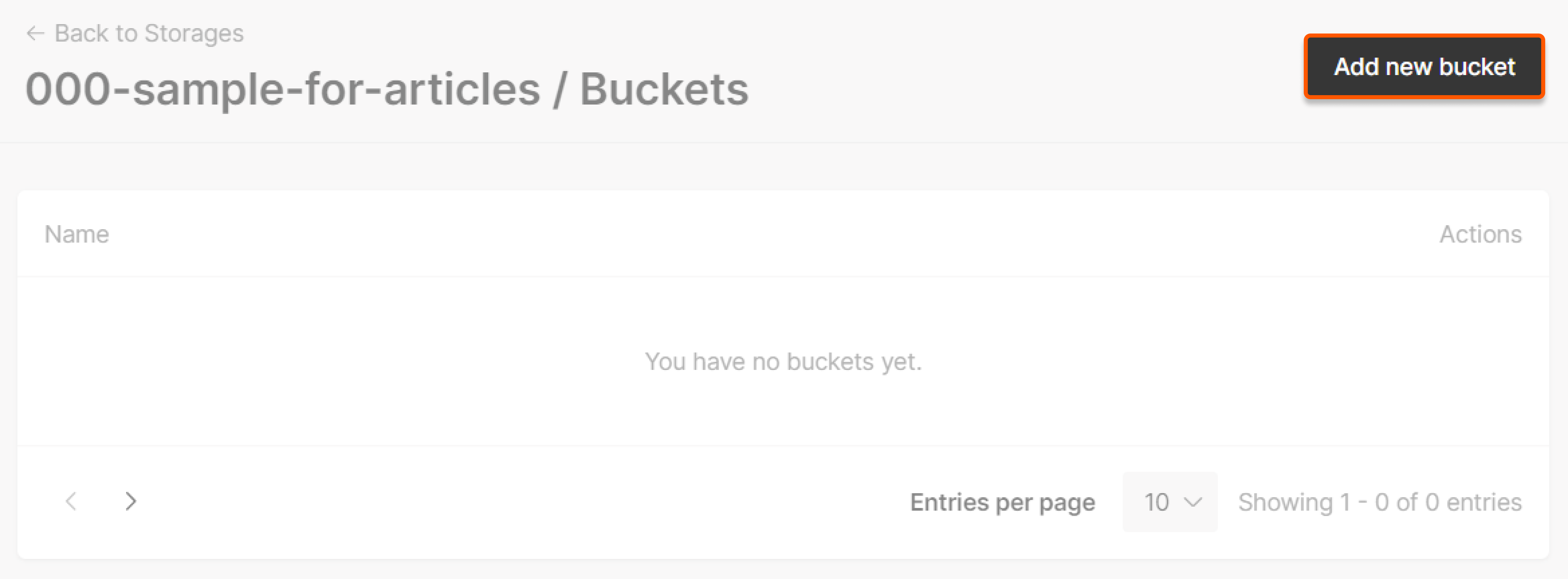 3\. A pop-up window will appear. Input a name for your bucket that meets the following criteria:
* Between 3 to 63 characters in length.
* Lowercase only.
* No underscores, trailing dashes, consecutive dots, or a mix of dots and dashes; they conflict with DNS notation rules.
* The bucket name must be unique within the entire Gcore Object Storage system, not just your account. If a name is already used, you'll receive a `This bucket name already exists. Please use a different name` error message.
Click **Create**.
**Important note** : Do not use sensitive information in the bucket name as it will be visible in the object's URL, potentially posing a security risk.
Once you've completed these steps, your bucket will be created and prepared for the following functions:
* [File management](/storage/manage-object-storage/manage-buckets-via-the-control-panel#file-manager) (includes uploading and other related tasks)
* [Providing HTTP access to all files within the bucket](/storage/manage-object-storage/manage-buckets-via-the-control-panel#configuring-http-access)
* [Setting a lifecycle policy](/storage/manage-object-storage/manage-buckets-via-the-control-panel#adding-lifecycle-policy-for-s3-in-luxembourg-only) (available only for the S3 Luxembourg location)
## File manager
### Access (Override CORS)
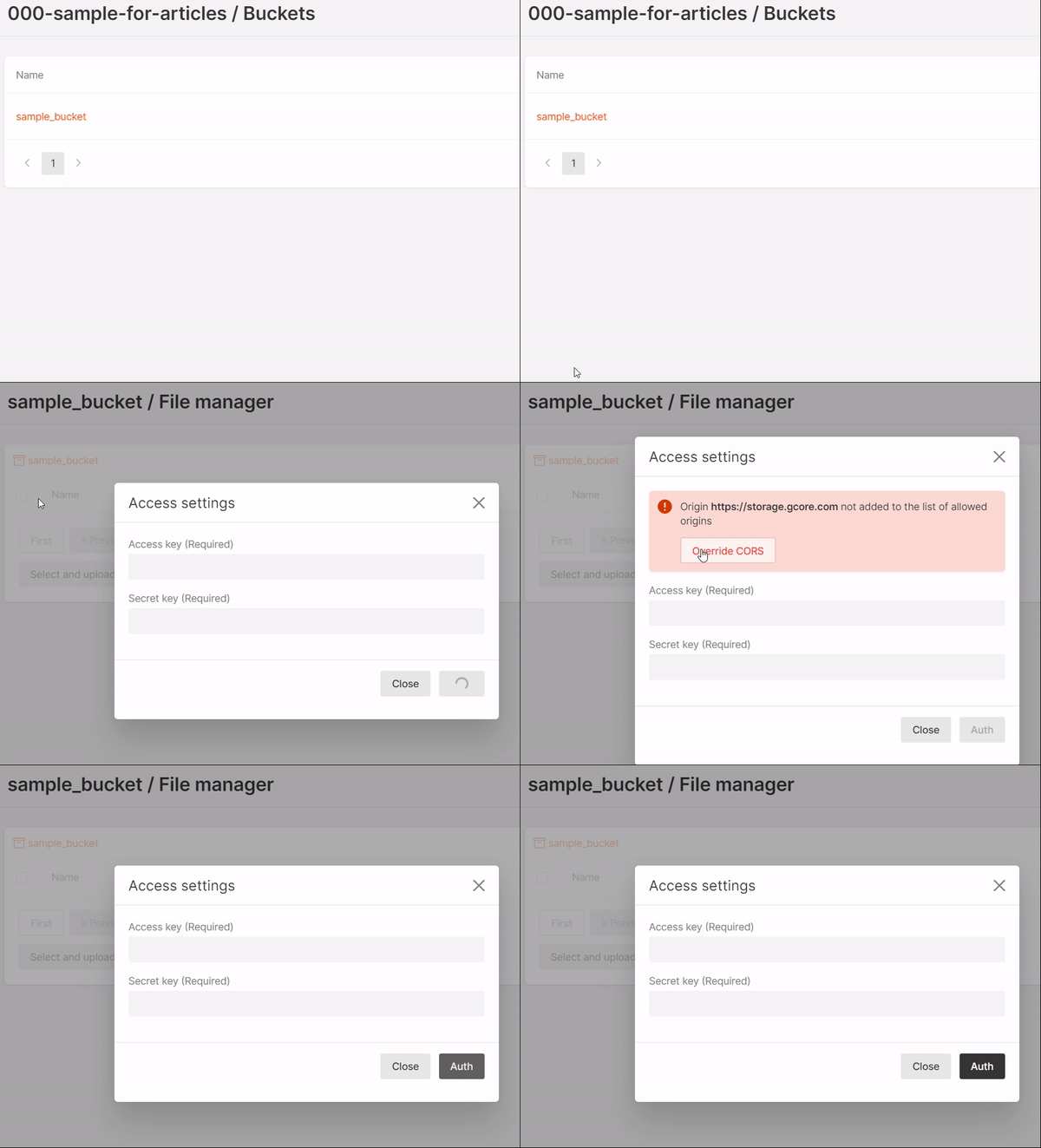
To access the file manager (Override CORS), you must add `https://storage.gcore.com` to your list of approved origins. This is a one-time action.
To access the file manager, click the bucket name you created. A pop-up will appear where you can select **Override CORS**.
**Note** : CORS must be set up individually for each bucket.
3\. A pop-up window will appear. Input a name for your bucket that meets the following criteria:
* Between 3 to 63 characters in length.
* Lowercase only.
* No underscores, trailing dashes, consecutive dots, or a mix of dots and dashes; they conflict with DNS notation rules.
* The bucket name must be unique within the entire Gcore Object Storage system, not just your account. If a name is already used, you'll receive a `This bucket name already exists. Please use a different name` error message.
Click **Create**.
**Important note** : Do not use sensitive information in the bucket name as it will be visible in the object's URL, potentially posing a security risk.
Once you've completed these steps, your bucket will be created and prepared for the following functions:
* [File management](/storage/manage-object-storage/manage-buckets-via-the-control-panel#file-manager) (includes uploading and other related tasks)
* [Providing HTTP access to all files within the bucket](/storage/manage-object-storage/manage-buckets-via-the-control-panel#configuring-http-access)
* [Setting a lifecycle policy](/storage/manage-object-storage/manage-buckets-via-the-control-panel#adding-lifecycle-policy-for-s3-in-luxembourg-only) (available only for the S3 Luxembourg location)
## File manager
### Access (Override CORS)
To access the file manager (Override CORS), you must add `https://storage.gcore.com` to your list of approved origins. This is a one-time action.
To access the file manager, click the bucket name you created. A pop-up will appear where you can select **Override CORS**.
**Note** : CORS must be set up individually for each bucket.
 You also have the option to set the CORS policy through the [API](/api-reference/storage/storage/create-s3-bucket-cors). This method allows you to override CORS for not just `https://storage.gcore.com` but also for other domains.
### Authorization
To authorize, click on the bucket name, enter the Access key and Secret key, then click **Auth**.
You also have the option to set the CORS policy through the [API](/api-reference/storage/storage/create-s3-bucket-cors). This method allows you to override CORS for not just `https://storage.gcore.com` but also for other domains.
### Authorization
To authorize, click on the bucket name, enter the Access key and Secret key, then click **Auth**.
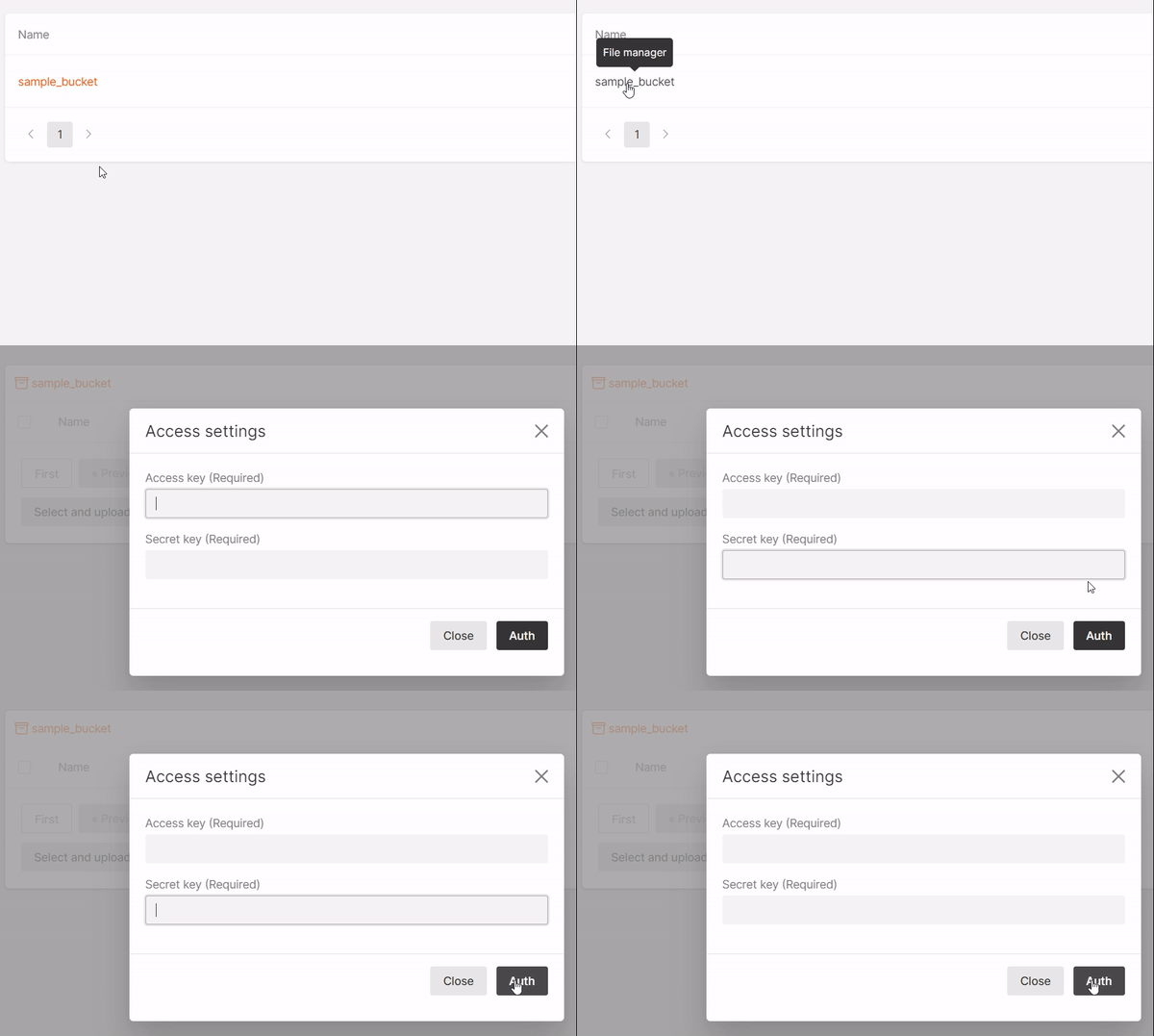 You can access the file manager by clicking the three dots on the right side and selecting **File manager**.
**Note** : If you have entered keys, they will be saved and will not need to be re-entered within the session. Keys will be requested for each new session.
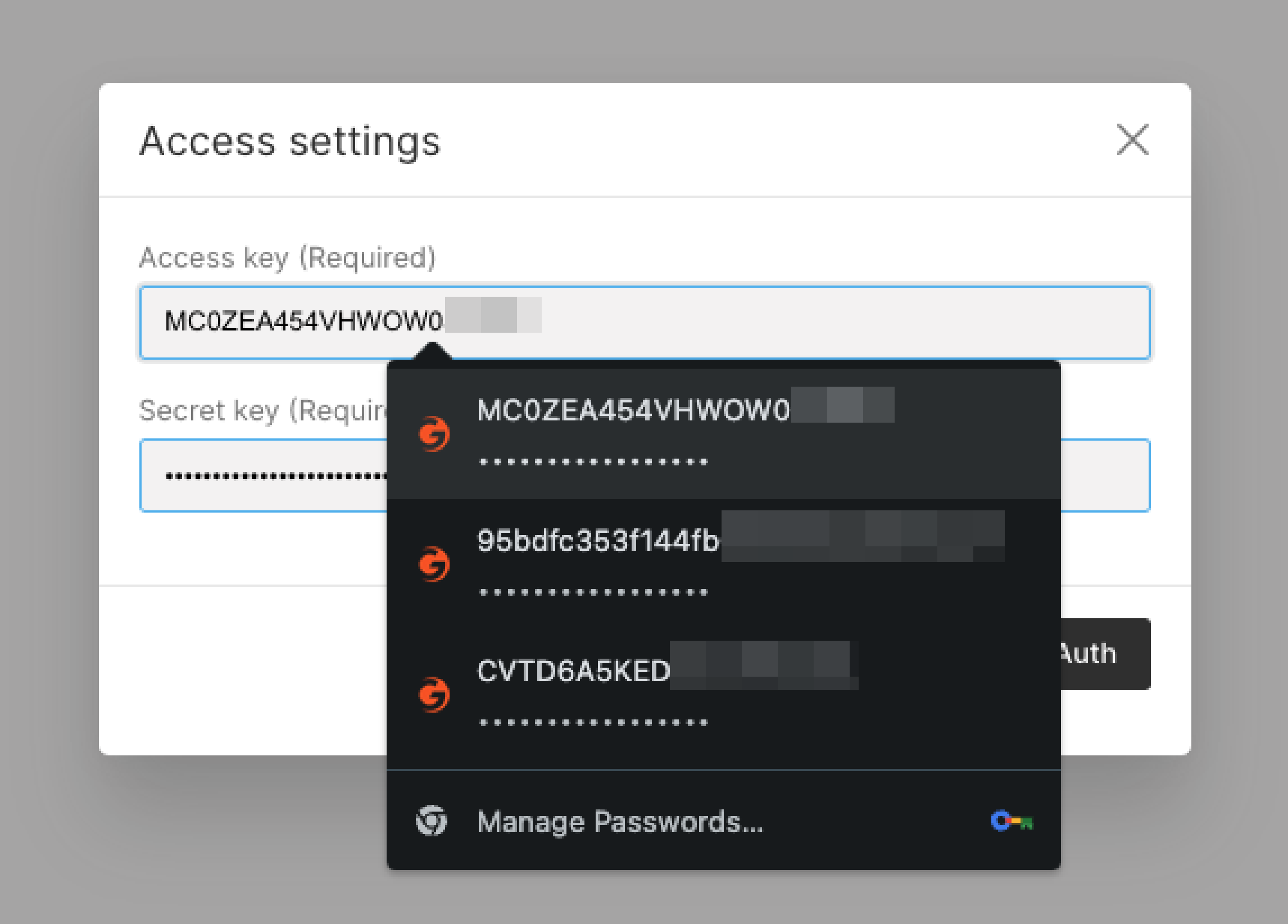
To avoid the need for manual input, save the Access key and Secret key with the browser functionality.
You can access the file manager by clicking the three dots on the right side and selecting **File manager**.
**Note** : If you have entered keys, they will be saved and will not need to be re-entered within the session. Keys will be requested for each new session.
To avoid the need for manual input, save the Access key and Secret key with the browser functionality.
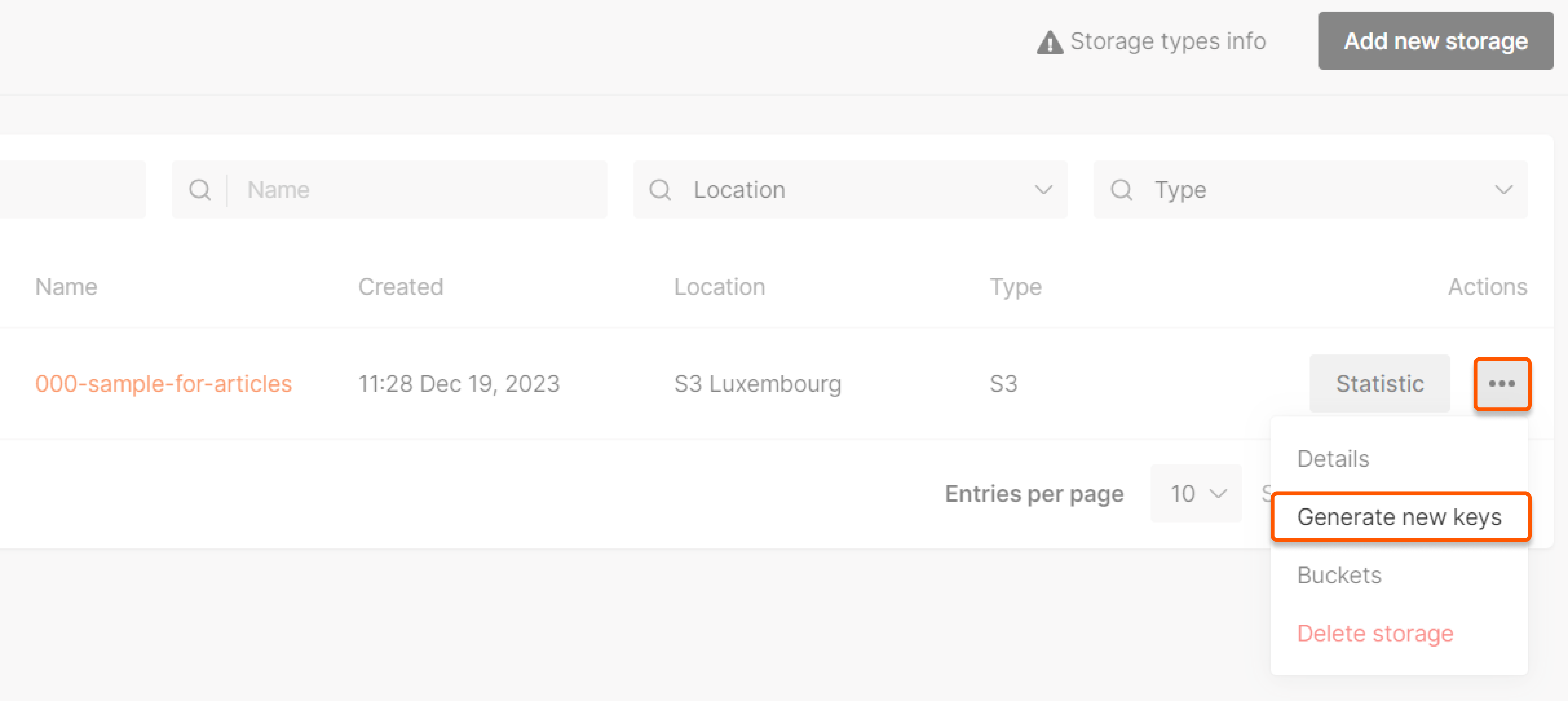
 The Access key and Secret key are generated during storage creation. We don't store them in our system for security and privacy reasons. If you've forgotten the values, click **Generate new keys** in the [Storages](https://portal.gcore.com/storage/storages/list) tab.
 ### Adding folders
Once you're [authorized in the file manager](/storage/manage-object-storage/manage-buckets-via-the-control-panel#authorization), click **Add folder**. Enter the desired name in the field provided and click **Create**.
### Adding folders
Once you're [authorized in the file manager](/storage/manage-object-storage/manage-buckets-via-the-control-panel#authorization), click **Add folder**. Enter the desired name in the field provided and click **Create**.
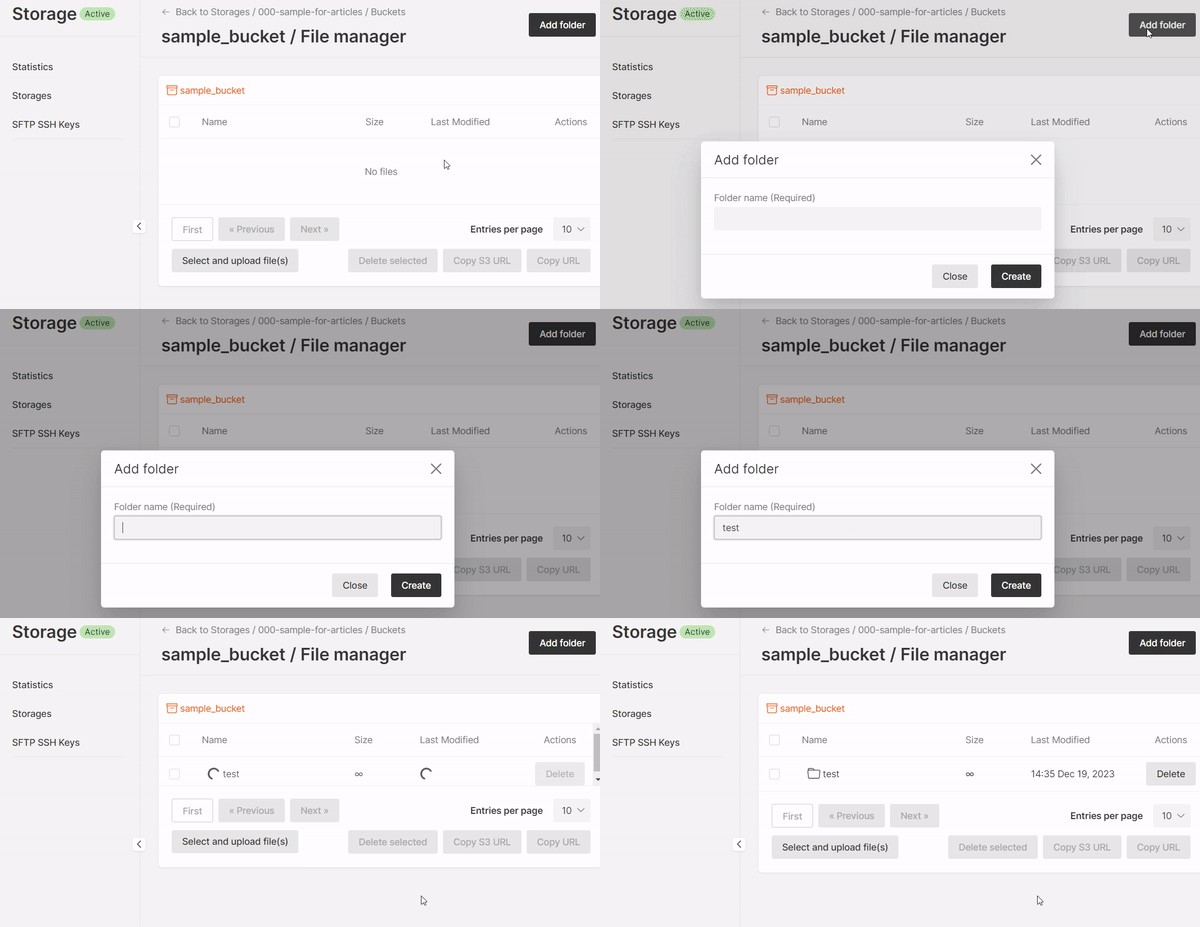 In the interface, you can view the last modification date. To open the folder, simply click its name.
### Uploading files
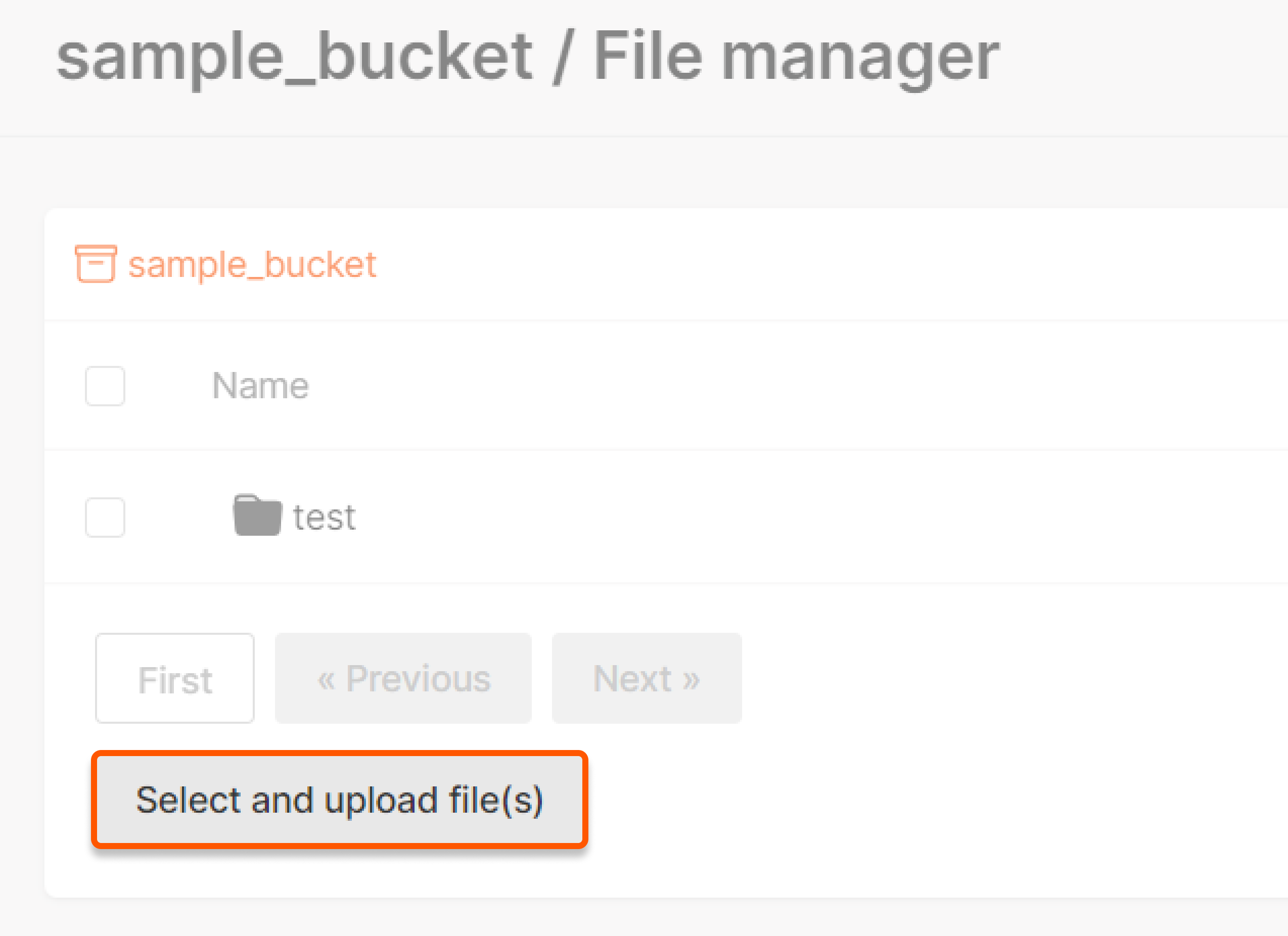
To upload files, [authorize access to your bucket](/storage/manage-object-storage/manage-buckets-via-the-control-panel#authorization) and click **Select and upload file(s)** either in the bucket root or within a specific folder. Then, follow the standard upload process.
In the interface, you can view the last modification date. To open the folder, simply click its name.
### Uploading files
To upload files, [authorize access to your bucket](/storage/manage-object-storage/manage-buckets-via-the-control-panel#authorization) and click **Select and upload file(s)** either in the bucket root or within a specific folder. Then, follow the standard upload process.
 ### Deleting folders and files
To delete folders or files, [authorize access to your bucket](/storage/manage-object-storage/manage-buckets-via-the-control-panel#authorization) and click **Delete** next to the desired object. Alternatively, select the checkboxes next to the object names and click **Delete selected**.
### Deleting folders and files
To delete folders or files, [authorize access to your bucket](/storage/manage-object-storage/manage-buckets-via-the-control-panel#authorization) and click **Delete** next to the desired object. Alternatively, select the checkboxes next to the object names and click **Delete selected**.
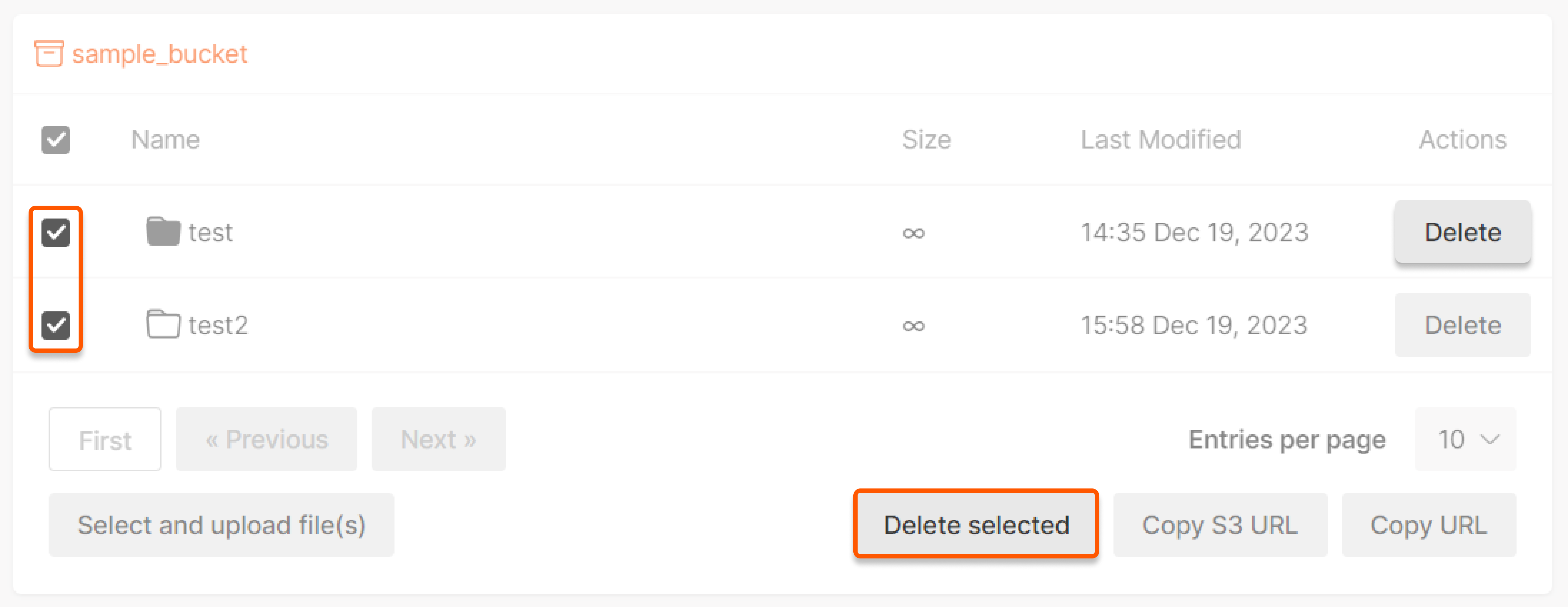 **Note** : Deleting a folder will also delete any nested files within it.
### Copying URL or object storage URL
To copy the links of certain files, [authorize access to your bucket](/storage/manage-object-storage/manage-buckets-via-the-control-panel#authorization), select objects and click the relevant buttons: **Copy S3 URL** or **Copy URL**.
**Note** : Deleting a folder will also delete any nested files within it.
### Copying URL or object storage URL
To copy the links of certain files, [authorize access to your bucket](/storage/manage-object-storage/manage-buckets-via-the-control-panel#authorization), select objects and click the relevant buttons: **Copy S3 URL** or **Copy URL**.
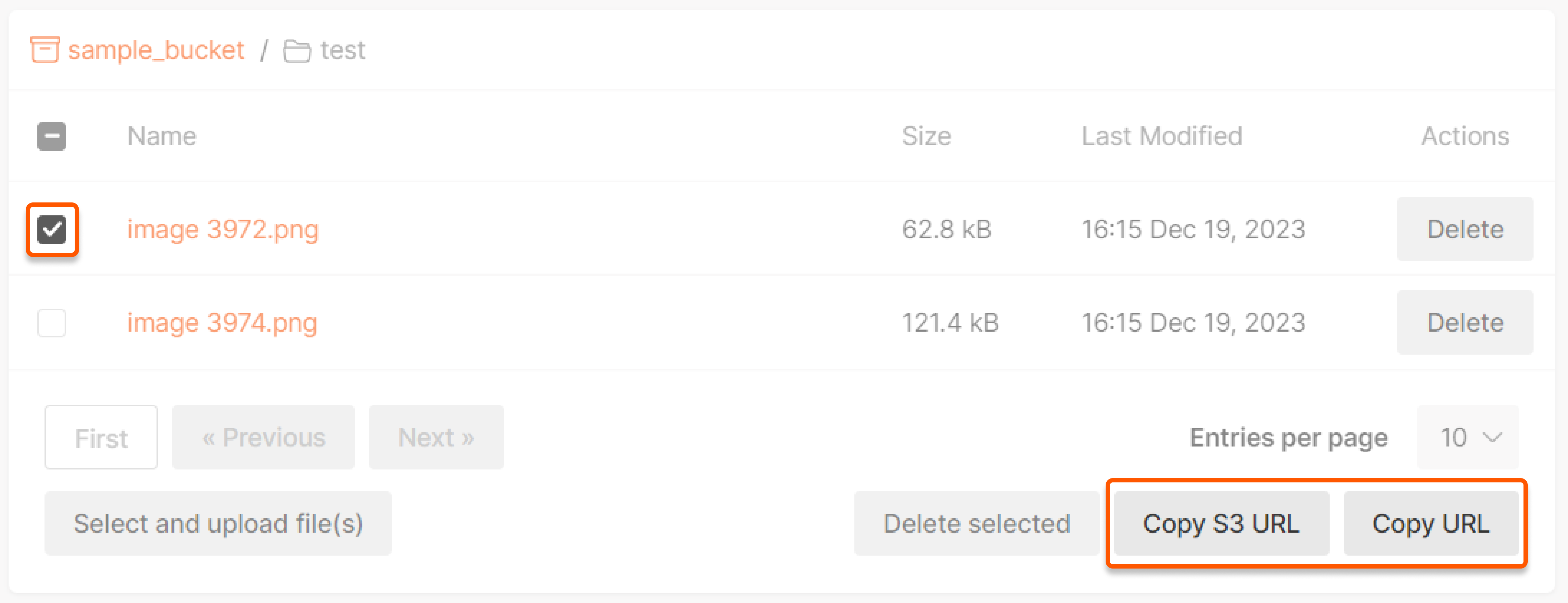 For instance, the links for the file `image 3972.png` will look like this:
* `s3://s-ed1.cloud.gcore.lu/000-sample-for-articles/test/image%3972.png`
* `https://s-ed1.cloud.gcore.lu/000-sample-for-articles/test/image%3972.png`
**Note** : If you haven't enabled [HTTP access to all files](/storage/manage-object-storage/manage-buckets-via-the-control-panel#configuring-http-access), you'll encounter a 403 error when opening the file.
## Managing access
If you wish to use [Gcore Object Storage as the origin for a CDN resource](/storage/use-storage-as-the-origin-for-your-cdn-resource) or to make files accessible via an Object Storage URL, you must allow public (HTTP) access to your bucket. To do this, go to the bucket interface, click on the three dots on the right, and click **Public access to all files**. Then, click **Apply** in the pop-up window.
For instance, the links for the file `image 3972.png` will look like this:
* `s3://s-ed1.cloud.gcore.lu/000-sample-for-articles/test/image%3972.png`
* `https://s-ed1.cloud.gcore.lu/000-sample-for-articles/test/image%3972.png`
**Note** : If you haven't enabled [HTTP access to all files](/storage/manage-object-storage/manage-buckets-via-the-control-panel#configuring-http-access), you'll encounter a 403 error when opening the file.
## Managing access
If you wish to use [Gcore Object Storage as the origin for a CDN resource](/storage/use-storage-as-the-origin-for-your-cdn-resource) or to make files accessible via an Object Storage URL, you must allow public (HTTP) access to your bucket. To do this, go to the bucket interface, click on the three dots on the right, and click **Public access to all files**. Then, click **Apply** in the pop-up window.
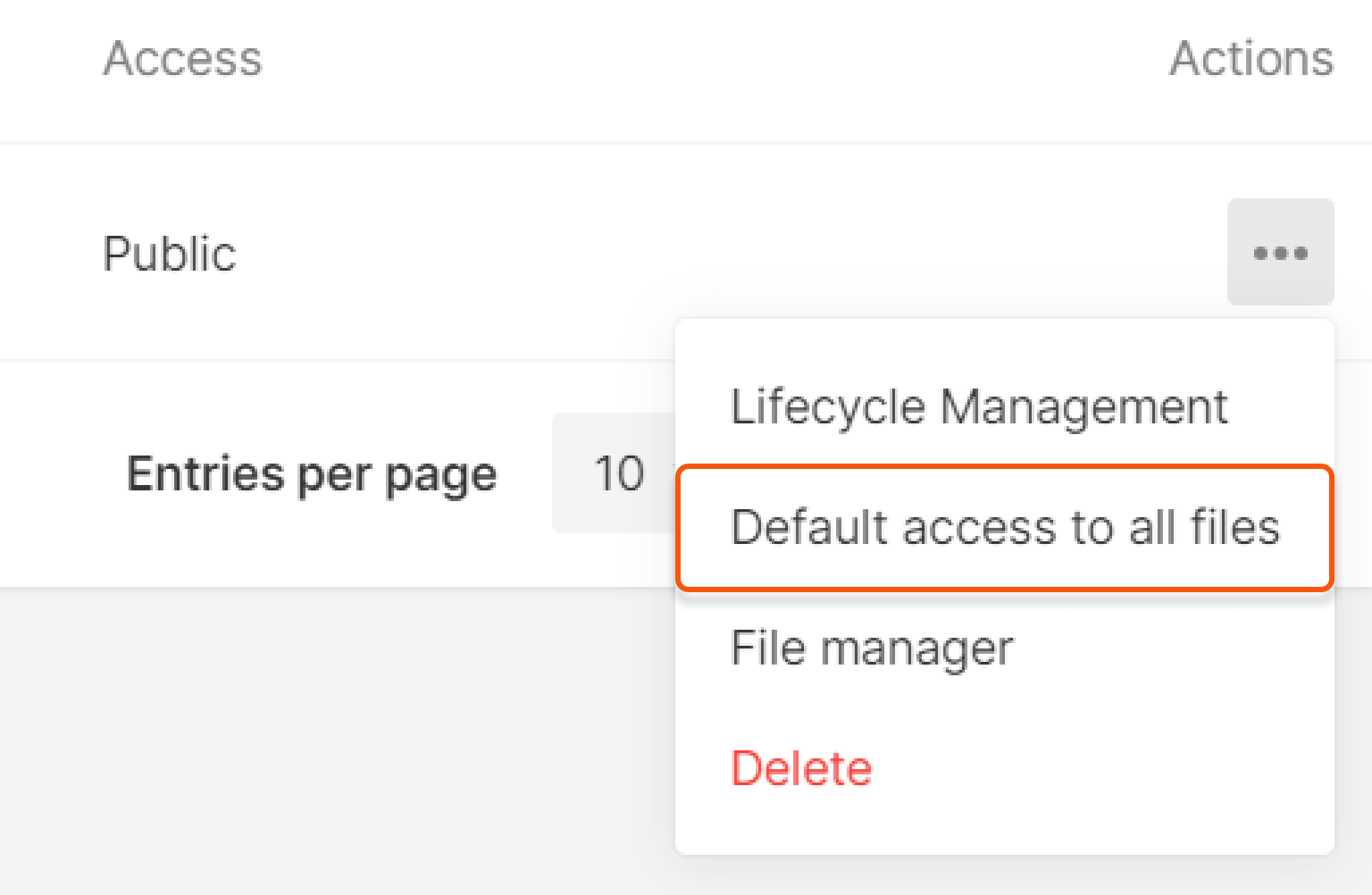
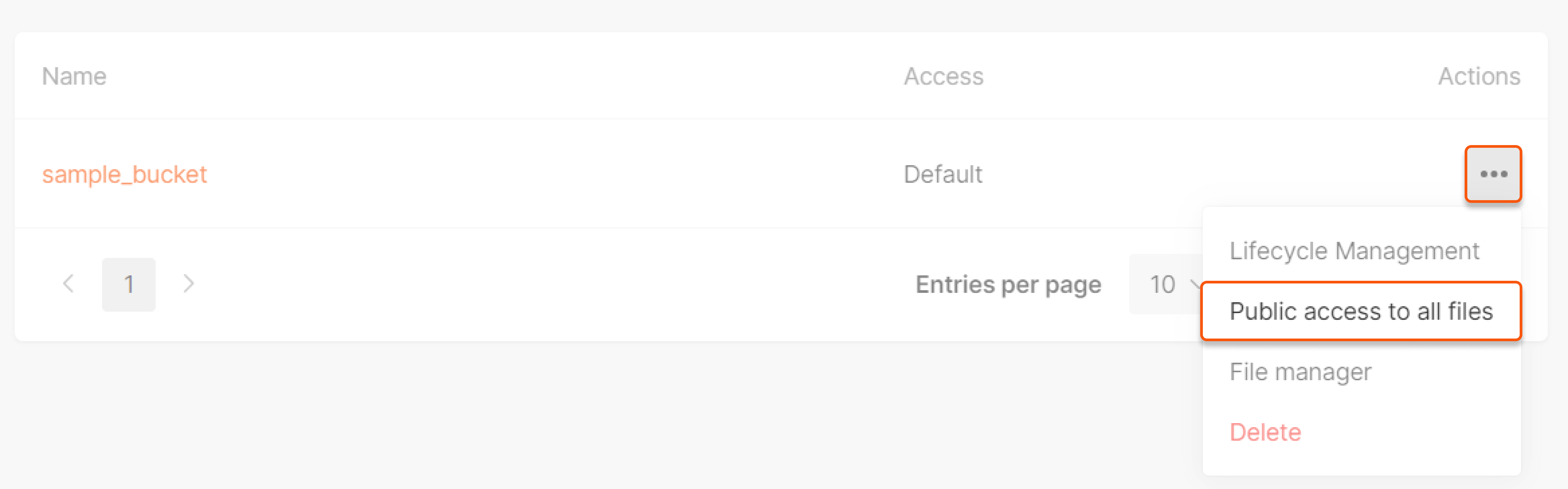 if you want to make objects unavailable via HTTP, meaning make them private, repeat the steps from the instructions above, go to the bucket interface, click on the three dots on the right, and click **Default access to all files**.
 ## Adding lifecycle policy (for S3 in Luxembourg only)
To add a lifecycle policy, navigate to the bucket interface, click the three dots to the right, and select **Lifecycle management**. Set how long files should be retained in your bucket before deletion and click **Save changes**.
## Adding lifecycle policy (for S3 in Luxembourg only)
To add a lifecycle policy, navigate to the bucket interface, click the three dots to the right, and select **Lifecycle management**. Set how long files should be retained in your bucket before deletion and click **Save changes**.
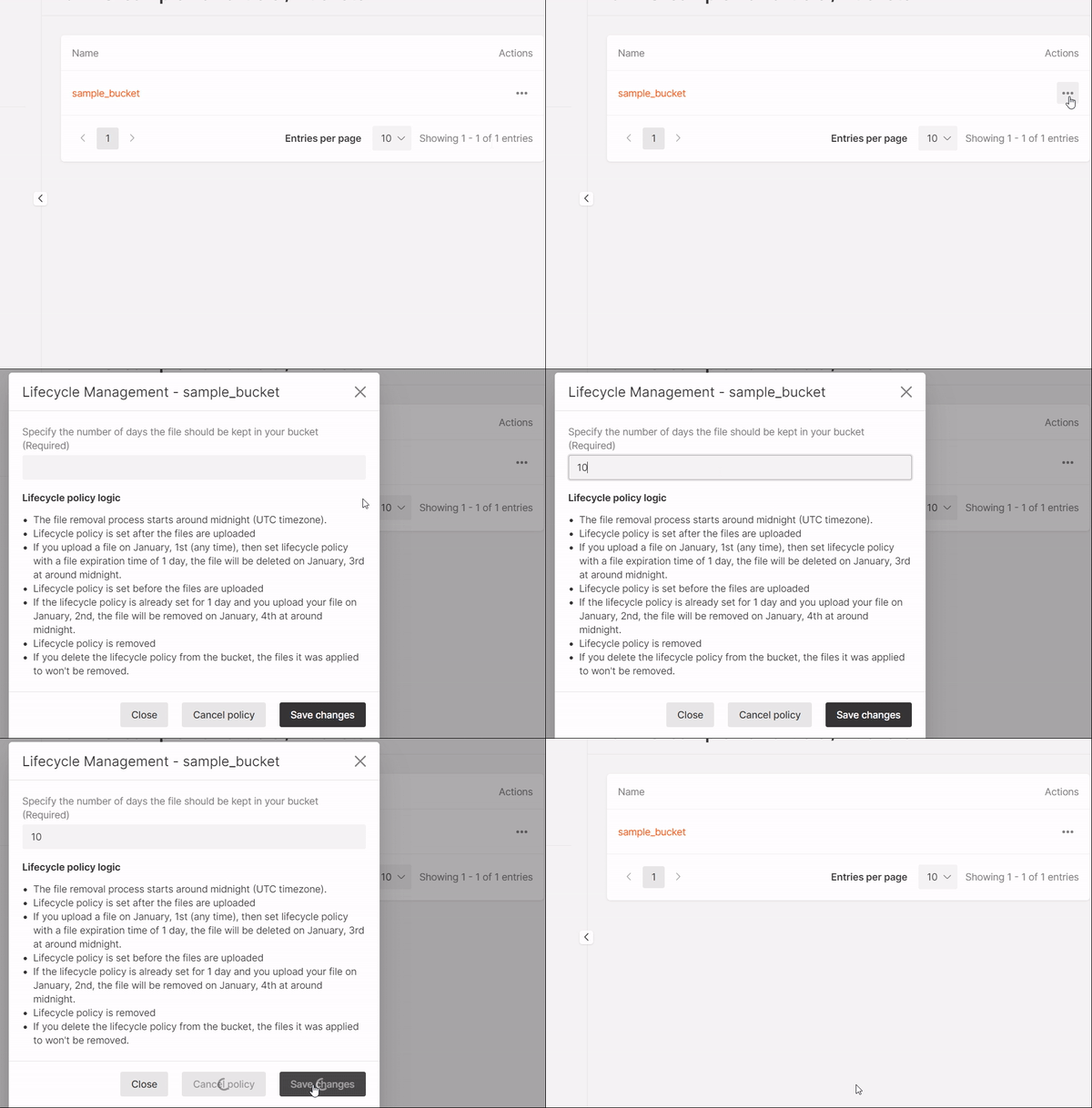 If you don't want any expiry time, click **Cancel policy**.
You can still set a lifecycle policy if your storage is outside the S3 Luxembourg location by using the AWS CLI tool, as outlined in the [separate guide](/storage/manage-object-storage/configure-aws-sli-s3cmd-and-aws-javascript-sdk/remove-objects-from-a-bucket-automatically-with-aws-cli).
If you don't want any expiry time, click **Cancel policy**.
You can still set a lifecycle policy if your storage is outside the S3 Luxembourg location by using the AWS CLI tool, as outlined in the [separate guide](/storage/manage-object-storage/configure-aws-sli-s3cmd-and-aws-javascript-sdk/remove-objects-from-a-bucket-automatically-with-aws-cli).