> ## Documentation Index
> Fetch the complete documentation index at: https://gcore.com/docs/llms.txt
> Use this file to discover all available pages before exploring further.
# Connect to your storage with FileZilla
## Install FileZilla
You can use bash to connect to the SFTP storage. In the example, we use the FTP client FileZilla.
To download and install FileZilla, use [this link](https://filezilla-project.org).
## Configure connection
Start by opening up Site Manager:
 In an open window, click on the **New Site** button:
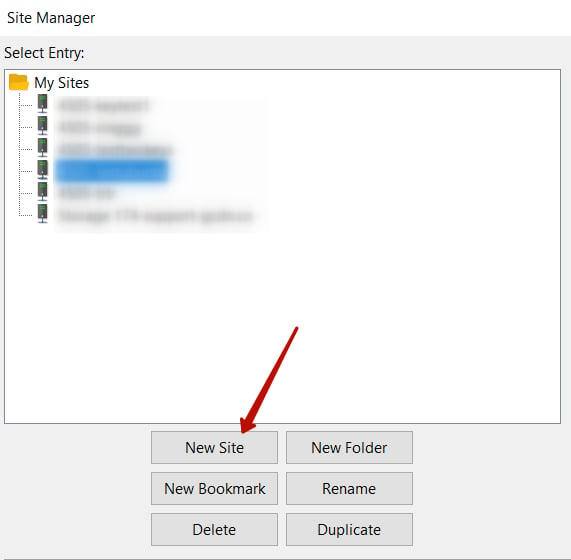 Give it a name and navigate to the General tab on the right.
### Connect with a password
Choose SFTP - SSH File Transfer Protocol in the "Protocol" field drop-down menu.
Put the **Hostname** from the Control Panel in the "Host" field, and specify port **2200**.
Logon Type should be Ask for password.
The user is your storage name.
Click **OK** to save the changes and Connect to establish a connection to the storage.
### Connect with an SSH key
Choose SFTP - SSH File Transfer Protocol in the Protocol field drop-down menu.
In the "Host" field put the Hostname from the Control Panel, specify port 2200.
Logon Type should be Key file.
User is your storage name.
For the Key file specify the path to the private key on your computer.
Click **OK** to save the changes and Connect to establish a connection to the storage.
Give it a name and navigate to the General tab on the right.
### Connect with a password
Choose SFTP - SSH File Transfer Protocol in the "Protocol" field drop-down menu.
Put the **Hostname** from the Control Panel in the "Host" field, and specify port **2200**.
Logon Type should be Ask for password.
The user is your storage name.
Click **OK** to save the changes and Connect to establish a connection to the storage.
### Connect with an SSH key
Choose SFTP - SSH File Transfer Protocol in the Protocol field drop-down menu.
In the "Host" field put the Hostname from the Control Panel, specify port 2200.
Logon Type should be Key file.
User is your storage name.
For the Key file specify the path to the private key on your computer.
Click **OK** to save the changes and Connect to establish a connection to the storage.