> ## Documentation Index
> Fetch the complete documentation index at: https://gcore.com/docs/llms.txt
> Use this file to discover all available pages before exploring further.

# Storage as a CDN origin

Object Storage and SFTP Storage can serve as origins for Gcore CDN resources, delivering content from storage through the CDN network.

## CDN origin configuration

Both storage types connect as CDN origins through the same resource creation wizard, with origin configuration varying by storage type.

### Object Storage

Two connection modes are available depending on whether the bucket is public or requires authentication.

<Steps>
  <Step title="Open CDN resources">
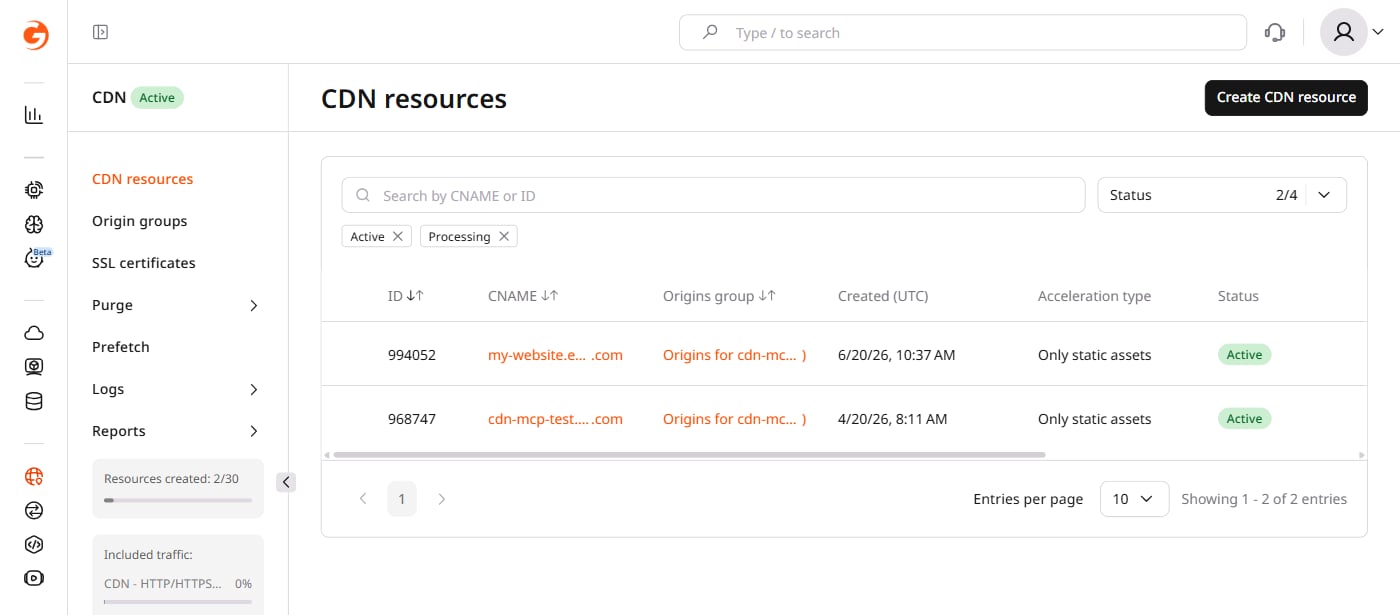
    <p>Navigate to the [CDN](https://portal.gcore.com/cdn/resources/list) section and click **Create CDN resource**.</p>

    <Frame>
      <img src="https://mintcdn.com/gcore/_RFgZ3V_-VPoixW6/images/docs/storage/use-storage-as-the-origin-for-your-cdn-resource/create-cdn-resource-10.png?fit=max&auto=format&n=_RFgZ3V_-VPoixW6&q=85&s=f5ff01661ddad107a6dfd202474cade8" alt="CDN resources list with the Create CDN resource button" width="1400" height="615" data-path="images/docs/storage/use-storage-as-the-origin-for-your-cdn-resource/create-cdn-resource-10.png" />
    </Frame>
  </Step>

  <Step title="Configure the origin source">
    <p>In the **Origin** section, **Specify content origin** is selected by default. Choose a connection type based on bucket visibility:</p>

    * **Public bucket** (anonymous access allowed): In the **URL** tab, enter the bucket hostname in the **Origin source** field: `<bucket-name>.<location>.cloud.gcore.lu`.
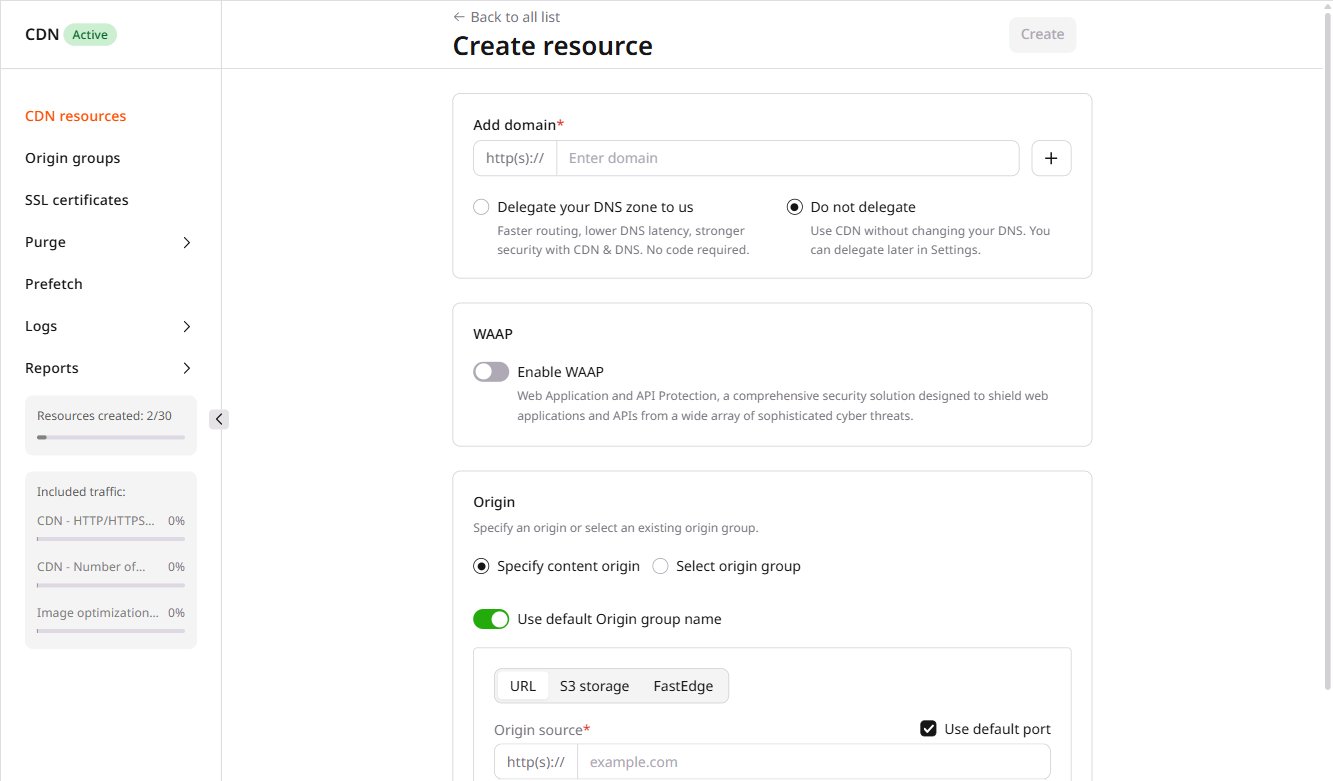
      * **Private bucket** (authentication required): Select the **S3 storage** tab and enter the **Access Key ID**, **Secret access key**, **AWS region**, and **Bucket name**. Credentials are available in **Object Storage** > **Object Storages** > three-dot menu > **Details**.

    <Frame>
      <img src="https://mintcdn.com/gcore/_RFgZ3V_-VPoixW6/images/docs/storage/use-storage-as-the-origin-for-your-cdn-resource/image3527.png?fit=max&auto=format&n=_RFgZ3V_-VPoixW6&q=85&s=681cde1d6f6a3236dfb5e818179a9f93" alt="CDN resource creation form with URL tab and Origin source field" width="1333" height="781" data-path="images/docs/storage/use-storage-as-the-origin-for-your-cdn-resource/image3527.png" />
    </Frame>
  </Step>

  <Step title="(Optional) Add a custom domain">
    <p>Specify a custom domain — the [setup guide](/cdn/cdn-resource-options/general/create-and-set-a-custom-domain-for-the-content-delivery-via-cdn) covers required DNS changes.</p>
  </Step>
</Steps>

### SFTP Storage

SFTP Storage connects as a CDN origin using a URL-based hostname, without bucket authentication options.

<Steps>
  <Step title="Open CDN resources">
    <p>Navigate to CDN resources and click **Create CDN resource**.</p>

    <Frame>
      <img src="https://mintcdn.com/gcore/_RFgZ3V_-VPoixW6/images/docs/storage/use-storage-as-the-origin-for-your-cdn-resource/create-cdn-resource-10.png?fit=max&auto=format&n=_RFgZ3V_-VPoixW6&q=85&s=f5ff01661ddad107a6dfd202474cade8" alt="CDN resources list with the Create CDN resource button" width="1400" height="615" data-path="images/docs/storage/use-storage-as-the-origin-for-your-cdn-resource/create-cdn-resource-10.png" />
    </Frame>
  </Step>

  <Step title="Configure the origin source">
    <p>In the **Origin** section, select the **URL** tab and enter the origin source in the **Origin source** field using the format `<storage-name>.<hostname>`.</p>

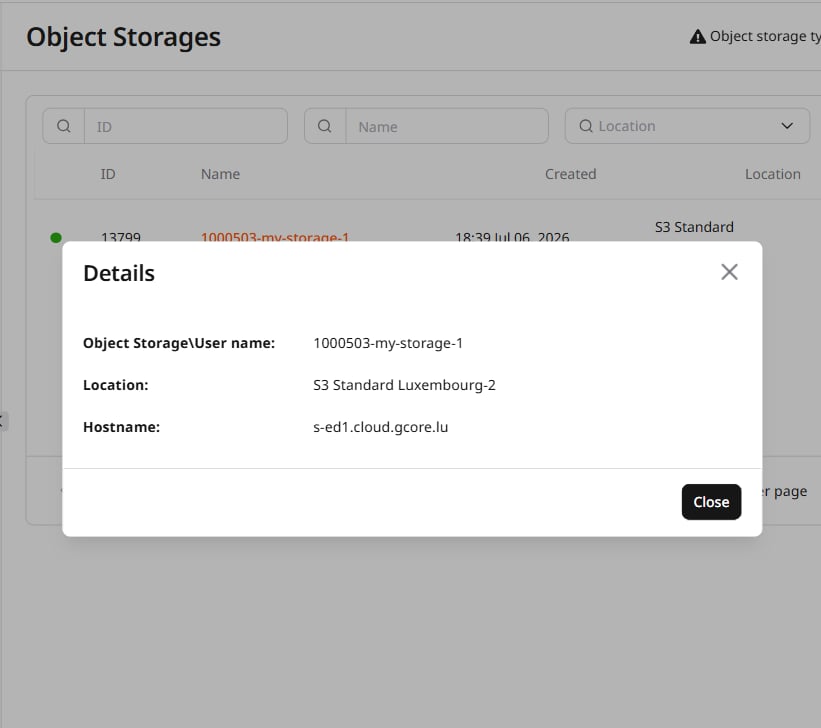
    <p>The storage name and hostname are available in **Object Storage** > **Object Storages** — open the three-dot actions menu for the storage and select **Details**.</p>

    <Frame>
      <img src="https://mintcdn.com/gcore/_RFgZ3V_-VPoixW6/images/docs/storage/use-storage-as-the-origin-for-your-cdn-resource/use-sftp-as-origin-40.png?fit=max&auto=format&n=_RFgZ3V_-VPoixW6&q=85&s=2b67f41819522ed22010fe22ed34766c" alt="Storage details panel showing the storage name and hostname fields" width="821" height="728" data-path="images/docs/storage/use-storage-as-the-origin-for-your-cdn-resource/use-sftp-as-origin-40.png" />
    </Frame>

    <p>If the storage name is `12345-test` and the hostname is `ams.origin.gcdn.co`, enter `12345-test.ams.origin.gcdn.co` in the **Origin source** field.</p>
  </Step>

  <Step title="(Optional) Add a custom domain">
    <p>Specify a custom domain — the setup guide covers required DNS changes.</p>
  </Step>
</Steps>

## CDN request URLs

URL patterns differ by origin type.

### Object Storage origin

The addressing scheme `<bucket-name>.<location>.cloud.gcore.lu` hides the storage hostname from CDN requests, keeping the origin private.

Use the following format to request files through CDN:

`http(s)://<custom-domain>/<folder>/<file>`

If files are in the bucket root rather than a subfolder, omit `<folder>` from the URL.

Given a bucket `mybucket` at `s-ed1.cloud.gcore.lu` and a CDN resource with custom domain `cdn.example.com`, request `picture.png` using:

`http://cdn.example.com/picture.png`

<Note>
  By default, buckets and all stored files are private. To make files public, configure [ACL rules](/storage/manage-object-storage/configure-aws-sli-s3cmd-and-aws-javascript-sdk/configure-access-control-on-s3-storage-with-aws-cli-and-s3cmd) using AWS CLI or S3cmd, or follow the [Amazon ACL](https://docs.aws.amazon.com/AmazonS3/latest/dev/acl-overview.html#canned-acl) documentation.
</Note>

### SFTP Storage origin

Upload files to the `htdocs` directory in the SFTP storage. When requesting content through CDN, omit the directory from the URL.

Path to a file in the storage:

`sftp://12345-test@ams.origin.gcdn.co:2200/export/home/12345-test/htdocs/picture.png`

If the CDN custom domain is `cdn.example.com`, the request URL is:

`http://cdn.example.com/picture.png`