> ## Documentation Index
> Fetch the complete documentation index at: https://gcore.com/docs/llms.txt
> Use this file to discover all available pages before exploring further.
# Hard nudity detection
The hard nudity content moderation task detects explicit nudity of the human body (involving genitals) in a video. This method is often used to detect whether videos can be published to all users, or the publication should be prohibited due to offensive and inappropriate content.
This task detects fewer objects than soft-nudity detection. Hard nudity detection works faster and better when you only need to detect exposed body parts. For a full list of objects that can be detected with the soft nudity check, read our [API documentation](/api-reference/streaming/ai/create-ai-cm:hard_nudity-task).
If hard nudity content is detected, the AI model will provide its confidence level (in percentage) of how sure it is that the content is hard nudity.
To run the Hard nudity detection check:
1\. In the Gcore Customer Portal, navigate to **Streaming** > **AI**. The **AI tasks** page will open.
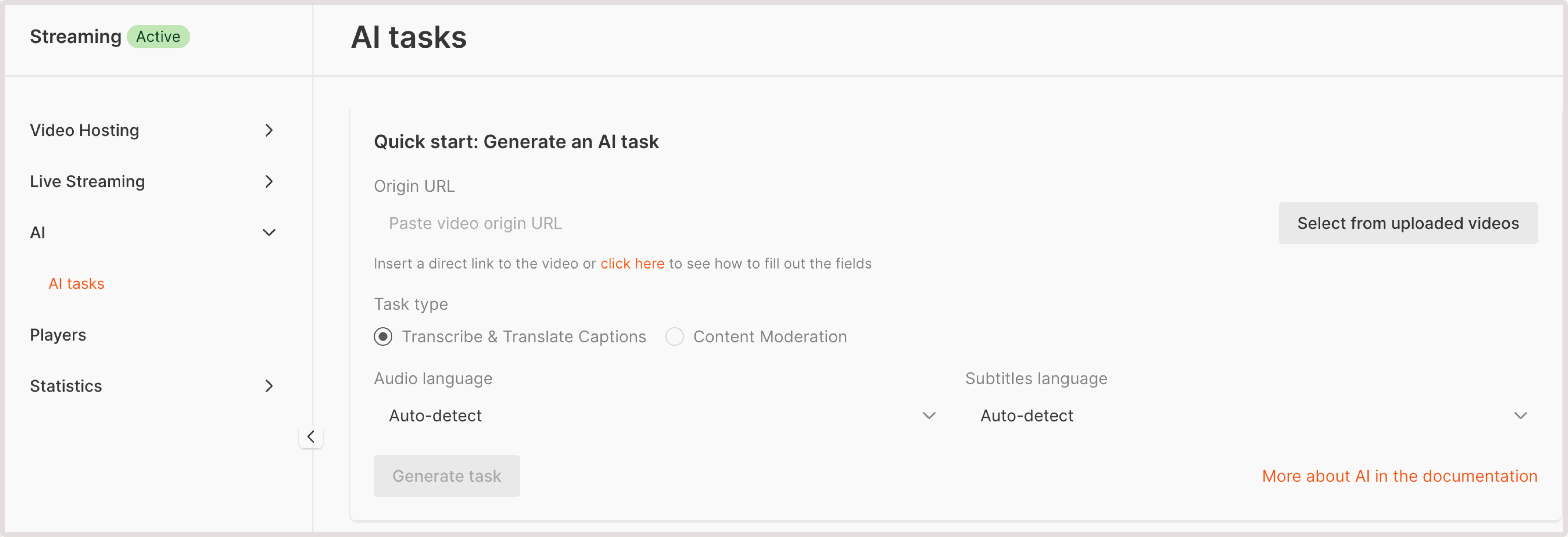 2\. In the **Origin URL** field, enter the link to your MP4 video. You have two options:
* **Paste video origin URL** : If your video is stored externally, provide a URL to its location. Ensure that the video is accessible via HTTP or HTTPS protocols.
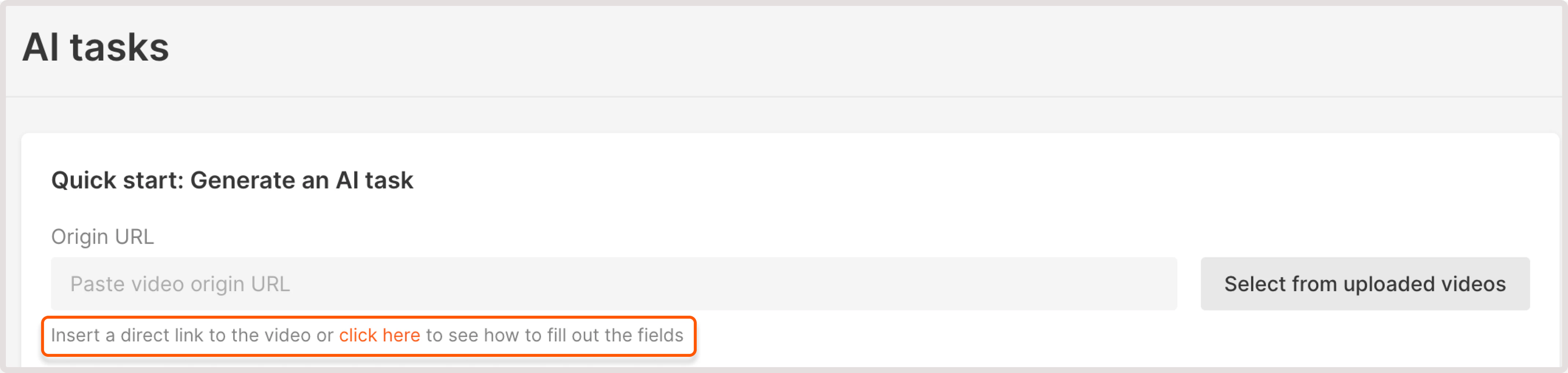
To check the example of correctly formatted URL, use the link under the field. It will autogenerate a sample URL and you can adjust your URL accordingly.
2\. In the **Origin URL** field, enter the link to your MP4 video. You have two options:
* **Paste video origin URL** : If your video is stored externally, provide a URL to its location. Ensure that the video is accessible via HTTP or HTTPS protocols.
To check the example of correctly formatted URL, use the link under the field. It will autogenerate a sample URL and you can adjust your URL accordingly.
 * **Select from uploaded videos** : choose a video hosted on the Gcore platform.
3\. In the **Task type**, choose **Content moderation**.
4\. In the following dropdown, select **Hard nudity detection**.
5\. Click **Generate task**.
6\. Wait until the task is processed and has the **Success** status, click the task ID to view task details.
7\. Check out the **Task result** field. You can have one of the following outputs:
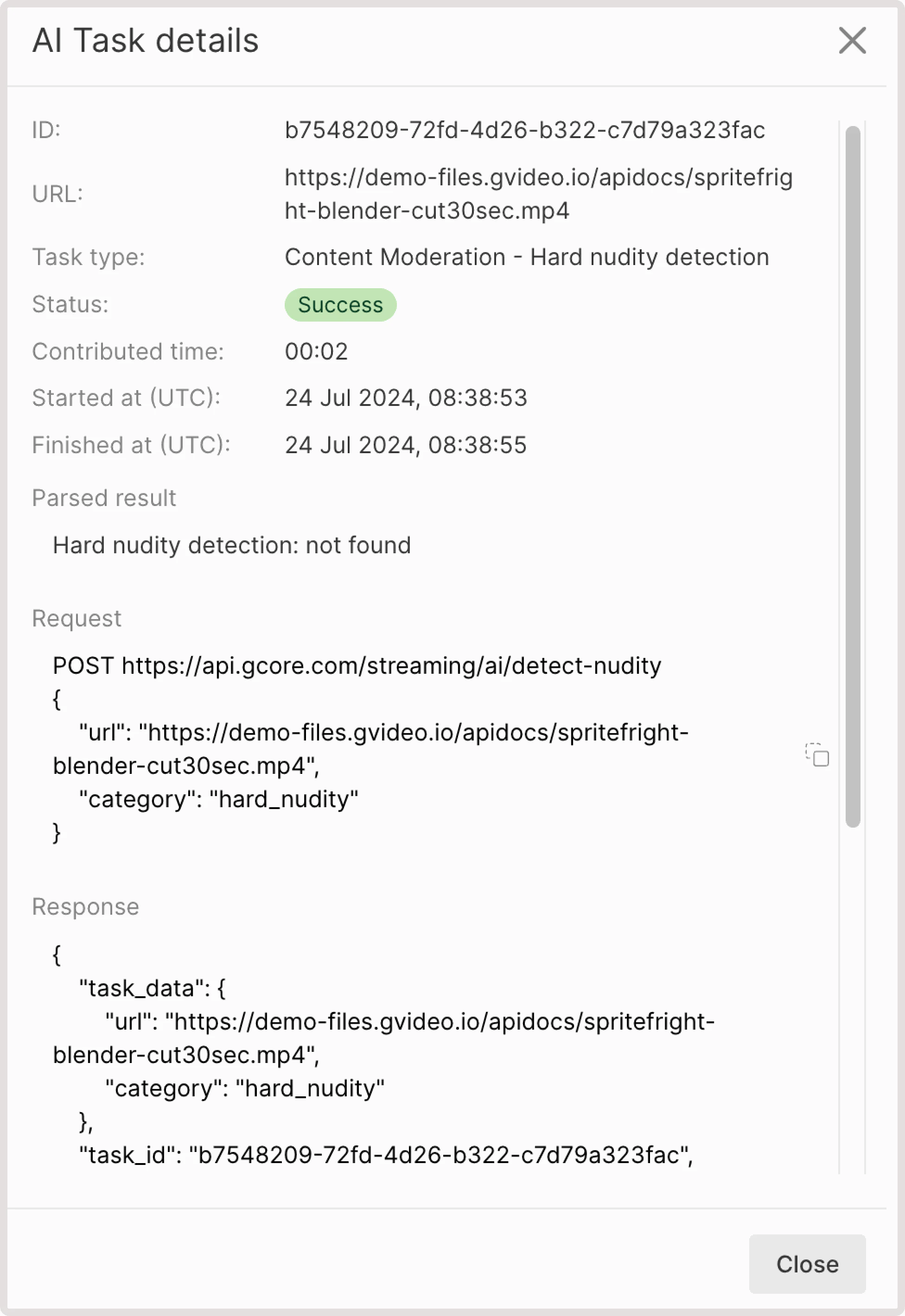
* **Hard nudity detection: not found**. This means that your video has no hard nudity content.
* If some sensitive content is found, you'll get the info about the detected element, relevant iFrame, and the confidence level in % of how sure AI is that this content is hard nudity. For example, you can get the following output: *"FEMALE\_BREAST\_EXPOSED: detected at frame №2 with score 41%"address*.
* **Select from uploaded videos** : choose a video hosted on the Gcore platform.
3\. In the **Task type**, choose **Content moderation**.
4\. In the following dropdown, select **Hard nudity detection**.
5\. Click **Generate task**.
6\. Wait until the task is processed and has the **Success** status, click the task ID to view task details.
7\. Check out the **Task result** field. You can have one of the following outputs:
* **Hard nudity detection: not found**. This means that your video has no hard nudity content.
* If some sensitive content is found, you'll get the info about the detected element, relevant iFrame, and the confidence level in % of how sure AI is that this content is hard nudity. For example, you can get the following output: *"FEMALE\_BREAST\_EXPOSED: detected at frame №2 with score 41%"address*.