> ## Documentation Index
> Fetch the complete documentation index at: https://gcore.com/docs/llms.txt
> Use this file to discover all available pages before exploring further.
# Insert an overlay (HTML widgets) in your live stream
## What is an overlay?
An overlay (or an HTML widget) is a graphic placed over the stream footage. Overlays include webcam pop-up, chat, alert, advertisement banner, and time or weather widgets. Streamers from different industries (games, education, news, sports events) use overlays to enhance their streams' visual appeal and functionality.
There are two approaches to implementing overlays:
1. **Overlays are embedded OVER the live stream in the player**. In this case, you get two "layers": the lower one is the video stream, and the upper one is the overlay shown by the particular player.
2. **Overlays are embedded INTO the live stream**. In this case, the overlay is part of the live stream.
The drawback of the first approach is that if you change the player, the overlay will be lost. In the second case, the overlay will be shown no matter the player used.
## Overlay example
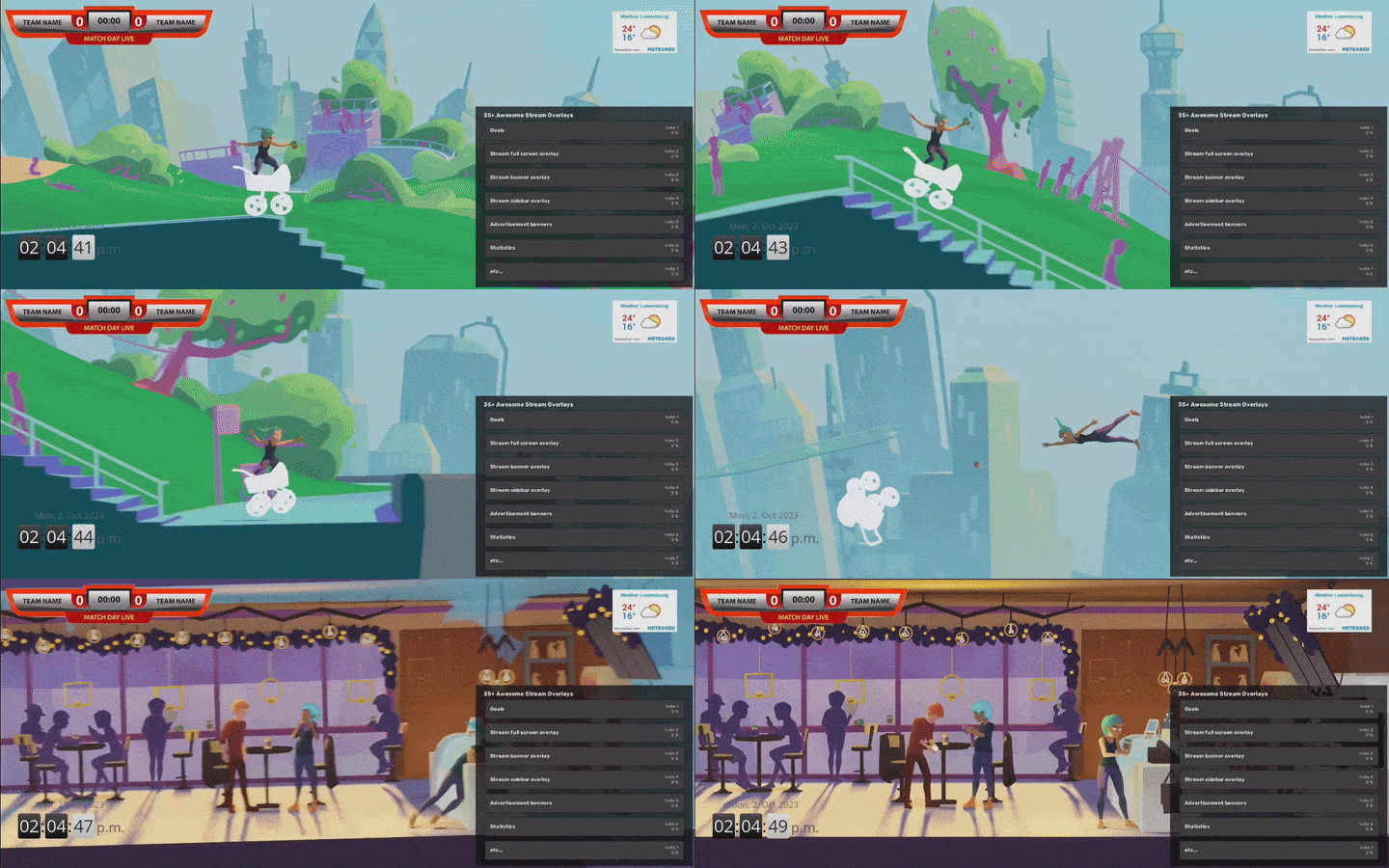
In the example below, you can see the game score widget in the upper left corner, the weather widget in the upper right corner, the poll widget in the lower right corner, and the time and date widget in the lower left corner.
 ## Gcore supports HTML overlays
Gcore Video Streaming now supports overlays embedded into the live stream, which can be managed using the API. Contact support (via [email](maito:support@gcore.com) or chat—click the chat icon on the bottom right of our webpages) or your personal manager to enable the ability to send API requests to the overlay feature endpoints.
The main features of overlays via API are:
* Use more than one overlay per live stream
* Size options: small overlays or overlays stretched over a full frame
* Transparent areas in overlays
* 1 FPS frequency update
* Automatic size scaling for [adaptive bitrate](/streaming) qualities
* Place overlays in any area of the screen
## Comparison of Gcore overlays and OBS studio overlays
OBS has functionality for using overlays. Let's compare it to Gcore's overlay feature:
| Feature | OBS | Gcore Overlays |
| --------------------- | ------------- | ------------------- |
| **Scalability** | 1 live stream | 1000+ live streams |
| **Animated overlays** | Yes | 1 update per second |
While using OBS overlays, you need to keep the OBS app open. Computational resources are enough for only one live stream with overlay, which cannot be scaled to multiple live streams.
While using Gcore overlays, you embed the overlay into a live stream. The widget is automatically available everywhere (for Gcore's player, *.m3u8* link, and *.mpd* link) and scales to any number of live streams. We scale the service automatically—you don't need to do anything, just start as many streams as you need. We allow the overlay in many streams, but the frame rate (FPS) of a widget update will be 1 second. Therefore, animations will freeze.
## Configure Gcore overlays via API
We support the following types of overlays: times and clocks, weather, statistics, exchange rates, and banner ads. For the graphic component of your overlay, you can use the following methods:
* Create your own (e.g., with the [Free Twitch overlay maker from Canva](https://www.canva.com/create/twitch-overlays/))
* Use a template (e.g., [Bernardo's Streamer Toolkit](https://www.barnardos.org.uk/ready-player-b/streamer-toolkit))
* Use ready overlay systems (e.g., [DonationAlerts](https://www.donationalerts.com/), [Stream Overlays from Tracker Network](https://tracker.gg/overlays))
Before using overlays, [ask tech support](mailto:support@gcore.com) or your personal manager to enable the feature for your account. Then, set the `html_overlay` attribute to `true` for your live stream and specify the array of live streams.
For detailed information, refer to our [API documentation](/api-reference/streaming/overlays/get-all-overlays).
### Get all overlays
The [API method](/api-reference/streaming/overlays/get-all-overlays) returns a list of HTML overlay widgets attached to a live stream.
Example of the request:
```sh theme={null}
curl -L -X GET 'https://api.gcore.com/streaming/streams/12345/overlays' \
-H 'Authorization: APIKey 1234$0d1659...' \
-H 'Content-Type: application/json' \
```
In response, you will receive an array of overlays. Example of the response:
```json theme={null}
[
{
"id": 1,
"stream_id": 12345,
"url": "http://domain.tld/myoverlay1.html",
"width": 120,
"height": 40,
"x": 10,
"y": 10,
"stretch": false,
"created_at": "2023-09-20T00:01:01.000Z",
"updated_at": "2023-10-01T12:01:01.000Z"
},
{
...
}
]
```
### Create overlays
The [API method](/api-reference/streaming/overlays/create-overlays) lets you insert overlays into your live stream. Please review the requirements for overlays to work correctly in the [API documentation](/api-reference/streaming/overlays/create-overlays).
Example of the request:
```sh theme={null}
curl -L -X POST https://api.gcore.com/streaming/streams/12345/overlays \
-H 'Authorization: APIKey 1234$0d1659...' \
-H 'Content-Type: application/json' \
-d '{
"url": "http://domain.tld/myoverlay1.html",
"width": "120",
"height": "40",
"x": "30",
"y": "30",
"stretch": "false",
}'
```
Example of the response:
```json theme={null}
{
"url": "http://domain.tld/myoverlay1.html",
"width": 120,
"height": 40,
"x": 30,
"y": 30,
"stretch": false,
"id": 1,
"stream_id": 12345,
"created_at": "2023-09-20T00:01:01.000Z",
"updated_at": "2023-10-01T12:01:01.000Z"
}
```
After creating the overlay, you can request it with the [API method](/api-reference/streaming/overlays/get-overlay) by specifying its ID.
### Change overlays
The [API method](/api-reference/streaming/overlays/change-overlays) updates settings for a set of overlays. This method allows changing the settings of several overlays. If you have only one, try [this one](/api-reference/streaming/overlays/change-overlays).
Example of the request:
```sh theme={null}
curl -L -X PATCH https://api.gcore.com/streaming/streams/12345/overlays \
-H 'Authorization: APIKey 1234$0d1659...' \
-H 'Content-Type: application/json' \
-d '{
"url": "http://domain.tld/myoverlay_new_3.html",
"width": "120",
"height": "40",
"x": "0",
"yt": "0",
"stretch": "false",
"id": "1",
}'
```
Example of the response:
```json theme={null}
[
{
"url": "http://domain.tld/myoverlay_new_3.html",
"width": 120,
"height": 40,
"x": 0,
"y": 0,
"stretch": false,
"id": 1
}
]
```
### Delete an overlay
The [API method](/api-reference/streaming/overlays/delete-an-overlay) lets you delete the overlay.
Here's an example of the request:
```sh theme={null}
curl -L -X DELETE https://api.gcore.com/streaming/streams/12345/overlays/1 \
-H 'Authorization: APIKey 1234$0d1659...' \
```
If all IDs are correct, you will get a response 200: `Overlay has been deleted successfully`.
## Gcore supports HTML overlays
Gcore Video Streaming now supports overlays embedded into the live stream, which can be managed using the API. Contact support (via [email](maito:support@gcore.com) or chat—click the chat icon on the bottom right of our webpages) or your personal manager to enable the ability to send API requests to the overlay feature endpoints.
The main features of overlays via API are:
* Use more than one overlay per live stream
* Size options: small overlays or overlays stretched over a full frame
* Transparent areas in overlays
* 1 FPS frequency update
* Automatic size scaling for [adaptive bitrate](/streaming) qualities
* Place overlays in any area of the screen
## Comparison of Gcore overlays and OBS studio overlays
OBS has functionality for using overlays. Let's compare it to Gcore's overlay feature:
| Feature | OBS | Gcore Overlays |
| --------------------- | ------------- | ------------------- |
| **Scalability** | 1 live stream | 1000+ live streams |
| **Animated overlays** | Yes | 1 update per second |
While using OBS overlays, you need to keep the OBS app open. Computational resources are enough for only one live stream with overlay, which cannot be scaled to multiple live streams.
While using Gcore overlays, you embed the overlay into a live stream. The widget is automatically available everywhere (for Gcore's player, *.m3u8* link, and *.mpd* link) and scales to any number of live streams. We scale the service automatically—you don't need to do anything, just start as many streams as you need. We allow the overlay in many streams, but the frame rate (FPS) of a widget update will be 1 second. Therefore, animations will freeze.
## Configure Gcore overlays via API
We support the following types of overlays: times and clocks, weather, statistics, exchange rates, and banner ads. For the graphic component of your overlay, you can use the following methods:
* Create your own (e.g., with the [Free Twitch overlay maker from Canva](https://www.canva.com/create/twitch-overlays/))
* Use a template (e.g., [Bernardo's Streamer Toolkit](https://www.barnardos.org.uk/ready-player-b/streamer-toolkit))
* Use ready overlay systems (e.g., [DonationAlerts](https://www.donationalerts.com/), [Stream Overlays from Tracker Network](https://tracker.gg/overlays))
Before using overlays, [ask tech support](mailto:support@gcore.com) or your personal manager to enable the feature for your account. Then, set the `html_overlay` attribute to `true` for your live stream and specify the array of live streams.
For detailed information, refer to our [API documentation](/api-reference/streaming/overlays/get-all-overlays).
### Get all overlays
The [API method](/api-reference/streaming/overlays/get-all-overlays) returns a list of HTML overlay widgets attached to a live stream.
Example of the request:
```sh theme={null}
curl -L -X GET 'https://api.gcore.com/streaming/streams/12345/overlays' \
-H 'Authorization: APIKey 1234$0d1659...' \
-H 'Content-Type: application/json' \
```
In response, you will receive an array of overlays. Example of the response:
```json theme={null}
[
{
"id": 1,
"stream_id": 12345,
"url": "http://domain.tld/myoverlay1.html",
"width": 120,
"height": 40,
"x": 10,
"y": 10,
"stretch": false,
"created_at": "2023-09-20T00:01:01.000Z",
"updated_at": "2023-10-01T12:01:01.000Z"
},
{
...
}
]
```
### Create overlays
The [API method](/api-reference/streaming/overlays/create-overlays) lets you insert overlays into your live stream. Please review the requirements for overlays to work correctly in the [API documentation](/api-reference/streaming/overlays/create-overlays).
Example of the request:
```sh theme={null}
curl -L -X POST https://api.gcore.com/streaming/streams/12345/overlays \
-H 'Authorization: APIKey 1234$0d1659...' \
-H 'Content-Type: application/json' \
-d '{
"url": "http://domain.tld/myoverlay1.html",
"width": "120",
"height": "40",
"x": "30",
"y": "30",
"stretch": "false",
}'
```
Example of the response:
```json theme={null}
{
"url": "http://domain.tld/myoverlay1.html",
"width": 120,
"height": 40,
"x": 30,
"y": 30,
"stretch": false,
"id": 1,
"stream_id": 12345,
"created_at": "2023-09-20T00:01:01.000Z",
"updated_at": "2023-10-01T12:01:01.000Z"
}
```
After creating the overlay, you can request it with the [API method](/api-reference/streaming/overlays/get-overlay) by specifying its ID.
### Change overlays
The [API method](/api-reference/streaming/overlays/change-overlays) updates settings for a set of overlays. This method allows changing the settings of several overlays. If you have only one, try [this one](/api-reference/streaming/overlays/change-overlays).
Example of the request:
```sh theme={null}
curl -L -X PATCH https://api.gcore.com/streaming/streams/12345/overlays \
-H 'Authorization: APIKey 1234$0d1659...' \
-H 'Content-Type: application/json' \
-d '{
"url": "http://domain.tld/myoverlay_new_3.html",
"width": "120",
"height": "40",
"x": "0",
"yt": "0",
"stretch": "false",
"id": "1",
}'
```
Example of the response:
```json theme={null}
[
{
"url": "http://domain.tld/myoverlay_new_3.html",
"width": 120,
"height": 40,
"x": 0,
"y": 0,
"stretch": false,
"id": 1
}
]
```
### Delete an overlay
The [API method](/api-reference/streaming/overlays/delete-an-overlay) lets you delete the overlay.
Here's an example of the request:
```sh theme={null}
curl -L -X DELETE https://api.gcore.com/streaming/streams/12345/overlays/1 \
-H 'Authorization: APIKey 1234$0d1659...' \
```
If all IDs are correct, you will get a response 200: `Overlay has been deleted successfully`.