> ## Documentation Index
> Fetch the complete documentation index at: https://gcore.com/docs/llms.txt
> Use this file to discover all available pages before exploring further.

# Configure WAAP for a new domain

export const MethodSection = ({children}) => children ?? null;

export const MethodSwitch = ({children}) => {
  const tabs = React.Children.toArray(children).map(c => {
    if (!c || !c.props) return null;
    if (c.props.id) return c;
    const inner = c.props.children;
    if (inner && inner.props && inner.props.id) return inner;
    return null;
  }).filter(Boolean);
  const firstId = tabs.length > 0 ? tabs[0].props.id : "";
  const [active, setActive] = React.useState(firstId);
  React.useEffect(() => {
    try {
      const saved = localStorage.getItem("gcore_docs_method");
      if (saved && tabs.find(t => t.props.id === saved)) {
        setActive(saved);
      }
    } catch (_) {}
  }, []);
  React.useEffect(() => {
    try {
      document.querySelectorAll("h2[id], h3[id]").forEach(heading => {
        const visible = heading.offsetParent !== null;
        document.querySelectorAll(`a[href="#${heading.id}"]`).forEach(link => {
          if (link.closest("h1,h2,h3,h4,h5,h6")) return;
          const li = link.closest("li");
          if (li) li.style.display = visible ? "" : "none";
        });
      });
    } catch (_) {}
    window.dispatchEvent(new Event("scroll"));
  }, [active]);
  const handleClick = id => {
    setActive(id);
    try {
      localStorage.setItem("gcore_docs_method", id);
    } catch (_) {}
  };
  return <div>
      <div className="not-prose flex gap-0 border-b border-zinc-200 dark:border-zinc-800 mb-8 mt-2" role="tablist">
        {tabs.map(tab => {
    const isActive = active === tab.props.id;
    return <button key={tab.props.id} role="tab" aria-selected={isActive} onClick={() => handleClick(tab.props.id)} className={["px-4 py-2 text-sm font-medium border-b-2 -mb-px transition-colors cursor-pointer", isActive ? "border-primary text-primary" : "border-transparent text-zinc-500 hover:text-zinc-800 dark:hover:text-zinc-200"].join(" ")}>
              {tab.props.label}
            </button>;
  })}
      </div>

      {tabs.map(tab => <div key={tab.props.id} style={{
    display: active === tab.props.id ? "" : "none"
  }}>
          {tab.props.children}
        </div>)}
    </div>;
};

<MethodSwitch>
  <MethodSection id="portal" label="Customer Portal">
    <p>Web Application and API Protection (WAAP) is a single SaaS tool that combines all aspects of website security and traffic management, including Layer 7 DDoS protection, and web application security.</p>

    <p>Securing an application with WAAP involves three main steps:</p>

    1. Create a Gcore CDN resource for the domain.
    2. Enable WAAP protection in the resource settings.
    3. Verify traffic behavior to help ensure legitimate requests are not blocked.

    <p>The following guide walks through this process and explains how to configure WAAP according to specific requirements.</p>

    <Tip>
      **Tip**

      After you enable WAAP, all traffic will be diverted to our network, and it may cause a temporary disruption for your users. We recommend setting up Gcore WAAP during a low-traffic period to minimize the impact.
    </Tip>

    ## Step 1. Create a CDN resource

    <p>To secure your web application and APIs with Gcore WAAP, it's necessary to create a CDN resource associated with your website's origin. If you also need to add an SSL certificate, check out the [Add an SSL certificate to deliver content over HTTPS](/cdn/ssl-certificates/add-an-ssl-certificate-to-deliver-content-over-https) guide.</p>

    <Info>
      **Info**

      When configuring a resource, you need to update your domain's DNS records so they point to our network. This is necessary to allow all traffic to pass through WAAP.
    </Info>

    <Tabs>
      <Tab title="Create a resource with Gcore Managed DNS">
        If Gcore CDN isn't configured yet, create a CDN resource first and select the **Delegate to Gcore DNS** option. Follow the [CDN resource guide](/cdn/getting-started/create-a-cdn-resource/create-a-cdn-resource).
      </Tab>

      <Tab title="Create a resource with your DNS provider">
        If you want to use a custom DNS provider, configure the resource according to the following steps.

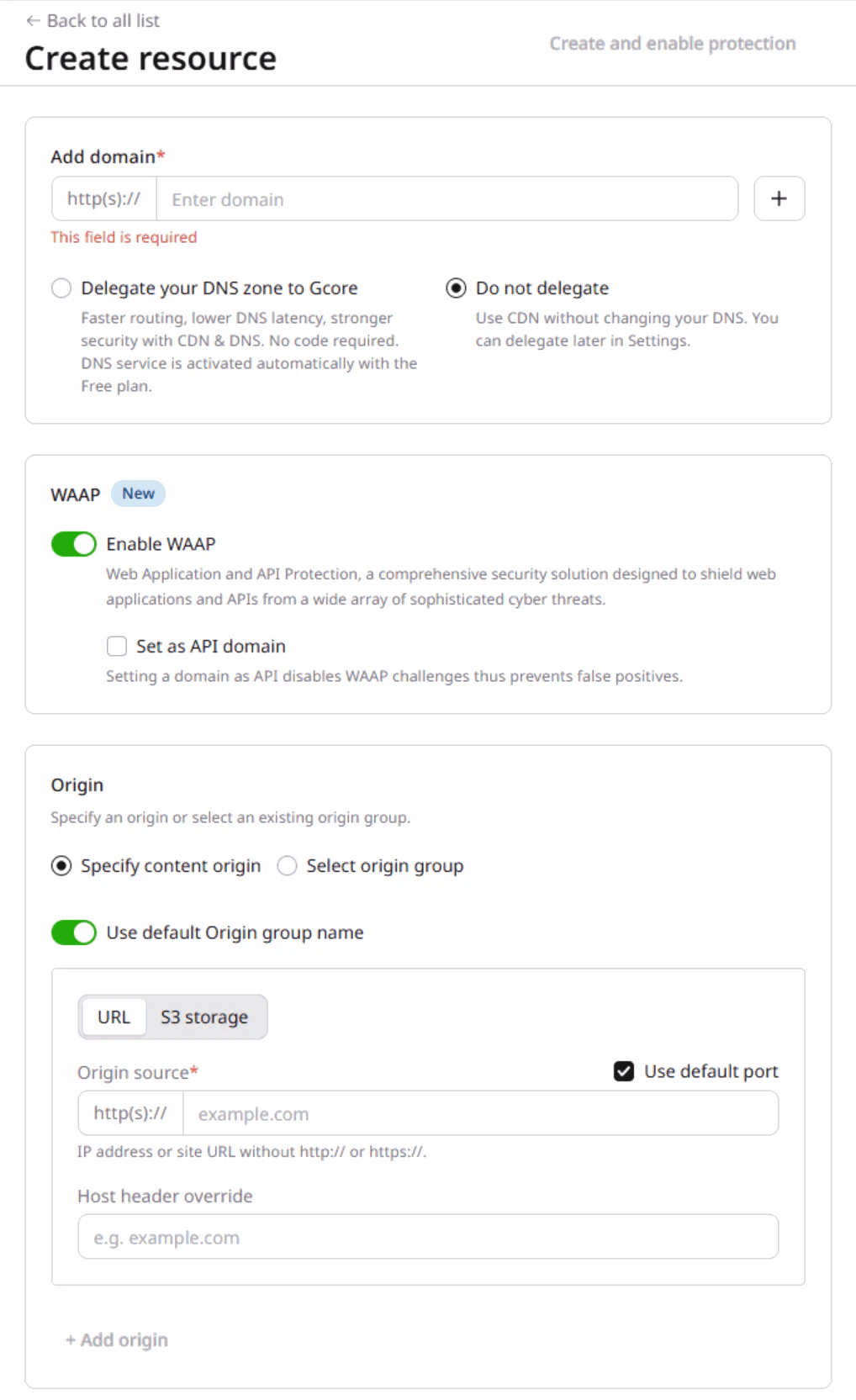
        1. Go to the [CDN page](https://portal.gcore.com/cdn/resources/list) and click **Create CDN resource**.
        2. In the **Add domain** field, enter your domain name. For example, `waap.mydomain.com`.
        3. Select the **Do not delegate** option to use CDN without changing your DNS provider.
        4. Enable the **Enable WAAP** toggle to activate Web Application and API Protection for your domain.
        5. In the **Origin** section, configure your content origin:
           * Select **Specify content origin** to enter your origin server details.
           * Keep the **Use default Origin group name** toggle enabled, or disable it to specify a custom name.
           * From the **Type of origin authentication** dropdown, select the authentication method if required, or keep it set to **None**.
           * In the **Origin source** field, enter your origin server IP address or domain name.
           * Keep the **Use default port** checkbox selected to use port 80, or deselect it to specify a custom port.

        <Frame>
          <img src="https://mintcdn.com/gcore/miQBBIP7_MJoxV5F/images/docs/waap/getting-started/configure-waap-for-a-domain/create-resource.png?fit=max&auto=format&n=miQBBIP7_MJoxV5F&q=85&s=0887ee4d9807c7670733bebc84f98b8d" alt="Create CDN resource form" width="1018" height="1665" data-path="images/docs/waap/getting-started/configure-waap-for-a-domain/create-resource.png" />
        </Frame>

        6. Click **Create and enable protection** to create the CDN resource.
        7. After the resource is created, copy the generated CNAME and add it to your DNS configuration at your DNS provider.

        #### Finalize the settings

        Once your CDN resource is created, configure the Host header setting:

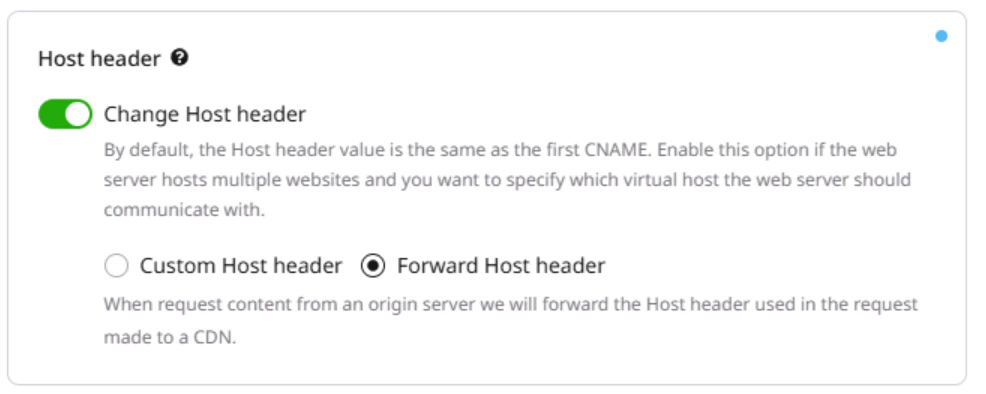
        1. Open your CDN resource settings and navigate to the **HTTP headers** section.
        2. Click **Host header** and enable the **Change Host header** toggle.
        3. Select the **Forward Host header** option to forward the original Host header from client requests to your origin server.
        <Frame>
          <img src="https://mintcdn.com/gcore/miQBBIP7_MJoxV5F/images/docs/waap/getting-started/configure-waap-for-a-domain/host-header-forward.png?fit=max&auto=format&n=miQBBIP7_MJoxV5F&q=85&s=1c6ebba4c9faa60ca03674225c3f5e76" alt="Host header configuration" width="986" height="394" data-path="images/docs/waap/getting-started/configure-waap-for-a-domain/host-header-forward.png" />
        </Frame>

        <Info>
          **Info**

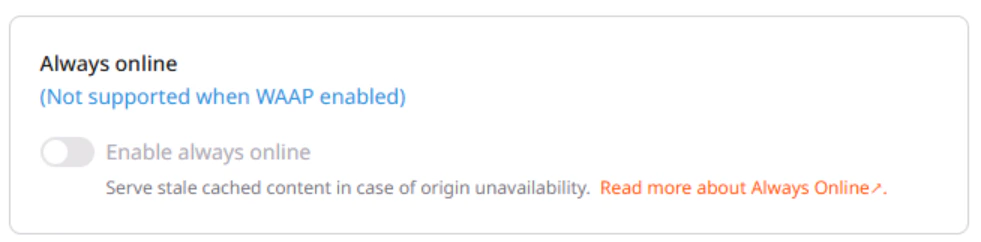
          The **Always online** option is automatically disabled when WAAP is enabled and cannot be changed.

          <Frame>
            <img src="https://mintcdn.com/gcore/miQBBIP7_MJoxV5F/images/docs/waap/getting-started/configure-waap-for-a-domain/always-online-disabled.png?fit=max&auto=format&n=miQBBIP7_MJoxV5F&q=85&s=3781149e0c2b8704e2935e581003aac2" alt="Always online disabled" width="981" height="242" data-path="images/docs/waap/getting-started/configure-waap-for-a-domain/always-online-disabled.png" />
          </Frame>
        </Info>
      </Tab>
    </Tabs>

    ## Step 2. Enable WAAP in CDN resource settings

    <p>Once your CDN resource is set up, you can activate WAAP protection for it. Refer to the [Protect CDN resources with Gcore WAAP](/cdn/cdn-resource-options/cdn-security/protect-cdn-resources-with-basic-waf) guide for detailed instructions.</p>

    ## Step 3. Use WAAP in Monitoring mode

    <p>After you enable WAAP, it will be automatically set to the **Monitoring** mode. In this mode, all incoming requests are inspected, but no action is taken. It's best to use Monitoring mode for several days before enabling the **Protection** mode to make sure that all security settings work correctly.</p>

    <p>Completing this step is important because it allows you to analyze requests and test the WAAP behavior before you fully activate it.</p>

    <Warning>
      **Warning**

      In Monitoring mode, all traffic is allowed to your domain, regardless of configured security rules and policy groups. This mode is only recommended for testing WAAP settings.
    </Warning>

    ## Step 4. View your domain traffic

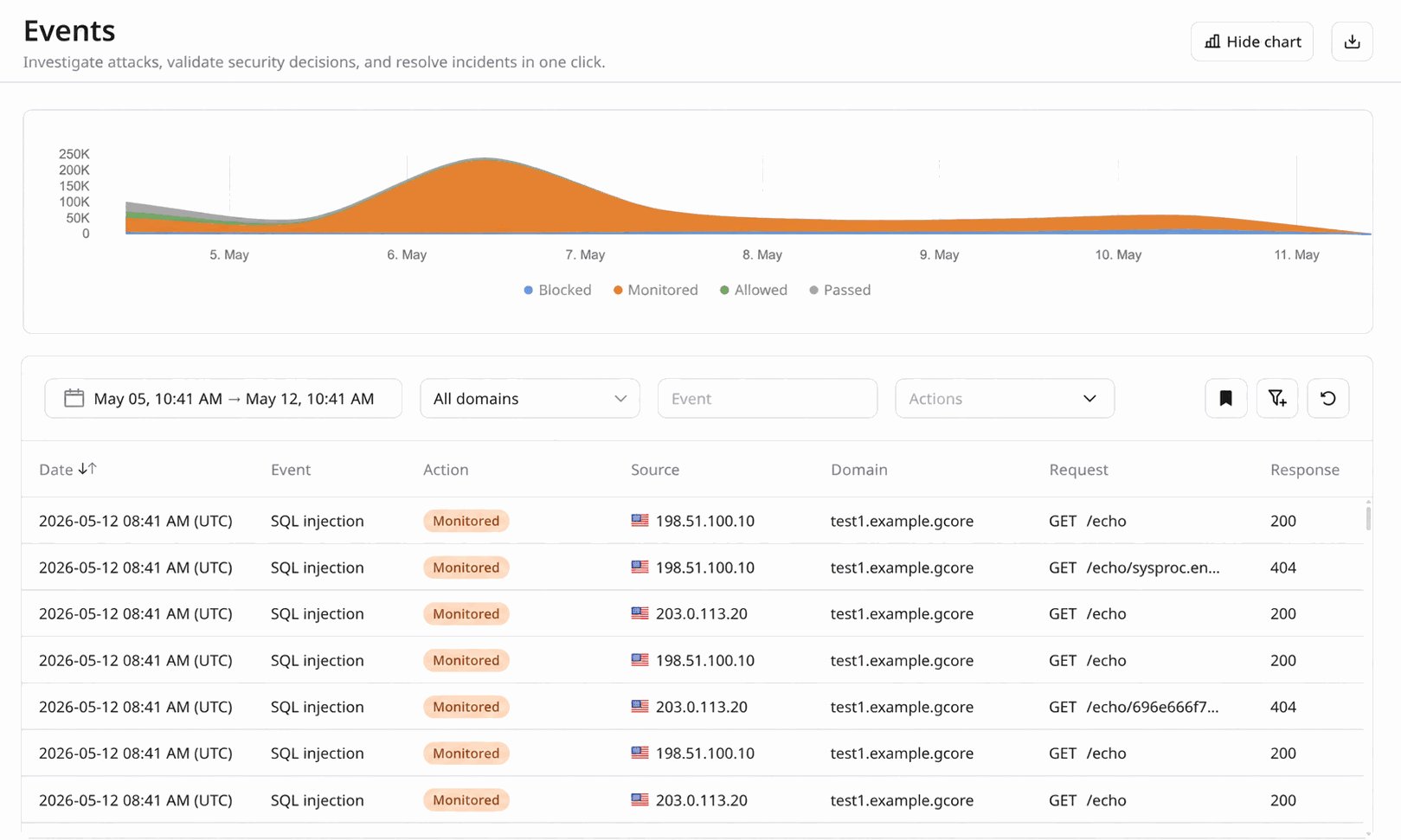
    <p>While keeping WAAP in Monitoring mode, you can view all logged requests and check the corresponding actions that WAAP will take once you put it in Protection mode.</p>

    <p>Use the [Events](/waap/analytics/events) page to detect common traffic patterns and understand if the current configuration requires any adjustments.</p>

    1. In the [Gcore Customer Portal](https://portal.gcore.com/accounts/reports/dashboard), navigate to **WAAP** > **Events**.
    2. Use the **Domain** filter to select your domain.
    3. Review the requests and the actions WAAP has taken.
    <Frame>
      <img src="https://mintcdn.com/gcore/CqxiIzjgeG3uCjZ5/images/docs/waap/troubleshooting/troubleshoot-blocked-users/waap-events.png?fit=max&auto=format&n=CqxiIzjgeG3uCjZ5&q=85&s=b292fd0cba9b03e811f2c818ec4cb3cf" alt="Events page in the Customer Portal" width="1619" height="971" data-path="images/docs/waap/troubleshooting/troubleshoot-blocked-users/waap-events.png" />
    </Frame>

    <p>You can also use additional filters to get more granular information about your traffic. For more details about the available filters check the section [Why filtering matters](/waap/analytics/events#why-filtering-matters).</p>

    <p>To view more information about an event, click on its row.</p>

    ## Step 5. Test your WAAP configuration

    <p>To achieve the desired WAAP behavior, we recommend that you navigate through your website as both a user and administrator.</p>

    <p>Navigating the website will generate entries in the [Requests](/waap/analytics#requests-table) table. You can use this information to determine if you need to create [Firewall rules](/waap/firewall/access-control#allowed-ips-and-blocked-ips) or [custom WAAP rules](/waap/waap-rules/custom-rules) for some requests and let them access your website's content.</p>

    <p>Specifically, review requests that relate to:</p>

    * **Your origin IP**: IP address assigned to your device.
    * **Your office IP**: IP address assigned to your device within your office's network.
    * **Your workstation IP**: IP address assigned to a workstation or specific computer in a network.

    <p>If you notice that WAAP will block such requests in Protection mode, you need to update your settings to prevent such a situation. You can find detailed instructions on how to update your settings in the following step.</p>

    <p>Check out the [allow and block IP addresses](/waap/firewall/access-control#allowed-ips-and-blocked-ips) guide for more information.</p>

    ## Step 6. Allow admins, bots, and CMS

    <p>Before WAAP is in Protection mode, you need to ensure that critical IP addresses, content management systems (CMS), and known bots are allowed to make successful requests.</p>

    <p>Check the [WAAP policy groups](/waap/waap-policies) for a full list of security policies and their detailed overview.</p>

    ### Allow admin IP addresses

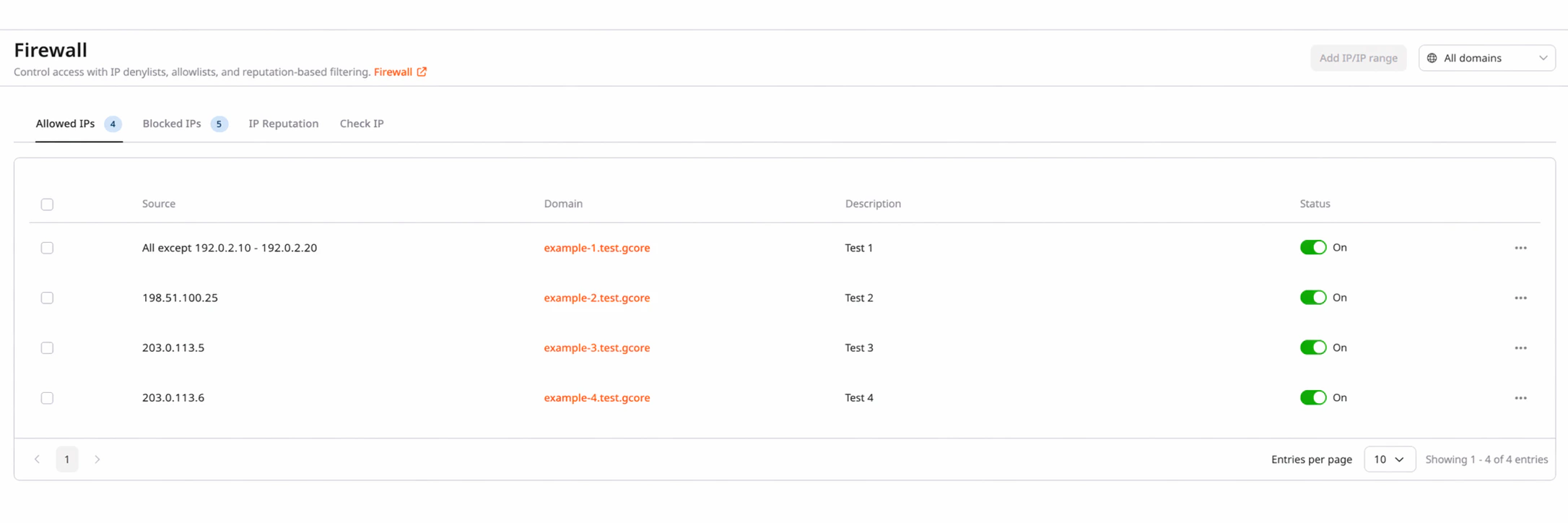
    <p>If your domain doesn't use a CMS, we highly recommend allowlisting the site administrator's IP address:</p>

    1. In the [Gcore Customer Portal](https://portal.gcore.com/accounts/reports/dashboard), navigate to **WAAP** > **Firewall**.
    <Frame>
      <img src="https://mintcdn.com/gcore/miQBBIP7_MJoxV5F/images/docs/waap/getting-started/configure-waap-for-a-domain/waap-firewall.png?fit=max&auto=format&n=miQBBIP7_MJoxV5F&q=85&s=a025461156d181748eec5c0f96d70294" alt="Firewall page in the Customer Portal" width="2172" height="724" data-path="images/docs/waap/getting-started/configure-waap-for-a-domain/waap-firewall.png" />
    </Frame>

    2. Select the needed domain from the domain dropdown.
    3. In the **Allowed IPs** tab, click **Add IP/IP range**.
    4. Enter any admin user's public IP address.
    5. Click **Save**.

    <p>Repeat these steps if needed.</p>

    ### Allow CMS

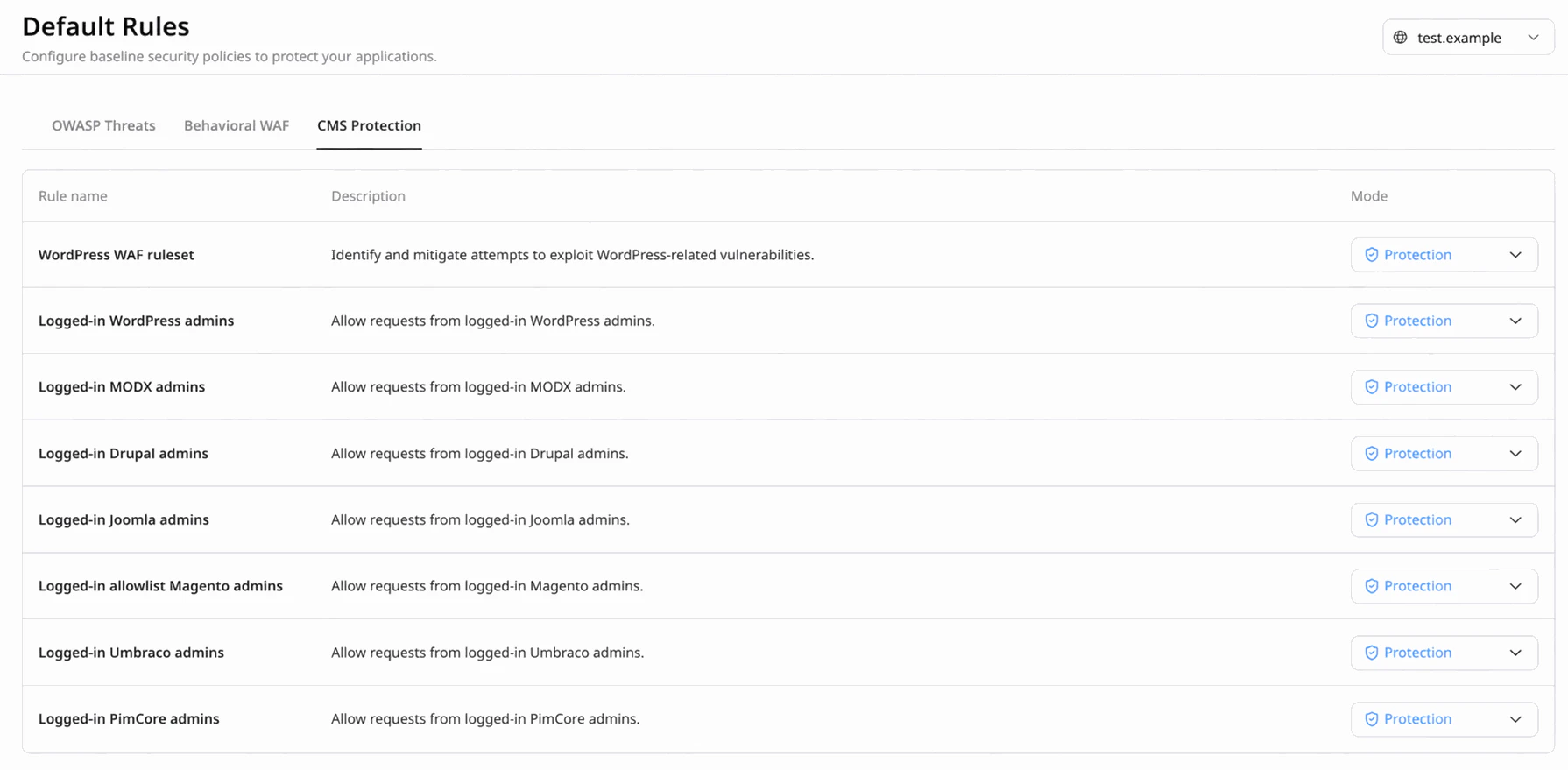
    <p>If you use content management systems, such as WordPress, allow traffic for CMS admins:</p>

    1. In the [Gcore Customer Portal](https://portal.gcore.com/accounts/reports/dashboard), navigate to **WAAP** > **Default Rules**.
    2. Select the needed domain from the domain dropdown.
    3. Click the **CMS Protection** tab.
    4. Find the desired content management system and change its mode to **Allow** by clicking on the mode dropdown next to it.
    <Frame>
      <img src="https://mintcdn.com/gcore/miQBBIP7_MJoxV5F/images/docs/waap/getting-started/configure-waap-for-a-domain/default-rules-cms-protection.png?fit=max&auto=format&n=miQBBIP7_MJoxV5F&q=85&s=daa8e860a8afc8a7710306e37aa62164" alt="Default Rules page with CMS Protection tab" width="1790" height="879" data-path="images/docs/waap/getting-started/configure-waap-for-a-domain/default-rules-cms-protection.png" />
    </Frame>

    <Tip>
      **Tip**

      The **WordPress WAF ruleset** policy is enabled by default.
    </Tip>

    ### Allow Known Bots

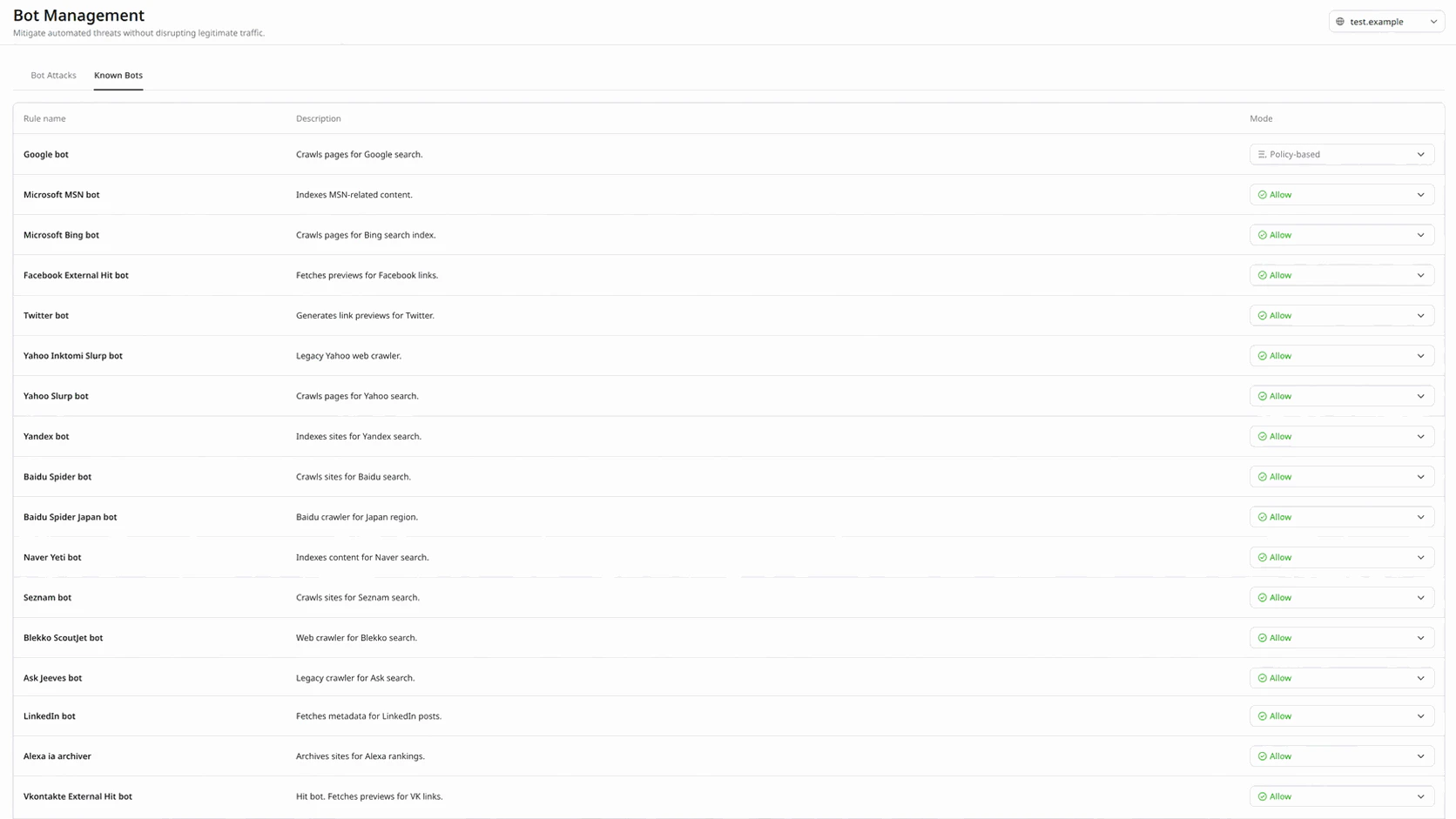
    <p>Follow these steps to allow crawlers, scanners, monitoring bots, and similar tools to access your website:</p>

    1. In the [Gcore Customer Portal](https://portal.gcore.com/accounts/reports/dashboard), navigate to **WAAP** > **Bot Management**.
    2. Select the needed domain from the domain dropdown.
    3. Click the **Known Bots** tab and enable the desired bot by changing its mode to **Allow**.
    <Frame>
      <img src="https://mintcdn.com/gcore/miQBBIP7_MJoxV5F/images/docs/waap/getting-started/configure-waap-for-a-domain/bot-management-known-bots.png?fit=max&auto=format&n=miQBBIP7_MJoxV5F&q=85&s=bba57c9ce400703ee2bab3bed2608feb" alt="Bot Management page with Known Bots tab" width="1672" height="941" data-path="images/docs/waap/getting-started/configure-waap-for-a-domain/bot-management-known-bots.png" />
    </Frame>

    <p>The [Known Bots](/waap/waap-policies/known-bots) list allows several trusted bots by default, which is why we recommend reviewing this list before enabling Protection mode.</p>

    ## Step 7. Configure your APIs

    <p>If you plan to serve JSON requests through an API on your domain, you can disable the JavaScript injection and CAPTCHA functionalities for specified API endpoints.</p>

    <p>You can [manually add endpoints to API base path](/waap/api-discovery-and-protection/configure-api-base-path) or [configure the API Discovery feature](/waap/api-discovery-and-protection/api-discovery) to automatically detect and protect your APIs.</p>

    ## Step 8. Enable Protection mode

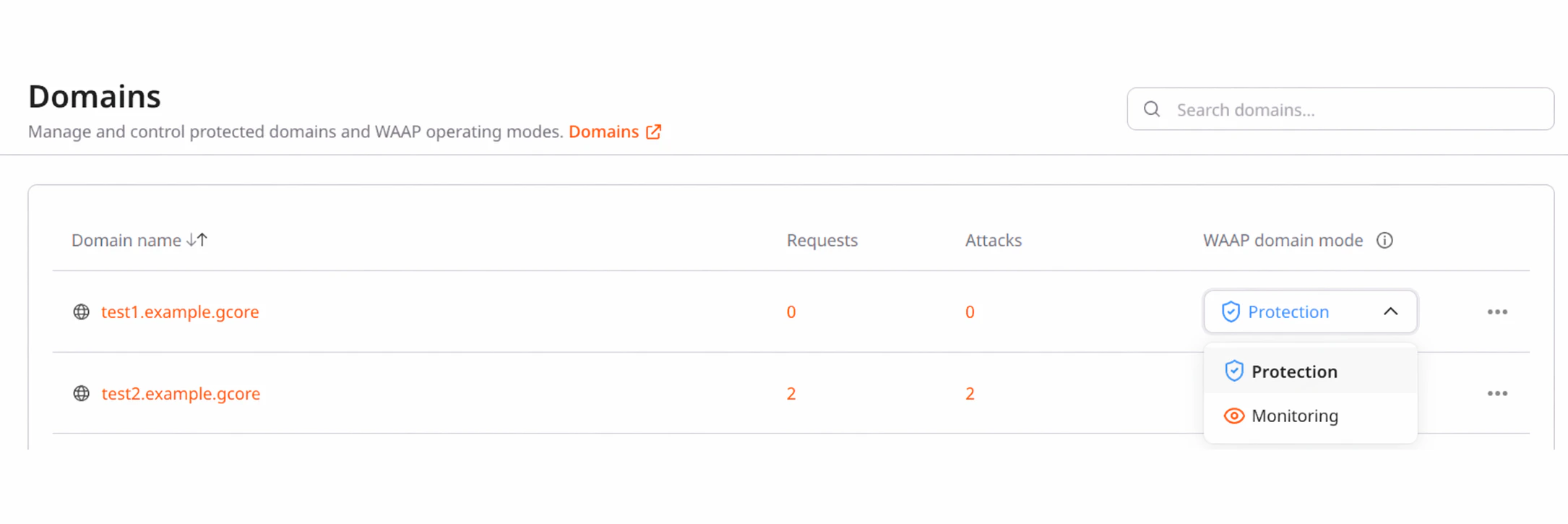
    1. In the [Gcore Customer Portal](https://portal.gcore.com/accounts/reports/dashboard), navigate to **WAAP** > **Domains**.
    2. Find the needed domain in the list.
    3. In the **WAAP domain mode** column, click the mode dropdown and select **Protection**. WAAP will begin to inspect and act upon incoming requests.
    <Frame>
      <img src="https://mintcdn.com/gcore/miQBBIP7_MJoxV5F/images/docs/waap/getting-started/configure-waap-for-a-domain/domains-waap-protection.png?fit=max&auto=format&n=miQBBIP7_MJoxV5F&q=85&s=31273e78bede5cde92cfb06dbcd24561" alt="WAAP modes dropdown on Domains page" width="2170" height="725" data-path="images/docs/waap/getting-started/configure-waap-for-a-domain/domains-waap-protection.png" />
    </Frame>

    ## Step 9. Block non-Gcore traffic

    <p>After successful DNS propagation and verifying that domain-based traffic is being handled by WAAP, ensure that all requests to your domain are routed through Gcore servers. This is necessary to prevent unauthorized traffic from bypassing WAAP and directly reaching your domain.</p>

    * [Add our CDN servers to the allowlist](/cdn/getting-started/configure-an-origin/add-cdn-servers-to-the-origin-acl-whitelist).
    * Block other incoming requests that don't match our allowlist.
  </MethodSection>

  <MethodSection id="api" label="REST API">
    <p>A WAAP domain is created automatically when WAAP is enabled on a CDN resource via the [CDN API](https://api.gcore.com/docs/cdn). Once created, the [Domains](/api-reference/waap#domains) endpoints cover listing domains and switching between Monitoring and Protection modes.</p>

    <Info>
      An [API token](/account-settings/api-tokens) is required. The domain ID is returned by the list request below.
    </Info>

    ```bash theme={null}
    export GCORE_API_KEY="{YOUR_API_KEY}"
    export WAAP_DOMAIN_ID="{YOUR_DOMAIN_ID}"
    ```

    ## View WAAP domains

    <p>Retrieve all WAAP-protected domains in the account along with their current protection status.</p>

    <Tabs>
      <Tab title="Python SDK">
        ```python theme={null}
        import gcore
        import os

        client = gcore.Gcore(api_key=os.environ["GCORE_API_KEY"])

        domains = client.waap.domains.list()
        for domain in domains.results:
            print(f"id={domain.id}  name={domain.name}  status={domain.status}")
        ```
      </Tab>

      <Tab title="Go SDK">
        ```go theme={null}
        package main

        import (
            "context"
            "fmt"
            "os"

            gcore "github.com/G-Core/gcore-go"
            "github.com/G-Core/gcore-go/option"
            "github.com/G-Core/gcore-go/waap"
        )

        func main() {
            client := gcore.NewClient(option.WithAPIKey(os.Getenv("GCORE_API_KEY")))

            domains, err := client.Waap.Domains.List(context.Background(), waap.DomainListParams{})
            if err != nil {
                panic(err)
            }
            for _, d := range domains.Results {
                fmt.Printf("id=%d  name=%s  status=%s\n", d.ID, d.Name, d.Status)
            }
        }
        ```
      </Tab>

      <Tab title="curl">
        ```bash theme={null}
        curl -X GET "https://api.gcore.com/waap/v1/domains" \
          -H "Authorization: APIKey ${GCORE_API_KEY}"
        ```
      </Tab>
    </Tabs>

    <p>The response lists all domains with their IDs and current status. Use the <code>id</code> value as <code>WAAP\_DOMAIN\_ID</code> in subsequent requests.</p>

    ## Domain protection mode

    <p>Switch a domain between Monitoring mode (`monitor`) and Protection mode (`active`). In Monitoring mode, traffic is inspected but no actions are taken. In Protection mode, all configured security rules are enforced.</p>

    <Warning>
      In Monitoring mode, all traffic is allowed regardless of configured security rules. Enable Protection mode only after verifying that legitimate traffic is not blocked.
    </Warning>

    <Tabs>
      <Tab title="Python SDK">
        ```python theme={null}
        import gcore
        import os

        client = gcore.Gcore(api_key=os.environ["GCORE_API_KEY"])
        domain_id = int(os.environ["WAAP_DOMAIN_ID"])

        # Enable Protection mode
        client.waap.domains.update(domain_id, status="active")
        print("Protection mode enabled")

        # Revert to Monitoring mode
        # client.waap.domains.update(domain_id, status="monitor")
        ```
      </Tab>

      <Tab title="Go SDK">
        ```go theme={null}
        package main

        import (
            "context"
            "fmt"
            "os"
            "strconv"

            gcore "github.com/G-Core/gcore-go"
            "github.com/G-Core/gcore-go/option"
            "github.com/G-Core/gcore-go/waap"
        )

        func main() {
            client := gcore.NewClient(option.WithAPIKey(os.Getenv("GCORE_API_KEY")))
            domainID, _ := strconv.ParseInt(os.Getenv("WAAP_DOMAIN_ID"), 10, 64)

            // Enable Protection mode
            err := client.Waap.Domains.Update(context.Background(), domainID, waap.DomainUpdateParams{
                Status: waap.DomainUpdateParamsStatusActive,
            })
            if err != nil {
                panic(err)
            }
            fmt.Println("Protection mode enabled")

            // Revert to Monitoring mode:
            // client.Waap.Domains.Update(ctx, domainID, waap.DomainUpdateParams{
            //     Status: waap.DomainUpdateParamsStatusMonitor,
            // })
        }
        ```
      </Tab>

      <Tab title="curl">
        ```bash theme={null}
        # Enable Protection mode
        curl -X PATCH "https://api.gcore.com/waap/v1/domains/${WAAP_DOMAIN_ID}" \
          -H "Authorization: APIKey ${GCORE_API_KEY}" \
          -H "Content-Type: application/json" \
          -d '{"status": "active"}'

        # Revert to Monitoring mode
        # curl -X PATCH "https://api.gcore.com/waap/v1/domains/${WAAP_DOMAIN_ID}" \
        #   -H "Authorization: APIKey ${GCORE_API_KEY}" \
        #   -H "Content-Type: application/json" \
        #   -d '{"status": "monitor"}'
        ```
      </Tab>
    </Tabs>

    <p>The API returns an empty body on success. Confirm the change with the View WAAP domains request.</p>

    ## Additional setup

    <p>Once the domain is created and protection mode is active, the remaining setup tasks each have dedicated articles:</p>

    * Manage firewall allow and block lists: [Access control](/waap/firewall/access-control)
    * Toggle CMS Protection policies for admin traffic: [CMS protection](/waap/waap-policies/cms-protection)
    * Toggle Known Bots policies: [Known bots](/waap/waap-policies/known-bots)
    * Define API endpoints for WAAP to protect: [API base path](/waap/api-discovery-and-protection/configure-api-base-path)
  </MethodSection>
</MethodSwitch>