



How to Install Atom on Ubuntu
- September 8, 2023
- 2 min read

Whether you’re a developer, a writer, or simply someone looking to try a new text editor, Atom has become a go-to choice for many. It’s open-source, highly customizable, and offers a range of features that make coding a breeze. If you’re running Ubuntu and wondering how to get started with Atom, you’re in the right place. In this article, we’ll walk you through a detailed, step-by-step process on how to seamlessly install Atom on your Ubuntu system.
What is the Atom text editor?
The Atom text editor is an open-source, modern, and highly customizable text and source code editor developed by GitHub. It is designed to be approachable out of the box, yet also infinitely tunable to a user’s specific needs. Some of its notable features include:
- Extensibility. Atom can be customized with packages to add new features or modify existing ones. There’s a vast repository of community-created packages available to extend its capabilities.
- Integrated Git Control. It has built-in Git integration, allowing users to manage Git repositories, make commits, and handle other version control tasks directly within the editor.
- Built with Web Technologies. It is created using web technologies such as HTML, CSS, and JavaScript, making it particularly appealing and familiar for web developers.
- Community-Driven: Being open-source, Atom boasts a vibrant community that continuously contributes to its development and its package ecosystem.
- Modern UI/UX. Atom’s interface is user-friendly, and it supports themes, allowing users to modify both the appearance of the editor and the syntax highlighting of code.
Installing Atom on Ubuntu
Here’s the guide on installing Atom text editor on Ubuntu:
#1 Update and Upgrade System
Before installing any new software, it’s always a good idea to update the local package database and upgrade the system.
sudo apt updatesudo apt upgrade#2 Add Atom Official Repository
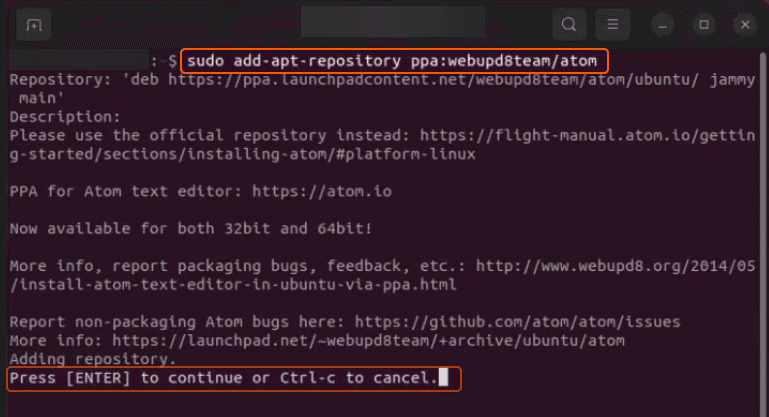
Atom provides an official package repository to ensure you get the latest version. Add it using the following command.
sudo add-apt-repository ppa:webupd8team/atomSample Output:
#3 Install Atom
Once the repository is added, you can install Atom using the apt package manager.
sudo apt install atom#4 Launch Atom
After the installation completes, you can start Atom in two ways:
- From the command line, type:
atom- Other option is to find and click on the Atom icon from your application menu.
#5 Install Additional Packages or Remove Atom
For this step it is only optional if ever you need to. In terms of additional packages, you can browse and install new packages directly within Atom:
- Go to Edit > Preferences > Install in the Atom editor.
- Search for packages you’re interested in and click the ‘Install’ button to add them.
If you ever need to uninstall the program, use the following command:
sudo apt remove --purge atomsudo apt autoremoveThat’s it! You’ve now installed the Atom text editor on Ubuntu. As updates become available, they can be fetched and applied using the standard sudo apt update and sudo apt upgrade commands, thanks to the repository you added.
Conclusion
Want to run Ubuntu in a virtual environment? With Gcore Cloud, you can choose from Basic VM, Virtual Instances, or VPS/VDS suitable for Ubuntu:
- Gcore Basic VM offers shared virtual machines from €3.2 per month
- Virtual Instances are virtual machines with a variety of configurations and an application marketplace
- Virtual Dedicated Servers provide outstanding speed of 200+ Mbps in 20+ global locations

Related articles






Subscribe to our newsletter
Get the latest industry trends, exclusive insights, and Gcore updates delivered straight to your inbox.