

Before you start
Prepare the following information:- Origin server IP address
- Port number your application uses
- Protocol (TCP or UDP)
- Application type
Step 1. Open Edge Proxy page
Navigate to the Edge Proxy section in the Gcore Customer Portal.- If this is your first proxy, click Add Your First Protection
- If you already have proxies, click Add Protection
Step 2. Configure proxy settings
Fill in the configuration form.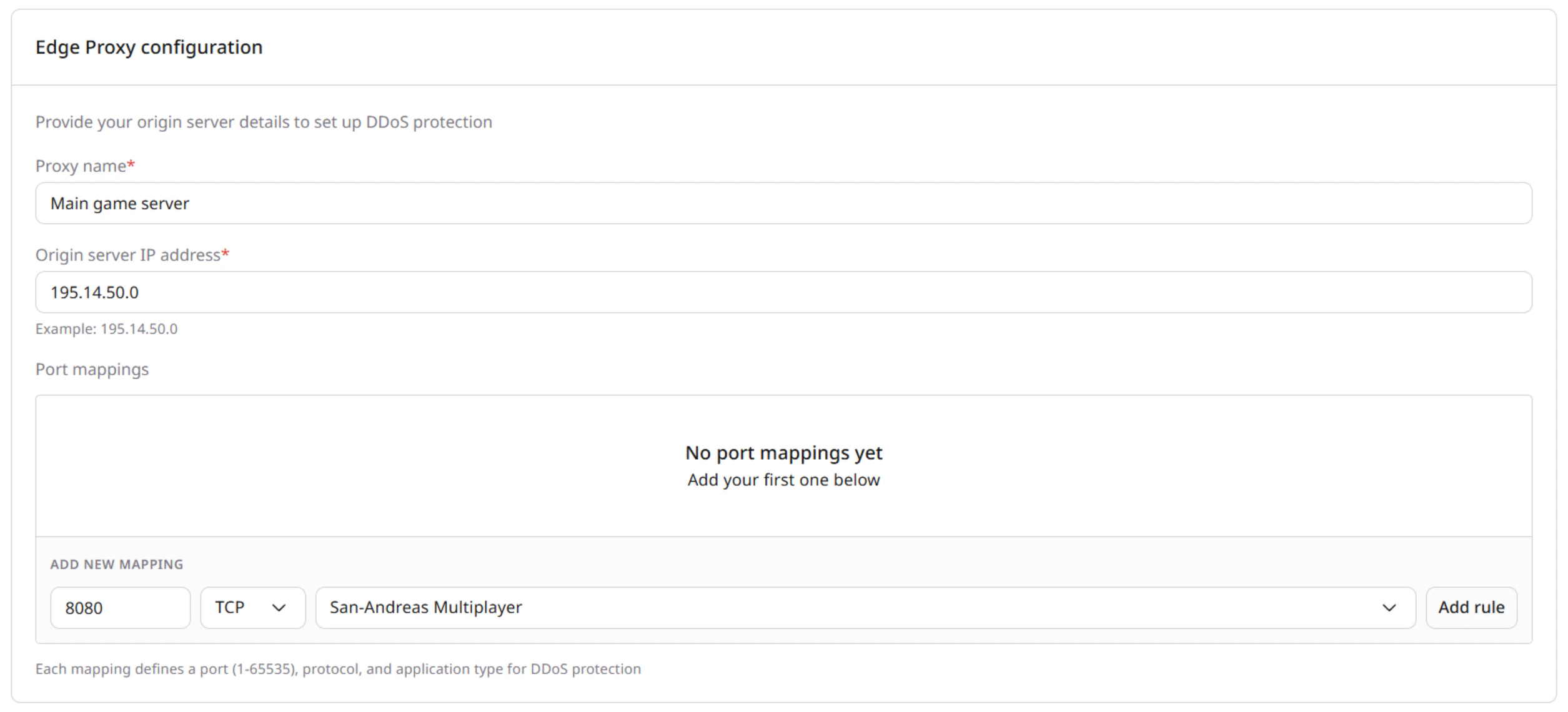
Proxy name
Enter a friendly name to identify your proxy. Example: Main game server.Origin IP address
Enter your origin server IP.- Must be a valid IPv4 or IPv6 address
Port number
Enter the port your application listens on.- Range: 1–65535
Protocol
Select the protocol:- TCP
- UDP
Application type
Select the application type from the dropdown. Examples include:- Minecraft
- Counter-Strike
- Left 4 Dead 2
- San Andreas Multiplayer
- Rust
- Teamspeak
- Battlefield 2
- Unity
Step 3. Start protection
- After filling in all required fields, click Start Protecting
- The system processes the request (about 20 seconds)
- A progress indicator appears during setup
Step 4. Get protected endpoint
After activation, you receive:- Protected IP address with port
- Active status
- Configuration summary
Step 5. Update your service
Update your DNS or client configuration:- Use a CNAME record pointing to the protected endpoint
or - Use the provided IP:PORT directly
Step 6. Verify protection
Check that:- Traffic flows through the protected IP
- Your service is accessible
- The proxy status is active in the list
Manage protected IPs
View proxies
The list shows:- Proxy name
- Status (active)
- Protected IP and port
- Origin IP
- Protocol
- Application type
- Creation date
Delete a proxy
Click Delete and confirm the action in the dialog.Notes and limitations
- You can create multiple translation rules under one protected IP
- Each rule is defined by origin, port, protocol, and application type
- Setup typically takes less than five minutes