

Tags are key-value pairs used to organize and identify Cloud resources. Each tag consists of a key (likeDocumentation Index
Fetch the complete documentation index at: https://gcore.com/docs/llms.txt
Use this file to discover all available pages before exploring further.
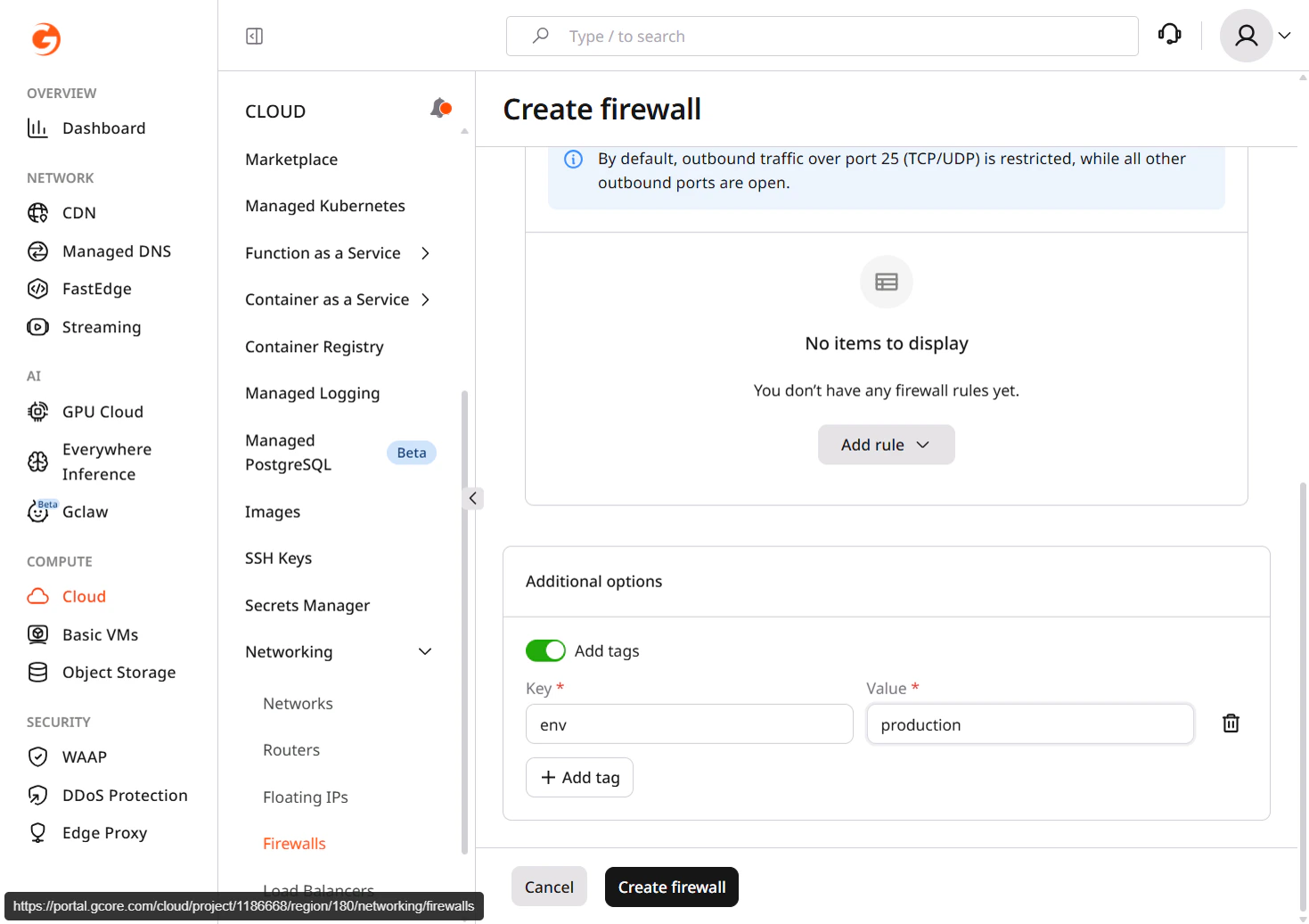
env) and a value (like production). You can add tags during resource creation or to existing resources.
During resource creation
Tags can be added directly during the resource creation process.- Navigate to the resource creation page (Cloud > Virtual Instances > Create Instance).
- In the Additional options section, turn on the Add tags toggle.
- Enter a Key and Value for each tag.
- Click Add tag to add more tags if needed.
- Complete the resource creation.
On existing resources
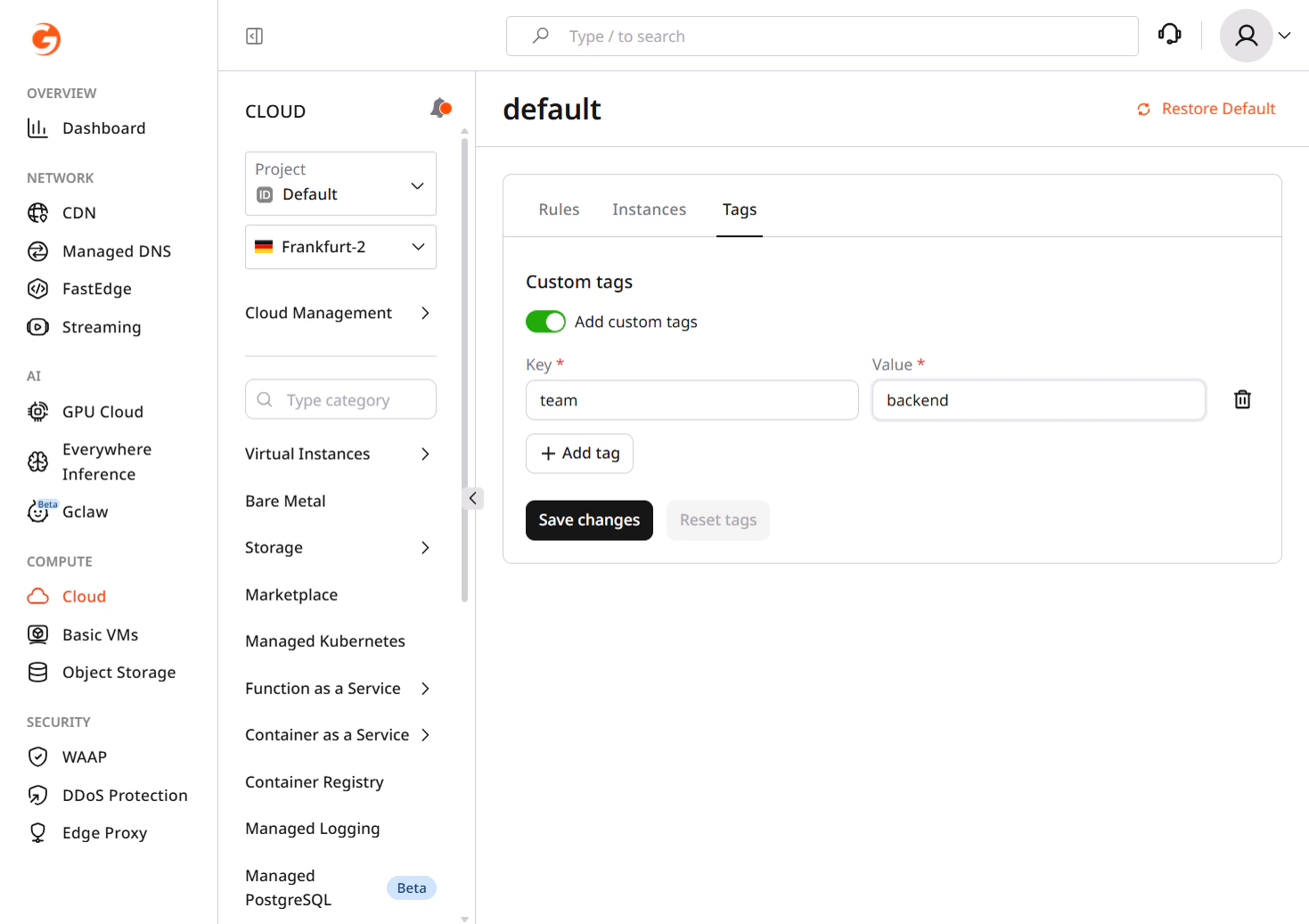
Tags can also be added to resources that already exist.- Open the resource details page (Cloud > Networking > Load Balancers > select a load balancer).
- Navigate to the Tags tab.
- Turn on Add custom tags, then enter key-value pairs.
- Click Save changes.
Filter resources by tag
In the Customer Portal
Filter tagged resources directly from the resource list.- Navigate to the resource list page (Cloud > Virtual Instances).
- Use the search field or available filters to search by tag key or value.
Via API
Use thetag_key_value query parameter when listing resources:
Add tags via API
Include tags in thetags field when creating or updating resources via the Gcore API:
NoteThe
metadata field is deprecated. Use the tags field for new implementations.Add tags via Terraform
Specify tags in themetadata_map attribute when using the Gcore Terraform provider:
Add tags via SDK
Both gcore-python and gcore-go SDKs support thetags parameter when creating resources.
- Python
- Go
Tag formatting rules
Tag keys and values must follow specific format requirements. Invalid tags are rejected during resource creation or update.| Parameter | Requirement |
|---|---|
| Key length | 3-255 characters |
| Value length | 3-255 characters |
| Forbidden characters | = in keys |
| Whitespace | Leading and trailing spaces are trimmed |
Common tagging patterns
Consistent tag naming across resources simplifies filtering and cost allocation. These patterns are widely used in production environments.| Pattern | Example tags |
|---|---|
| Environment | env:production, env:staging, env:development |
| Service | service:authentication, service:payment |
| Ownership | team:backend, owner:devops |
| Cost tracking | cost-center:marketing, project:website-redesign |
Use tags in cost reports
Tags appear in the Cost Report table as a dedicated column. Filter and search resources by tag to analyze spending by environment, team, or project. The detailed CSV export includes all tag values assigned to each resource. Use this data to:- Calculate costs per environment (
env:productionvsenv:staging) - Track spending by team or cost center
- Identify untagged resources that need classification