What is a Bloom Filter?
A Bloom Filter is a space-efficient probabilistic data structure used to test whether an element is a member of a set. It can yield false positives but never false negatives, meaning it may indicate that an element is in the set when it is not, but if it indicates that an element is not in the set, it definitely is not. Bloom Filters are particularly useful in scenarios where space is a constraint and where the cost of false positives is low. They are commonly used in applications such as database query optimization, network caching, and distributed systems to quickly check for membership without storing the entire dataset.- False positives are possible, but false negatives are not.
- The size of the Bloom Filter and the number of hash functions used affect its performance and accuracy.
- Once an element is added to a Bloom Filter, it cannot be removed.
Creating a Bloom Filter
1. In the Gcore Customer Portal, navigate to FastEdge and choose the relevant page: Edge Storage. 2. Find the Edge Storage you want to edit and click its name to open it. 3. Click Insert item and select Bloom Filter.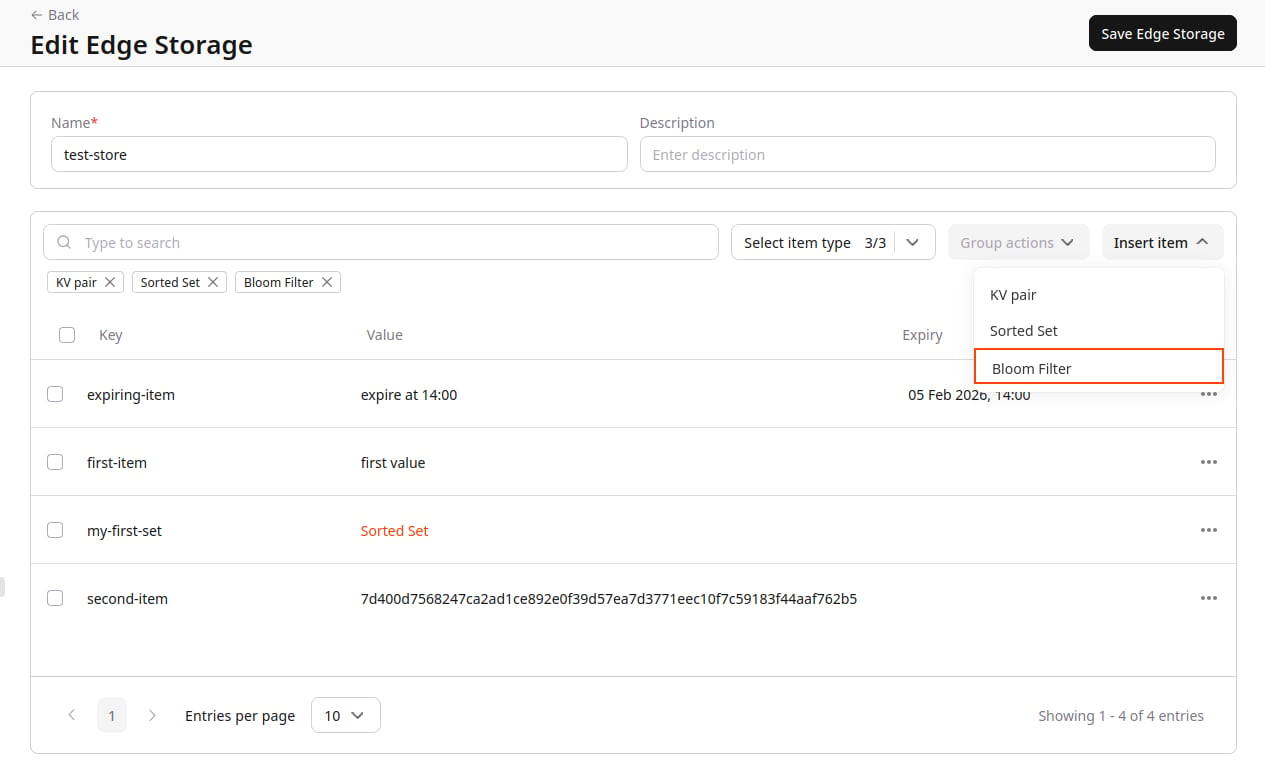
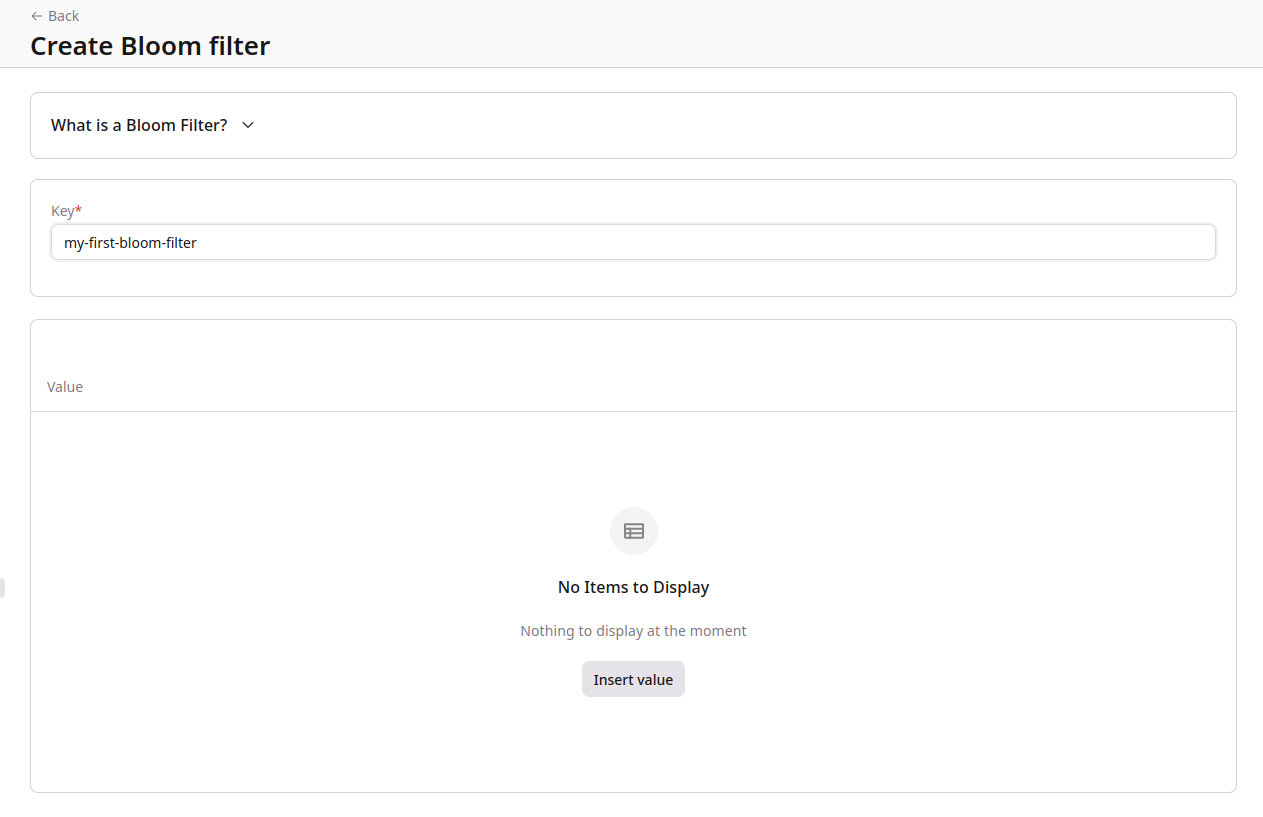
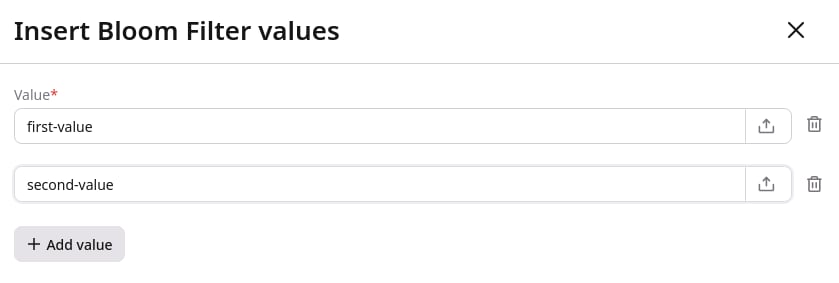
InfoUploading values from file has a 1 MB file size limit.Note:
File uploads will transform the value in the UI Portal to a hash representation of its content.
Editing a Bloom Filter
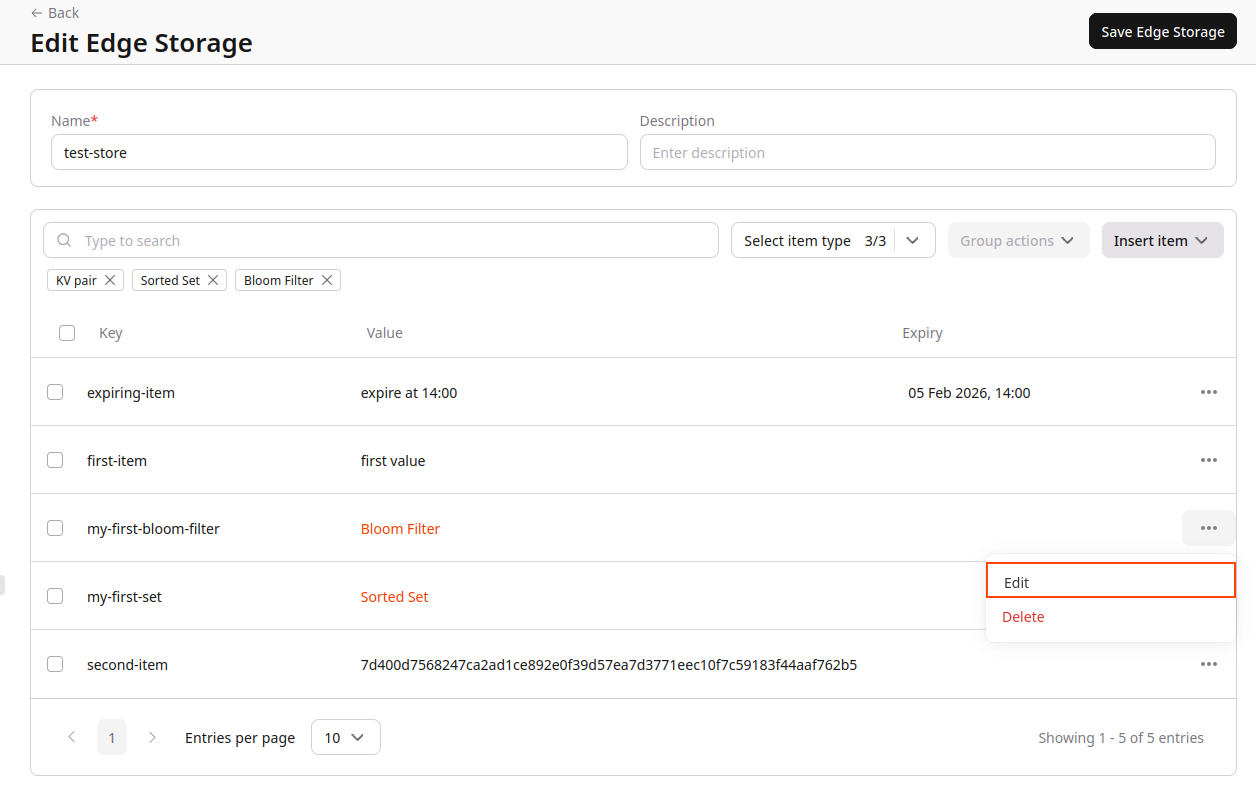
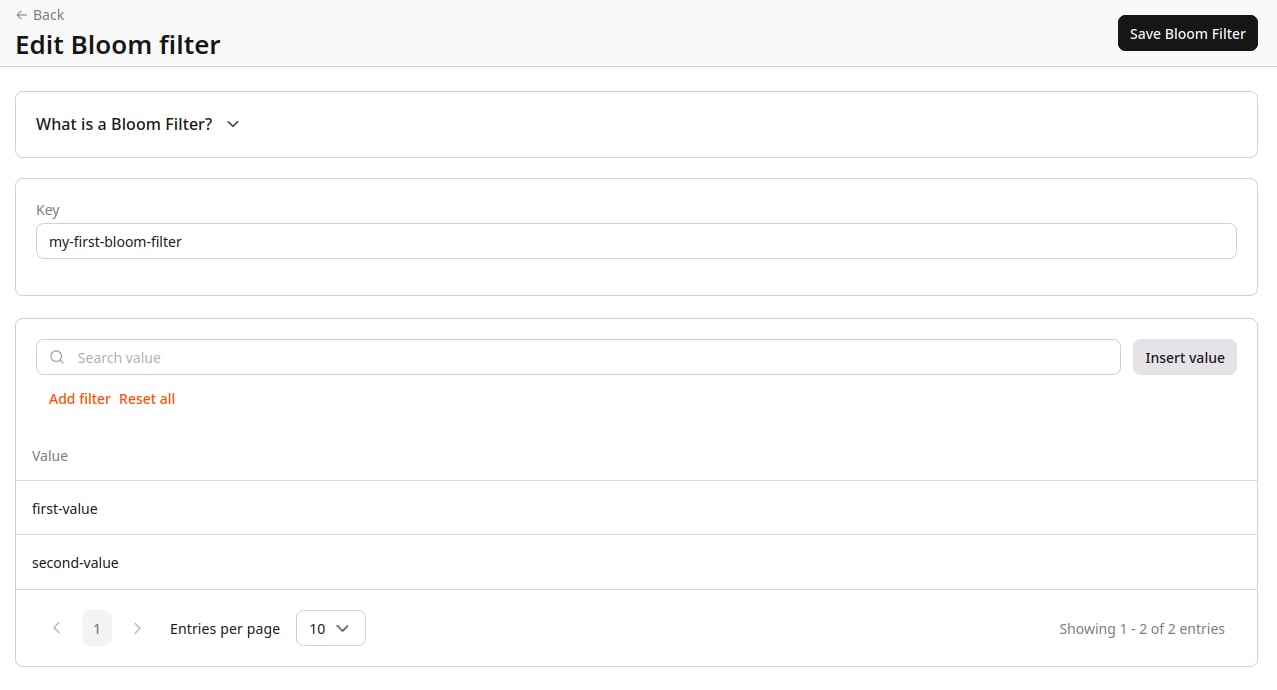
1. In the Gcore Customer Portal, navigate to FastEdge and choose the relevant page: Edge Storage. 2. Find the Edge Storage you want to edit and click its name to open it. 3. Find the Bloom Filter you want to edit, click the three-dot icon next to the key-value and select Edit.