What is a Sorted Set?
A Sorted Set (ZSET) stores unique members, each associated with a numeric score. Members are ordered by score, which makes ZSETs ideal for leaderboards, rankings, and time- or priority-based lists. You can add, update, or remove members while keeping the order automatically maintained.- Each member is unique; adding the same member updates its score.
- Scores are numeric; members are ordered by score, then lexicographically for ties.
- Membership is stored in-memory with scores, so very large sets can impact memory usage.
Creating a Sorted Set
1. In the Gcore Customer Portal, navigate to FastEdge and choose the relevant page: Edge Storage. 2. Find the Edge Storage you want to edit and click its name to open it. 3. Click Insert item and select Sorted Set.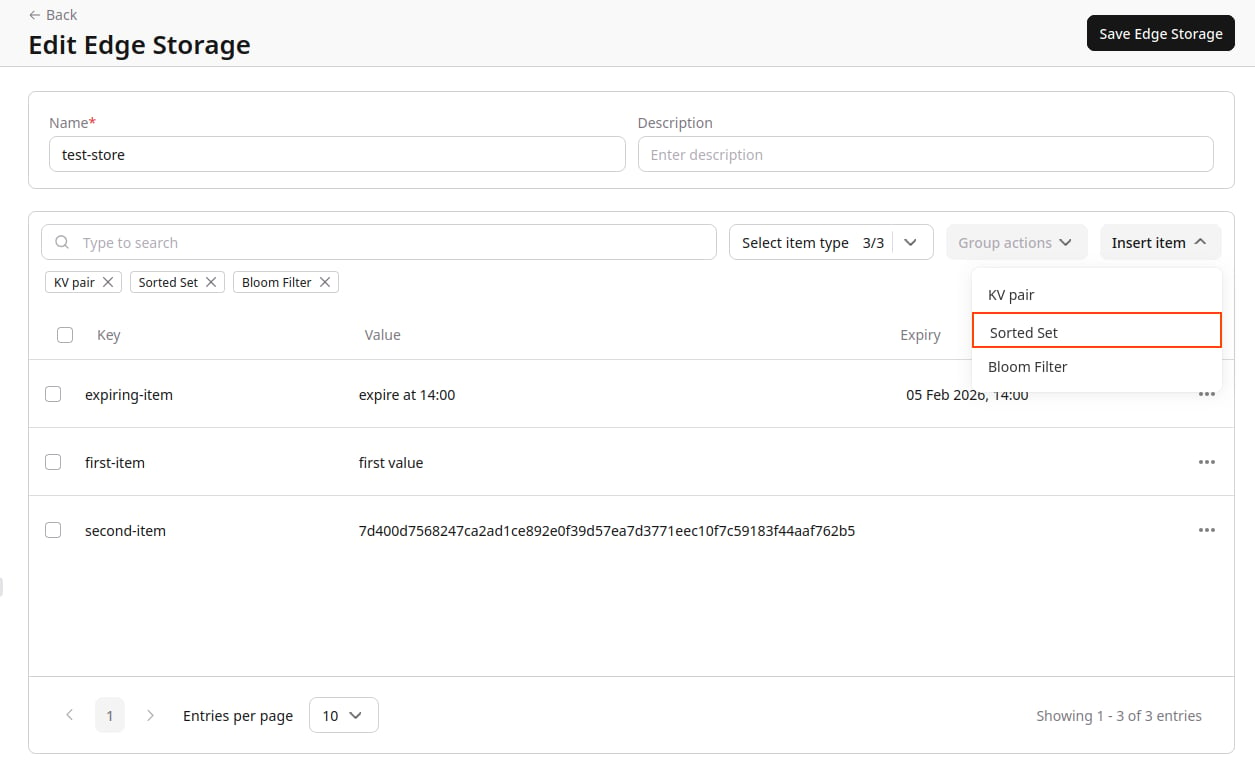
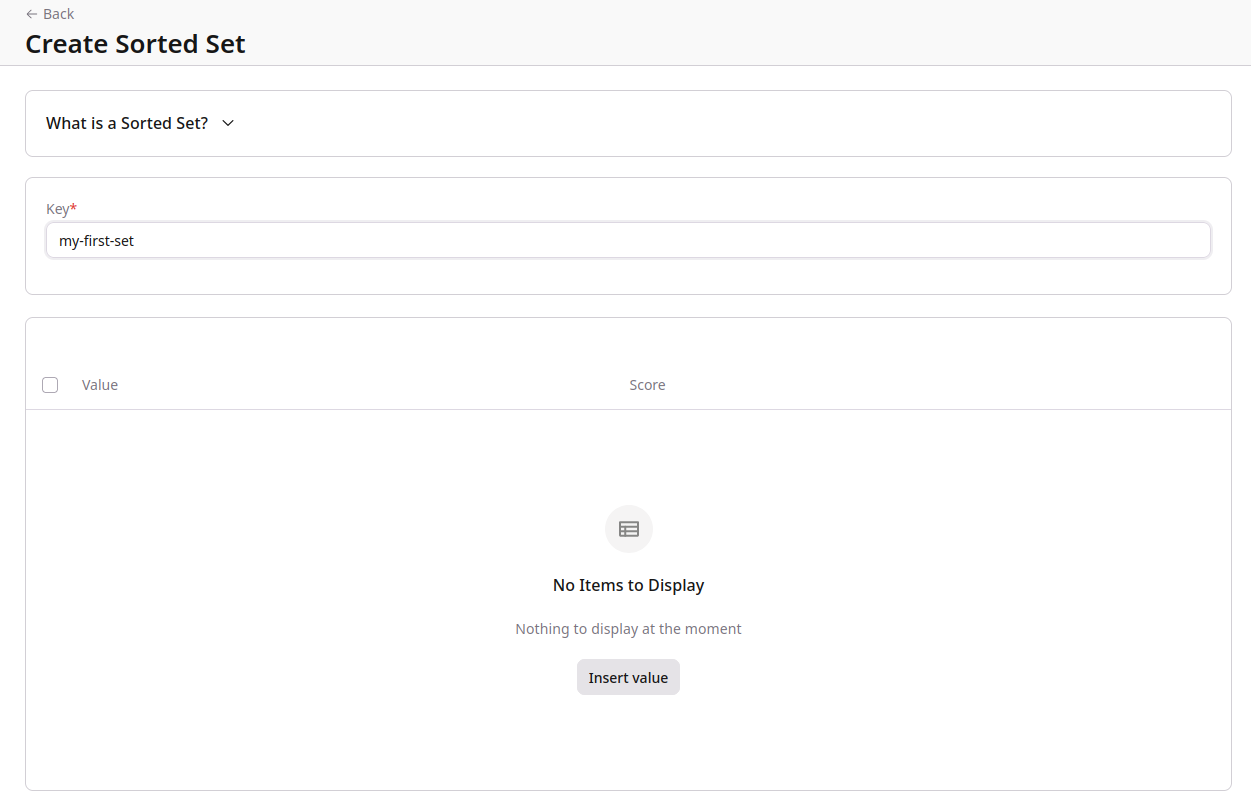
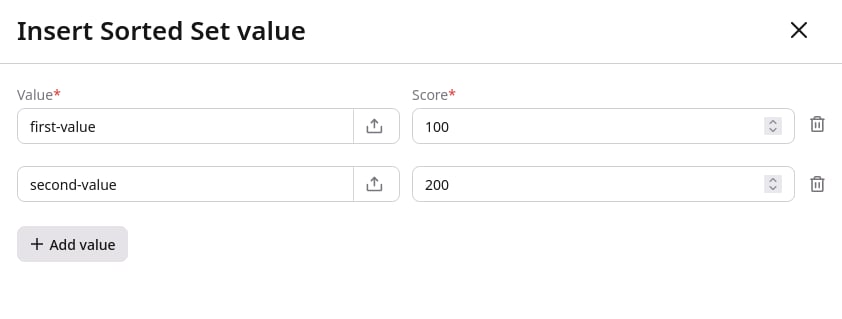
InfoUploading values from file has a 1 MB file size limit.Note:
File uploads will transform the value in the UI Portal to a hash representation of its content.
Editing a Sorted Set
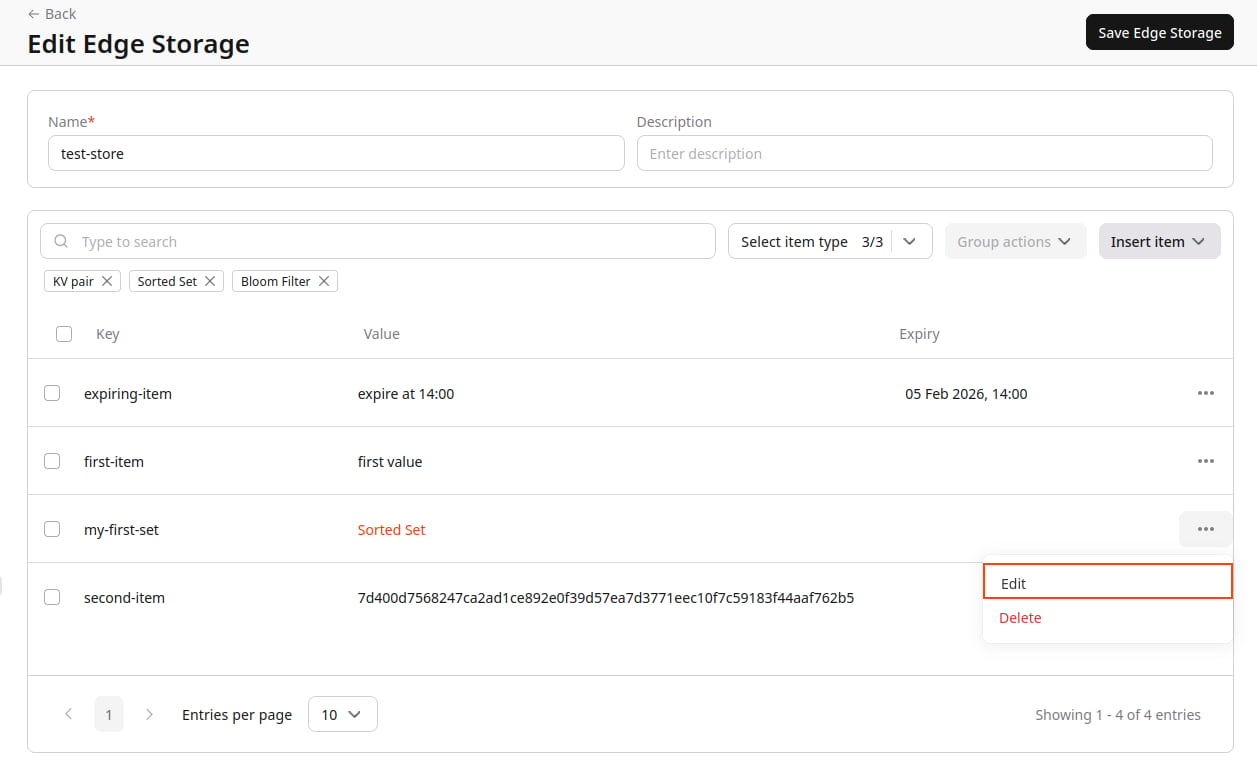
1. In the Gcore Customer Portal, navigate to FastEdge and choose the relevant page: Edge Storage. 2. Find the Edge Storage you want to edit and click its name to open it. 3. Find the Sorted Set you want to edit, click the three-dot icon next to the key-value and select edit.