

Creating a secret
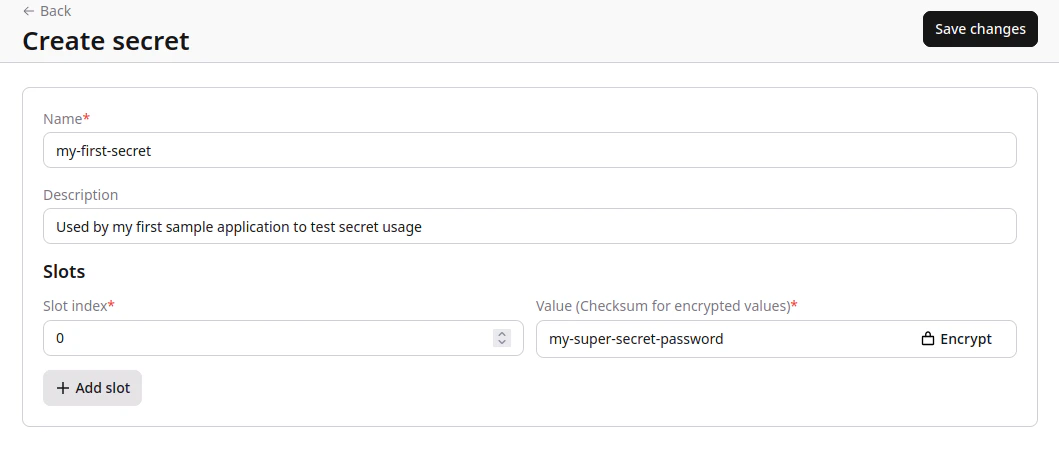
1. In the Gcore Customer Portal, navigate to FastEdge and choose the relevant page: Secrets Manager. 2. In the top-right corner of the screen, click Add secret.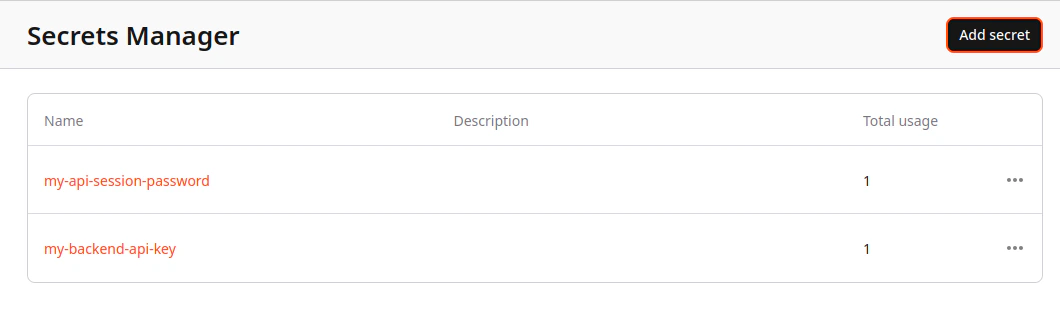
Editing a secret
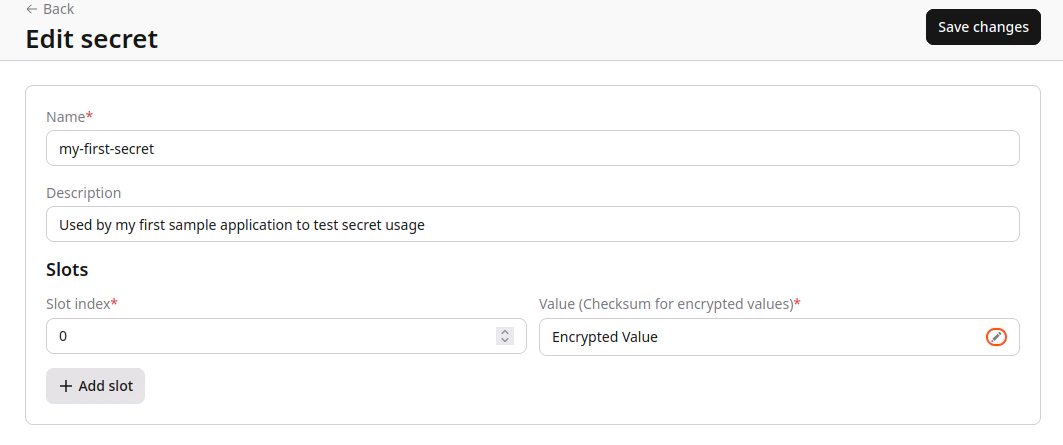
1. In the Gcore Customer Portal, navigate to FastEdge and choose the relevant page: Secrets Manager. 2. Find the secret you want to edit and click its name to open it.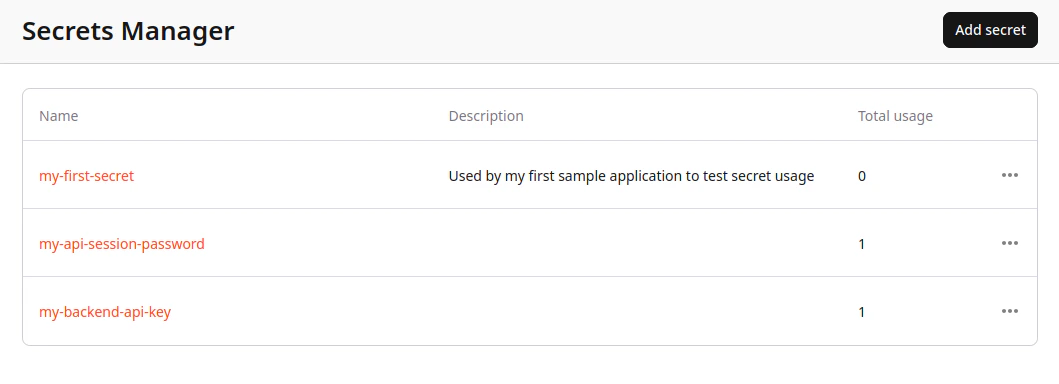
Deleting a secret
1. In the Gcore Customer Portal, navigate to FastEdge and choose the relevant page: Secrets Manager. 2. Find the secret you want to delete. click the three-dot icon next to the secret and select delete.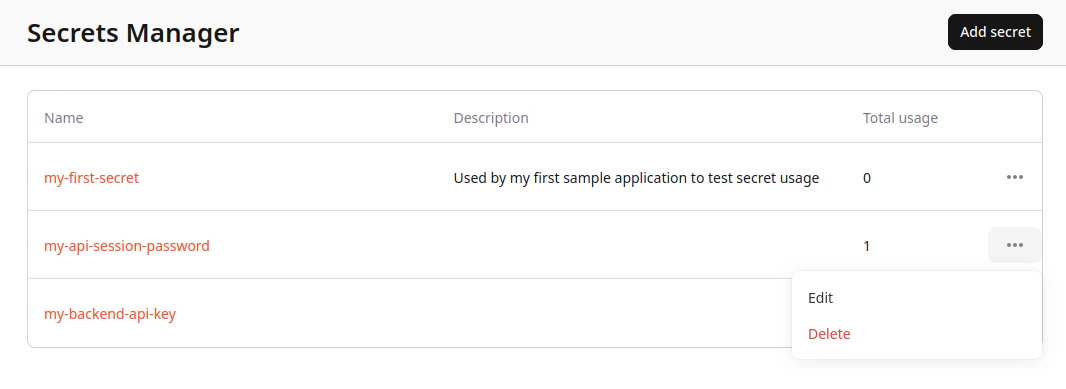
InfoYou can only delete secrets NOT in use. If the Secret is assigned to an application it will prompt you to remove it.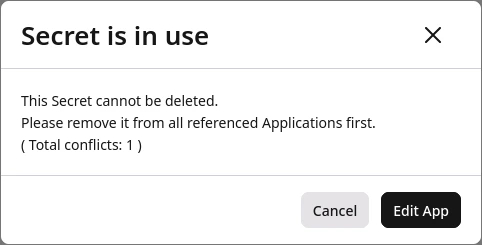
Accessing Secrets in applications
For more information regarding Secrets usage in applications see the JavaScript SDK and the Rust SDKInfoIn order to use Secrets in an application it must first be linked to the application. See Managing Applications - Secrets