

InfoThis feature is available in the Enterprise plan. To enable it for a domain, contact our sales team.
View security insights
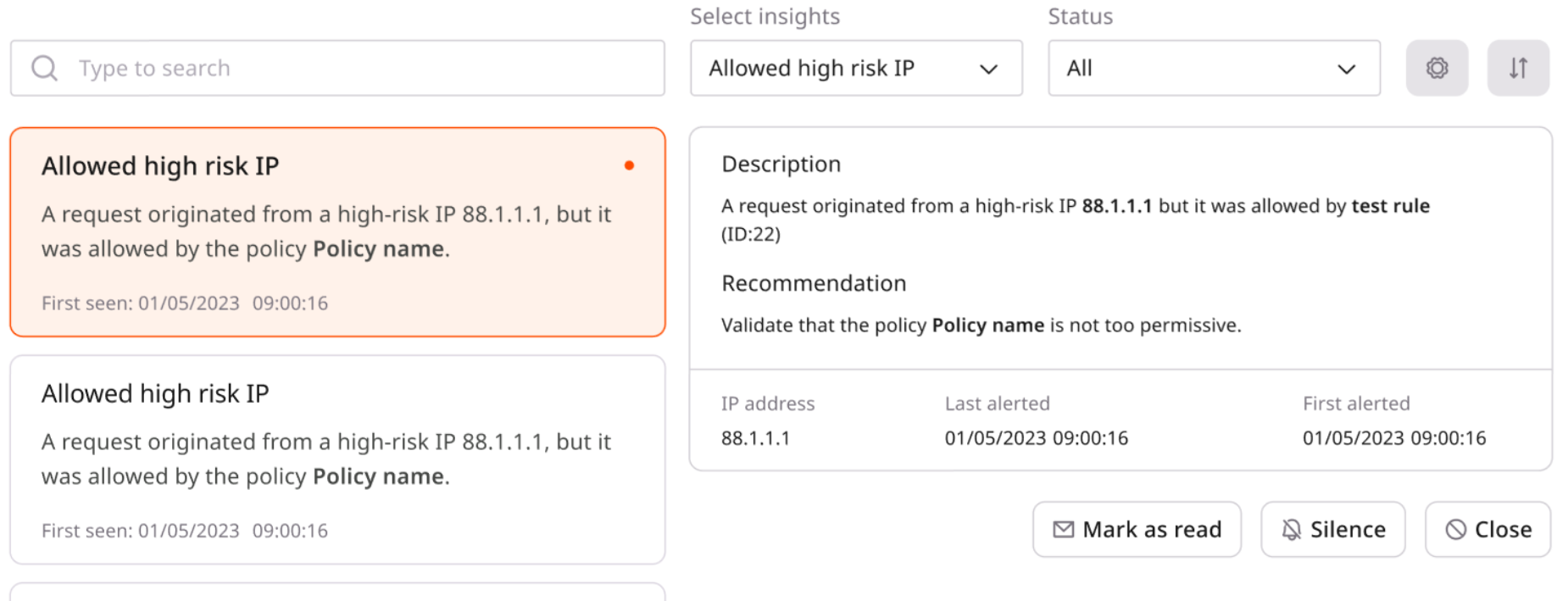
It is possible to view and manage system-generated Insights and related recommendations in the Customer Portal on the Security Insights page. To view the insights, follow these steps:- Open the Gcore Customer Portal and navigate to WAAP > Security Insights.
- In the domain dropdown at the top of the page, select the needed domain.
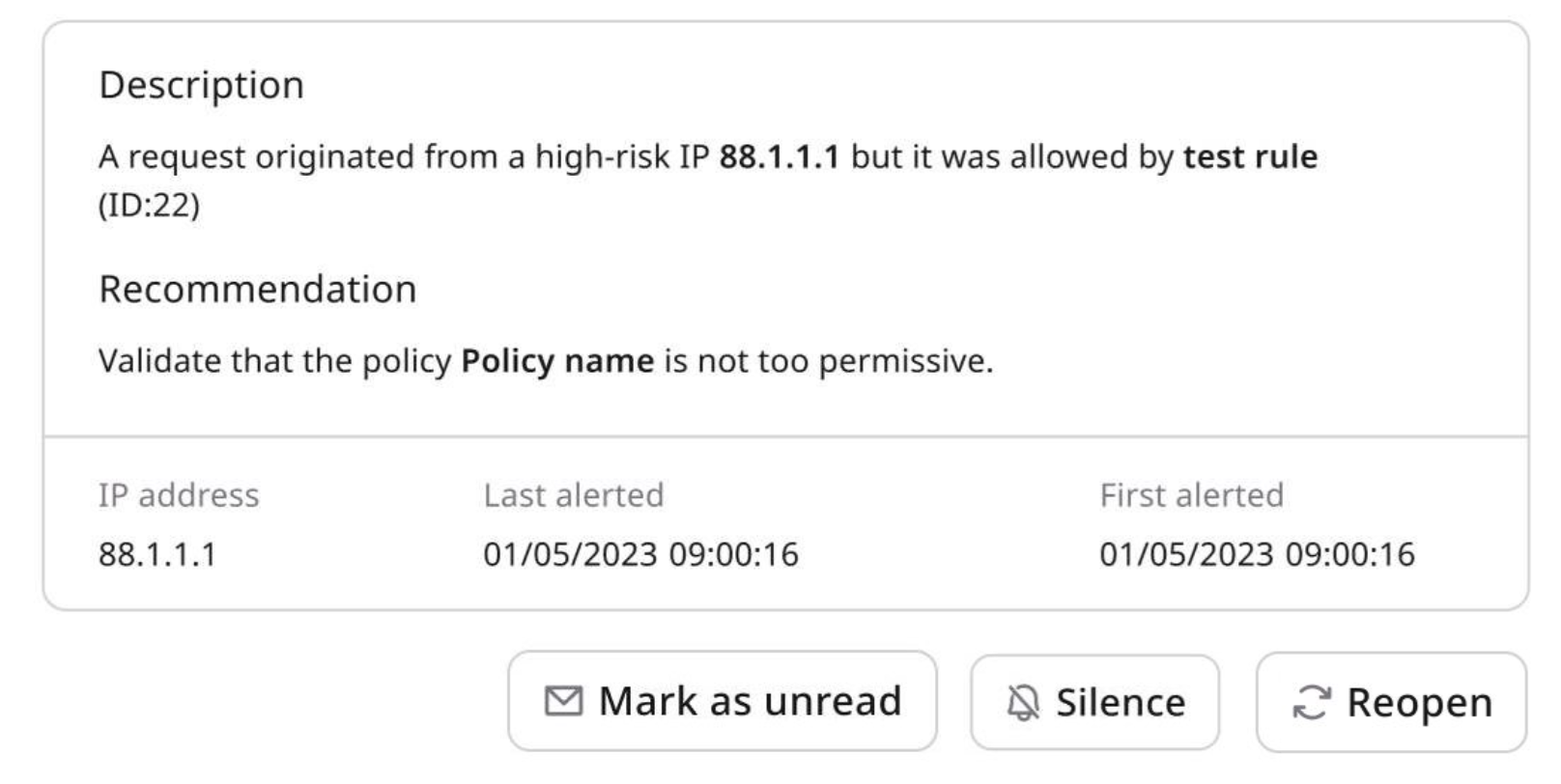
- The high-level description of the issue.
- The recommended mitigation for the issue.
- The relevant identifier:
- For Allowed high risk IP, the IP address associated with the high-risk requests.
- For Attack on disabled policy, the Policy ID of the disabled WAAP policy that was targeted.
- The first time the issue was detected.
- The last time the issue was detected.
Insight types
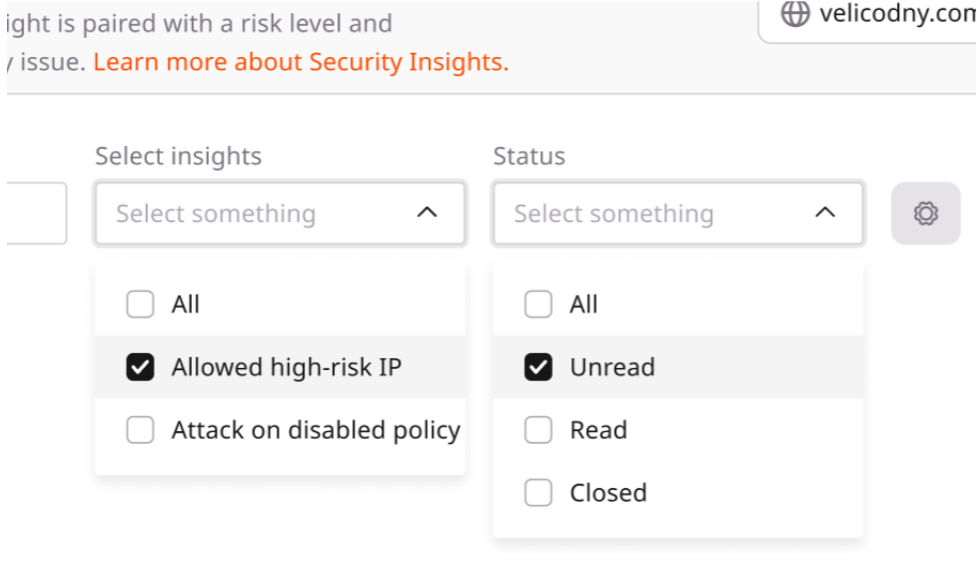
There are two types of security insights:- Attack on disabled policy: an attack targets a disabled WAAP policy . This Insight allows reassessment of policy rules and enables protection of the domain from similar attacks.
- Allowed high-risk IP: requests from high-risk IP addresses are being received, associated with malicious activities that are allowed due to user-created rules (for example, a Firewall rule or a Custom rule with the IP condition). This insight allows adjusting WAAP settings to block those addresses or modify the relevant custom rules.
Insight status
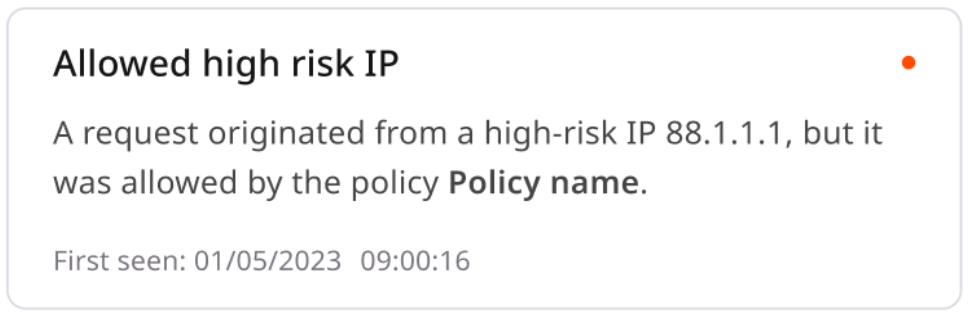
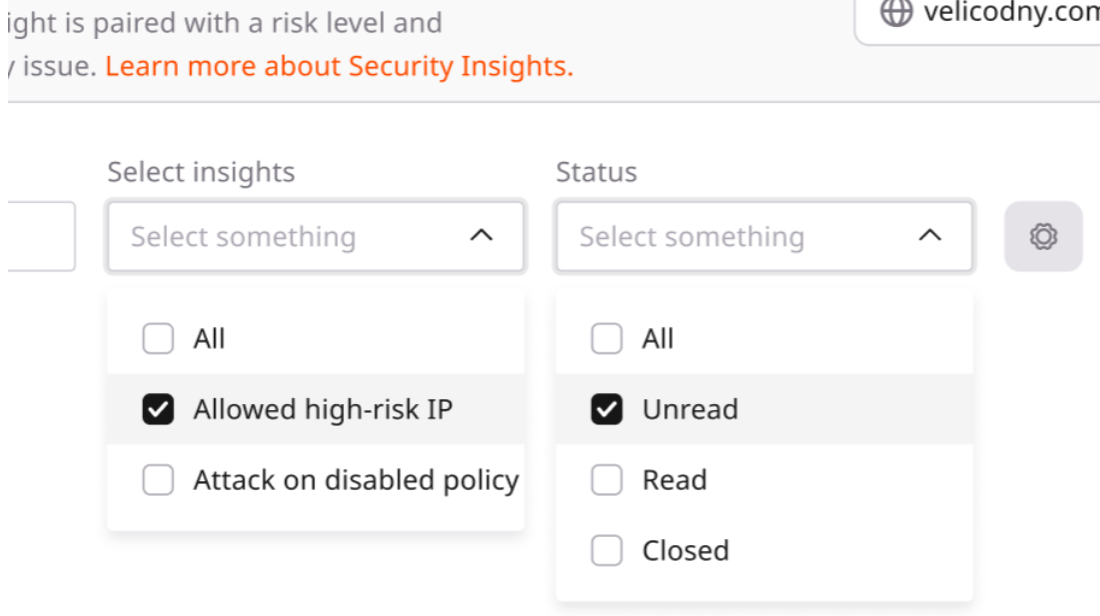
Insights can have one of three statuses:- Unread: a new insight that has not been reviewed yet.
- Read: an insight that has been reviewed but was not closed.
- Closed: insight that has been reviewed and closed.
Manage security insights
When an insight is selected, its status can be changed using the Mark as read, Silence, and Close buttons.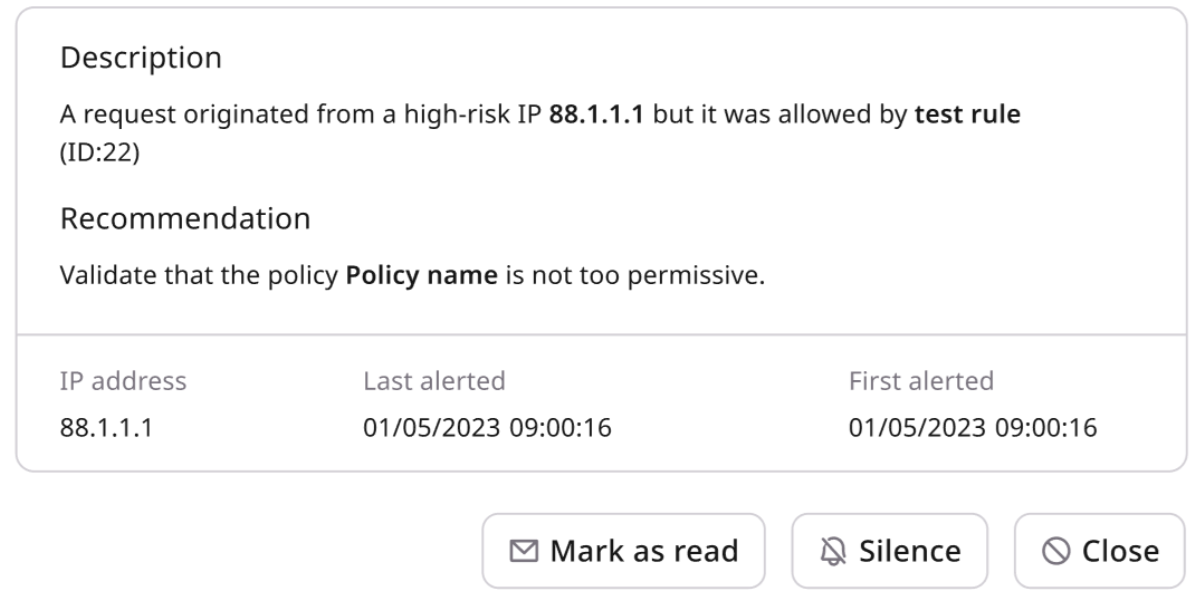
Mark insights as read
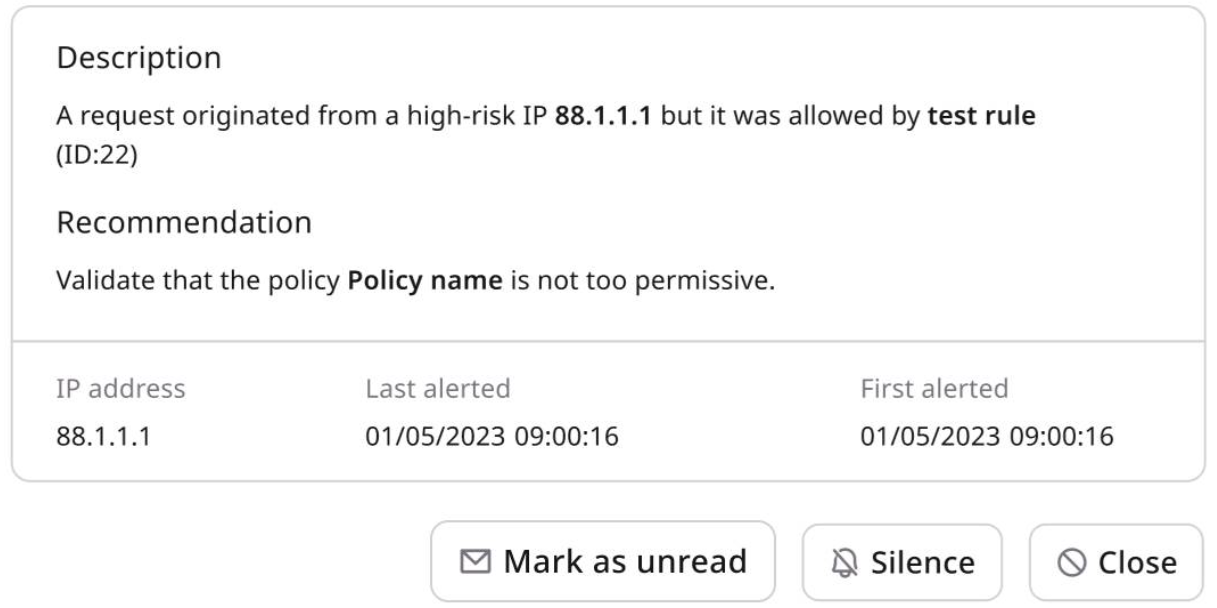
Insights are not automatically marked as read when viewed. To mark an insight as read, click Mark as read. To keep an insight as a reminder for later action or review, leave it unread.- Select the insight to mark as unread in the Security Insights list.
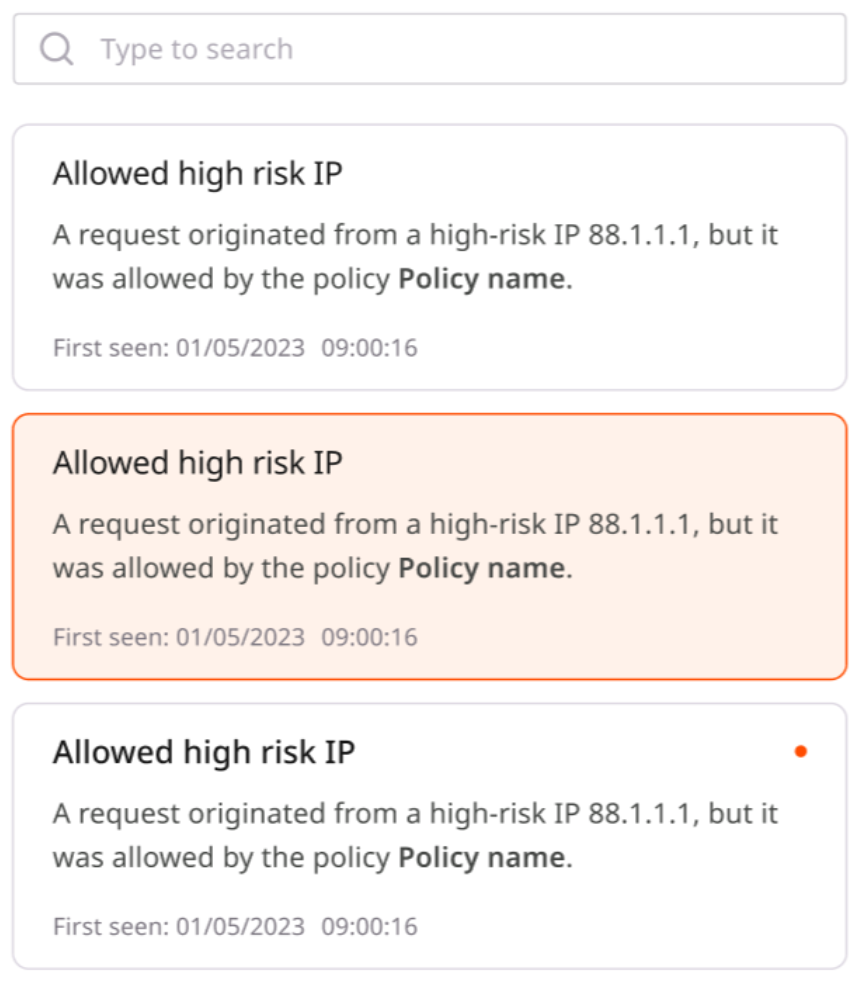
- Click the Mark as unread button.
Silence insights
An insight can be silenced if it has been viewed, but no action is taken, or it is not closed. Silencing an insight means pausing all notifications for a specific period (e.g., a week, month, custom period, or indefinitely). An insight can be silenced in three ways:- For a specific high-risk IP address allowed by any rule.
- For a particular high-risk IP address allowed by a specific rule.
- For all high-risk IP addresses.
- Select it in the Security Insights view list.
- Click the Silence button in its details.
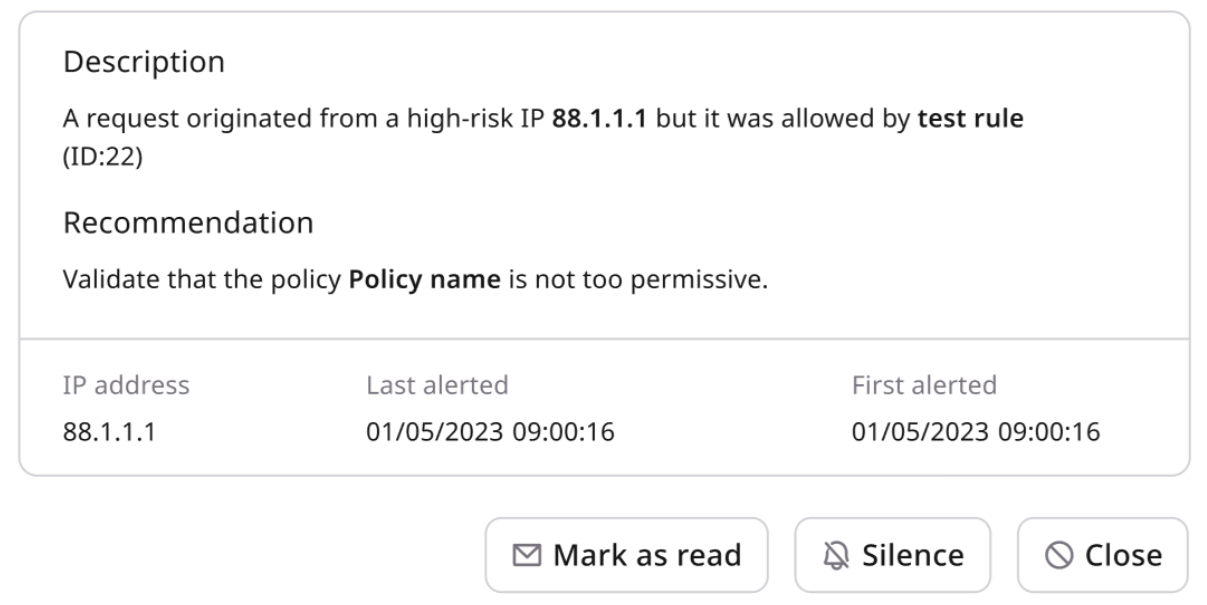
- Select the relevant silence rule and set the notification suppression duration.
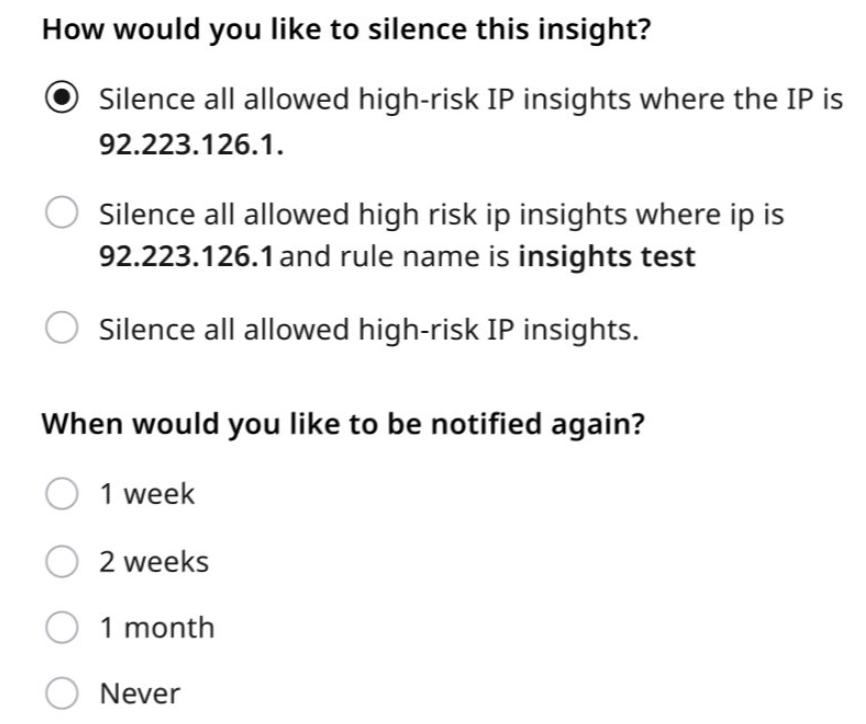
- Click the Save button.
Close insights
After an insight is reviewed, it can be closed and removed from the list by following these steps:- Select the insight to close.
- Click the Close button.
InfoClosed insights are automatically deleted after 30 days unless reopened.
- In the Status dropdown, select Closed.
- Select the insight to reopen.
- Click the Reopen button.
Manage silence rules
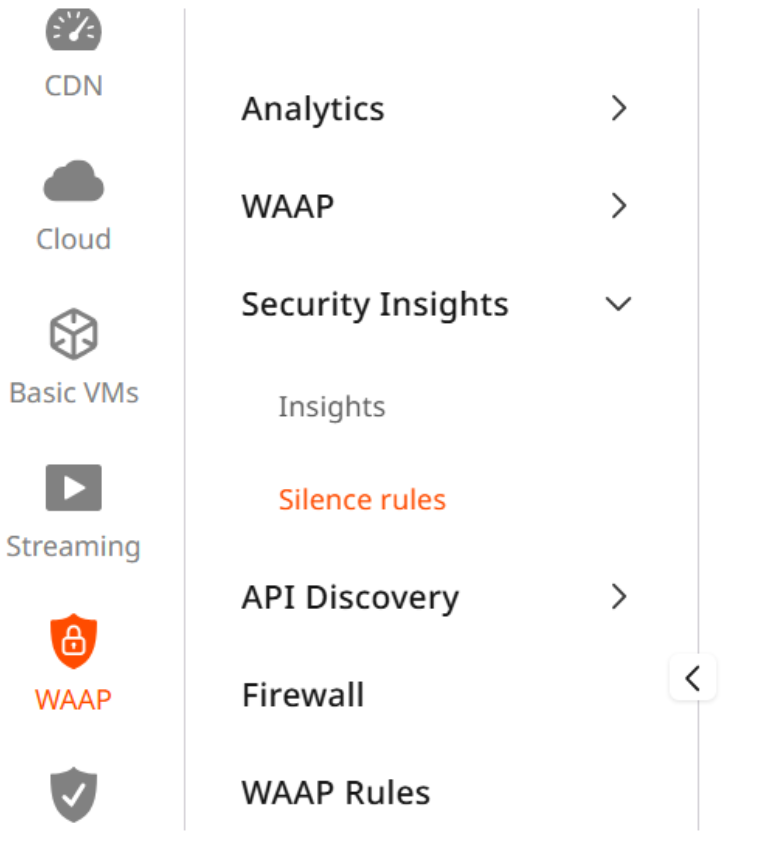
To adjust notifications for a particular insight or remove any configured silence rules:- Open the Gcore Customer Portal and navigate to WAAP > Security Insights.
- In the domain dropdown at the top of the page, select the needed domain.
- Click the Silence Rules tab.
- Find the silence rule to modify or remove, and click the action menu on the right.
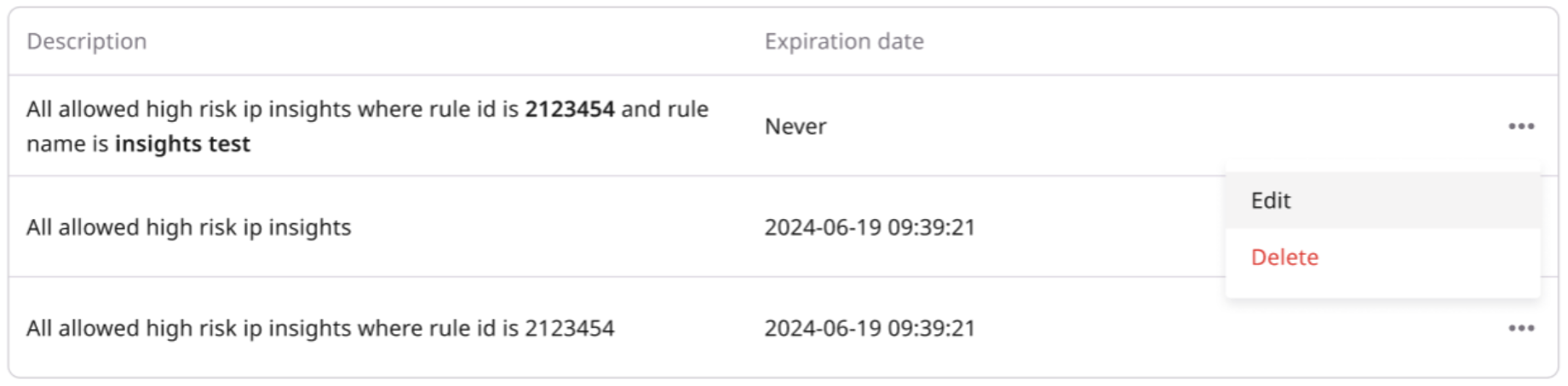
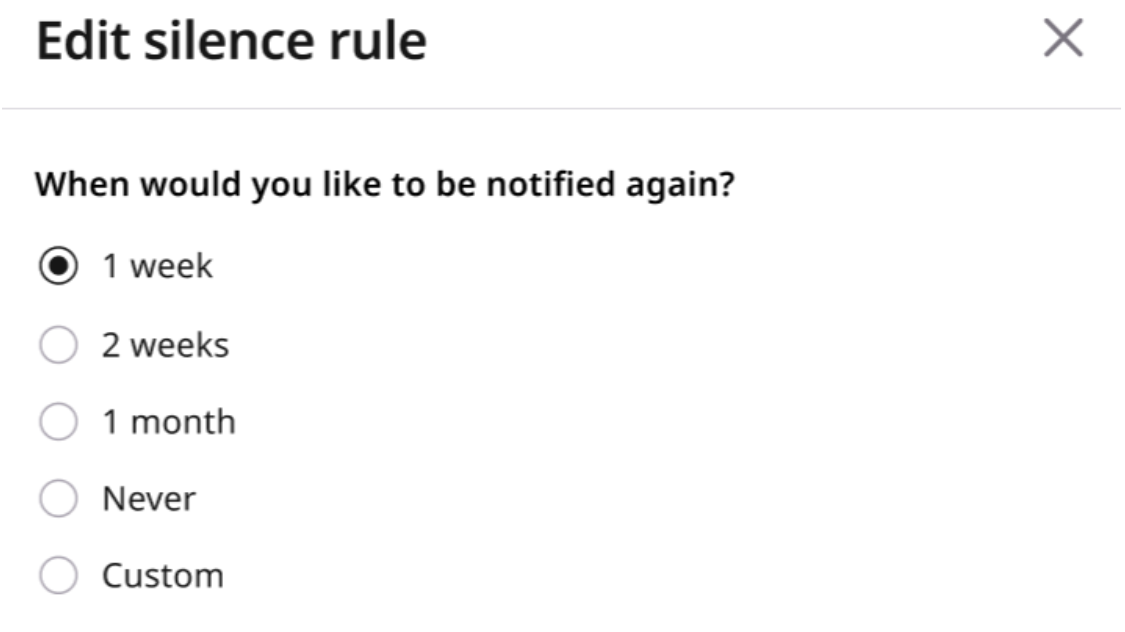
- Click Edit to change the silence duration of the rule or click Delete to unsilence it.
- Select the new silence duration and click the Save button.
InfoTo stop receiving security insights, silence both Insight types: Attack on disabled policy and Allowed high-risk IP. Insights can be enabled at any time, but it may take up to one hour to resume receiving them.