

View security insights
It is possible to view and manage system-generated Insights and related recommendations in the Gcore Customer Portal on the WAAP > Security Insights page.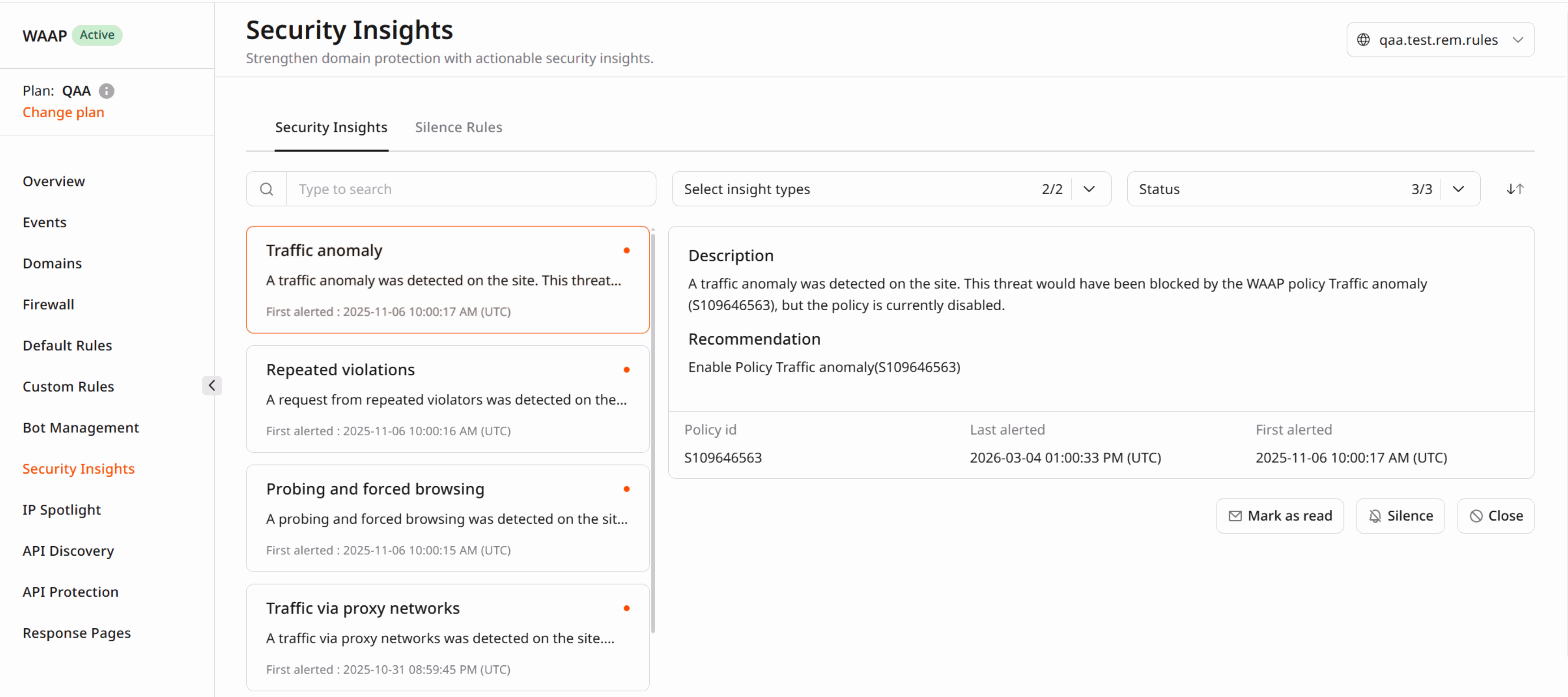
- Description — A high-level summary of the detected issue.
- Recommendation — Suggested action to mitigate or resolve the issue.
- The relevant identifier:
- For Allowed high risk IP, the IP address associated with high-risk requests.
- For Attack on disabled policy, the Policy id of the targeted disabled WAAP policy.
- Last alerted — The timestamp when the issue was most recently detected.
- First alerted — The timestamp when the issue was first detected.
Insight types
There are two types of security insights:- Attack on disabled policy: an attack targets a disabled WAAP policy. This Insight allows reassessment of policy rules and enables protection of the domain from similar attacks.
- Allowed high-risk IP: requests from high-risk IP addresses are being received, associated with malicious activities that are allowed due to user-created rules (for example, a Firewall rule or a Custom rule with the IP condition). This insight allows adjusting WAAP settings to block those addresses or modify the relevant custom rules.
Insight status
Insights can have one of three statuses:- Unread: a new insight that has not been reviewed yet.
- Read: an insight that has been reviewed but was not closed.
- Closed: insight that has been reviewed and closed.
Use cases and scenarios
Security Insights helps you quickly identify risks, understand their impact, and take action. The following scenarios demonstrate how you can use insights in real environments.Detect attacks on disabled protection
A security team temporarily disables a WAAP policy during testing. Shortly after, Security Insights reports an Attack on disabled policy insight.- What happens: Malicious requests target the unprotected endpoint.
- What you see: The insight highlights the affected policy ID and timestamps.
- What you can do: Re-enable the policy or adjust its configuration to safely restore protection.
Identify risky traffic allowed by custom rules
A company allows traffic from specific IP ranges using custom firewall rules. Security Insights detects an Allowed high-risk IP insight.- What happens: Requests from known malicious IPs are not blocked due to existing rules.
- What you see: The insight displays the IP address and related activity.
- What you can do: Update or refine custom rules to block or restrict risky IPs.
Investigate recurring suspicious activity
An insight repeatedly appears over time for the same IP or policy.- What happens: Persistent probing or attack attempts target your application.
- What you see: Multiple alerts with updated Last alerted timestamps.
- What you can do: Correlate insights with logs, tighten WAAP rules, or block sources permanently.
Prioritize and track security actions
Your team receives multiple insights with different statuses.- What happens: New issues appear alongside previously reviewed ones.
- What you see: Insights categorized as Unread, Read, or Closed.
- What you can do: Prioritize unread insights, review ongoing issues, and close resolved ones.