

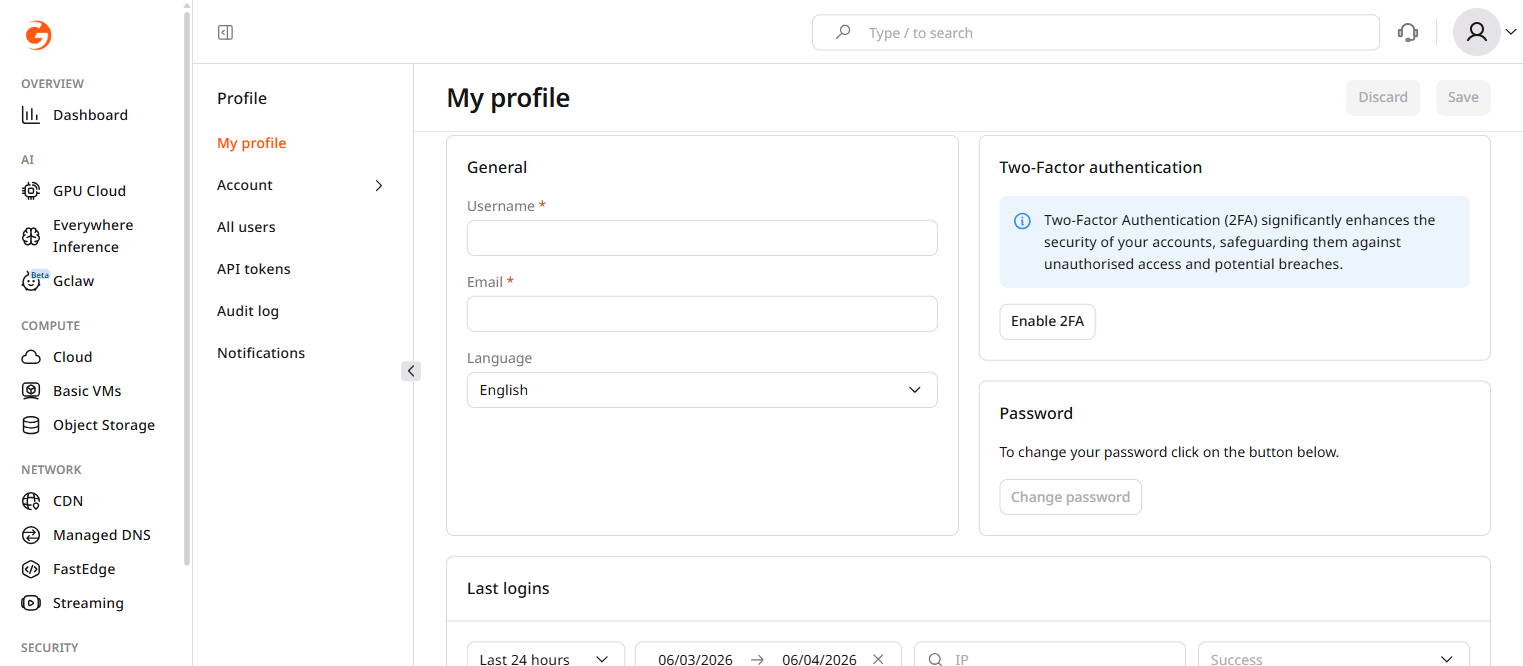
General settings
The General section displays basic user information and supports editing:- Username: The display name associated with the user account. This field is editable.
- Email: The email address used for login and notifications. The email can be changed up to ten times within a one-hour period.
- Language: The preferred language for the Customer Portal interface. Select from the dropdown to change the display language.
Email address changes are not available for accounts created using Google or GitHub authentication.
Two-factor authentication
Two-factor authentication (2FA) adds an extra layer of security by requiring a verification code in addition to the password during login. When 2FA is disabled, the section displays an Enable 2FA button.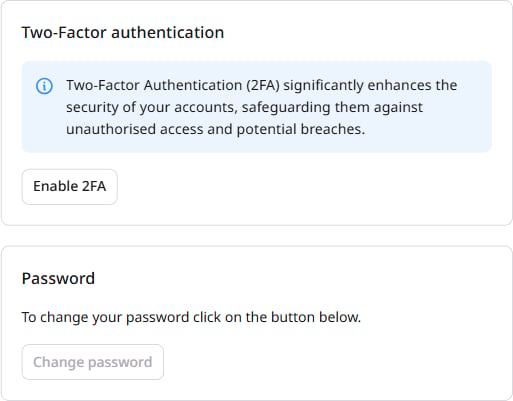
- Enabled status badge
- Disable 2FA: Removes two-factor authentication from the account
- Generate backup code: Creates a backup code for account recovery if access to the authenticator app is lost
Password
The Password section provides access to password management:- Click Change password to open the password update dialog
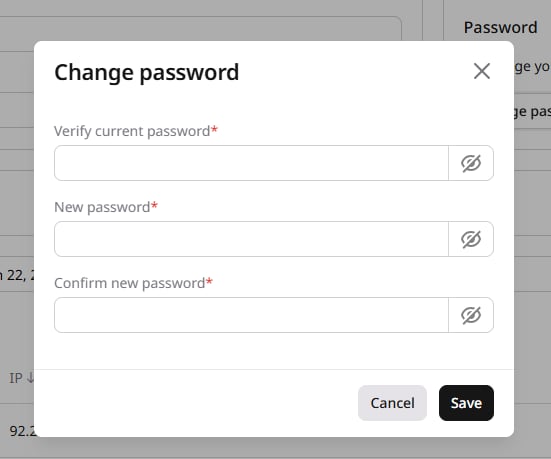
The Change password button is unavailable for accounts authenticated via SSO (Microsoft, Google, or GitHub). Passwords for these accounts are managed by the identity provider.
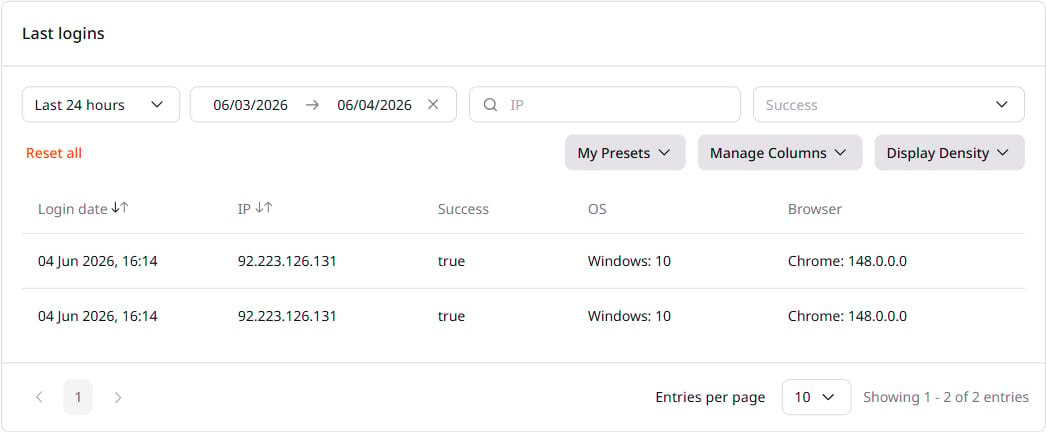
Last logins
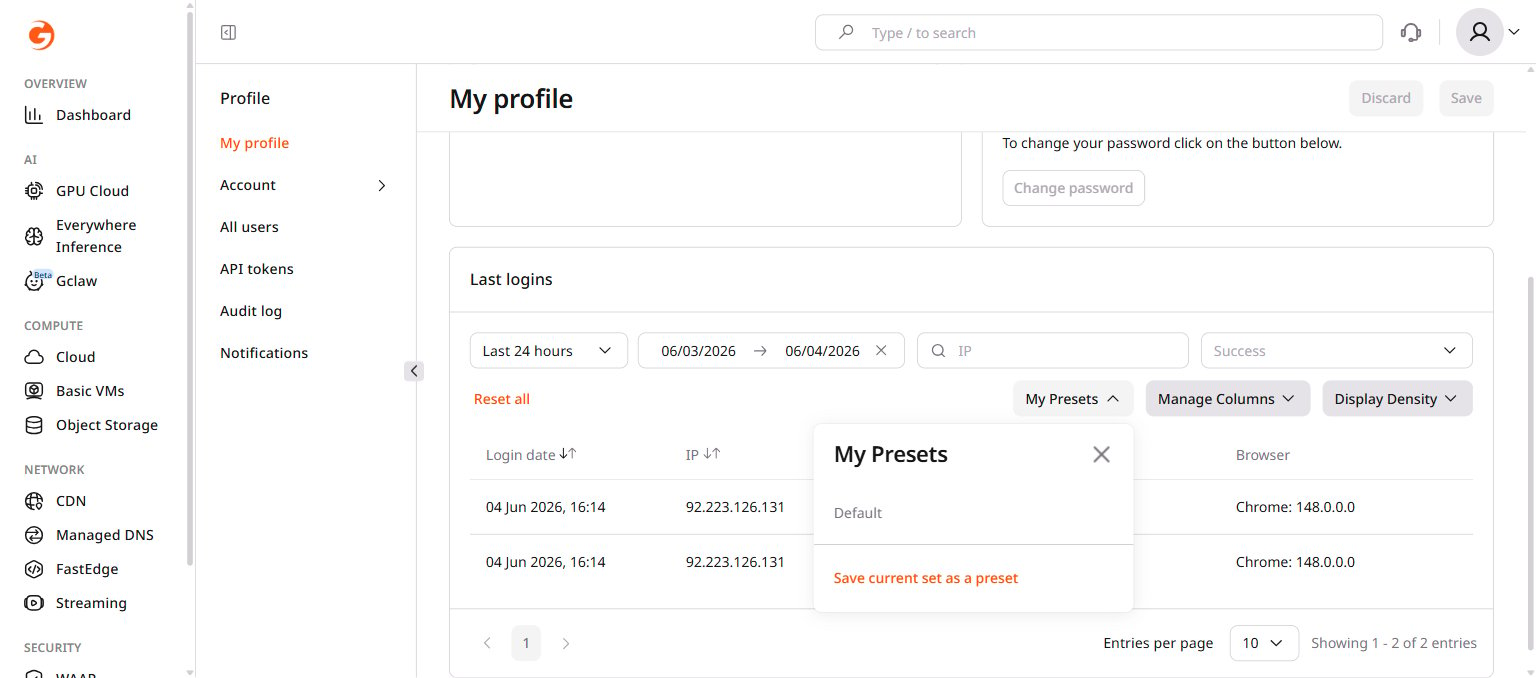
The Last logins table displays a history of login attempts to the account. This information helps detect unauthorized access and monitor account security. Each login record includes:| Column | Description |
|---|---|
| Login date | Date and time of the login attempt, displayed in the local timezone of the device |
| IP | IP address from which the login was made |
| OS | Operating system used during the login attempt |
| Browser | Browser from which the login attempt was made |
| Success | Login status: true for successful logins, false for failed attempts |
Filter login history
The login history table supports filtering by:- Date range: Select a predefined range (Last 24 hours, Last week, Last month, Last 3 months) or specify custom dates
- IP address: Search by specific IP
- Success status: Filter by successful or failed attempts
Save filter presets
To save a filter configuration for future use:- Apply the desired filters to the table.
- Click My Presets and select Save current set as a preset.
- Enter a name for the preset.
- Click Create.
Customize table display
Additional table options are available through the toolbar:- Manage Columns: Show or hide specific columns
- Display Density: Adjust row spacing (compact, comfortable, and spacious)
On accounts with multiple users, only Administrators can view the full login history for all users. Other users see only their own login activity.