

Configure two-factor authentication
- In the Customer Portal, click the avatar in the top-right corner and select Profile.
- Click Enable 2FA.
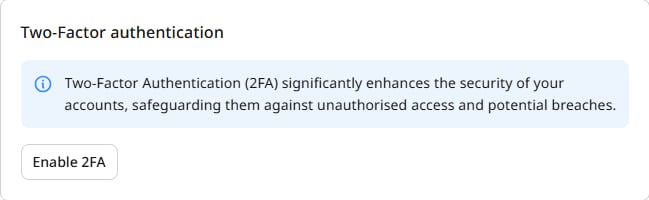
-
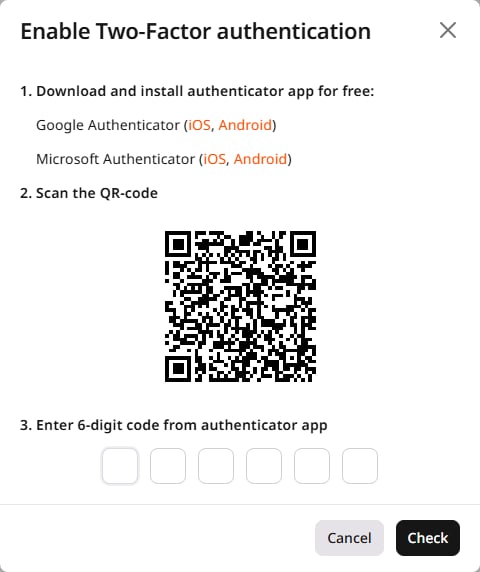
In the configuration dialog that opens, download an authenticator app on a mobile device. Recommended apps:
- Google Authenticator (for Android / iOS)
- Microsoft Authenticator (for iOS / Android)
- Authy (for Android / iOS)
Troubleshooting authenticator apps
Troubleshooting authenticator apps
If the authenticator app is not working, check the following.
Check time synchronization
2FA requires synchronized time between the authenticator app and the login device. If an invalid code error appears despite entering the correct code, the issue may be time synchronization. Verify that the date and time are correct and enable network time synchronization on the login device.Use a backup verification code
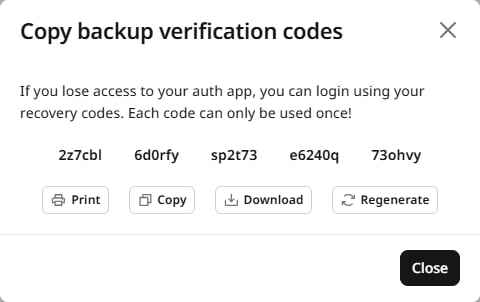
Use one of the one-time backup codes that were generated during 2FA setup.Check device configuration
If the authenticator app was recently moved to a new device, verify that it is configured correctly on the new device.- Scan the QR code shown in the dialog using the authenticator app.
- Enter the six-digit code generated by the app and click Check.
Generate backup verification codes
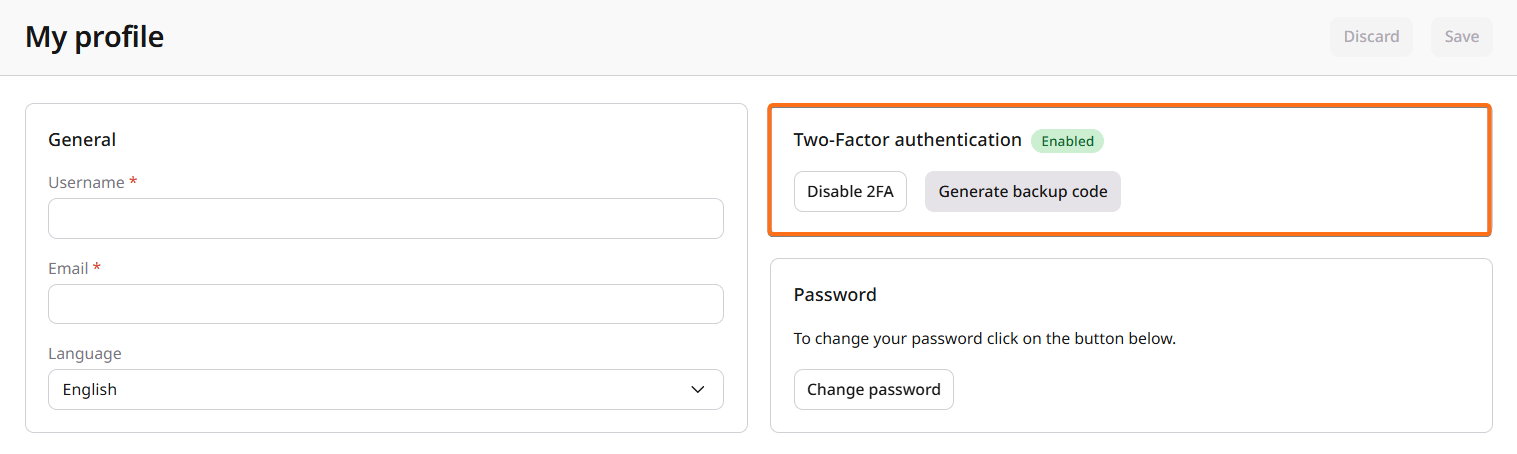
Backup verification codes allow access to the account if the authenticator app becomes unavailable. To generate codes, click Generate backup code on the My profile page.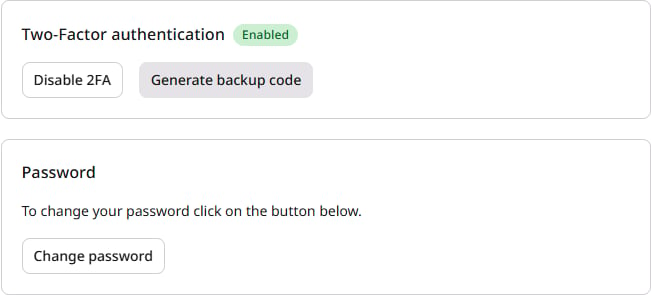
Log in with two-factor authentication
- Enter an email address and password on the login page.
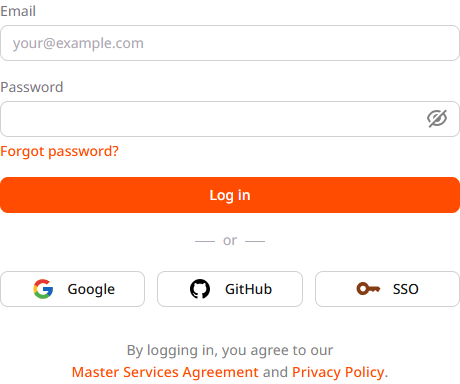
- Click Log in.
- Enter the verification code from the authenticator app, or use a backup code.
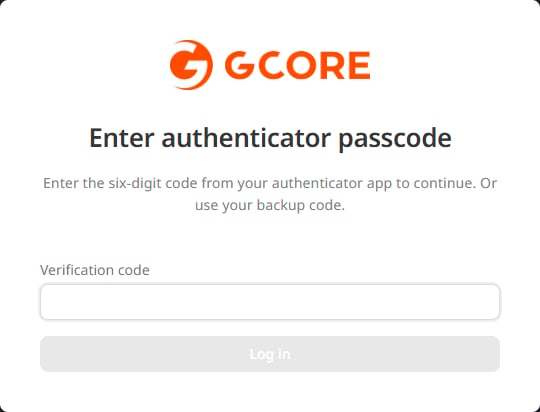
- Click Log in.
Disable two-factor authentication
- Go to the My profile page and in the Two-Factor authentication section, click Disable 2FA.
- In the confirmation dialog that opens, review the message and click Confirm. A confirmation link will be sent to the email address associated with the account. The link is masked in the dialog for security.
- Open the email and click the confirmation link.