

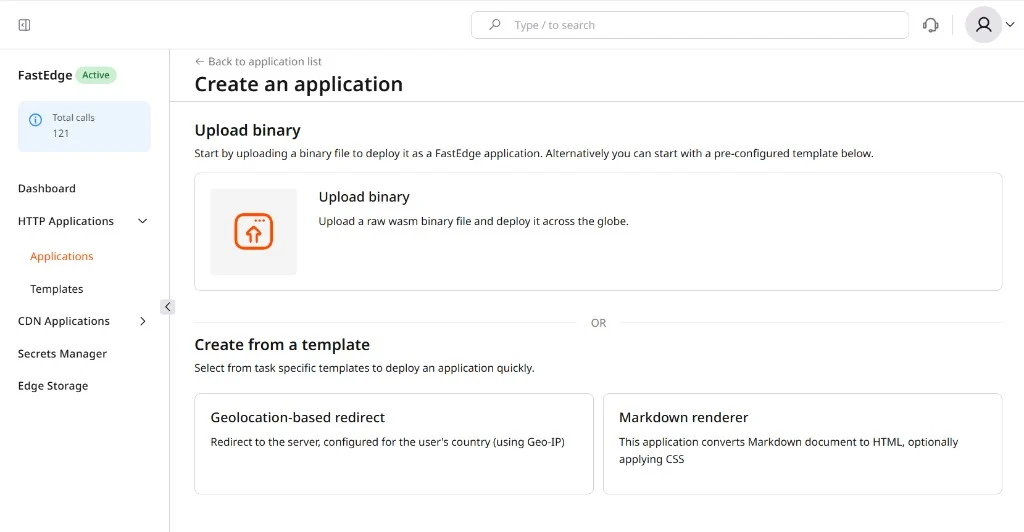
Markdown renderer
The Markdown renderer fetches a Markdown file from a remote HTTP source and returns it as a rendered HTML page. It’s useful for publishing documentation hosted on GitHub or any static file server without a separate rendering backend. Every incoming request’s URL path is appended to theBASE variable to form the source URL. A request to https://<app-url>/guides/quickstart.md with BASE set to https://raw.githubusercontent.com/org/repo/main/ fetches https://raw.githubusercontent.com/org/repo/main/guides/quickstart.md and returns the rendered HTML.
Step 1. Create the application
Create the application by selecting the Markdown renderer template and setting at least the BASE variable.
- In the Gcore Customer Portal, navigate to FastEdge > HTTP Applications > Applications and click Create new application.
- Scroll to Create from a template and click Markdown renderer.
- Enter a Name for the application. The name becomes part of the deployment URL.
-
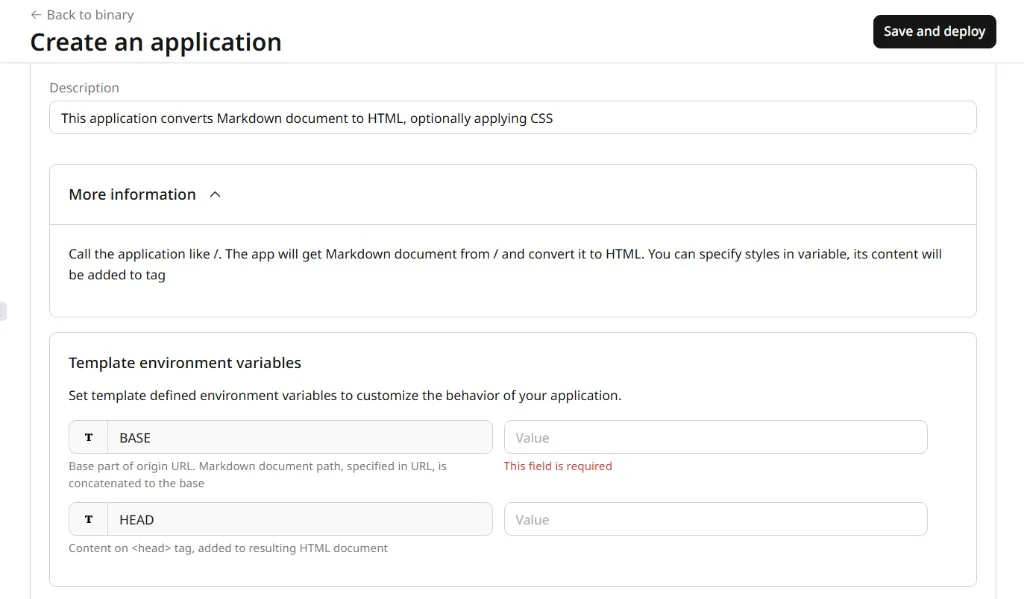
Fill in the Template environment variables:
-
BASE (required): The root URL of the Markdown source. The application appends the incoming request’s path to this value when fetching files. Set it to the directory URL where the Markdown files live, with a trailing slash. Example:
https://raw.githubusercontent.com/G-Core/FastEdge-sdk-js/main/ -
HEAD (optional): Raw HTML inserted verbatim into the
<head>tag of every rendered page. Use it to apply a stylesheet, set a viewport meta tag, or add any other head-level markup. Example:<style>body{font-family:sans-serif;max-width:800px;margin:2rem auto;padding:0 1rem}</style>
-
BASE (required): The root URL of the Markdown source. The application appends the incoming request’s path to this value when fetching files. Set it to the directory URL where the Markdown files live, with a trailing slash. Example:
-
(Optional) Configure additional sections:
- Response headers: static headers added to every response, such as
Cache-Controlor CORS headers. - Environment variables: additional runtime key-value pairs accessible via the SDK — separate from the template-defined variables above.
- Secrets: encrypted values from Secrets Manager for sensitive data such as API keys. The app reads each secret as an environment variable using the key name set here.
- Edge Storage: a key-value store the app can query at the edge. Requires an existing store on the Edge Storage page.
- Response headers: static headers added to every response, such as
- Click Save and deploy.
The application details page opens with the deployment URL in the format https://<app-name>-<id>.fastedge.app.
Step 2. Test the application
Request any Markdown file path from the app URL and inspect the response:
Content-Type: text/html:
HEAD is set, the injected markup appears inside <head>. If the source file does not exist at the constructed URL, the app returns the upstream HTTP error code.
To verify the source URL the app constructs, check that BASE + path matches the raw file URL directly — confirm https://raw.githubusercontent.com/org/repo/main/README.md returns HTTP 200 before deploying.
Geolocation-based redirect
The Geolocation-based redirect detects each visitor’s country from Gcore’s Geo-IP data and issues an HTTP 302 redirect to the corresponding URL. It’s useful for routing international visitors to regional landing pages, language-specific subdomains, or data-residency-compliant endpoints without client-side JavaScript. Country rules are defined as environment variables: each key is an ISO 3166-1 alpha-2 country code and the value is the redirect URL. Visitors from countries with no matching rule are sent to theDEFAULT URL.
Step 1. Create the application
Create the application by selecting the Geolocation-based redirect template, then configure the DEFAULT variable and country rules.
- In the Customer Portal, navigate to FastEdge > HTTP Applications > Applications and click Create new application.
- Scroll to Create from a template and click Geolocation-based redirect.
- Enter a Name for the application.
-
Fill in the Template environment variables:
- DEFAULT (required): The fallback redirect URL for visitors whose country is not matched by any rule. Every deployment must have a default — without it, unmatched visitors receive an error. Example:
https://example.com/en
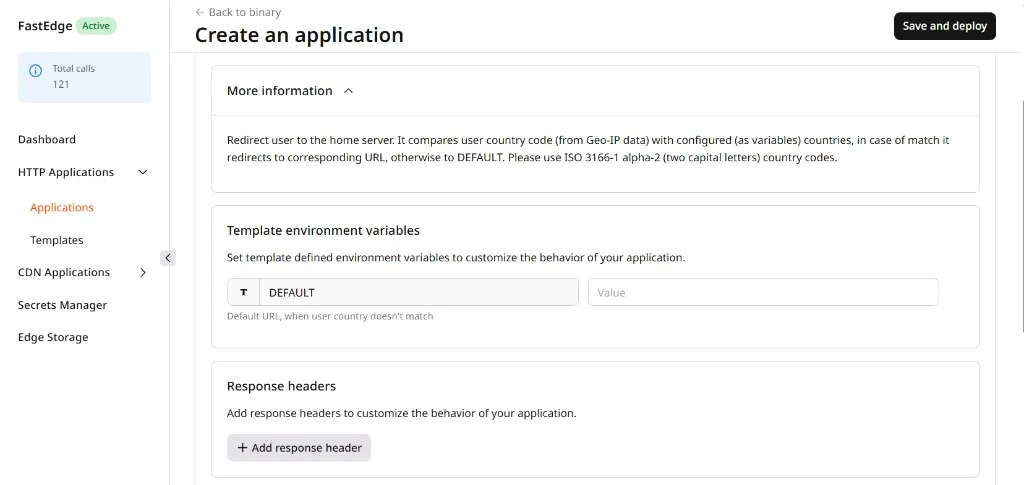
- DEFAULT (required): The fallback redirect URL for visitors whose country is not matched by any rule. Every deployment must have a default — without it, unmatched visitors receive an error. Example:
-
Add country redirect rules in the Environment variables section. Each rule is one variable:
- Key: ISO 3166-1 alpha-2 country code in uppercase. Example:
DE,FR,JP,US. - Value: The full redirect URL for visitors from that country. Example:
https://example.com/de.
DEFAULT. - Key: ISO 3166-1 alpha-2 country code in uppercase. Example:
- (Optional) Configure Response headers, Secrets, and Edge Storage as needed.
- Click Save and deploy.
The application details page opens with the deployment URL.
Step 2. Test the application
Send a request to the app URL and inspect the redirect response:
DEFAULT:
The redirect applies to all URL paths — /pricing, /contact, and / all redirect using the same country logic. To restrict redirects to the root path only, use a custom binary with a path check instead of this template.