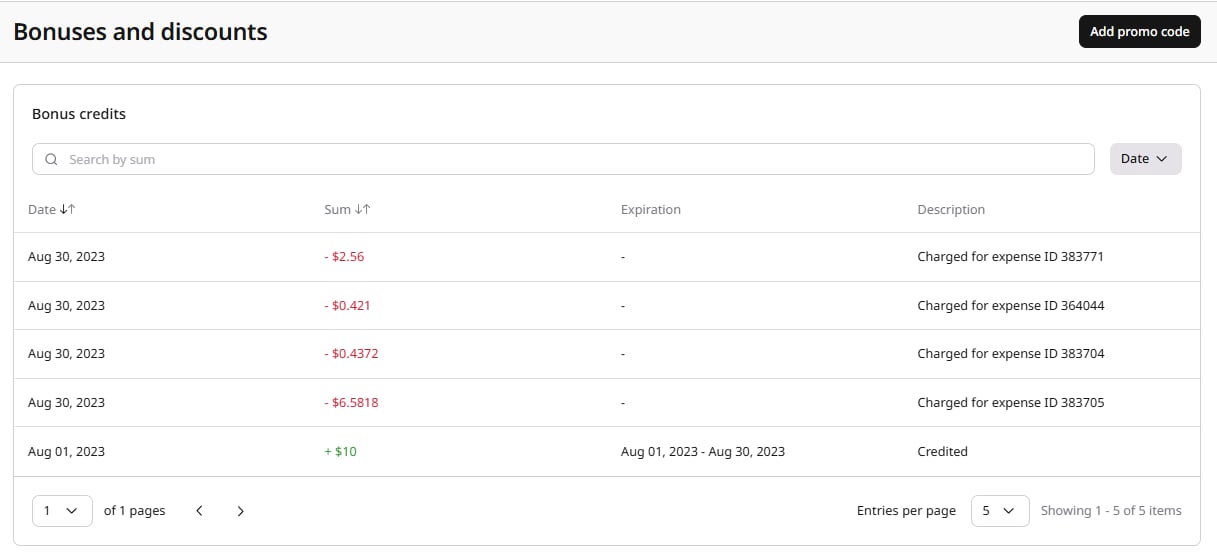
The Bonuses and discounts page displays your bonus credits and active discounts.
To open this page, navigate to the account settings in the top-right corner of the screen, click Billing, and then select Bonuses and discounts.
Bonus credits
Bonus credits are special points credited to your account for a particular period of time. You can use them to pay for Gcore products. Bonuses are credited to a special bonus account by the decision of the company’s management.
We convert bonuses at the following rate: 1 bonus = 1 unit of currency used in your account. For example, $10 bonuses will equal 10 US dollars.
The Bonus credits table displays the following information:
- Date: The date when bonus credits were credited or charged.
- Sum: The amount of bonus credits. Green values with ”+” indicate credited bonuses, red values with ”-” indicate charged bonuses.
- Expiration: The date range during which the bonus credits are valid.
- Description: The status of the bonus credits operation.
Bonus credits statuses
Your bonus credits can have the following statuses in the Description column:
- Credited: Bonus credits have been credited to your account.
- Charged for expense ID [number]: Bonuses have been debited from your balance for a specific expense.
- Expired: Bonuses are canceled because you haven’t used them before the expiration date.
You can search for specific bonus credits by sum using the search field, and filter by date using the Date dropdown.
Bonus applicability
Bonuses can be configured to apply to specific product categories, such as Cloud or CDN.
If a bonus is limited to certain categories, it will only be applied to expenses related to those products. Bonuses without category restrictions apply to all eligible expenses.
If a bonus has a start date in the past, it is automatically applied to any existing unpaid charges within that period.
Discounts
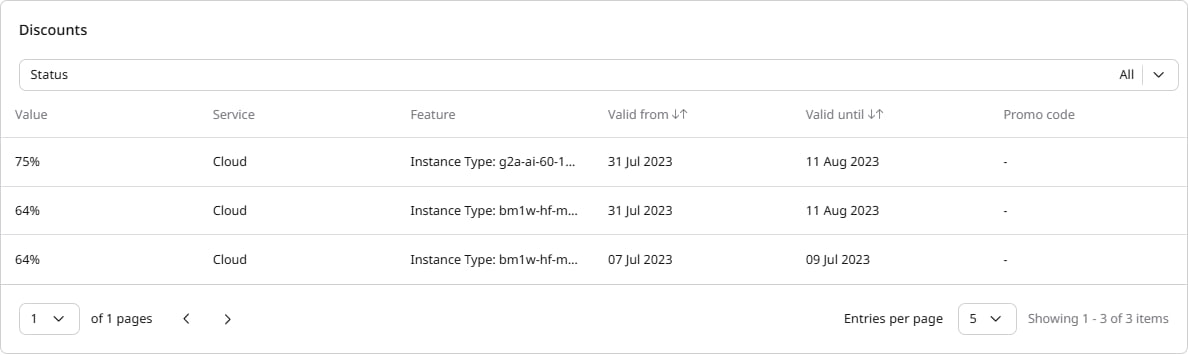
The Discounts section displays all active discounts applied to your account.
The table shows the following information:
- Value: The discount percentage applied to your expenses.
- Service: The Gcore service to which the discount applies (for example, Cloud).
- Feature: The specific feature or resource type the discount applies to.
- Valid from: The start date of the discount.
- Valid until: The end date of the discount.
- Promo code: The promo code associated with the discount, if applicable.
You can filter discounts by status using the Status dropdown.
To apply a promo code and receive bonus credits:
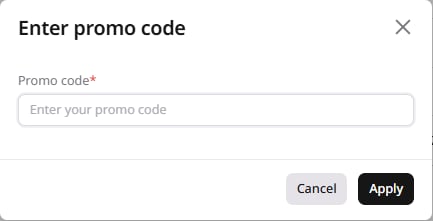
1. Click the Add promo code button in the top-right corner of the page.
2. In the Enter promo code dialog, enter your code and click Apply.
After successful activation, the bonus credits will appear in the Bonus credits table.
Bonuses debiting
Bonuses are debited automatically as part of the payment for products:
- Bonuses are applied to your expenses and reduce the total amount you need to pay.
- The applied bonus amount is reflected in your billing details and invoices.
WarningAs bonus credits reduce the taxable amount of expenses, the tax is also recalculated downward.
Bonuses in invoices
Bonuses are displayed in invoices as follows:
- Bonuses are applied to individual expense items.
- The applied amount is shown as a credit value in the invoice.
- The final invoice total is reduced accordingly.
This means you can clearly see how your bonus credits were used to offset your charges.