

Payments
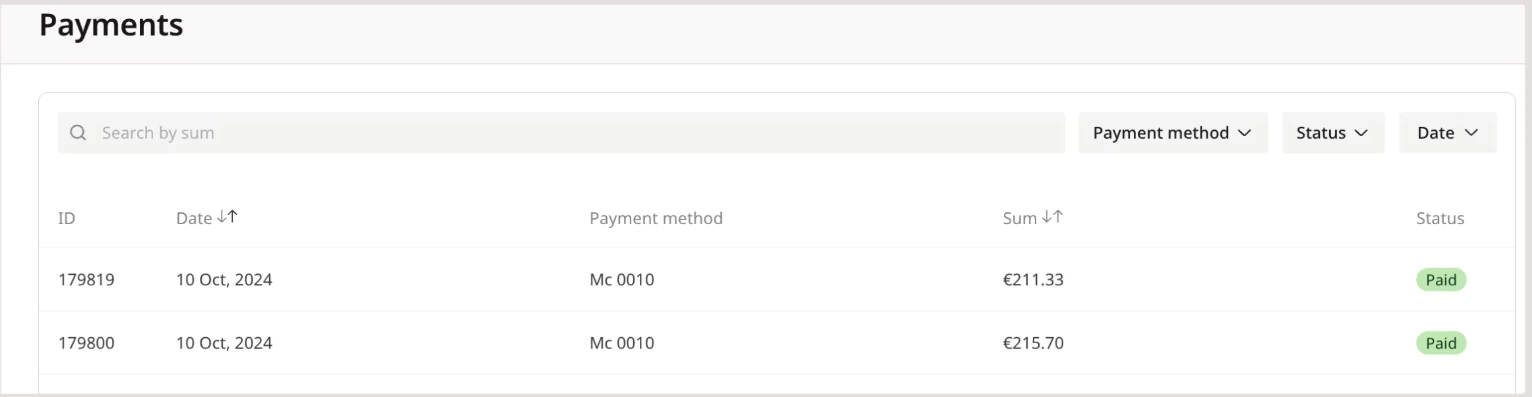
To view your payment history, click on the profile icon in the top-right corner, select Profile, and navigate to Billing > Payments. The Payments page shows payment operations that have been processed for your account. For each payment, you can check:- ID: The unique identifier for a transaction.
- Created: The date when the payment operation was created in the system.
- Paid: The date when the payment was successfully completed.
- Payment method: How the payment was made (Debit or credit card, PayPal, bank, Apple Pay, Google Pay, Alipay).
- Sum: The total paid amount.
- Status: The current processing state of the transaction. Check the Payment statuses section for details.
Payment statuses
The Status column displays the current state of your payment, which can be one of the following:- Paid: The payment was successfully completed.
- Unpaid: The payment failed.
- Cancelled: The payment was cancelled.
- Pending: The payment is being processed.
- Refunded: The payment has been refunded.
Filter payment data in the table
You can filter payment information by the payment method, date, or status. To do so, choose the necessary options from the relevant table dropdowns.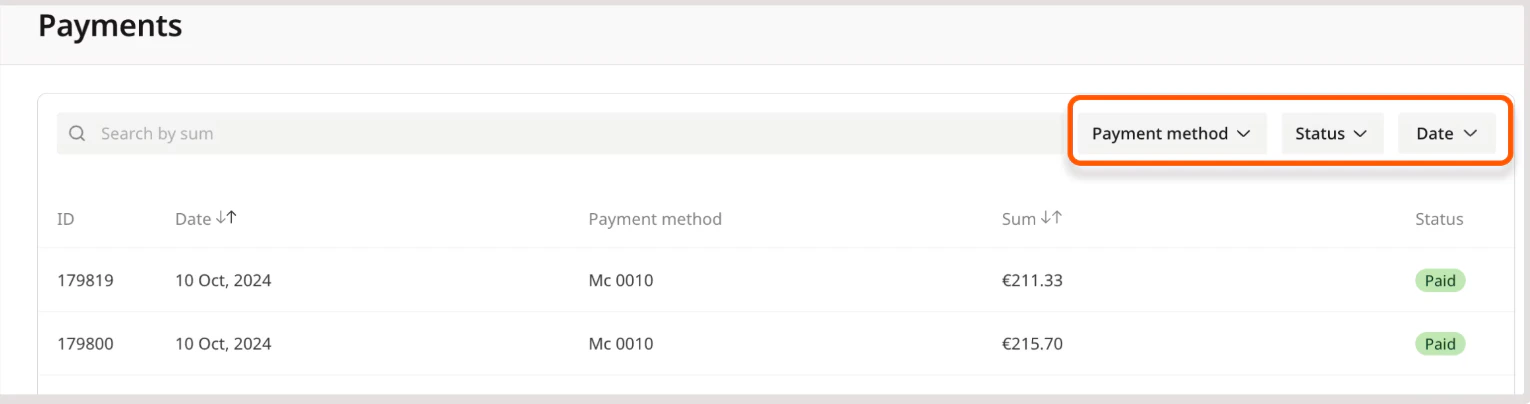
Payment methods
You can add new payment methods and update existing ones on the Payment methods page. To access it, click on the profile icon in the top-right corner, select Profile, and navigate to Account > Payment methods.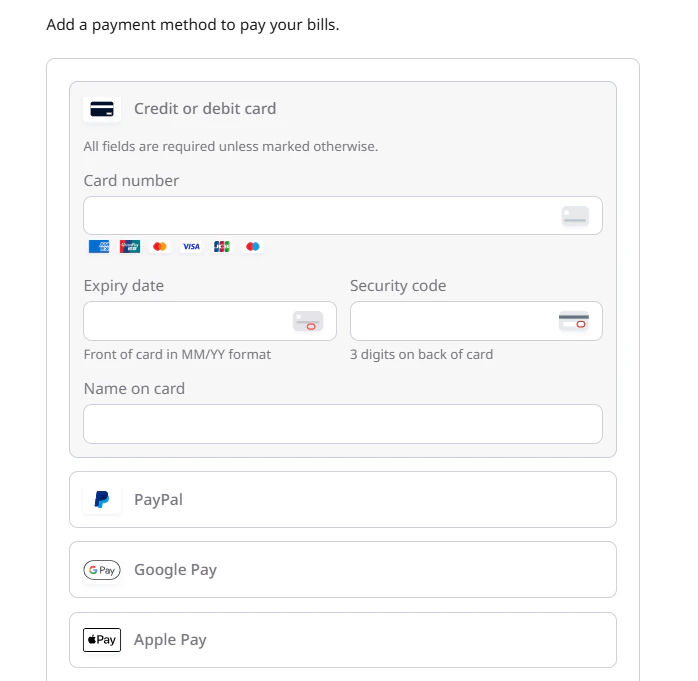
Add new payment method
- Click on the profile icon in the top-right corner, select Profile, and navigate to Account > Payment methods.
- Select the payment system you want to use (Credit or debit card, PayPal, Google Pay, or Apple Pay). The form will expand.
- Enter your payment information.
InfoThe payment method address is separate from your billing address. This means that any changes made on one page won’t impact the other.
- Click Confirm information to apply the changes.
Payment method verification
1 EUR/USD charge
When you add a payment card, we perform a verification charge of approximately 1 EUR/USD. This is not a fee. It is a temporary authorization hold to verify your card is valid.Refund
Refunds are processed automatically. In most cases, they are instant or completed within 24 hours, but it can take up to 3–7 business days depending on your bank.Multiple charges
Each attempt to add a card creates a separate hold. All holds are automatically refunded.Top-up
A manual top-up adds funds to the Gcore account balance and can be used to pay for Gcore services. Manual top-up can be completed using one of the available payment methods.NoteIn some cases, full payment information may be requested during a manual top-up.
- In the Gcore Customer Portal, click Top-up in the upper-right corner.
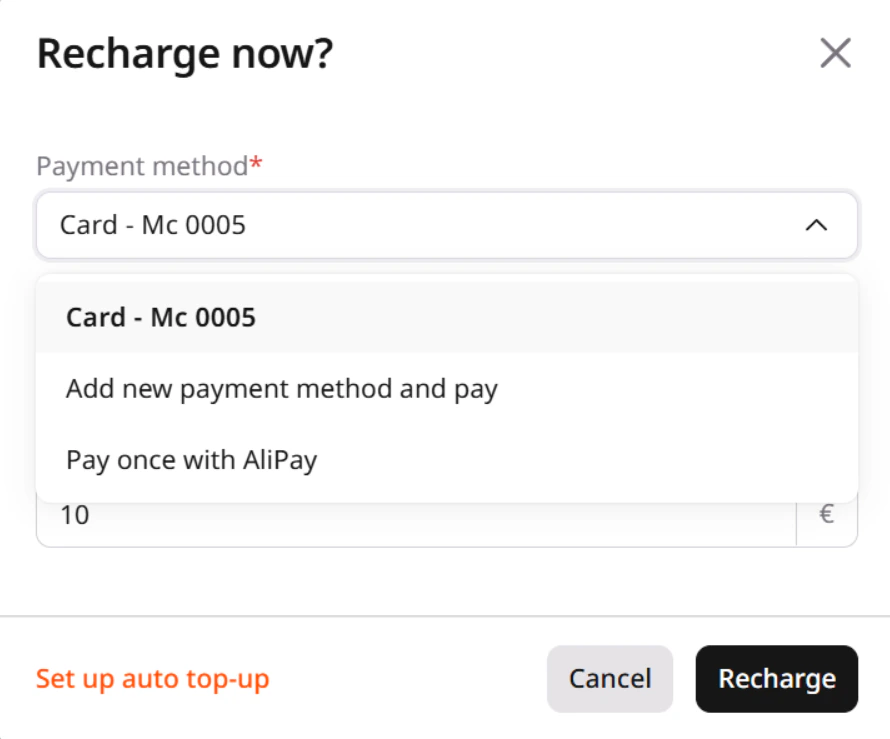
- In the Recharge now? window, open the Payment method list. If payment methods are already added, the list allows selecting the payment method for the manual top-up (for example, Card - Mc 0010, as shown below). Select Pay once with AliPay.
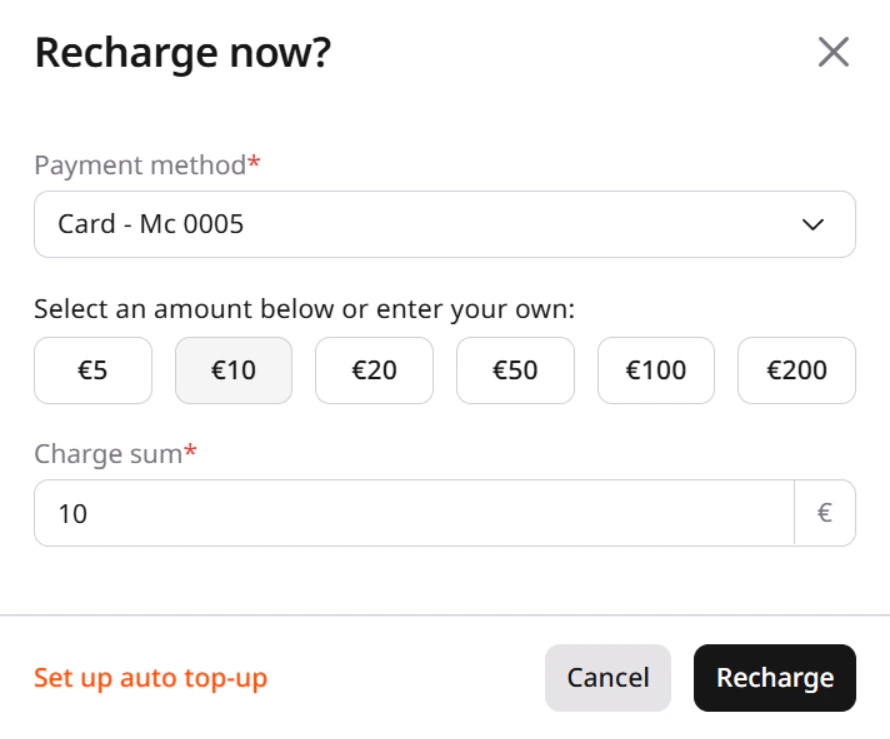
- Select a preset amount or enter a custom amount in the Charge sum field.
- Click Recharge and complete the payment.
Auto top-up
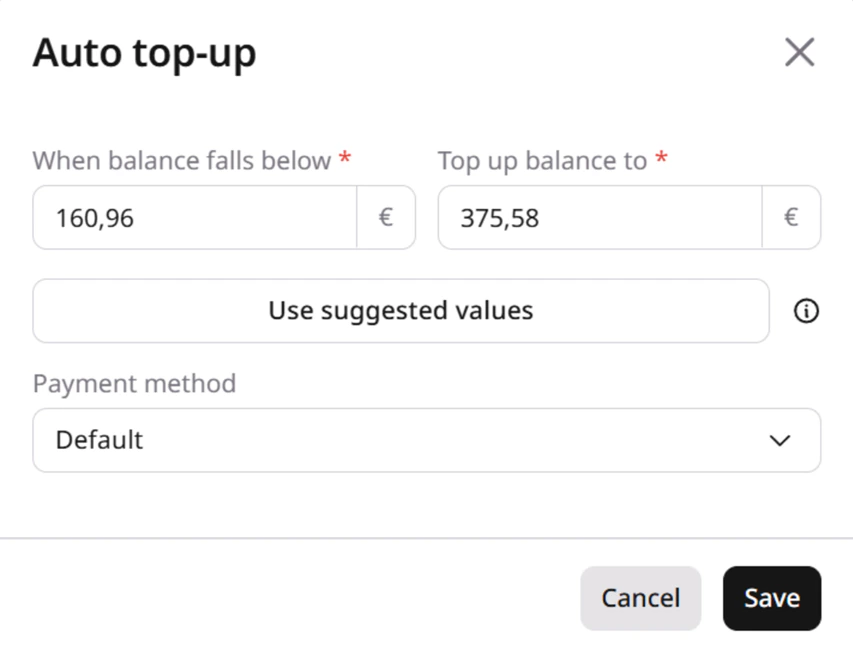
Auto top-up automatically replenishes your Gcore account balance when it falls below a specified amount. You can configure:- When balance falls below: This is the threshold amount. The balance value that triggers an automatic top-up.
- Top up balance to: This is the Target amount. The balance amount that should be reached after the top-up.
- Payment method: The payment method used for automatic charging.
InfoOnly active cards and digital wallet payment methods can be used for auto top-up. Bank payment methods are not supported.

Auto top-up statuses
The auto top-up configuration can have one of the following statuses:- Active: Auto top-up is enabled and working normally.
- Disabled: Auto top-up is configured but disabled.
- Suspended: Auto top-up was temporarily disabled because multiple payment attempts failed.
Suggested values
You can use automatically generated suggested values based on your recent account usage. The suggestions include:- Recommended threshold amount
- Recommended target amount
- Average daily spend
- Maximum daily spend during the analysis period
Set a default payment method
A default payment method is the primary payment option that is automatically selected for transactions unless you choose a different one. You can add multiple payment methods. The first method you add will be set as the default, but you can change it at any time. To do so, click the three-dot icon next to the preferred payment method and select Make default.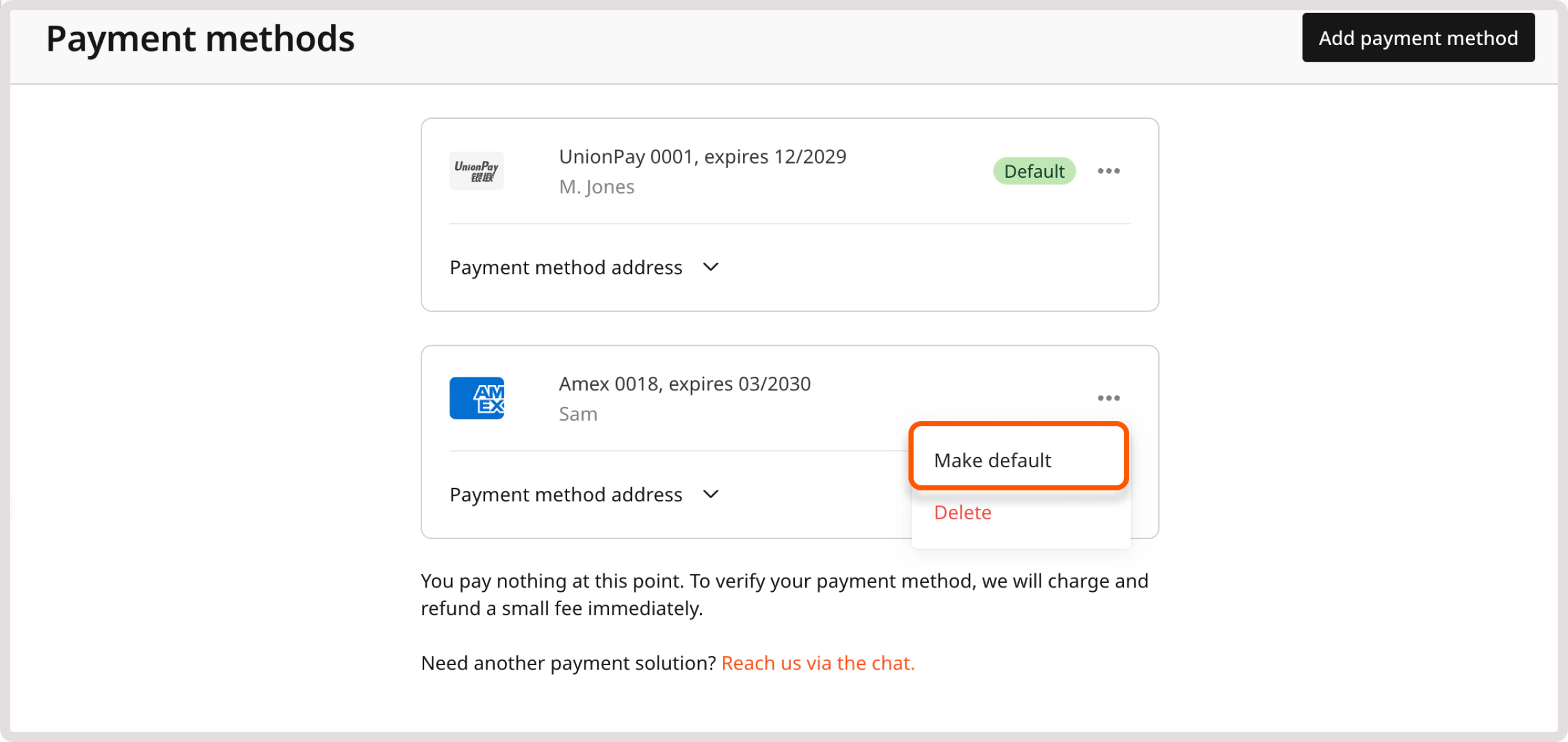
Delete payment method
If you have only one payment method in your account, you can’t delete it.- Click on the profile icon in the top-right corner, select Profile and navigate to Account > Payment methods.
- Find the card that you want to remove.
- Click the three-dot icon on the card and select Delete.
- Click Delete to verify your action.