

Overview
After your request is approved, configure your protected network by setting the GRE endpoint and selecting a protection profile.Instructions
1. Log in to the portal
- Access the Gcore Customer Portal.
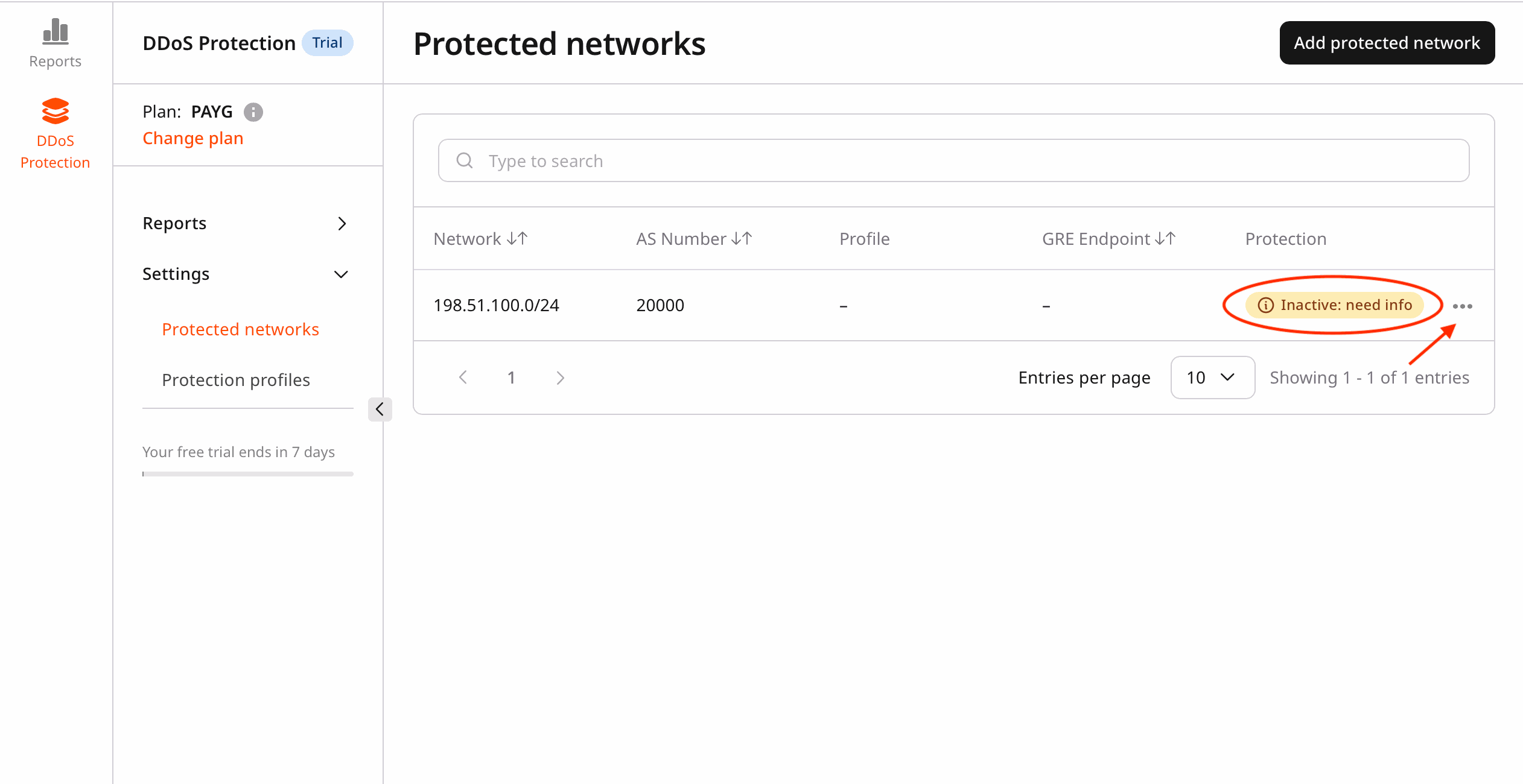
- Go to DDoS Protection > Protected networks.
2. Locate your approved network
- Find the network with the Inactive: need info status.
- Click the … (three dots) menu next to the network.
- Select Edit.
3. Configure network settings
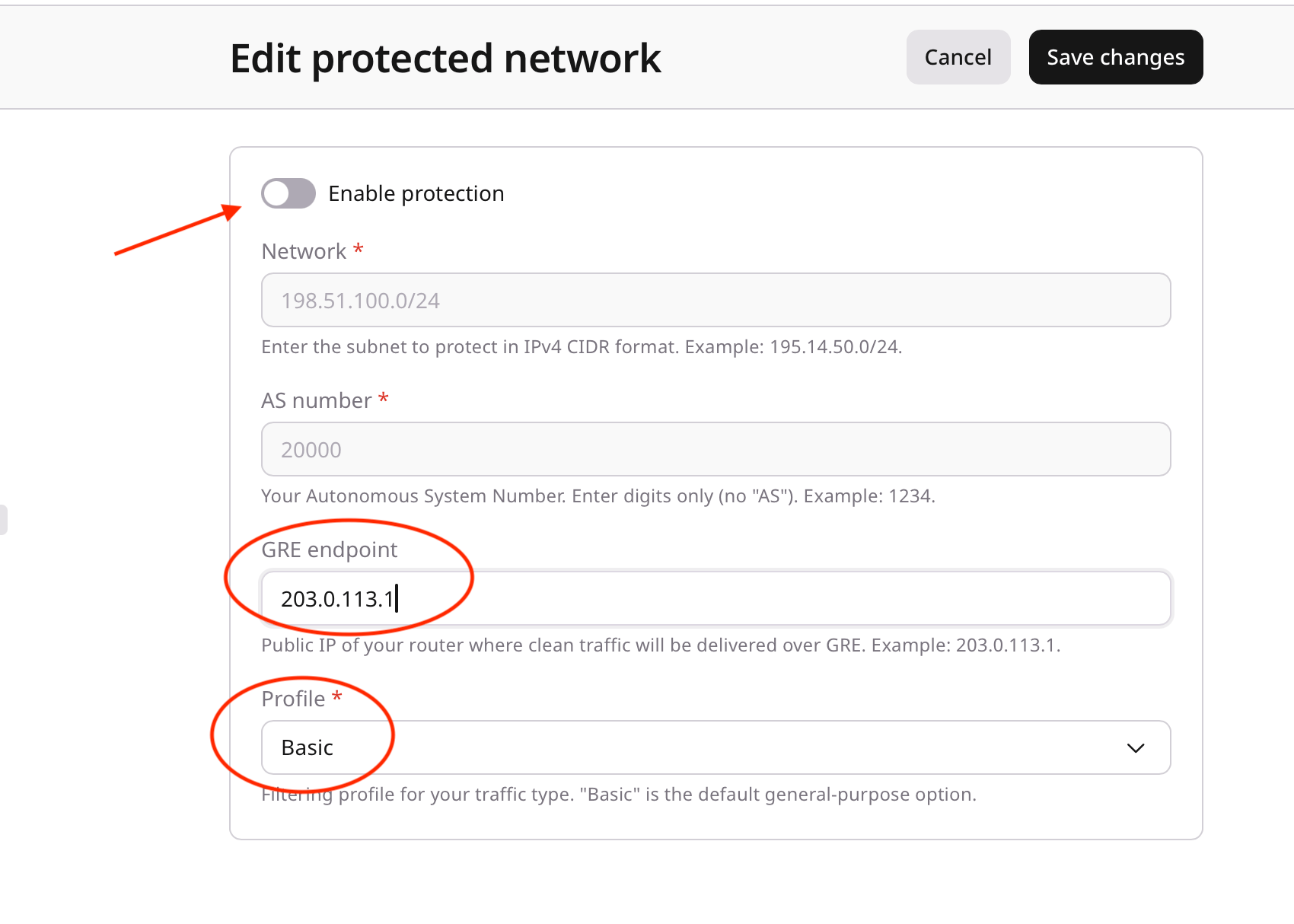
In the Edit protected network view, configure the following:- GRE endpoint
- Enter your GRE (generic routing encapsulation) endpoint IP address.
- This is the IP address where traffic will be tunneled.
- Example:
203.0.113.1
- Protection profile
- Select a protection profile from the dropdown list.
- Default option: only the Basic protection profile is available initially.
- You can create custom profiles later.
4. Save the configuration
- Review all settings.
- Click Save changes to apply the configuration.
Note
- The Basic profile provides standard DDoS protection.
- You can create and apply custom protection profiles later.
- Changes take effect immediately after saving.
Next steps
After completing the service activation setup, these are the next steps:- Monitor the network traffic.
- Create custom protection profiles (if needed).
- Adjust settings as required.