

Quick start: push a test live stream
Use PUSH when your encoder, broadcast software, app, or automation agent sends the live stream to Gcore. Use PULL when Gcore must connect to your public origin URL and fetch the stream from your server.push_url in the command below. It generates a test video pattern and a test audio tone, encodes them as H.264/AAC, and pushes the stream to Gcore:
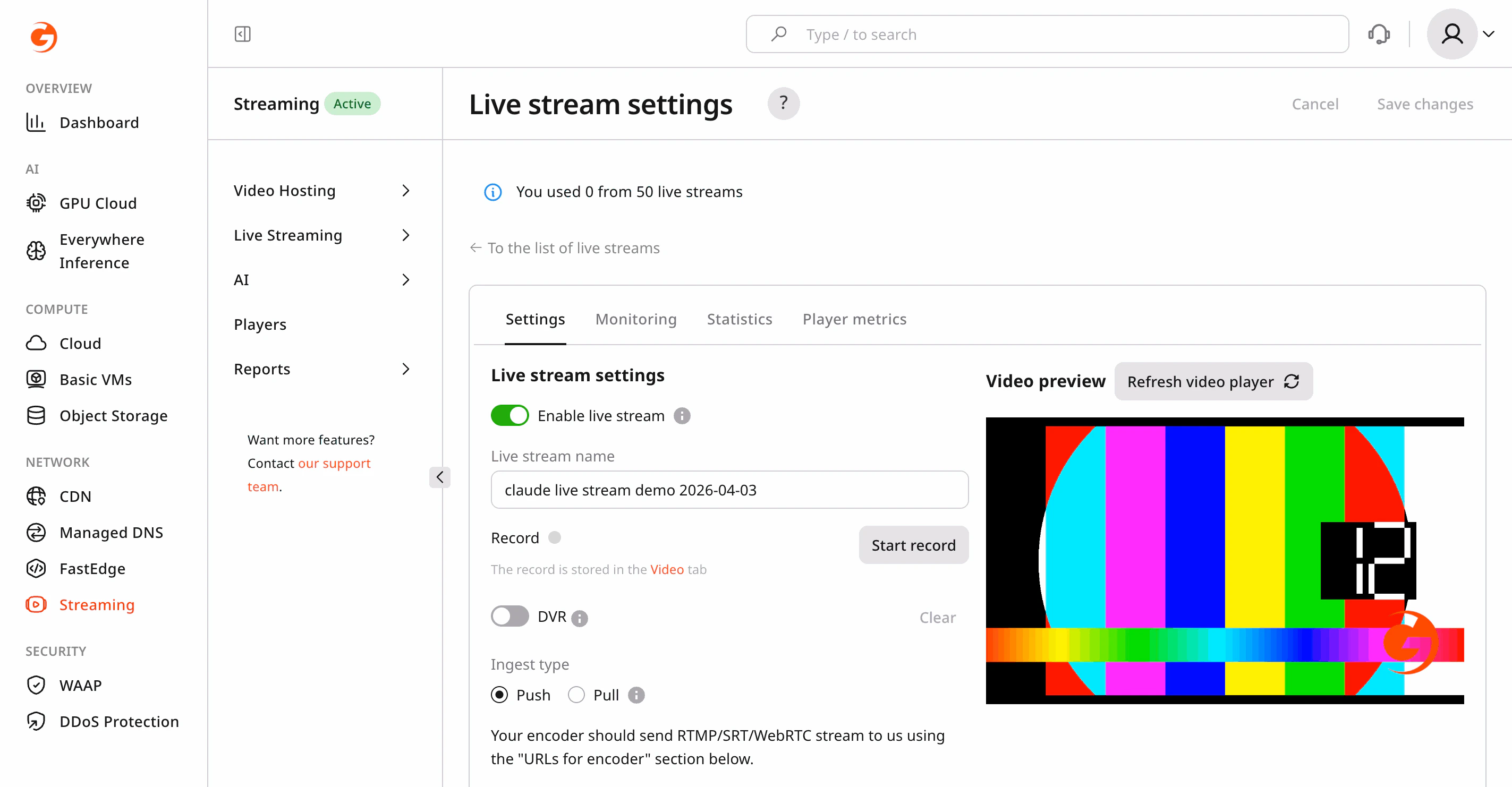
- Create a live stream with
pull: false, RTMP ingest, and a 720p H.264-compatible transcoding setup. - Read
push_urlandiframe_urlfrom the stream API response. - Start ffmpeg with the command above and replace the example RTMP URL with
push_url. - Wait for the stream to become active (up to 15 seconds) and for playback initialization to finish.
- Return
iframe_urlto the user as the HTML player link.
PUSH Ingest
Live Ingesting
Live ingesting is the process of sending a live video and audio stream from your source (encoder, camera, or app) into the Streaming Platform. The ingest point is the server endpoint that first receives the stream before it is processed (transcoded, packaged, or distributed via CDN). In PUSH mode, your encoder initiates the connection to the platform ingest server. You configure the encoder with a target URL and stream key, and the server listens for that incoming connection. https://gcore.com/docs/api-reference/streaming/streams/reset-live-stream-push-token The push token is the secret part of the ingest URL. It authenticates the stream source for RTMP/RTMPS, SRT, and WebRTC WHIP ingest. Only one push token exists for a stream at a time, and the token must be protected like any other credential. Anyone with a valid push URL can try to publish to that stream. Protocols supported for PUSH ingest typically include:- RTMP/RTMPS — Widely supported in encoders and streaming software.
- SRT — Secure and reliable, recommended for contribution over the Internet.
- WebRTC WHIP — Low-latency contribution from browsers or apps.
Only one ingest protocol type can be used for a live stream at a time. For example, if you start pushing RTMP and then try to push WebRTC WHIP simultaneously, the transcoding process will fail.Example of server response after sending a second stream:
- Select one protocol (RTMP, SRT, or WebRTC WHIP).
- Configure your encoder with the server ingest URL and your unique stream key or token.
- Ensure network/firewall allows outbound TCP (for RTMP/RTMPS) and UDP (for SRT, WebRTC).
The origin stream provided by your encoder must strictly comply with the input parameters and codec requirements described in the Input Parameters and Codecs documentation.Only streams that follow these specifications (supported protocols, video/audio codecs, profiles, GOP structure, and bitrate constraints) can be accepted by the ingest servers and reliably transcoded for further distribution. Any deviation from the documented requirements may cause the connection to be rejected or lead to unstable transcoding and delivery.
PUSH Link Formats
PUSH ingest URLs are returned in the stream object and are also available in the control panel. Use the exact URL for the protocol selected in the stream settings:| Protocol | Field | Format |
|---|---|---|
| RTMP/RTMPS | push_url, backup_push_url | rtmp://rtmp.domain.com/in/{stream_id}?{push_token} |
| SRT | push_url_srt, backup_push_url_srt | srt://srt.domain.com:5001?streamid={stream_id}#{push_token} |
| WebRTC WHIP | push_url_whip | https://whip.domain.com/{stream_id}_{push_token}/whip |
Reset the PUSH Token
Reset the push token if it was exposed, shared with the wrong encoder, or needs to be rotated by your security process. After a reset:- The old token is immediately invalidated.
- The new token is returned by the API and becomes available in the control panel.
- Encoders that still use the old URL will be rejected.
- The platform tries to terminate active primary and backup ingest connections automatically.
Token reset affects active broadcasting. Plan token rotation during a maintenance window or be ready to restart the encoder with the new ingest URL.
Failover with Primary and Backup Ingest Points for PUSH
In most cases 1 primary point is used for broadcasting. Multiple points are needed for large broadcasts with multiple backups. Streaming Platform offers a special failover mechanism for RTMP and SRT origin streams. You can push primary and backup origin streams simultaneously to organize a backup plan. Use for RTMP/S:push_url– as primarybackup_push_url- as backup
push_url_srt– as primarybackup_push_url_srt– as backup
- Primary stream active. Primary is always takes priority over the backup stream.
- When the primary stream fails and is unavailable for more than ±3 seconds, then fallback process begins (the backup stream must be available and online):
- New transcoding started for the backup stream
- End-viewers will be without stream data for ±15 seconds
- When the primary stream is restored, a timer starts counting the time the primary stream has been active. Primary must be available for at least 60 consecutive seconds before a transition to the primary begins:
- New transcoding started for the primary stream
- End-viewers will be without stream data for ±15 seconds
Geo Distributed Ingest Points for PUSH
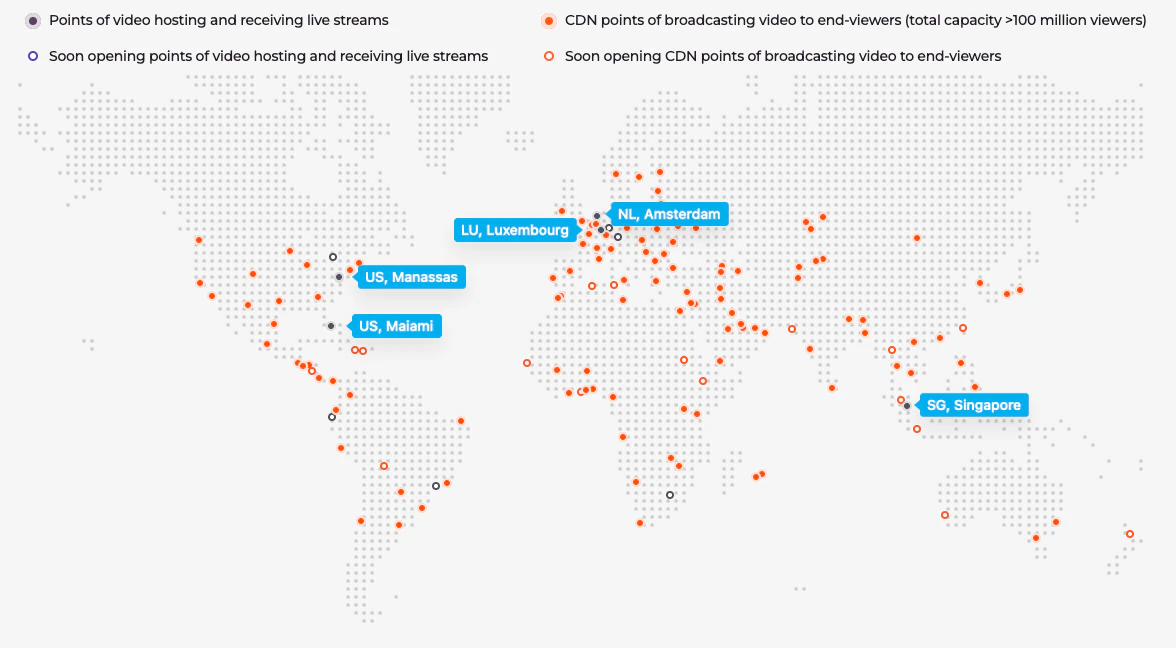
By default, all ingests are connected to one of the data centers in Europe, regardless of the location of your encoder. Enterprise customers only have the option to select an alternative ingest point in other regions. Here are the additional locations you can connect:- Europe Luxembourg, The Netherlands
- US Ashburn, Miami
- Singapore (location under development)
PUSH Ingest Limits
Pay attention to rules of ingest server behavior because of security reason:- After a connection is established with a valid stream key, the server registers it as active. While this session remains active, any subsequent connection attempts using the same stream key will be rejected. Ingest protocol does not provide error codes for this case, so rejections occur silently. To verify whether a stream is currently active, use UI or API.
- The server also enforces a connection rate limit. If too many connection attempts are made in a short period, new attempts will be denied. To avoid triggering the limiter, allow at least 10 seconds between connection attempts.
1 connection and 1 protocol can be used at a single moment in time per unique stream key input. Trying to send 2+ connection requests at once, or 2+ protocols at once will not lead to a result.For example, if you start pushing primary RTMP and backup RTMP to the same single
push_url simultaneously, the transcoding process will fail.PULL
Failover with Multiple Source URIs for PULL
“PULL URL” field can contain 1 link, or many at once. In most cases 1 point is used. Multiple points are needed for large broadcasts with multiple backups. You can specify multiple addresses separated by a space (” ”), so you can organize a extra-backup plan. Example #1:- Stream #1 is active
- If stream #1 is unavailable and is missing for more than ±3 seconds, then the next stream #2 is taken from the “PULL URI” and transition to the next backup source begins:
- A new transcoding for the backup stream is started.
- End viewers will be without stream data for ±15 seconds.
- If this stream #2 is also interrupted, the above algorithm will be repeated for the next backup stream. In this case, the specified addresses will be selected one by one using round robin algorithm. If the first address does not respond, then the next one in the list will be automatically requested, returning to the first and so on in a circle. No worries, if only 1 link is specified in “PULL URI”, then the system will request that link.
- The system will try to pull the origin stream for 2 hours approximately, making requests approximatelly every 3 seconds.
- If one of the links works, the timer is reset to zero, transcoding begins.
- Otherwise the stream stops permanently. To resume it, you will have to activate it manually or via API.
Geo Distributed Points for PULL
By setting location correctly, you can minimize latency and improve performance. Reach out to our support team or your account manager for setup assistance.Stream availability
A live stream typically requires a short initialization period before playback becomes available. Our system initializes all required services within ~2–5 seconds, from receiving a live stream at the ingester to publishing segments on the CDN.Stream segments become available in the CDN (and player) within ~2–5 seconds after the
type: stream (live=true) webhook is issued.- Accept and check the stream on the ingester
- Initialize the stream
- Send a webhook
- Start the transcoding process
- Publish the first segment to the CDN
- Playback available – here your player can start downloading video segments

Players behavior
Please note that the manifesto and fragments will be available again at the time indicated above. Consider your player configuration for automatic playback of restored live stream. Some players resume playback with a large delay automatically. But if you update them manually, the video will appear instantly. Use built-in retry knobs and an error handler that re-loads the manifest when it comes back. For example:Backup playback demo
Watch the demo video below of how switching from primary to backup works using PUSH connection example in a real situation. On the encoder side, 2 streams are organized: “Stream 1 Primary” and “Stream 2 Backup”. They are both launched by ffmpeg command. And another terminal with a constant curl of the .mpd manifest status in the CDN: 200 is present or 404 is absent. The screen displays:- Player in UI of personal account, with the ability to manually refresh the player.
- Second player with the same stream, but with fully automatic recovery. Our player has automatic reconnection logic, but this logic specifically uses a delayed connection check algorithm to reduce the load on the server. You will see that the automatic connection is triggered a little later than the manual one.
- 13:52:16 UTC – Stream 1 Primary started
- 13:52:19 UTC – Stream 1 Primary displayed
- 13:52:27 UTC – Stream 2 Backup started
- 13:52:50 UTC – Stream 1 Primary stopped
- 13:52:53 UTC – Stream 2 Primary enabling
- 13:53:02 UTC – Stream 2 Backup displayed (12 seconds without playback)
- 13:53:10 UTC – Stream 1 Primary started
- 13:54:20 UTC – Stream 1 Primary enabling
- 13:54:31 UTC – Stream 1 Primary displayed (11 seconds without playback)
Players in automatic mode may take longer time to restore playback. See the section above on how to work with players.After switching from backup to primary the Gcore Video Player decided to use 4 sec latency. Don’t worry, it will catch up with the live feed pretty quickly later.