What is the record feature
Record is a feature that allows you to record your live streams and store them in the Streaming storage. You can automatically record entire streams or manually record only desired fragments.
Recording and live transcoding are separate, independent workflows. Recording saves the incoming stream for later processing and export, while the live transcoder builds the live playback session from the source metadata read once when the encoder connects.
How to record a live stream
How to record your live stream via the customer portal
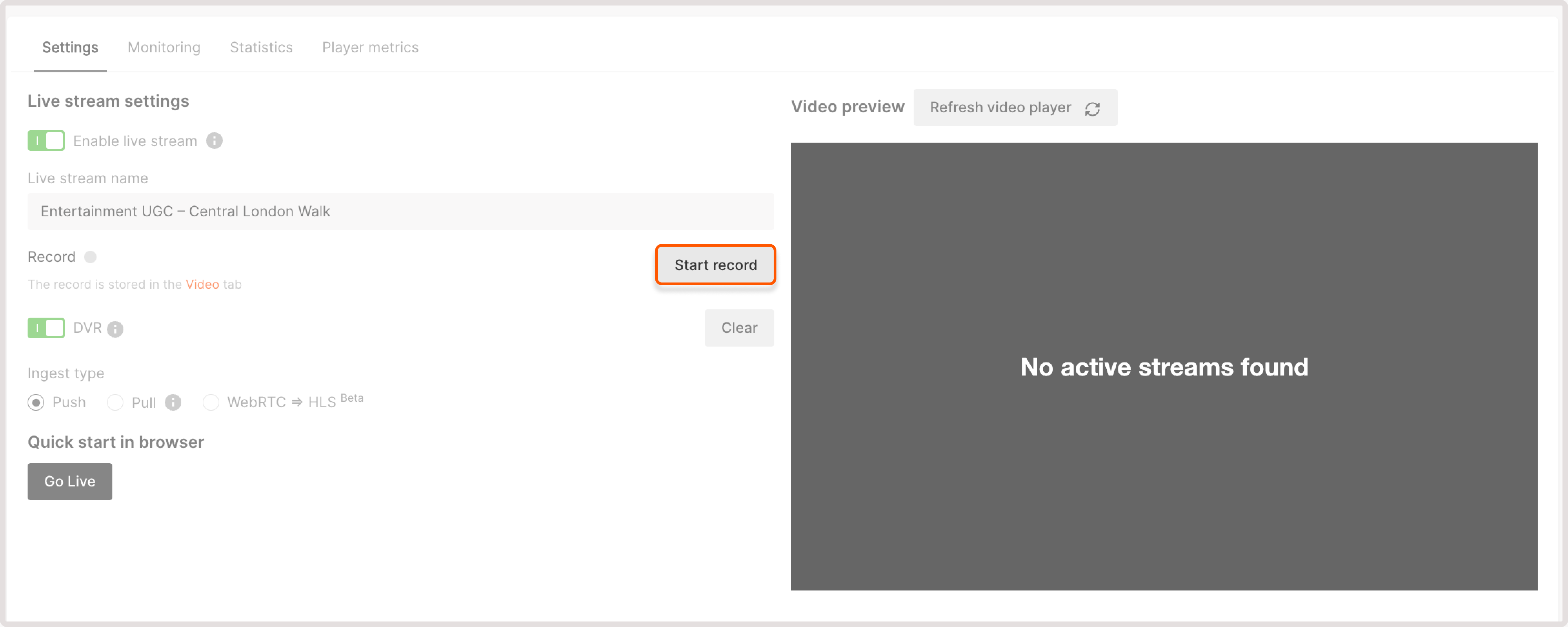
To record a live stream manually:
1. Start a live stream in your encoder.
2. Open the settings of the desired live stream in the Gcore Customer Portal.
3. Press the Start record button.
After 5–10 seconds, the recording will start. You will see the timer and the Stop record button.
In cases of accidentally interrupting the live stream (bad internet connection, broken cable, etc.), recording will be continued when the live stream resumes. The recording will be saved as one video if the interruption is less than one minute. The recording will be divided into several videos if the interruptions are more than one minute.
4. If you want to record not the whole live stream, but a certain fragment of it, press the Stop record button at the desired moment. The fragment will be saved. Please note: it must be 10 seconds or longer.
If you want to record the whole live stream, don’t press the Stop button. The recording will stop automatically. Please note: recordings longer than 4 hours will be divided into fragments of 4 hours each—this is the optimal fragment size for video processing.
After stopping and processing, the recording will be saved in the Streaming Storage.
How to record your live stream via API
When creating or editing the stream via API, to enable auto recording, change the parameter in the API request in the following way:
The recording will be saved in the Streaming Storage.
Details about additional recording options are available in the following guides:
Where the records are kept
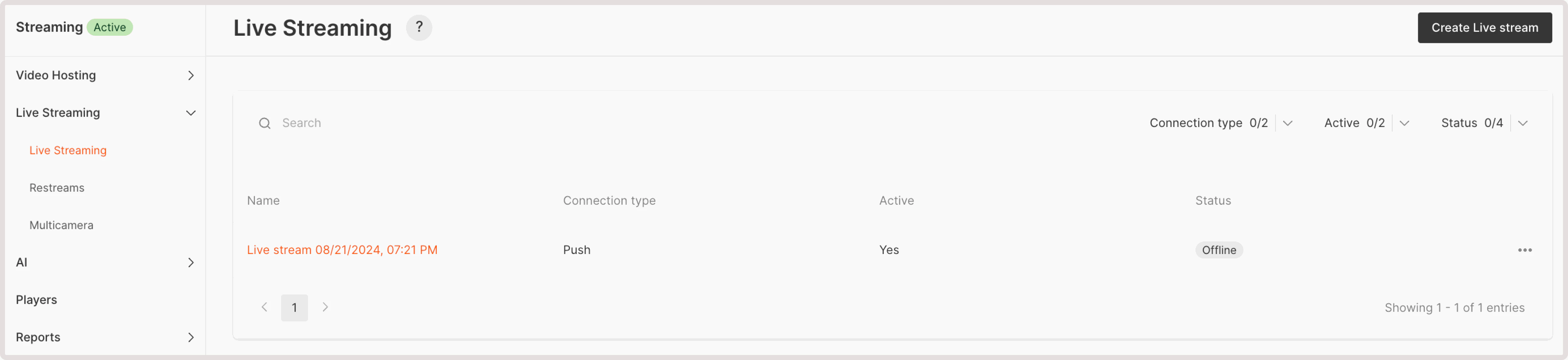
After you record a stream, the recording is saved on the Live Streaming page. To view the recorded stream:
1. In the Gcore Customer Portal, navigate to Streaming > Live Streaming.
2. Click the stream name to open its settings.
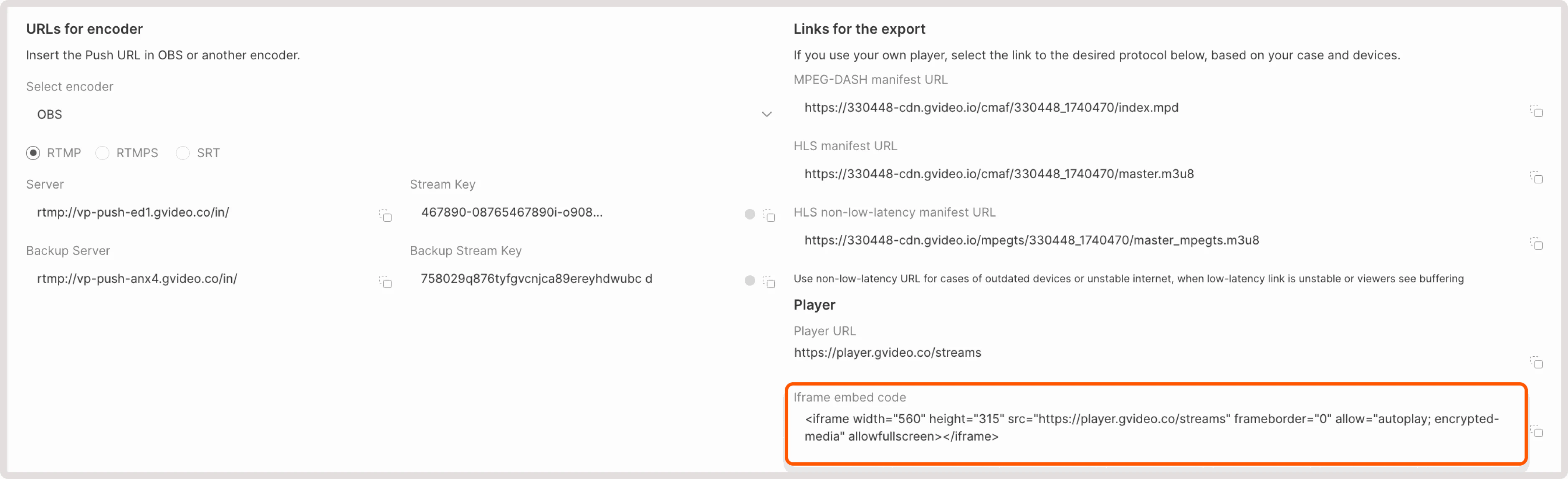
3. Navigate to the Links for the export section. Here you can copy the iFrame code to embed the recording on your website and download the recording of the quality you want.
Record original stream
Original recording saves the raw incoming stream (RTMP, SRT, or other protocol) without transcoding. The file preserves the original quality, framerate, codecs, and all source parameters exactly as sent by your encoder.
Original recording is a premium feature. Contact your account manager or Gcore support to enable it for your account. Benefits
| Benefit | Description |
|---|
| Fast availability | Original file is available for download approximately 30 seconds after the stream ends. No transcoding wait time. |
| Original quality | Preserves source bitrate, resolution, framerate, and codec settings without re-encoding. |
| Quick turnaround | Ideal for video editors who need raw footage immediately after broadcast. |
How to enable
Original recording is configured via API when creating or updating a stream. Set the record_type parameter:
{
  "name": "My live stream",
  "record_type": "origin"
}
| Value | Description |
|---|
origin | Records the raw RTMP/SRT source without transcoding. |
transcoded | Records the processed stream with overlays (default). |
Where to find original recordings
After recording completes, the original file URL is available in the origin_url field of the video entity. Retrieve it via the Streaming API:
{
  "id": 12345,
  "name": "Stream Record: My live stream",
  "origin_url": "https://storage.gcore.com/original/12345.mp4"
}
Storage limits
Original recordings are stored for 7 days only. After 7 days, the original file is automatically deleted.Transcoded renditions are not affected and remain available indefinitely.
How recording interacts with live transcoding
Because of this, a saved recording may still look correct even if the live stream session started with degraded source FPS or unstable source timestamps.
Recording also preserves technical changes that happen later inside the incoming live stream. If the source stream changes pixel format, color range, codec parameters, or similar properties during the broadcast, the recording may still be saved, but later VOD processing of that recording can fail because the recorded file now contains inconsistent source parameters.
Simplified MP4 timeline:

time ------------------------------------------------------------------------------>

| MP4 headers + metadata | stable video samples | parameter change | later samples |
| ftyp | moov            | mdat: yuv420p        | yuv420p->yuvj420p| mdat: changed |

                        OK for decoder/transcoder
                                              ^
                                              |
                         from this point, later video data may decode incorrectly,
                         show artifacts, fail validation, or stop transcoding
ftyp and moov, while the encoded video/audio payload is stored in mdat.
Inside moov, MP4 stores the track description and sample tables that tell downstream tools how to interpret the later samples. In practice this includes boxes such as trak, mdia, stbl, stsd, and timing/index tables like stts, ctts, stss, stsc, stsz, and stco/co64.
If the live source changes parameters in the middle of the recording, the later samples inside mdat may no longer match the stream description assumed at the beginning of the file, or may require a mid-file sample-description change that the workflow does not support. Starting from that change point, decoders and transcoders may see corrupted frames, reject the file, or fail during later processing.
If this has already happened in a saved recording, in many cases there may be no complete corrective action available afterward. If the recording is business-critical, contact the Support Team as soon as possible while source-side artifacts or temporary raw data may still be available for investigation. In some cases, our engineers may be able to recover part of the file or prepare a trimmed/restored version, but this is always best-effort work and cannot be guaranteed.
LIVE ENCODER
  first part of stream: stable parameters
  example: yuv420p
            |
            +----------------------> LIVE TRANSCODER
            |                         uses live session rules
            |
            +----------------------> RECORDING WORKFLOW
                                      stores source as received

... later during the same broadcast ...

LIVE ENCODER
  source parameters change mid-stream
  example: yuv420p -> yuvj420p
            |
            +----------------------> LIVE TRANSCODER
            |                         may continue, degrade, or fail
            |                         depending on the type of change
            |
            +----------------------> RECORDING WORKFLOW
                                      stores the changed segment too

RECORDED FILE RESULT
  beginning: yuv420p
  ending:    yuvj420p
            |
            v
LATER VOD PROCESSING / EXPORT OF RECORDING
  sees mixed source parameters inside one file
  may fail, enter Error status, or require trimming
  of the broken segment before reprocessing