

Inference instance count quota ≥ 2.
Deploy a model with Open WebUI enabled
- In the Gcore Customer Portal, navigate to Everywhere Inference > Deployments.
- Click Deploy application from catalog.
- Under Deployment Configuration, select an application from the catalog. The steps below use meta-llama/Llama-3.2-1B-Instruct.
- Under Routing placement, select a region.
-
Under Application modules, check the Open WebUI checkbox.
Open WebUI adds a CPU pod to the deployment. The default flavor is 4 vCPU / 16 GiB RAM.
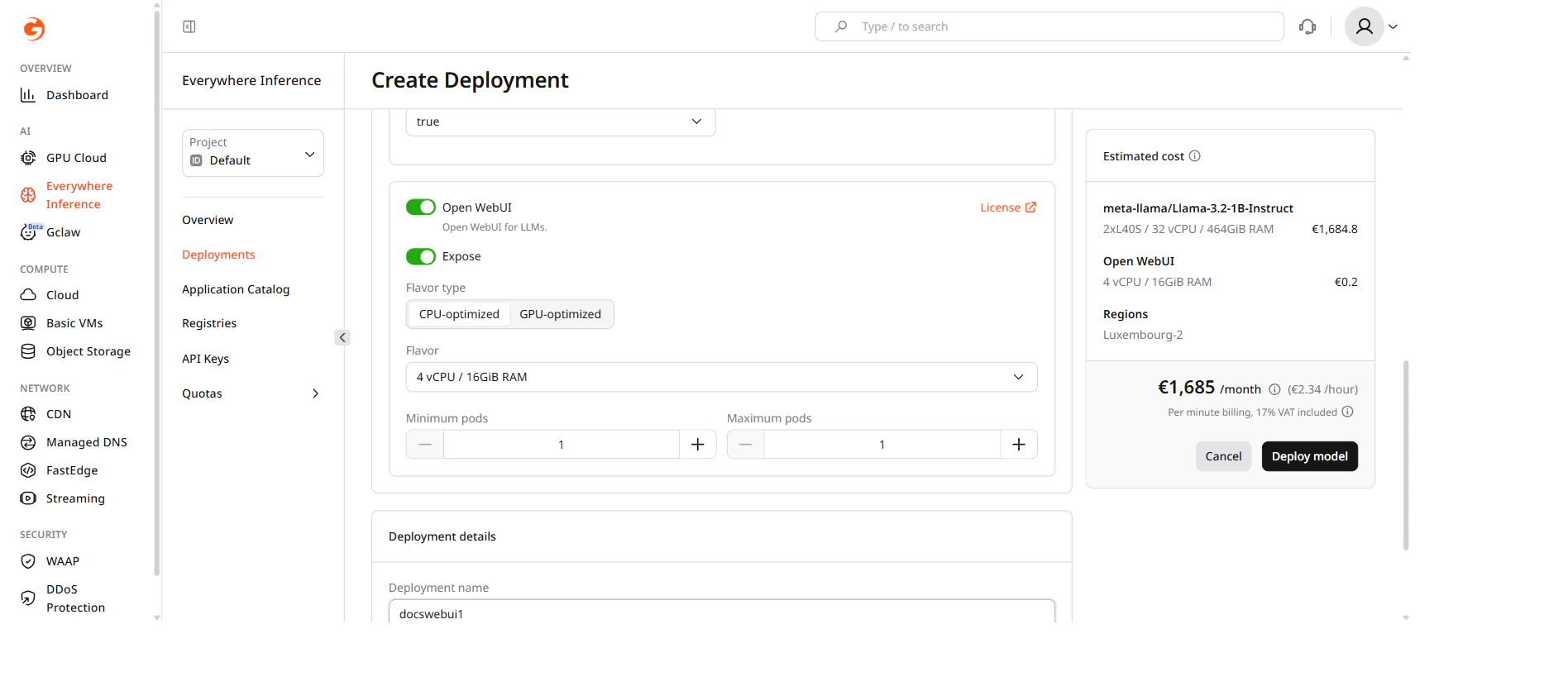
-
Under Deployment details, enter a name for the deployment.
Deployment names must be alphanumeric. Hyphens are not allowed.
- Click Deploy model.
Open WebUI URL
Once the deployment is Active, navigate to Everywhere Inference > Deployments and click the deployment name. On the Overview tab, the Endpoints section shows two URLs:model-<name>-...ai.gcore.dev— the OpenAI-compatible inference endpoint.ui-<name>-...ai.gcore.dev— the Open WebUI interface.
ui- URL and open it in a browser.
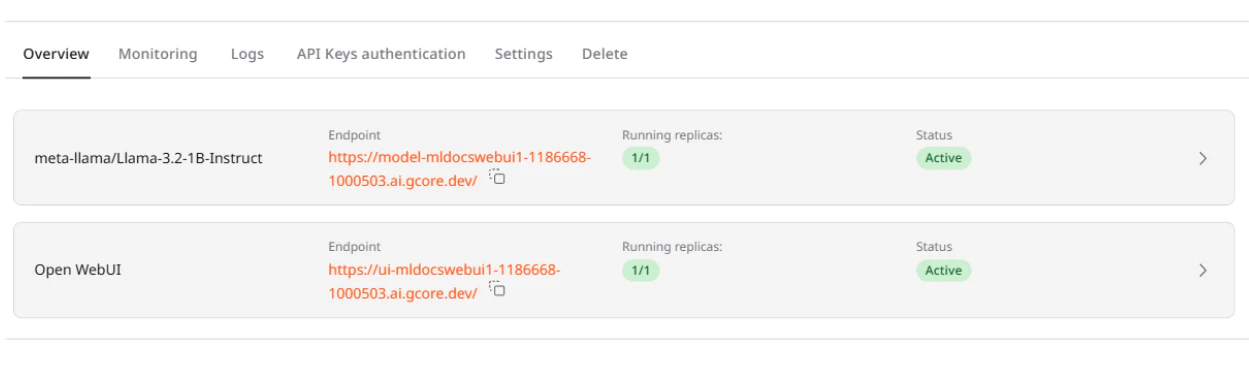
Create an admin account
On first access, Open WebUI displays a sign-up form. The first registered user automatically becomes the administrator.- On the sign-in page, enter an email and a password.
- Submit the form. Open WebUI creates the account and logs in immediately.
The admin account is local to this Open WebUI instance and is not linked to the Gcore account.
Start a conversation
After signing in, Open WebUI opens the main chat interface with the deployed model pre-selected.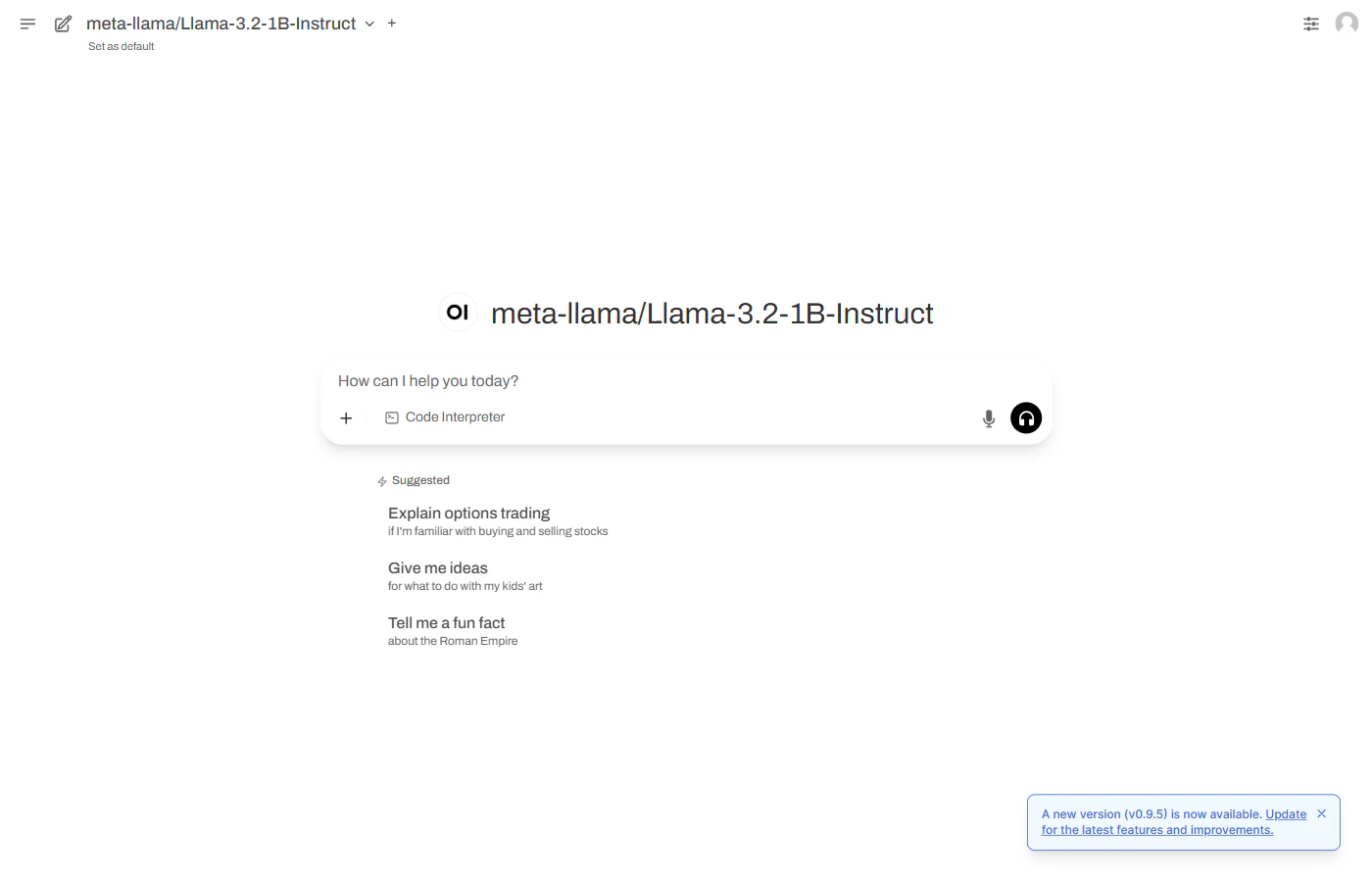
model- endpoint accepts OpenAI-compatible API requests via curl, Python, or JavaScript. To restrict access, enable API Key authentication on the deployment Settings tab.